
You’ve likely seen the “Page Not Found” error before.
Unfortunately, if you operate a website of any sort (WordPress or not), the day will probably come when you see the message on one of your own pages.
Fortunately, like many common WordPress errors, 404s are relatively easy to troubleshoot and fix. The solution usually involves restoring your site’s permalink structure, which you can do in just a few minutes.
The short answer: most WordPress 404 errors are fixed by resetting your permalinks. Head to Settings > Permalinks in your dashboard and click Save Changes — you don’t need to edit anything. If the error persists, restoring the default .htaccess file or deactivating a misbehaving plugin or theme resolves nearly every remaining case.
In this article, we’ll explain just what a 404 error is and what can cause one on your site. Then, we’ll walk you through how to fix it in four simple steps.
Let’s get started!
What is the WordPress 404 not found error?
A 404 error, also known as a “Page Not Found” error, is the HTTP status code a server returns when it can’t find the page you requested. On WordPress sites, a 404 usually stems from broken permalink rewrite rules or a corrupted .htaccess file rather than content that’s genuinely missing.
The exact message can look a bit different depending on the browser you’re using, but it will generally always contain either the “404” code or a “page not found” message of some kind.
Website owners can also create their own custom 404 Not Found pages. For example, here’s what our (very cool, we might add) 404 page looks like:
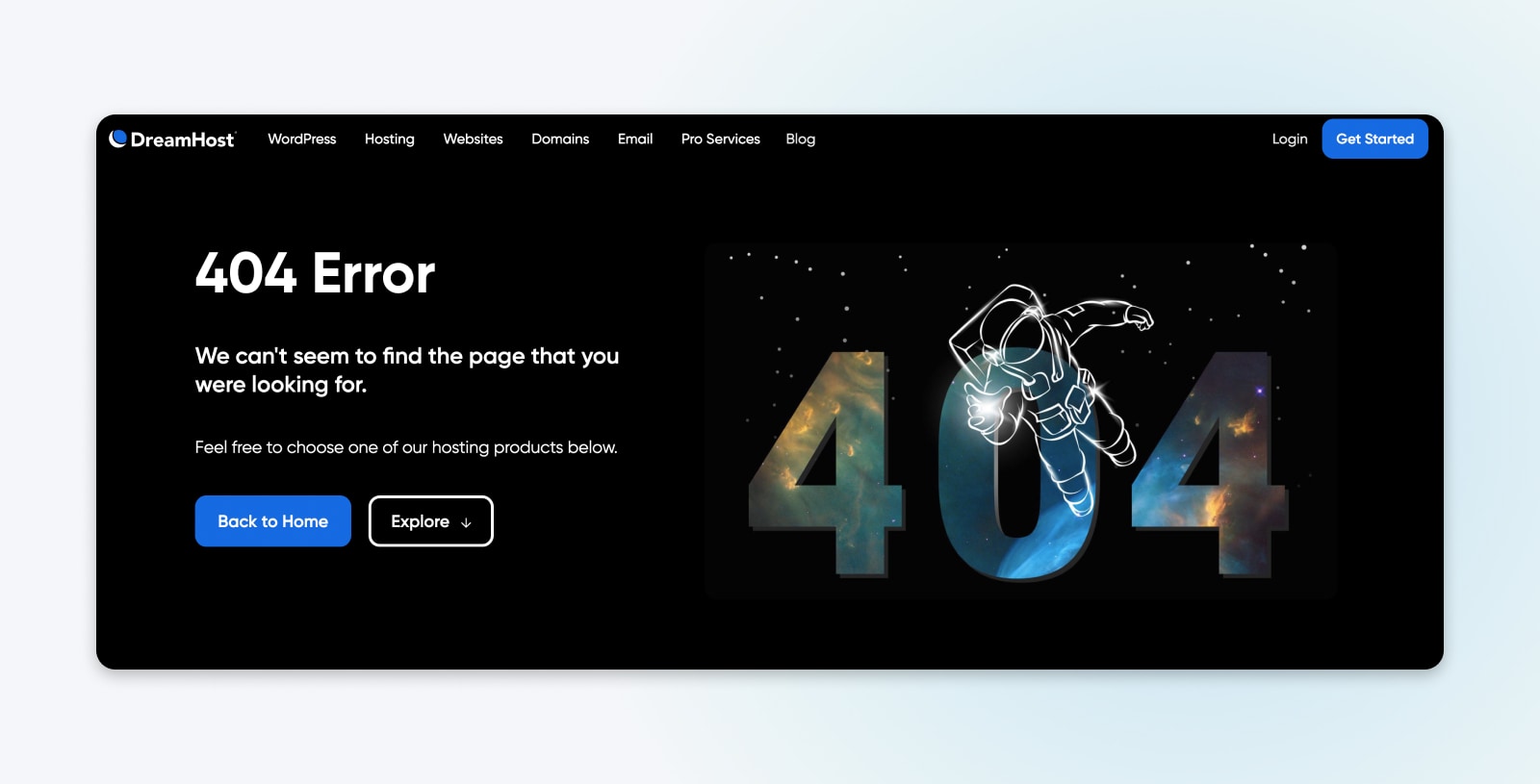
Seeing this notification (or any other error message) when trying to access your site can be frustrating. While there is a chance that your post has actually gone missing, the vast majority of the time, there’s a more benign cause.
Some common reasons WordPress posts might return 404 errors include:
- A mistyped URL — It could simply be attributed to a typo in the URL. This is one of the most common causes.
- An issue with your Domain Name System (DNS) settings — If you’ve recently updated any of your DNS information and see this error, it could be because the changes haven’t propagated fully. It can take anywhere from a few hours up to 72 hours for this process to complete, per DreamHost’s DNS propagation overview.
- Problems with add-ons or the structure of your site — WordPress permalink problems can be caused by a missing, broken, or corrupted .htaccess file. Compatibility issues with WordPress components, such as plugins and themes, could also be the culprit.
One telltale symptom worth knowing: if every page returns a 404 except your homepage, the cause is almost always broken rewrite rules rather than missing content. The homepage loads without a rewrite rule; every pretty-permalink URL needs one. Resetting your permalinks (step 1 below) usually repairs this. If it doesn’t, the server itself may not be set up for pretty permalinks — ask your host to confirm that Apache’s mod_rewrite module is enabled and that its AllowOverride setting lets .htaccess files take effect.
DNS
The Domain Name System (DNS) protocol keeps records of which domain names correspond to specific IP addresses. This system enables you to browse the web by typing in regular URLs instead of IP addresses.
Regardless of the cause, this error prevents access to your site and can scare off users and potential customers. So, it needs to be resolved as quickly as possible. This is why, shortly, we’ll walk through troubleshooting and resolving the most common causes behind the WordPress 404 error.
Why 404 Errors Matter
404 errors pose several problems for a website beyond simply preventing you from accessing pages.
First, they create a poor user experience (UX).
When you land on a page that doesn’t have what you were looking for — or much of anything for that matter — what do you do?
You leave. Go back to the search engine — and possibly avoid clicking on anything from that site again due to lack of trust.
If there are even a few of these errors on your site, they can absolutely turn away users (and potential buyers).
In the worst-case scenario, those visitors could land on a competing website instead, costing you business.
Additionally, 404 errors can also hurt your search engine optimization (SEO). Search engine crawlers won’t index a page that returns a 404 because they think it doesn’t exist.
Get enough of these non-existent pages on your website, and you’ll start training search engines that your site is full of low-value content. You’ll begin to trail after your competitors in the search engine results pages (SERPs).
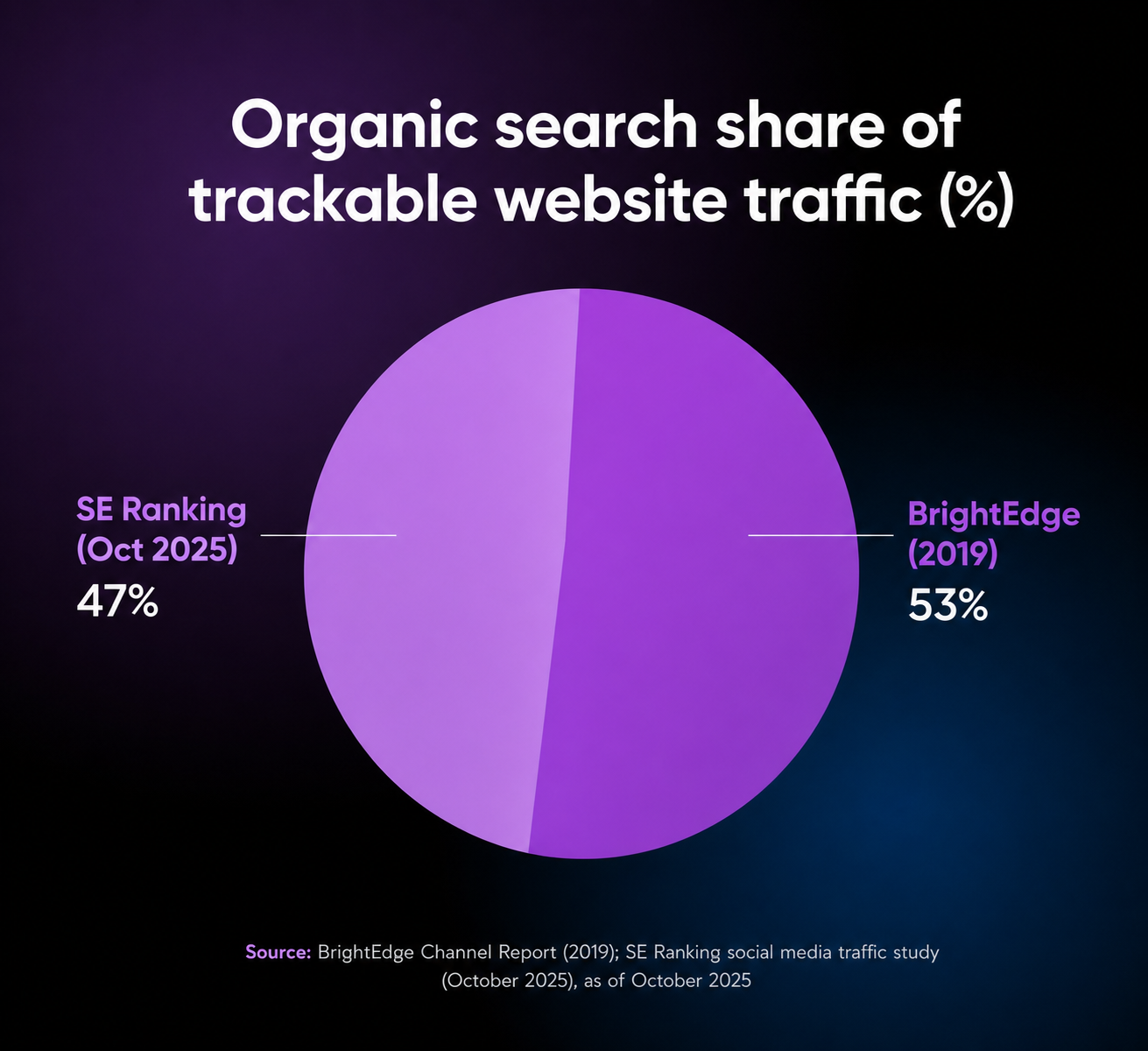
This matters because search is still the largest single source of traffic for most websites. Organic search drove 53% of trackable website traffic, per BrightEdge research (2019) — and even with AI search eroding that share, SE Ranking measured organic search at roughly 47% of traffic in October 2025, still the largest single channel.
What To Do Before Troubleshooting The WordPress 404 Error
Worried about scaring off leads and search engines?
We’re here to help — but don’t do anything in a rush!
Just before you dive into changing your permalink settings or accessing your .htaccess file, it’s a smart idea to create a backup of your website and database. This way, if you accidentally make something worse, you can easily restore your site to a functioning state.
If your WordPress website is hosted with DreamHost, backups couldn’t be easier.
We offer easy one-click backups for every customer. Automated daily backups are also included with every DreamHost hosting plan. And DreamPress, DreamHost’s managed WordPress hosting, goes further: your daily backups are kept for 14 days and stored offsite on Amazon S3, with fully managed performance on top.
You can also create a manual backup by following our guide to How to Back Up Your WordPress Website.
Related: How to Choose a Web Hosting Provider — 15-Point Checklist
How to fix the WordPress 404 not found error (4 steps)
With a fresh backup of your site in hand, it’s time to get to work solving your problem.
Tip: The best way to navigate this step-by-step guide is to follow it in order, enacting each change in order and checking if the error has been resolved after each one.
Step 1: Reset Your WordPress Permalinks
The first step to try is resetting your permalinks.
Head to your WordPress dashboard and navigate to Settings > Permalinks.
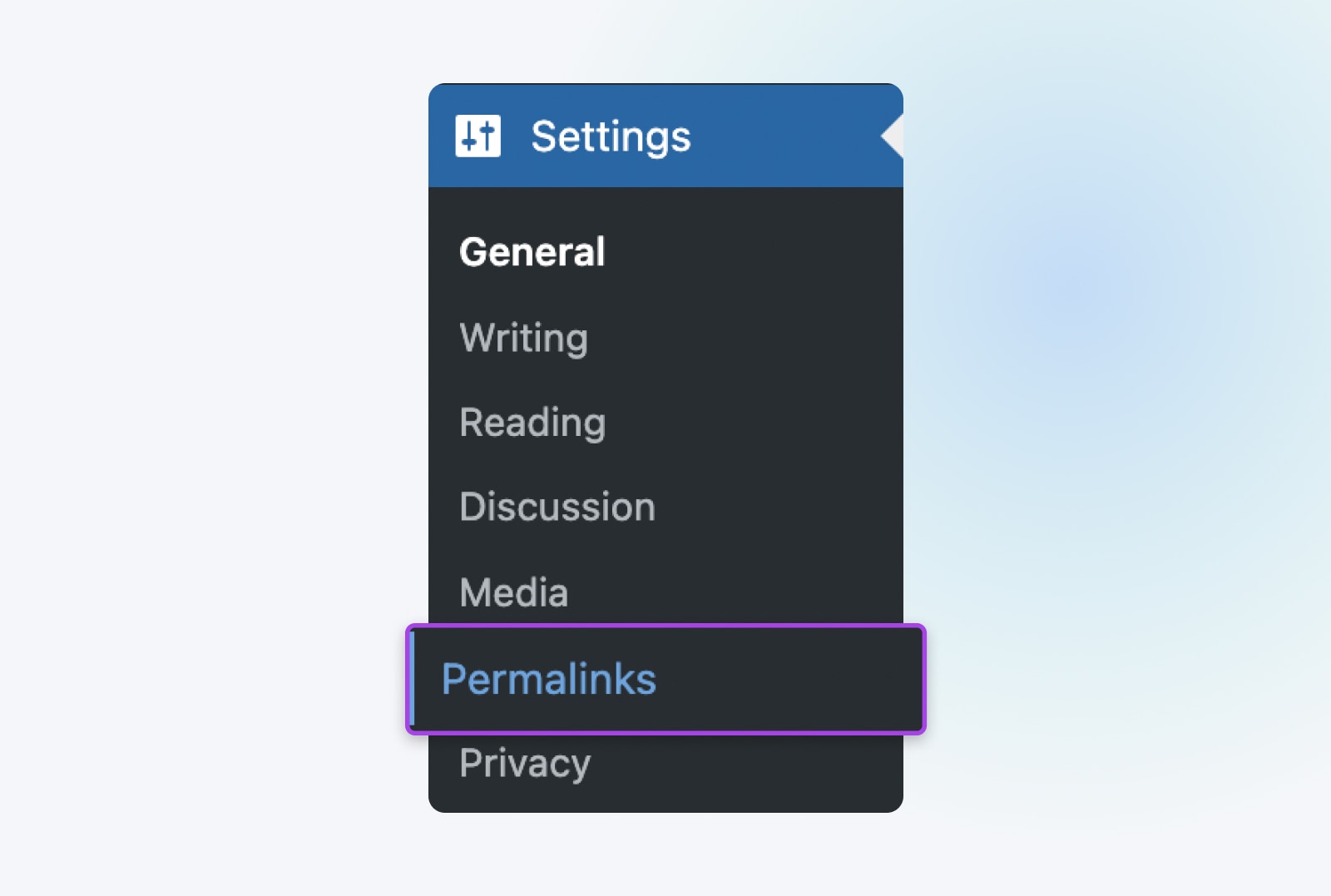
From here, just click on Save Changes at the bottom of the screen.
Seriously, that’s it.
You don’t actually need to edit anything. Clicking that button will update the permalink settings even if you don’t make any changes. This is important because it also refreshes the rewrite rules used for “pretty permalinks.” Without these rules that resolve pretty permalinks, any pages that use them would display the 404 Page Not Found error.
With this done, go ahead and reload the pages you were trying to access. If everything works, you’re all done!
If you still get a 404 error, head to the next step.
Step 2: Restore Your .htaccess File
If resetting your permalinks didn’t work, the next strategy is restoring your .htaccess file. This controls how WordPress interacts with the web server and how it generates permalinks for your pages. Restoring it to the default settings can fix sudden 404 errors.
One caveat before you go looking: .htaccess is specific to the Apache web server. If your site runs on nginx instead (common on managed WordPress platforms), there’s no .htaccess file to restore — with nginx, rewrite rules live in the main server configuration, which only an administrator can edit. Not sure which server you’re running? Ask your host before hunting for the file.
.htaccess
‘.htaccess’ is a configuration file used by the Apache web server software. The .htaccess file contains directives (instructions) that tell Apache how to behave for a particular website or directory.
To restore the .htaccess file, you’ll need to open it up and make some simple edits. There are a few ways to do this.
You can use a Secure File Transfer Protocol (SFTP) client, such as FileZilla. We have detailed instructions for connecting via SFTP if you need help.
If you’re using DreamHost, you can use the built-in file manager. This guide from our knowledge base will walk you through accessing and using the DreamHost file manager.
Once you have the file manager open, select the folder that corresponds to your domain name. You’ll find the .htaccess file inside (if you see items such as “wp-content,” you’re in the right place!).
Just in case anything goes wrong, first copy the current contents of the .htaccess file and paste them somewhere for safekeeping.
Then, replace the contents of the .htaccess file with the following:
# BEGIN WordPress
 RewriteEngine On
 RewriteRule .* - [E=HTTP_AUTHORIZATION:%{HTTP:Authorization}]
 RewriteBase /
 RewriteRule ^index.php$ - [L]
 RewriteCond %{REQUEST_FILENAME} !-f
 RewriteCond %{REQUEST_FILENAME} !-d
 RewriteRule . /index.php [L]
 # END WordPress
This is the default .htaccess code for WordPress, per the WordPress Advanced Administration Handbook. Once you’ve pasted this in and saved your changes, your restoration is almost complete!
We say almost because restoring this file will also reset the permalink settings for your WordPress site. Therefore, if you’re using a custom permalink structure (or have changed it at all from the default), you now need to restore those settings.
To do so, head back to your WordPress dashboard and navigate to Settings > Permalinks (just like step 1 above). Restore your preferred settings, then Save Changes.
Finally, refresh your website and attempt to load the pages that were returning 404 errors.
If everything works now, congratulations!
If not, proceed again to the next step.
Step 3: Disable Your WordPress Plugins And Theme
If you’ve reset your permalinks and .htaccess file but you’re still seeing 404 errors on your site, the next step is to check your WordPress theme and plugins.
Plugins, in particular, can sometimes have bugs or compatibility issues that prevent a site from loading.
So, let’s start there.
The basic idea is to disable them one by one, checking on those 404s each time. If the error persists, turn it back on and move to the next one.
To get started, head to your WordPress dashboard and navigate to Plugins > Installed Plugins.
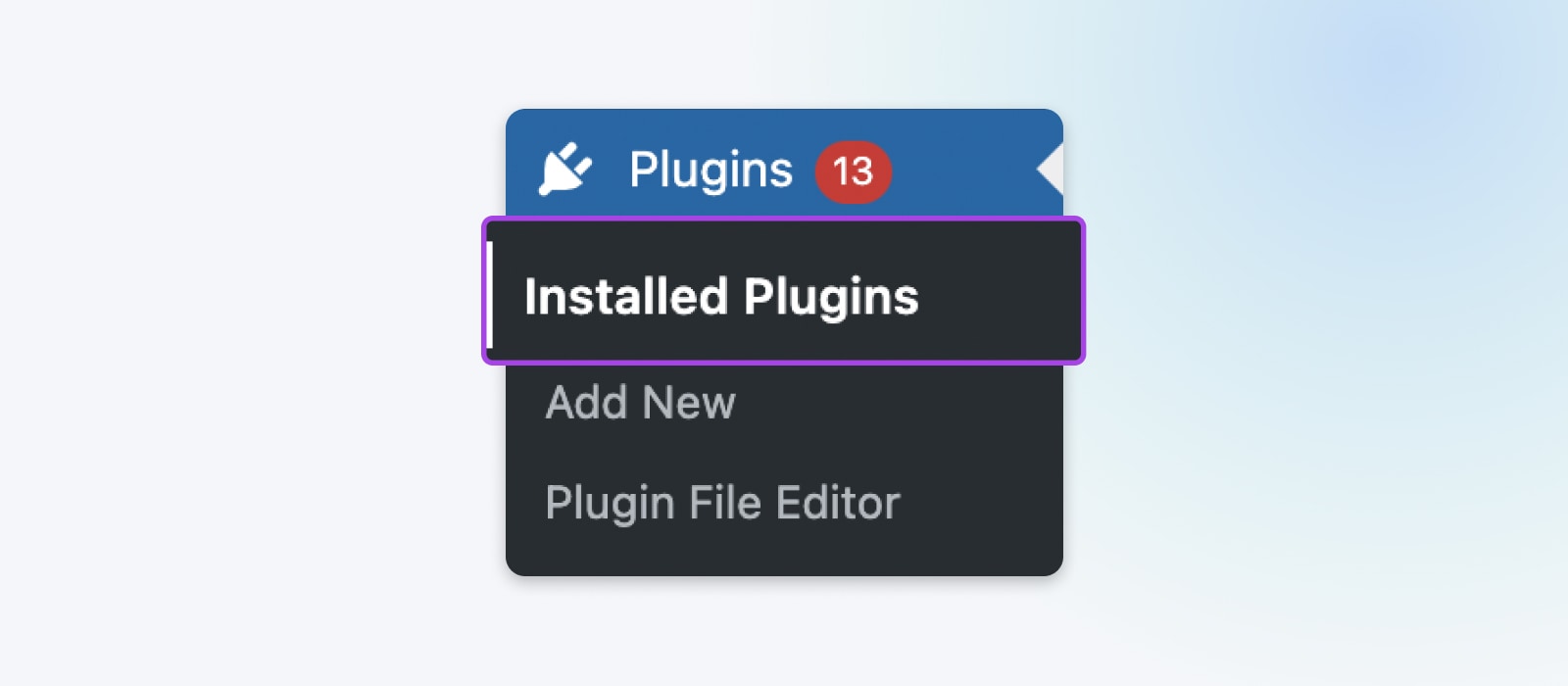
Locate and click the Deactivate button associated with the top active plugin on the screen. (Active plugins should have a blue background. Inactive ones should have a white background and no option to deactivate.)
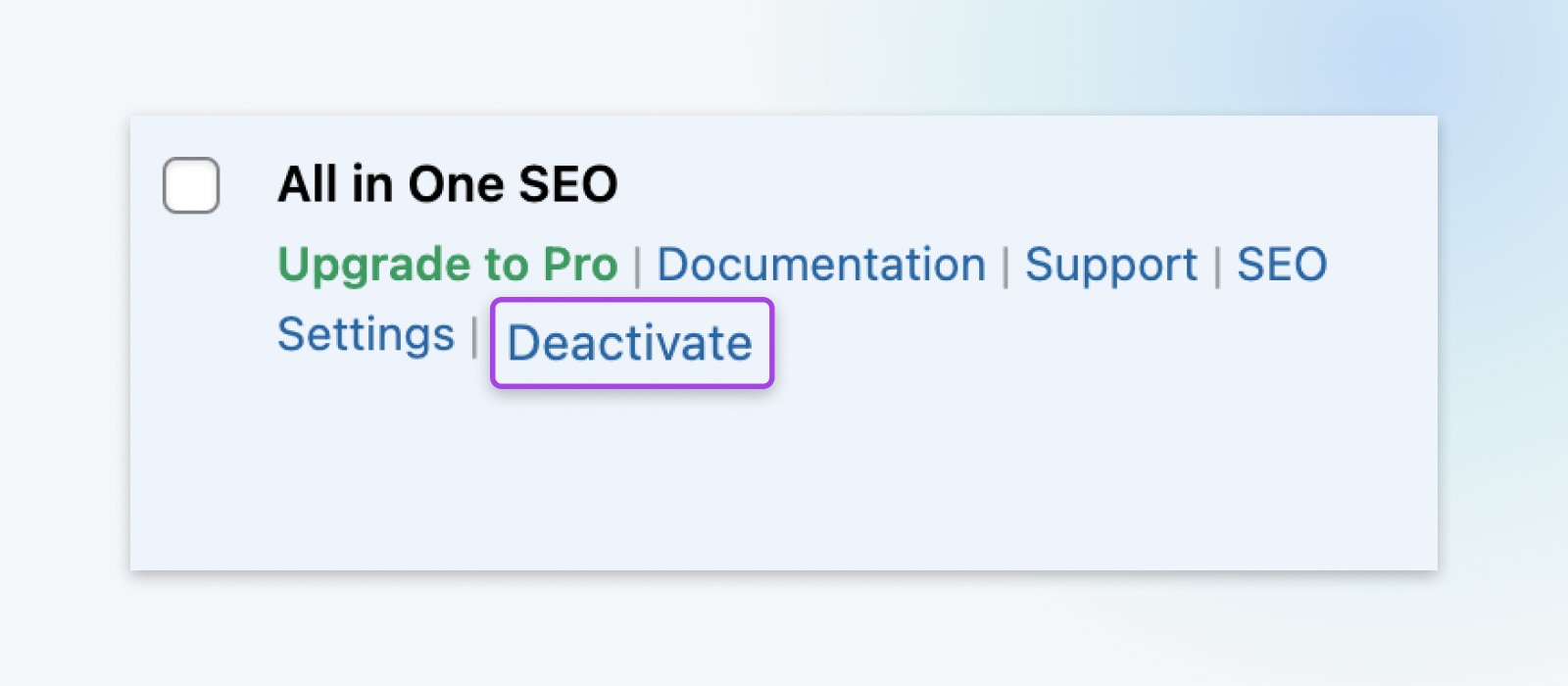
Now, refresh your site and see if the 404 error is still occurring.
If you get the dreaded error message, head back to the plugins, re-activate the one you just tried, and move to the next active one on the list.
If you find one that resolves the issue, you can check if the plugin has an update that may resolve the problem. If updating it and then refreshing one more time doesn’t work, look for an alternative plugin with similar functionality.
But if none of the plugins prove to be the issue, it’s time to try changing your WordPress theme.
To do that, head to Appearance > Themes.
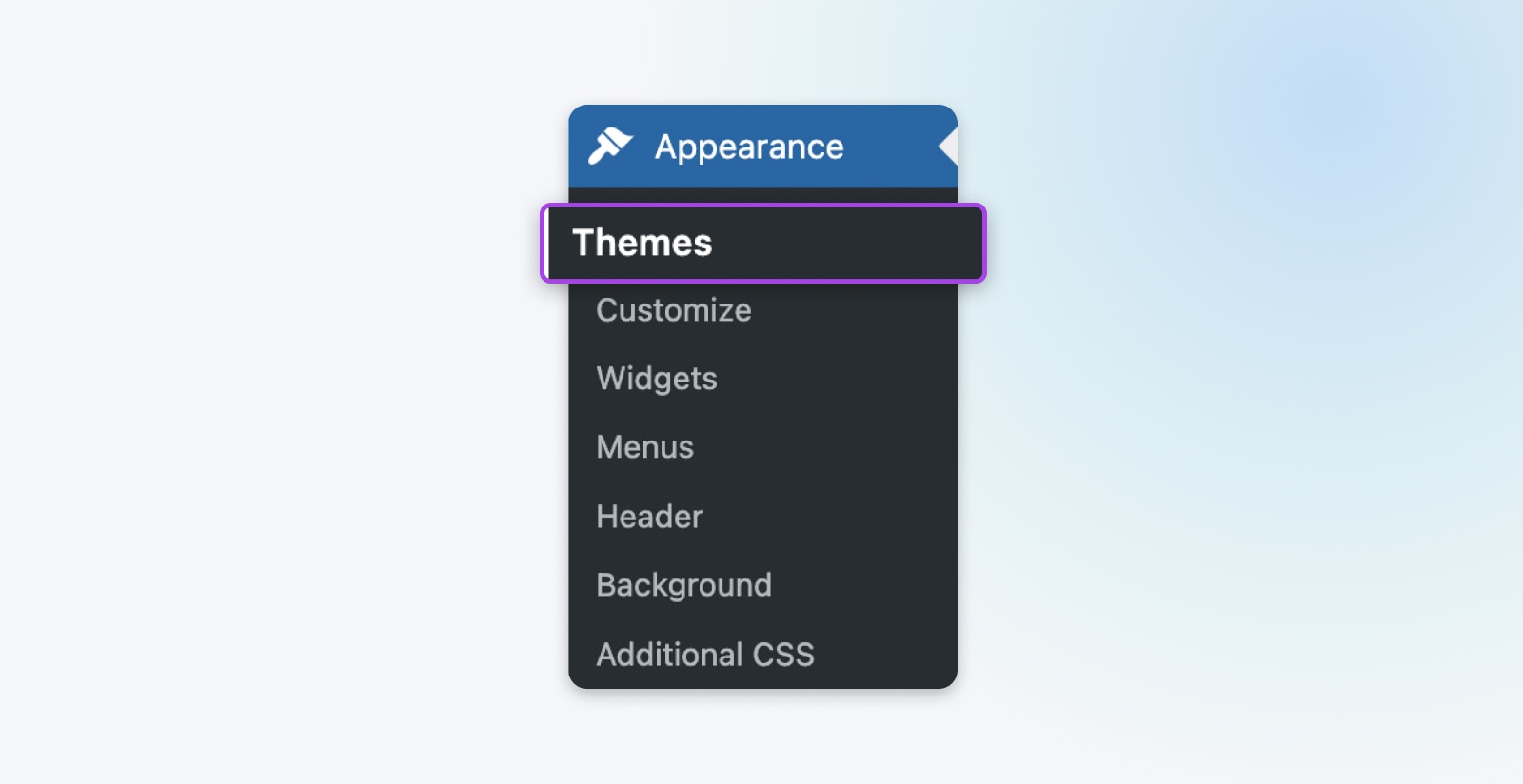
Your currently active theme is marked as such. Hover over one of the others and click on Activate. Then, refresh your site and try to access the problematic page again.
Note that changing your theme can alter your site significantly. Additionally, if you’ve made any edits to your theme, those can be lost if your theme is changed or even updated. So, again, spend some time backing up your site before you go clicking around inside your themes.
If you end up finding that it’s your theme that’s the issue, you may need to spend some time finding one that provides a similar look and features.
Need help? Check out 18 Pro Tips For Choosing The Perfect WordPress Theme.
Step 4 (Bonus): Set Up A 301 Redirect For Moved Content
Just in case you do need to move content to a new URL and don’t want the old one to throw a 404 error, here’s one final step.
You’ll want to set up some 301 redirects to point that old URL to the new one.
The easiest way to do this is with the Redirection plugin. This tool will enable you to quickly set up the redirects you need. Plus, it’s free and user-friendly.
A quick word on when to redirect: set up a 301 only when a genuinely equivalent page exists for the old URL. If you deleted a page on purpose and nothing replaces it, letting it return a 404 is normal and harmless — Google’s Search Console documentation says it’s fine for a URL to stay unindexed when it’s “a 404 for a page that you’ve removed and have no replacement for.” And resist blanket-redirecting every dead URL to your homepage: visitors land somewhere that doesn’t answer their click, and you lose track of which URLs actually need fixing.
Related: How to Fix the “Too Many Redirects” Error in WordPress (13 Methods)
What to do when your wp-admin or login page returns a 404
Every step above assumes you can reach your WordPress dashboard. But what if the 404 lands on the login page itself?
Work through these checks in order:
- Try the standard login URL — WordPress serves its login screen from the wp-login.php file, so type yourdomain.com/wp-login.php directly into your address bar. An outdated bookmark or a simple typo is often the whole problem.
- Check for a customized login URL — Some security plugins hide the login page behind a custom address, which makes the default one return a 404 on purpose. Check the plugin’s settings (or the confirmation email it sent) for the new URL.
- Clear your browser cache — A cached redirect can keep sending you to a dead login URL. Clear the cache or try a private browsing window.
- Confirm wp-login.php still exists — Connect via SFTP (or the DreamHost file manager from step 2) and look for wp-login.php in your site’s root folder. If it’s missing or damaged, restore it from your backup or upload a fresh copy from an official WordPress download.
- Check file permissions and .htaccess — Incorrect file permissions can make files unreachable; your host can reset them if you’re unsure. And since a corrupted .htaccess file can 404 the login page too, the restore in step 2 applies here as well.
How To Create Your Own “Error 404 Not Found” Page
If you want to set up your own custom 404 error page, you can do so relatively easily.
The Smart Custom 404 Error Page plugin (formerly “404page,” now maintained by NerdPress) is a very popular option for quickly creating a custom error page.
WordPress also has a built-in way to do this: classic themes use a 404.php template file inside the theme folder, as documented in WordPress’s guide to creating an error 404 page. If you’re running a block theme, you can edit the 404 template directly in the Site Editor instead.
Or, you can take a more hands-on approach and do it manually. This is still pretty simple and only requires adding one line of code to the .htaccess file (accessed via your file manager, like in step 2 above) to target the error to a specific page. Then, you just have to create that new page.
We have full instructions for setting up custom error pages to walk you through the process.
Tools To Help You Monitor 404 Errors Moving Forward
Finally, if you want to keep an eye out for 404 errors in the future, you can do so with a few handy tools.
If you’re using Google Analytics 4 to understand website traffic, you can also use it to find 404 errors on your site. Databox has a guide on how, including steps for GA4.
Google Search Console also has a Page indexing report that shows URLs Google tried to crawl and couldn’t index — including pages returning “Not found (404).” This is a simple way to see all the issues Google is encountering.
You can also enter your URL into a specialized tool such as the Broken Link Checker, which will scan your entire site for broken links and let you know if it finds a 404 page. It’s free and easy to use.
FAQs about the WordPress 404 error
Why does my WordPress site say 404 not found?
Usually because WordPress’s permalink rewrite rules are broken or the .htaccess file is corrupted, not because the content is gone. Resetting permalinks (Settings > Permalinks > Save Changes) rebuilds those rules and resolves most WordPress 404 errors.
What does “404 – file or directory not found” mean?
It’s another wording of the same 404 error: the server can’t find anything at the URL you requested. The page may have been removed, renamed, or be temporarily unavailable. Check the URL for typos first, then troubleshoot permalinks if it’s your own site.
Do 404 errors hurt SEO?
A few won’t. Google’s documentation says a 404 is fine for a page you’ve removed and don’t plan to replace. But pages you want ranked can’t be indexed while they return 404, and widespread broken links create a poor experience for visitors.
Why do all my WordPress pages except the homepage return 404?
That pattern almost always means broken rewrite rules. The homepage loads without them; every pretty-permalink URL doesn’t. Reset your permalinks first, then restore the default .htaccess file. If neither works, ask your host whether mod_rewrite is enabled.
Why am I getting a 404 error on my WordPress login page?
Typically a customized or mistyped login URL, a missing wp-login.php file, or a corrupted .htaccess file. Try yourdomain.com/wp-login.php directly, clear your browser cache, and confirm via SFTP that wp-login.php still exists in your site’s root folder.
More WordPress Error Tutorials
Want to learn how to fix other common WordPress errors? We’ve created a comprehensive series of guides to help!
Check ’em out:
- How to Fix Common SSL Issues in WordPress (5 Key Solutions)
- How to Fix 16 Common Image Issues in WordPress
- How to Fix the 503 Error in WordPress
- How to Fix the “WordPress Keeps Logging Out” Problem (8 Methods)
- How To Fix the WordPress Memory Exhausted Error by Increasing Your Site’s PHP Memory Limit
- How to Fix White Text and Missing Buttons in the WordPress Visual Editor (5 Steps)
- How to Fix the WordPress Login Page Refreshing and Redirecting Issue (3 Ways)
- How to Fix the 500 Internal Server Error in WordPress
- How to Fix Syntax Errors in WordPress
- How to Fix the WordPress Not Sending Email Issue
- How to Fix the Error Establishing Database Connection in WordPress
- How to Fix the Sidebar Below Content Error in WordPress (In 3 Steps)
- How to Fix the “Are You Sure You Want to Do This” Error in WordPress (4 Methods)
- How to Fix the 403 Forbidden Error in WordPress (5 Methods)
- How to Fix the “Too Many Redirects” Error in WordPress (13 Methods)
- How to Fix “The Site Ahead Contains Harmful Programs” Warning in WordPress
Let Us Handle Those WordPress 404 Errors
A 404 error can be frustrating — especially when it happens on your own site.
These messages cause problems with SEO and ruin your site’s UX. Fortunately, they’re not too difficult to resolve.
Fixing 404 web pages generally involves restoring your site’s permalink structure and setting up redirects for any posts that are actually gone. You can then use tools, such as Google Search Console, to monitor your site for future 404s.
If you want to spend less time dealing with errors, consider switching to DreamPress, DreamHost’s managed WordPress hosting.
You can engage our Pro Services teams on a retainer or on-demand basis to take website management off your plate, so you can get back to business!

Skip the Stress
Avoid troubleshooting when you sign up for DreamPress. Our friendly WordPress experts are available 24/7 to help solve website problems — big or small.
Check Out Plans