
Perfecting your WordPress website’s layout can be a lot of work, but it’s also essential for User Experience (UX), engagement, and conversions. Therefore, it can be frustrating when a seemingly random error causes a disruption to your site’s display, such as your sidebar suddenly appearing below the content rather than to the side.
While there are a few potential causes, it primarily comes down to issues with the Hypertext Markup Language (HTML) or Cascading Style Sheets (CSS). Fortunately, the issues are relatively easy to fix, so you can quickly get your site back in tip-top shape.
The fix takes three steps: undo your most recent change, repair any unclosed or extra <div> tags in your theme’s template files, and correct your CSS widths. If the combined width of your content and sidebar exceeds their wrapper, the sidebar gets pushed below. In this article, we’ll walk through the common causes of this error and each step in detail. Let’s get started!
Common causes of the sidebar dropping below the content in WordPress
The most common cause of a sidebar dropping below the content is a problem with your site’s HTML or CSS: an unclosed or extra <div> tag in a template file, or width and float settings that don’t leave the sidebar enough room.
Sidebars in WordPress are content areas meant to be displayed either to the left or right of the page’s main segment (or sometimes both). They often contain widgets, sign-up forms, links to related posts, or similar content that you’d want to include across your site.
Due to various bugs or errors, your sidebars may sometimes appear at the bottom of the page, rather than to the left or right. Needless to say, this can easily ruin a well-designed website.
These problems are usually a result of direct changes you’ve made to your site’s code, such as edits to a theme or plugin file.
For example, perhaps there is an extra or unclosed <div> tag on the page. The problem could even be attributed to incorrect width and floating settings in your CSS. Fortunately, fixing this error is easy enough.
Why is your WordPress sidebar not showing at all?
If your sidebar is missing entirely rather than sitting below the content, the cause is usually simpler: an empty widget area, a page template without a sidebar, or a theme change that dropped the sidebar area. Run through these quick checks:
- Check the widget area. Go to Appearance > Widgets and make sure the sidebar area actually contains widgets. An empty sidebar often won’t render at all.
- Check the page template. In the editor’s settings panel, a full-width or “no sidebar” template hides the sidebar on that page. Switch back to the default template.
- Check after a theme change. Switching themes can move your widgets to the Inactive Widgets section. Add them back to the new theme’s sidebar area.

Skip the Stress
Avoid troubleshooting when you sign up for DreamPress. Our friendly WordPress experts are available 24/7 to help solve website problems, big or small.
Check Out PlansHow to fix the WordPress sidebar below content error (in 3 steps)
Now that you know the potential causes of this perplexing error, it’s time to correct it. We recommend running through the following three steps in order, moving on to the next only if the previous one didn’t work. Before getting started, remember to make a backup of your site just in case.
Step 1: Undo your most recent changes
The first step is also the simplest. If your sidebar moved after making a change to your site — whether that’s installing a new plugin, adding custom code, or anything else. Simply undo it. Reversing the action both gets your layout back to its original format and helps isolate the cause of the issue.
So you can start by reversing the change and refreshing your site to see if the sidebar is back in its proper place. If so, you can then look for potential issues with whatever changes you were attempting to make. For example, if you installed a new plugin, check for alternatives. If you altered or added to your site’s code, look for any typos or syntax errors.
Step 2: Fix unclosed <div> tags or remove extra <div> tags
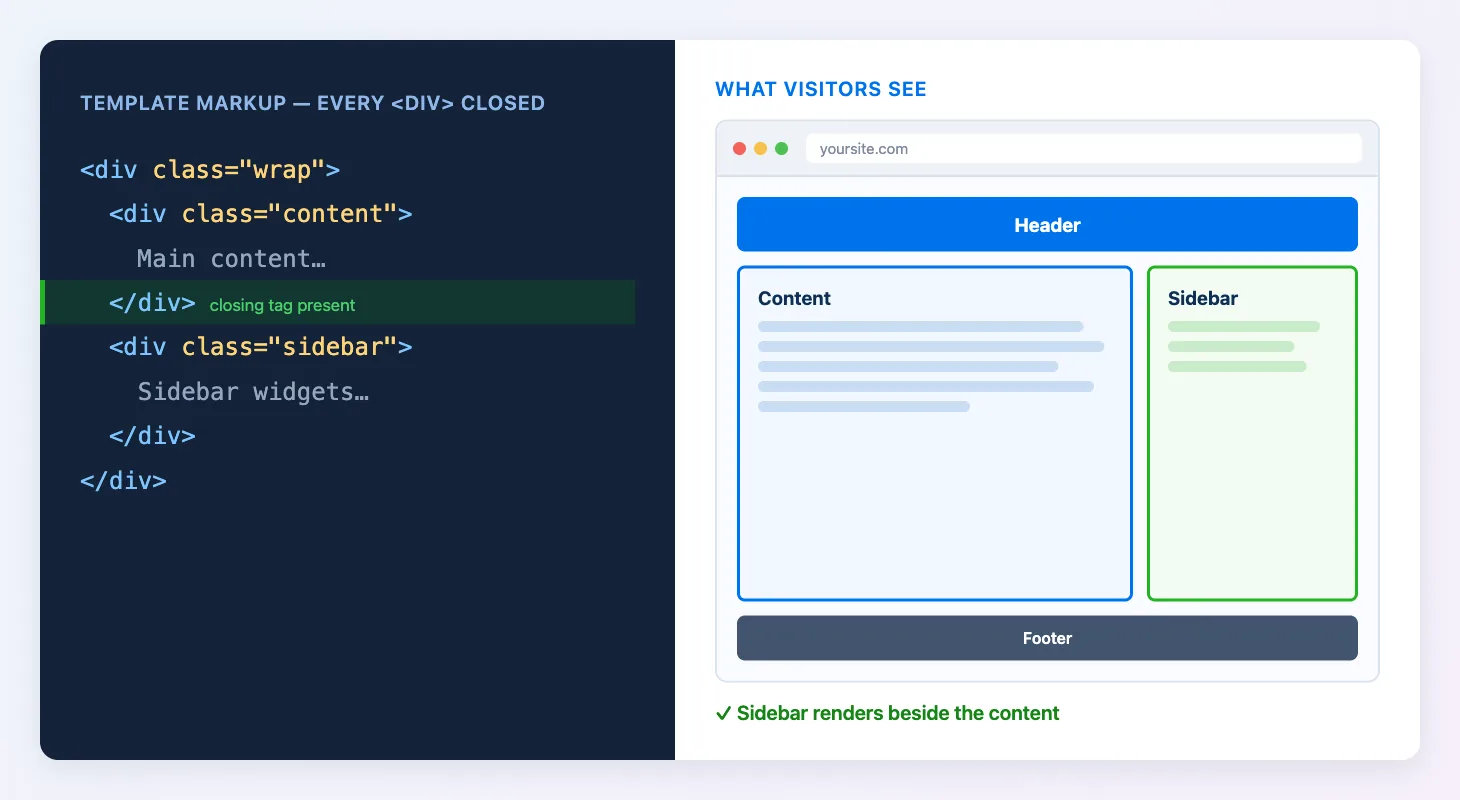
Often, an unclosed or extra <div> tag in your site’s code is the cause of the WordPress sidebar error. These HTML tags define the boundaries of sections on your website. Leave one unclosed, or add an extra, and content can end up inside the wrong section of the page, as the example below shows.
Here’s an example of a correctly structured page. Every <div> is closed, so the sidebar renders beside the content:
Below is the same template with an unclosed <div> tag:
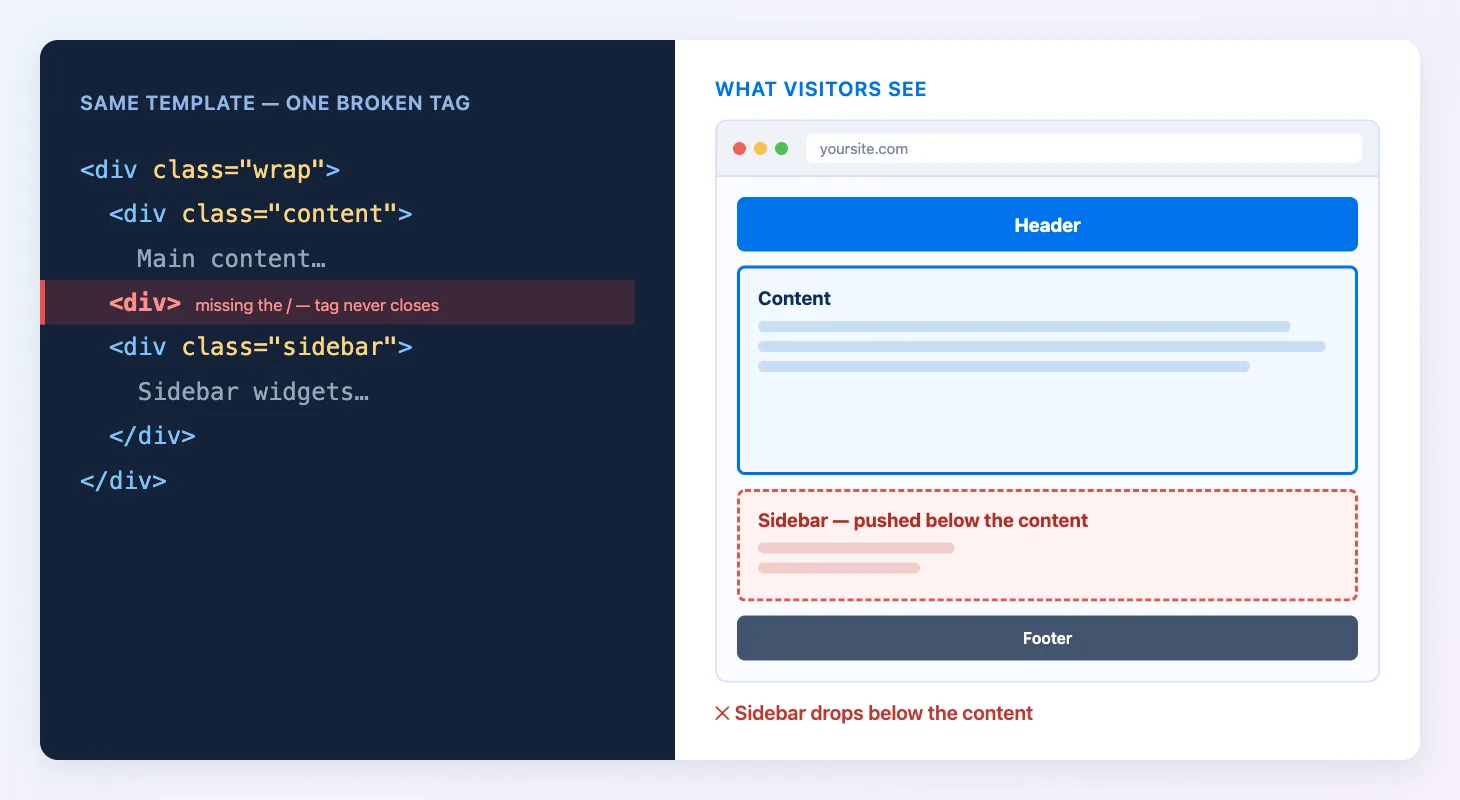
What should be the closing </div> tag is missing its forward slash. The browser never learns that the content section has ended, so the sidebar ends up inside it — and gets pushed below the content.
To fix this, comb through any template files you’ve modified and look for missing or extra tags. Generally, these errors can be found in the “template parts” files of your WordPress theme. To get there, head to your WordPress dashboard and navigate to Appearance > Theme File Editor. If you’re using a block theme, this screen lives under Tools > Theme File Editor instead.
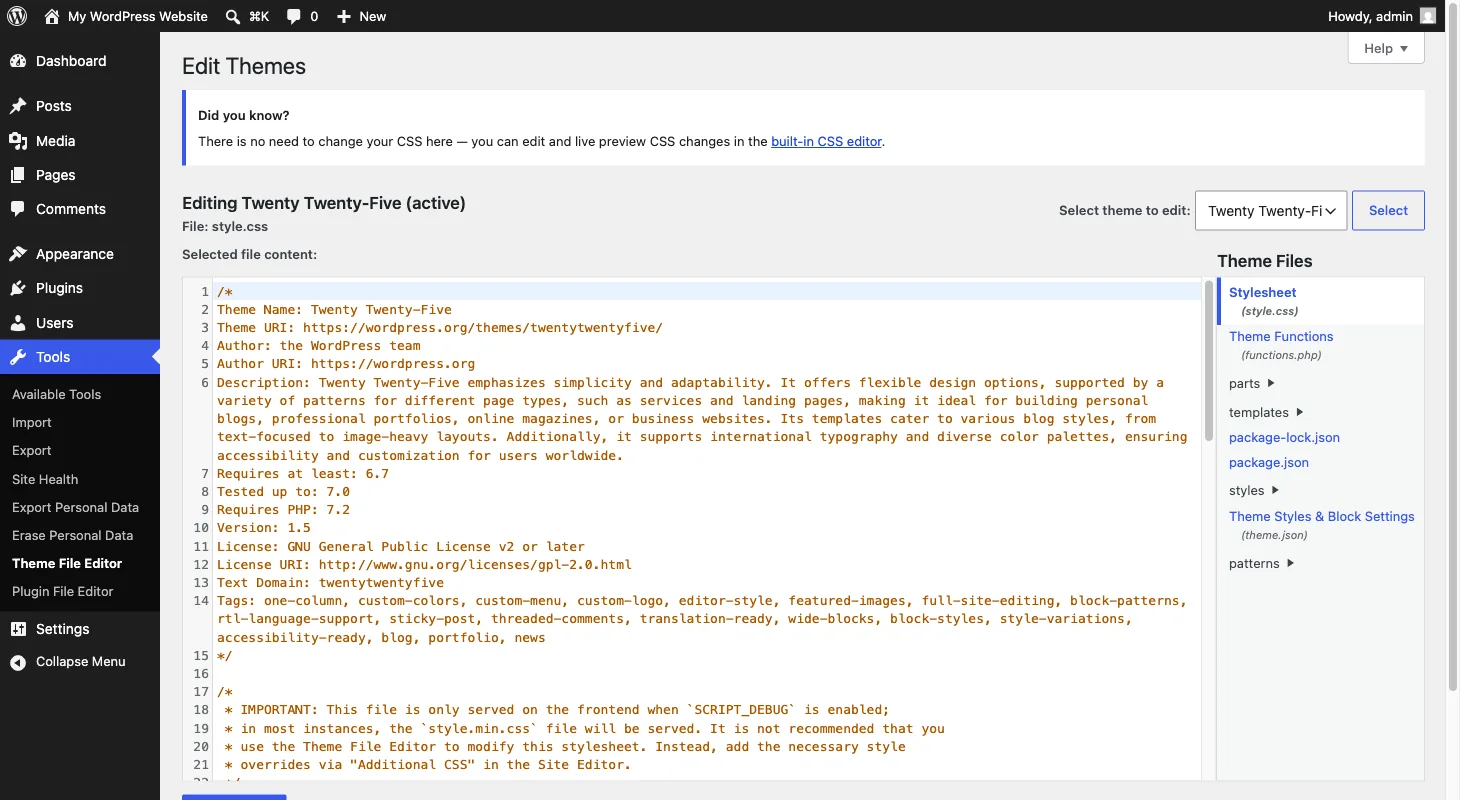
Choose the correct theme from the drop-down menu at the top, and then locate the template parts section in the sidebar — in a block theme, that’s the parts folder.
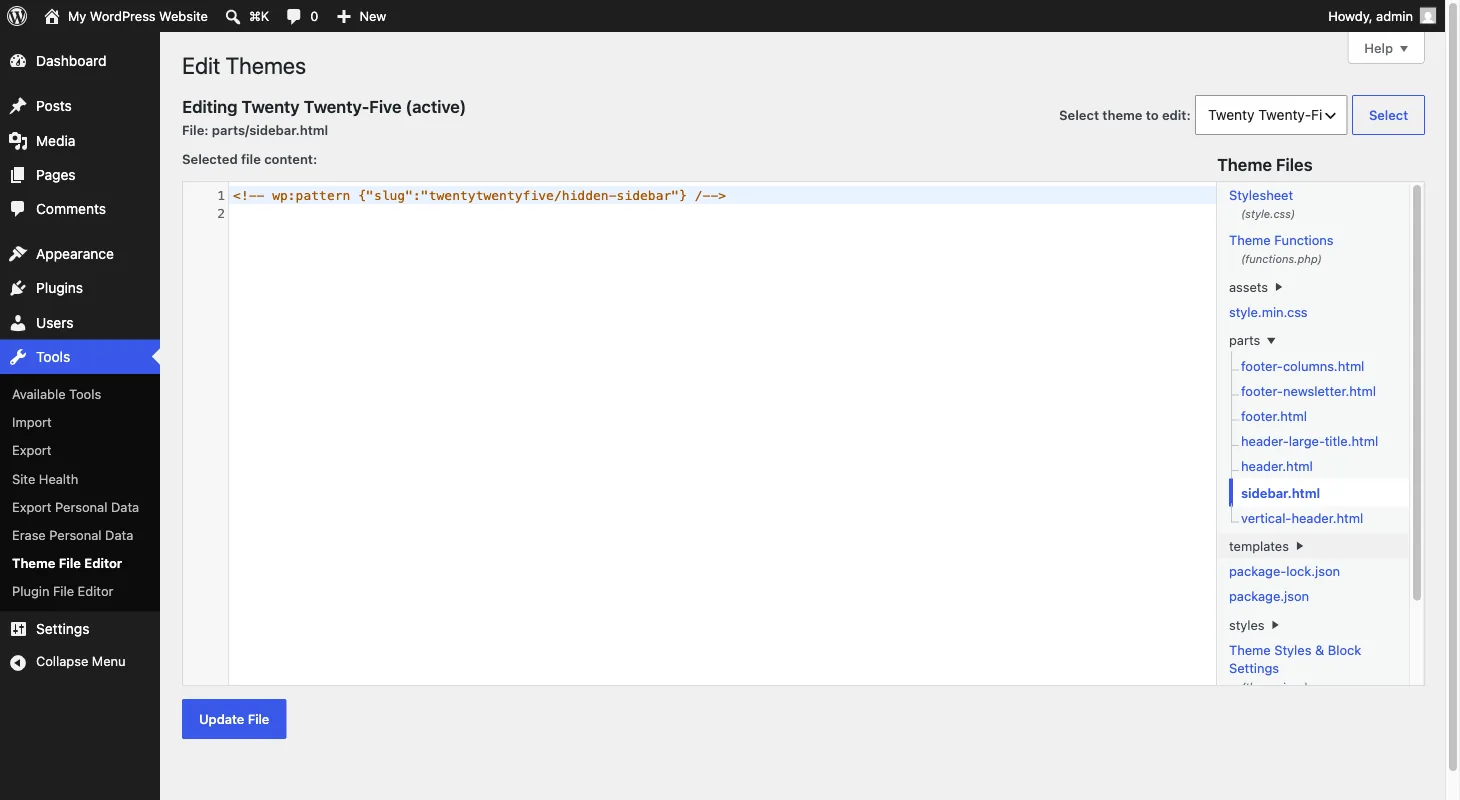
In a block theme, the sidebar itself lives in a template part such as sidebar.html; in a classic theme, look for files like sidebar.php and the content templates. Find the file you need from the list, check it, and make any corrections. Then you can click on Update File to save your changes.
If you know which file you edited, you can jump straight there. Otherwise, you’ll need to check them all for inconsistencies.
Step 3: Correct CSS issues
Another frequent cause of this error is found in your site’s CSS. The WordPress Customizer’s Additional CSS section enables you to add custom CSS to your site if you’re using a classic theme. On a block theme, the panel lives in the Site Editor instead: go to Appearance > Editor > Styles, open the three-dot menu, and select Additional CSS.
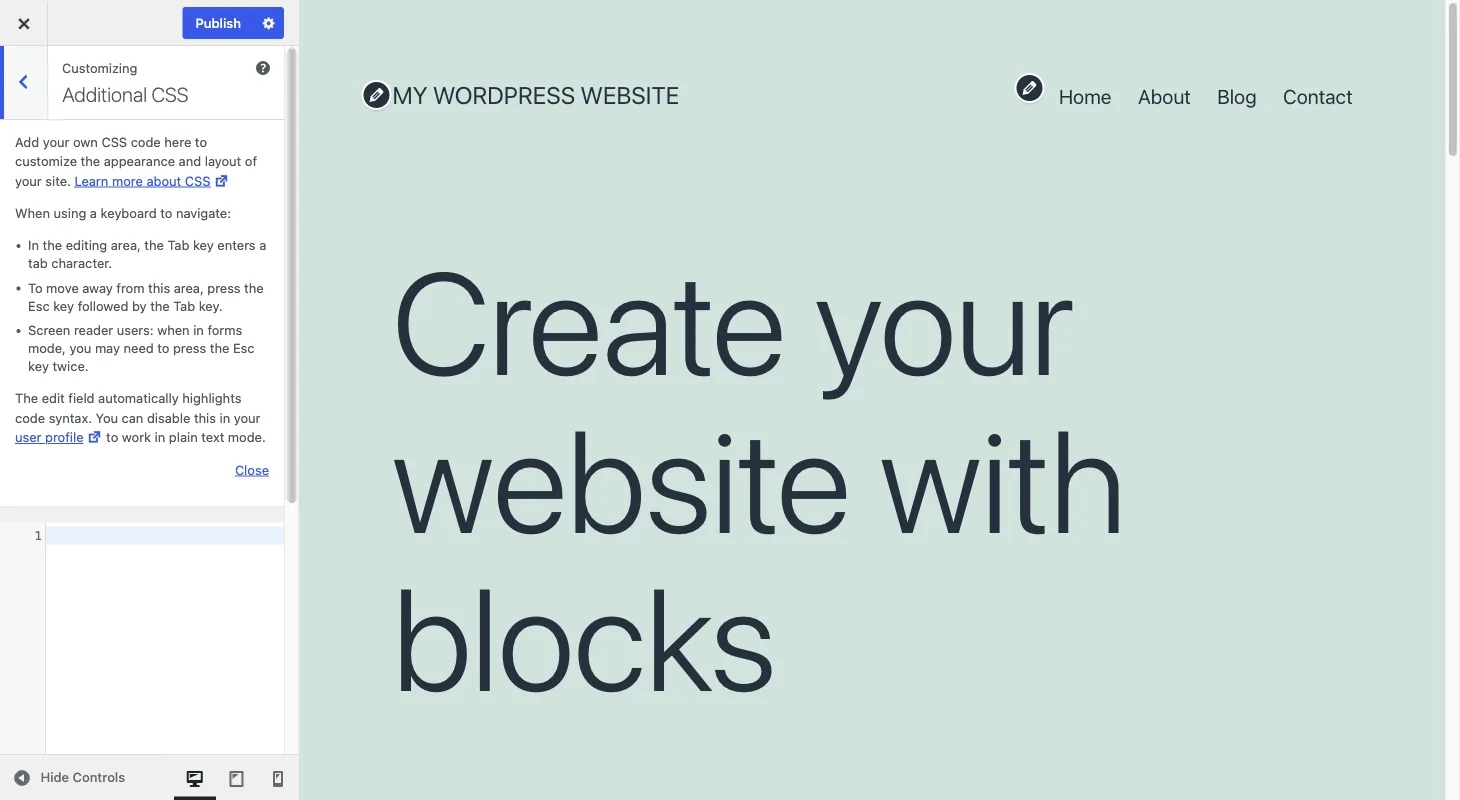
If you’ve used this feature or edited the CSS through other means, you may have formatted the code incorrectly. In the case of moving sidebars, the most common culprit is the “width” property.
You should double-check that the sum of the widths of the Content and Sidebar elements doesn’t exceed the width of the Wrap element. If it does, the smaller element will be pushed down in order to fit.
Tools to make troubleshooting sidebar issues easier
You can also troubleshoot the issue yourself without using code. There are several online tools that can validate your code and check it for errors.
You can use the W3C Markup Validation Service to check HTML code. The W3C CSS Validation Service is the CSS counterpart.
These services are also fantastic if you just want a second set of eyes on your code, regardless of skill level. A quick double-check never hurt anyone! You can also paste a suspect template file or CSS snippet into an AI assistant such as ChatGPT or Claude, which can often spot an unclosed <div> tag or an overflowing width in seconds.
You could also take fixing WordPress errors off your to-do list with our DreamCare service. Our team of experts handles everything on the backend of your site to make sure it’s safe, secure, and always up.
Additional WordPress resources
Say goodbye to broken links and error messages! We’ve put together several guides to help you troubleshoot every kind of WordPress problem:
- Common WordPress Error Overview
- How to Fix the 500 Internal Server Error in WordPress
- How to Fix Syntax Errors in WordPress
- How to Fix the WordPress Not Sending Email Issue
- How to Fix the Error Establishing Database Connection in WordPress
- How to Fix WordPress Error 404 Not Found
- How to Fix White Text and Missing Buttons in the WordPress Visual Editor
If you’re looking for more WordPress tips and hacks, check out our WordPress Tutorials, a collection of guides that’ll help you navigate the WordPress admin area like a pro.
FAQs about the WordPress sidebar below content error
Why is my WordPress sidebar below my content?
Almost always an HTML or CSS problem. An unclosed or extra <div> tag in a template file breaks the page structure, or the combined CSS width of the content and sidebar exceeds their wrapper, pushing the sidebar down. Undo your most recent change first.
How do I find an unclosed <div> tag?
Run the page through the W3C Markup Validation Service, which checks your markup for errors. Then review the template files you’ve edited in the Theme File Editor and fix any unclosed or extra tags you find.
Can a plugin cause the sidebar to drop below the content?
Yes. A plugin that outputs broken HTML or loads conflicting CSS can push your sidebar down. Deactivate your plugins one at a time, refreshing the page after each, until the sidebar snaps back. The last plugin you deactivated is the culprit.
What if none of these fixes work?
Switch temporarily to a default theme like Twenty Twenty-Five. If the sidebar returns, the problem lives in your theme’s files or custom CSS. If it doesn’t, restore your most recent backup and retrace your changes from there.
Solving the sidebar error
If you’ve spent time building a beautiful WordPress website, you likely don’t want anything to take away from it — least of all sudden errors. Fortunately, if the problem is that your sidebars are appearing below your content, the fix is relatively simple!
To correct the sidebar appearing below content error, you can follow these three steps:
- Undo any changes you made to your site just prior to the error appearing.
- Check for and fix unclosed or extra <div> tags in your code.
- Verify that your site’s CSS is correct.
If you’d rather spend your time working on your business instead of troubleshooting your website, consider switching to DreamPress. DreamPress includes managed WordPress features and 24/7 expert support, so you can spend less time on routine hosting tasks and more time on what really matters.