Are you trying to log in to your WordPress website but can’t get past the login page? If so, you might be stuck in a redirect loop.
When your WordPress login page keeps refreshing after entering your username and password, you’re likely dealing with a caching problem or a plugin error. Fortunately, this is an issue that can be solved quickly.
TL;DR: To fix the WordPress login redirect loop, work through four fixes in order: 1) clear your browser cookies and cache, 2) deactivate recently installed plugins and themes by renaming their folders, 3) delete your .htaccess file and regenerate it from Settings > Permalinks, and 4) make sure your WordPress Address and Site Address URLs match. If it still loops after all four, purge any server-side or CDN cache.
In this post, we’ll look at the common causes of this redirect loop and then walk you through four simple fixes to help you log back into your website. Let’s get started!
Common causes of the login page refresh and redirect issue in WordPress
The WordPress login redirect loop is an error where the login screen keeps refreshing and redirecting you back to the same page, even after you enter the correct username and password. It’s usually caused by outdated browser cookies or cache, a faulty plugin or theme, or mismatched site URL settings; a corrupted .htaccess file, a broader server-error culprit, is also worth ruling out. As a result, you’ll be locked out of your site’s admin area.
Before you start troubleshooting, make sure you’re dealing with the right error. The login loop hits only wp-login.php and wp-admin, while the rest of your site keeps loading normally. If your whole site shows a “too many redirects” message instead (Chrome labels it ERR_TOO_MANY_REDIRECTS), follow our guide to fixing the redirect loop error in WordPress. And if you can log in but WordPress keeps logging you out afterward, that’s a different problem: see our guide to fixing the WordPress keeps-logging-out error.
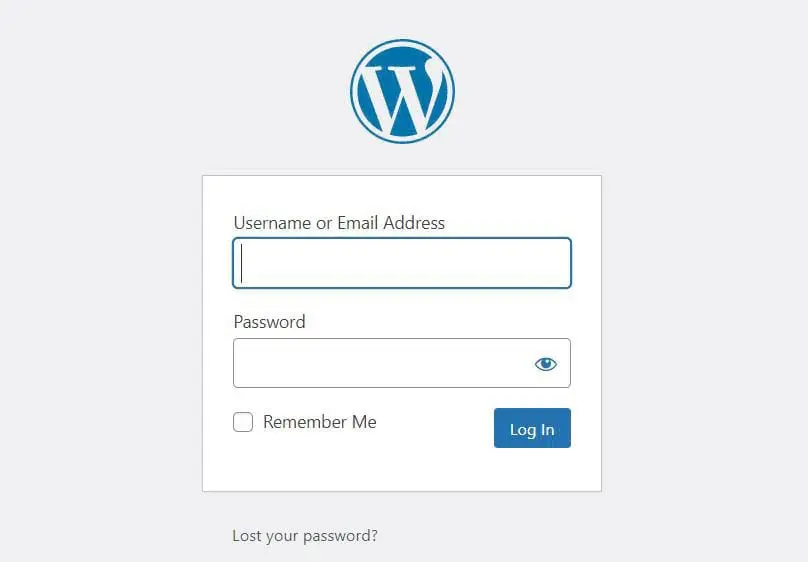
There are several common reasons for this error:
- Your browser might be storing outdated WordPress files and data.
- A recently installed WordPress theme or plugin might be faulty or incompatible with other plugins.
- Your WordPress site might have a corrupted .htaccess file. WordPress’s documentation actually files this one under broader server errors rather than login loops, but it’s quick to rule out.
- Your WordPress Address (URL) and Site Address (URL) settings might not match (www vs. non-www, or HTTP vs. HTTPS after adding an SSL certificate), which sets the login cookie for one address while the login redirects to another. The two values live in Settings > General, or as siteurl and home in your database’s options table.
One more cause is worth ruling out: server-side caching. WordPress’s Advanced Administration Handbook recommends excluding wp-login.php from page caching and checking for conflicting SSL or redirect settings in a CDN or proxy. If your host or CDN caches pages, purge that cache and review those settings.
You’ll be pleased to know that there’s an easy fix for each scenario. If your site is hosted with DreamHost, the panel’s AI-powered error log analysis can also help you narrow down which cause you’re dealing with before you start. Next, we’ll show you how to troubleshoot the WordPress login redirect error so you can get back into your site.

Skip the Stress
Avoid troubleshooting when you sign up for DreamPress. Our friendly WordPress experts are available 24/7 to help solve website problems — big or small.
Check Out PlansHow to fix the WordPress login redirect loop (4 methods)
Now, let’s go through the four main steps to fixing the WordPress login redirect error. Before proceeding, you might want to perform a backup of your site just in case something goes wrong and you need to restore an earlier version.
1. Clear your browser cookies and cache
The quickest way to solve the WordPress login redirect issue is by clearing your browser cookies and cache. WordPress uses cookies to store authentication data. Sometimes your browser might retain old files, resulting in a redirect loop when you try to log in to your site.
To clear the cookies and cache in Google Chrome, click on the three-dot icon in the top-right corner of your browser, and then choose Delete browsing data in the drop-down menu.
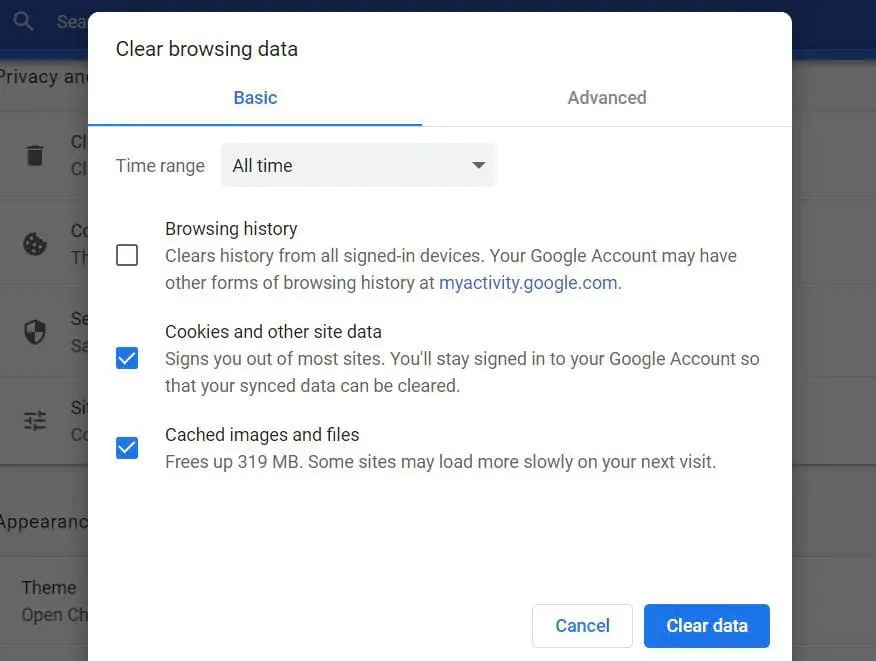
In the popup window that appears, set the time range to All time and check the following options: Cookies and other site data and Cached images and files. Finally, click on Delete data.
If you’re not a Chrome user, don’t worry. WordPress’s cookies documentation links to instructions for managing cookies in every major browser.
Once you’ve completed this process, restart your browser and try logging in to your WordPress site. Two quick diagnostic shortcuts can help here: try the login page in an incognito or private window (or a second browser) to confirm the problem is specific to your browser, and temporarily disable any privacy or ad-blocking extensions that block cookies. WordPress’s cookies documentation also notes that a temporary wordpress_test_cookie probes whether cookies can be written; a browser that blocks it triggers the “Cookies are blocked or not supported by your browser” error. If you’re still facing the same login error, head to the next step.
2. Check new installs and updates (plugins and themes)
As we mentioned earlier, the WordPress login redirect issue may be caused by a theme or plugin you’ve recently installed. Perhaps this new theme or plugin is faulty, or it is incompatible with other plugins on your site.
To determine whether the problem is caused by a theme or plugin, you can do two things:
- Deactivate the plugins on your site
- Revert to your site’s default theme
First, you’ll need to access your WordPress site via a Secure File Transfer Protocol (SFTP) client or the file manager in your website’s hosting account. If you host with DreamHost, log in to the panel and open the Manage Websites page.
Then find your domain and click the Manage button to open its Website settings, where you can open the file manager. Next, locate and open the folder labeled with your domain name.
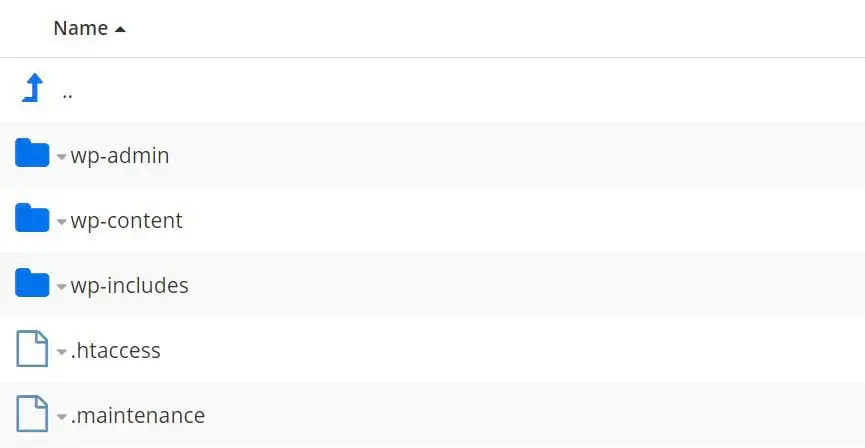
To deactivate your plugins, open the wp-content folder in your site’s root directory, and then find the plugins folder and rename it plugins_test.
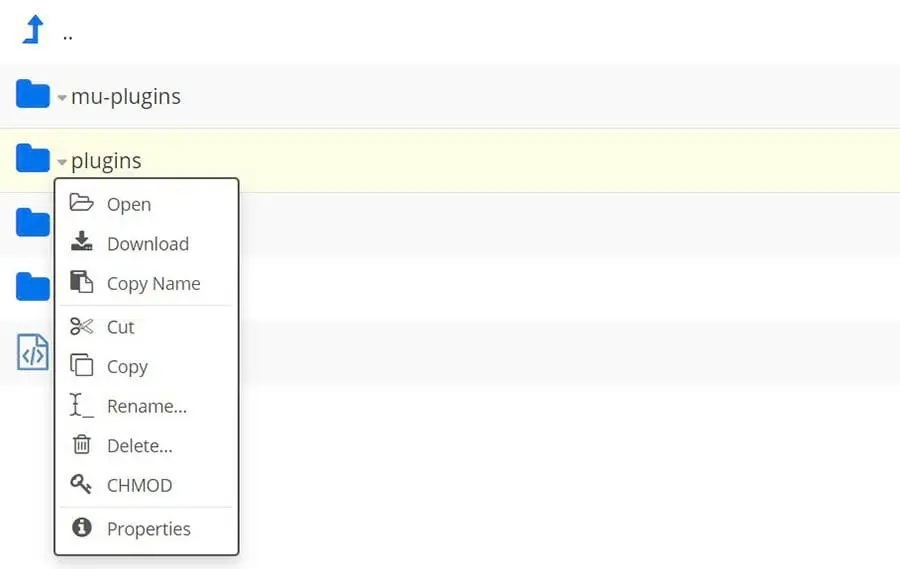
If this solves the login problem, you’ll need to determine which specific plugin is at fault. To do that, restore the folder’s original name, open it, and rename one of the plugin folders instead. You can repeat this process to deactivate one plugin at a time, testing your login page after each one to identify the culprit.
If you’re still unable to log in to your WordPress site after deactivating the plugins, return to the wp-content folder and open the themes folder. Rename only your active theme’s folder (for example, yourtheme_test), not the whole themes folder. Your WordPress site will automatically revert to a default theme, as long as a default theme (such as a Twenty-series theme) is still installed in wp-content/themes.
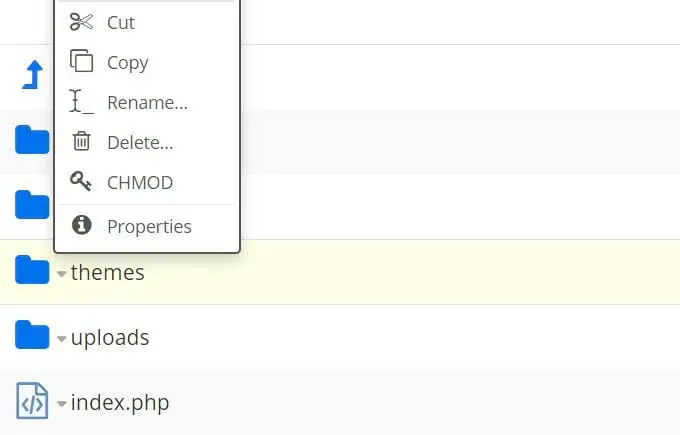
If deactivating these elements solves your login problem, you can head to your WordPress dashboard and perform any necessary updates. You might also want to replace the plugin or theme causing trouble or contact the developer for assistance.
3. Restore your default .htaccess file
If you’ve tried the above two methods and are still stuck in the loop, don’t worry. There are still two more fixes you can try.
Next, rule out a corrupted .htaccess file. Located in your site’s root directory, the .htaccess file holds Apache rewrite rules for your site, including the permalink rules WordPress generates. To be upfront about the evidence: WordPress’s troubleshooting handbook documents a corrupted .htaccess file as “the most likely issue” behind internal server errors rather than login loops specifically. Still, because those rewrite rules control how your site handles redirects, deleting and regenerating the file is a quick, safe check when the first two fixes fail.
To access this file, connect to your website through an SFTP client or the file manager in your hosting account. From there, go to your site’s root directory, locate the .htaccess file, and delete it.
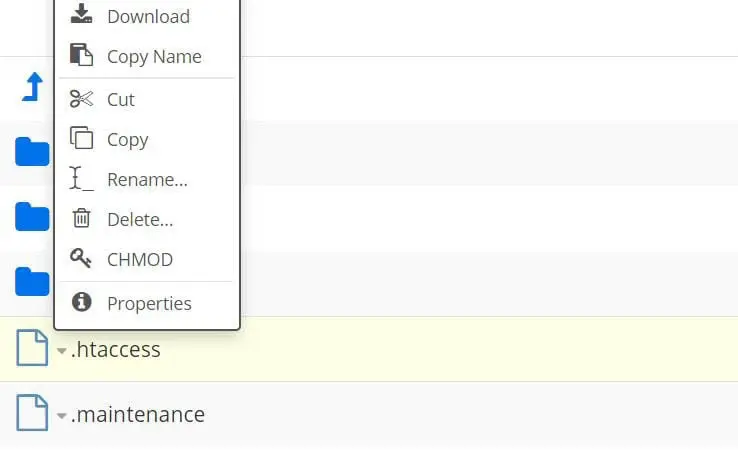
Next, try logging in to your site. If you’re successful this time, you’ll know that the problem was the .htaccess file.
Finally, you’ll need to create a new .htaccess file. Go to Settings in your WordPress admin dashboard, select Permalinks, and click on the Save Changes button at the bottom of the page.
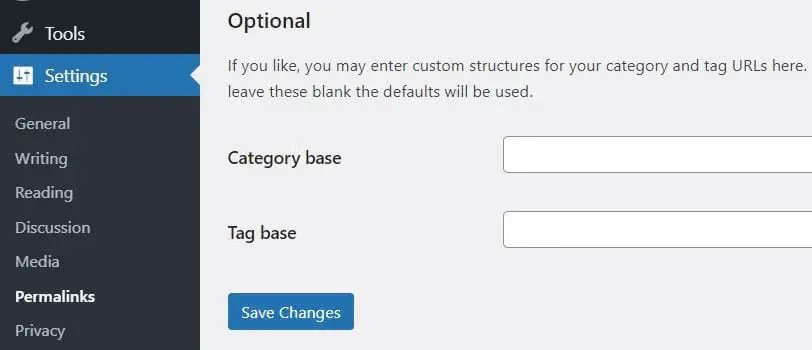
Note that you don’t need to make any changes on the Permalinks Settings page. Simply hit the blue button, and a new .htaccess file will appear in your site’s root directory.
4. Check your WordPress Address and Site Address URLs
If the loop survives all three fixes above, mismatched site URLs are the next thing to rule out. When your WordPress Address (URL) and Site Address (URL) settings don’t match — say, one uses www and the other doesn’t, or one still says HTTP after you’ve moved to HTTPS — the login cookie can be set for one address while the login redirects to another, bouncing you straight back to the login screen. WordPress’s Advanced Administration Handbook lists checking the WP_HOME and WP_SITEURL values among its first steps for a login redirect loop.
Since you’re locked out of the dashboard, you can force the correct URLs from your wp-config.php file instead. Connect via SFTP or your file manager, open wp-config.php in your site’s root directory, and add these two lines, using your real domain:
define( 'WP_HOME', 'https://example.com' );
define( 'WP_SITEURL', 'https://example.com' );
Try logging in again. If it works, the mismatch was your culprit: set both URLs to the same exact address under Settings > General, then remove the temporary lines from wp-config.php. Two related checks from the same handbook: if wp-config.php defines a COOKIE_DOMAIN, make sure it matches your site URL, and if you recently moved your site between domains or from HTTP to HTTPS, take a backup and run a database search-replace to update the old URLs stored in your database.
Escalation check: If all four fixes fail, look at the server side before repeating the cycle. Purge your host’s server-side cache, and if a CDN or proxy sits in front of your site, review its SSL and redirect settings. As WordPress’s handbook recommends, wp-login.php should be excluded from page caching entirely.
WordPress login redirect loop FAQs
Why does my WordPress login page just refresh?
Your browser is usually holding stale cookies or cached files that WordPress can’t use to authenticate you. Clear your cookies and cache first. If the page still refreshes, look for a plugin or theme conflict or mismatched site URLs, then rule out a corrupted .htaccess file.
How do I get out of a WordPress login loop?
Work through four fixes in order: clear your browser cookies and cache, deactivate recently installed plugins and themes by renaming their folders, delete and regenerate the .htaccess file, and make sure your WordPress Address and Site Address URLs match exactly.
Why can’t I log in to WordPress even with the correct password?
If you see no error message and simply land back on the login screen, you’re in a redirect loop, not a password problem. WordPress uses cookies for authentication, so anything that blocks or mismatches those cookies sends you back to the login page.
Does clearing my cache fix the WordPress login redirect?
Often, yes. It’s the quickest fix and the right first step. If the loop returns, the problem lives with the site: a plugin or theme conflict, mismatched URL settings, a server-side cache or CDN still caching the login page, or (worth ruling out) a corrupted .htaccess file.
Can I change where WordPress sends users after login?
Yes, and that’s intentional redirection, not an error. Developers can use WordPress’s login_redirect filter to send users to a custom page after they log in, or you can install a login redirect plugin to do the same without code.
Additional WordPress error resources
Do you want to learn how to troubleshoot other WordPress errors? We’ve put together several guides to help you solve common WordPress issues:
- How to Troubleshoot the WordPress White Screen of Death
- How to Fix the 500 Internal Server Error in WordPress
- How to Fix Syntax Errors in WordPress
- How to Fix the WordPress Not Sending Email Issue
- How to Fix the Error Establishing Database Connection in WordPress
- How to Fix WordPress Error 404 Not Found
- How to Fix White Text and Missing Buttons in WordPress Visual Editor
- How to Fix the Sidebar Below Content Error in WordPress
- What to Do When You’re Locked Out of the WordPress Admin Area
- How to Fix the WordPress Memory Exhausted Error
If you’re looking for more WordPress tips, check out our WordPress Tutorials. This is a collection of guides designed to help you navigate the WordPress dashboard like a pro.
Login issue be gone
The WordPress login redirect loop may seem intimidating, but it is a common error. It’s generally caused by a caching issue, a faulty plugin or theme, or mismatched site URL settings, and a corrupted .htaccess file is worth ruling out along the way.
There are four things you can do to get out of this redirect loop:
- Clear your browser cookies and cache.
- Check to see if the problem is caused by a newly installed theme or plugin.
- Delete and restore the .htaccess file in your website’s root folder.
- Make sure your WordPress Address and Site Address URLs match, in Settings > General or via wp-config.php.
If the loop keeps coming back after every fix, don’t just repeat the cycle. Purge any server-side or CDN cache first, since a cached login page can undo every fix above. And if you notice changes you didn’t authorize alongside the loop (new admin users, for example), treat it as a possible hack: WordPress’s “My site was hacked” FAQ lists unauthorized behavior among its indicators of compromise, and recommends scanning your site (Wordfence and Sucuri Sitecheck are on its list) and checking with your hosting provider.
A little prevention helps, too. Keep your site URLs consistent whenever you migrate or switch to HTTPS, and keep plugins and themes updated, applying updates one at a time so you can spot a conflict quickly. Treat a security plugin’s login and redirect settings with the same caution, especially right after a migration or HTTPS change. And take a backup before any big change so you can roll back.
If you want to avoid dealing with WordPress errors in the future, consider switching to DreamPress. DreamPress handles the technical heavy lifting — updates, daily backups, caching, and failover — with 24/7 in-house WordPress experts on call, so you get to spend less time troubleshooting and more time growing your business.