
Ever needed to know which version of Linux you’re working with?
To check your Ubuntu version, open a terminal with Ctrl+Alt+T and run lsb_release -a — the Release line shows your version number. Prefer point-and-click? Open Settings, select System, then About. The five methods below walk through every option step by step.
Knowing your version helps you troubleshoot issues, avoid compatibility problems, plan hardware upgrades, and maintain good security. This guide is written for Ubuntu, but most of these methods work on other Linux distributions, too.
Let’s get started!
Ubuntu versions in 2026: current releases and support dates
As of August 2026, the current Ubuntu LTS release is 26.04 “Resolute Raccoon,” released in April 2026, per Canonical’s release cycle page. Ubuntu 24.04 and 22.04 LTS remain in standard support, and the latest interim release, 25.10 “Questing Quokka,” reached end of life in July 2026.
Each version of Ubuntu is basically an update to the operating system. New versions come along every six months on average, and every release has its own code name.
Here are the releases you’re most likely to see today:
| Version | Codename | Type | Released | Standard support ends |
|---|---|---|---|---|
| 26.04 LTS | Resolute Raccoon | LTS | April 2026 | May 2031 (ESM to May 2036) |
| 25.10 | Questing Quokka | Interim | October 2025 | July 2026 (end of life) |
| 24.04 LTS (currently 24.04.4) | Noble Numbat | LTS | April 2024 | May 2029 (ESM to May 2034) |
| 22.04 LTS (currently 22.04.5) | Jammy Jellyfish | LTS | April 2022 | May 2027 (ESM to May 2032) |
| 20.04 LTS (currently 20.04.6) | Focal Fossa | LTS | April 2020 | May 2025 (ESM to May 2030) |
| 18.04 LTS | Bionic Beaver | LTS | April 2018 | May 2023 (ESM to May 2028) |
The “currently” numbers are point releases, which roll new patches into refreshed install media — so the third digit climbs over time (more on reading them in the FAQ below). Ubuntu 26.04’s first point release, 26.04.1, is due August 27, 2026, per Canonical’s release schedule.
Ubuntu 20.04 and 18.04 have left standard support and are only covered through Ubuntu Pro’s Expanded Security Maintenance (ESM). Even older LTS releases, like 16.04 and 14.04, have exhausted ESM too and are now covered only by Canonical’s paid Legacy add-on.
Unlike some other desktop operating systems, Ubuntu also comes in official flavors that swap out the desktop environment: Kubuntu uses KDE Plasma, Xubuntu uses Xfce, and Lubuntu uses the lightweight LXQt, to name three.
Under the hood, though, every flavor is the same Ubuntu base system with the same Linux kernel. That matters here for one practical reason: the Settings path in Method 2 looks different on each flavor, while the terminal commands below work identically on all of them.
This underlying system is what we need to investigate to find that all-important version number.
Why you might need to check your Ubuntu version
“Remind me why I need to know my Ubuntu version again?”
We hear you.
There are several good reasons to look up your version number.
Here are the highlights:
Checking software compatibility
You might not be able to run new software on older releases, and the same goes for new updates of existing apps. A compatibility check on the Ubuntu version of your device can help you avoid any potential problems.
Security updates
New versions of Ubuntu often seek to patch security weaknesses. If you’re worried about a specific vulnerability, you might want to ensure you’re up to date.
Troubleshooting issues
When you’re trying to resolve problems on your device, it really helps to know your Ubuntu version number. Some problems are specific to certain releases, so almost every tech support person asks for this information.
Planning for upgrades
If you plan to update your system, make sure you check whether your device can actually handle the update. There’s a possibility that older devices may not meet the technical requirements for the latest Ubuntu versions.
You may also need a newer Ubuntu release to support newer hardware.
How to check your Ubuntu version (terminal and GUI)
The fastest check is a single terminal command: run lsb_release -a and read the Release line. If that command isn’t installed, cat /etc/os-release works on every Ubuntu system.
Here are the best methods to check your Ubuntu version via the command line and GUI (graphical user interface) — ranked fastest first.
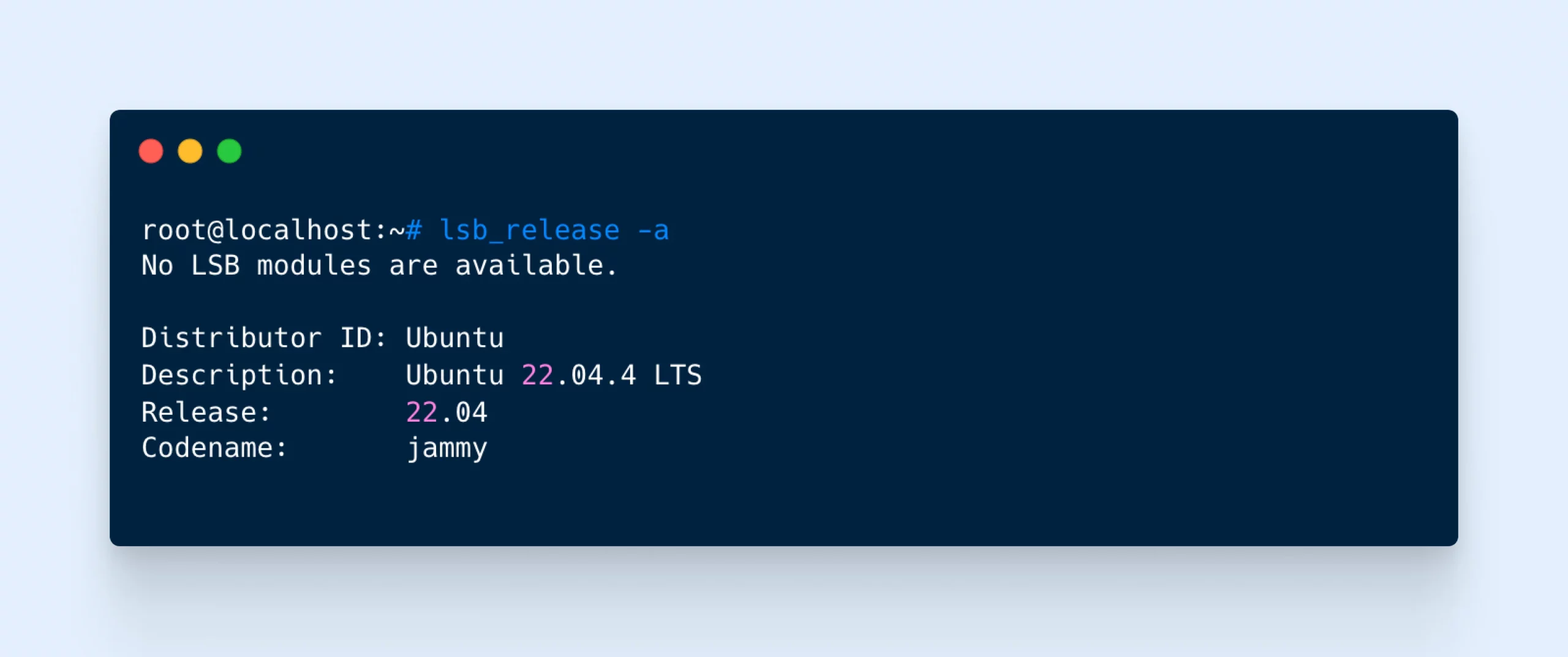
Method 1: The lsb_release -a command
The fastest way to get your version number is the lsb_release command. This prints out useful information about the Linux distribution you’re using — in this case, Ubuntu — including the distributor ID, description, release number, and codename.
Here’s how to use it:
- Launch Terminal using Ctrl+Alt+T
- Type in the following command:
lsb_release -a - Hit Enter
- The output should include the version number labeled as Release
Method 2: Check your version via the GUI settings
Not a fan of the terminal? The most user-friendly way to check your Ubuntu version is through the GUI:
- In the Launcher, click the little Settings gear icon
- In the sidebar, select System (on Ubuntu 22.04, you’ll see About directly in the sidebar instead)
- Click About
- Your Ubuntu version number appears in the system details, right alongside the OS name
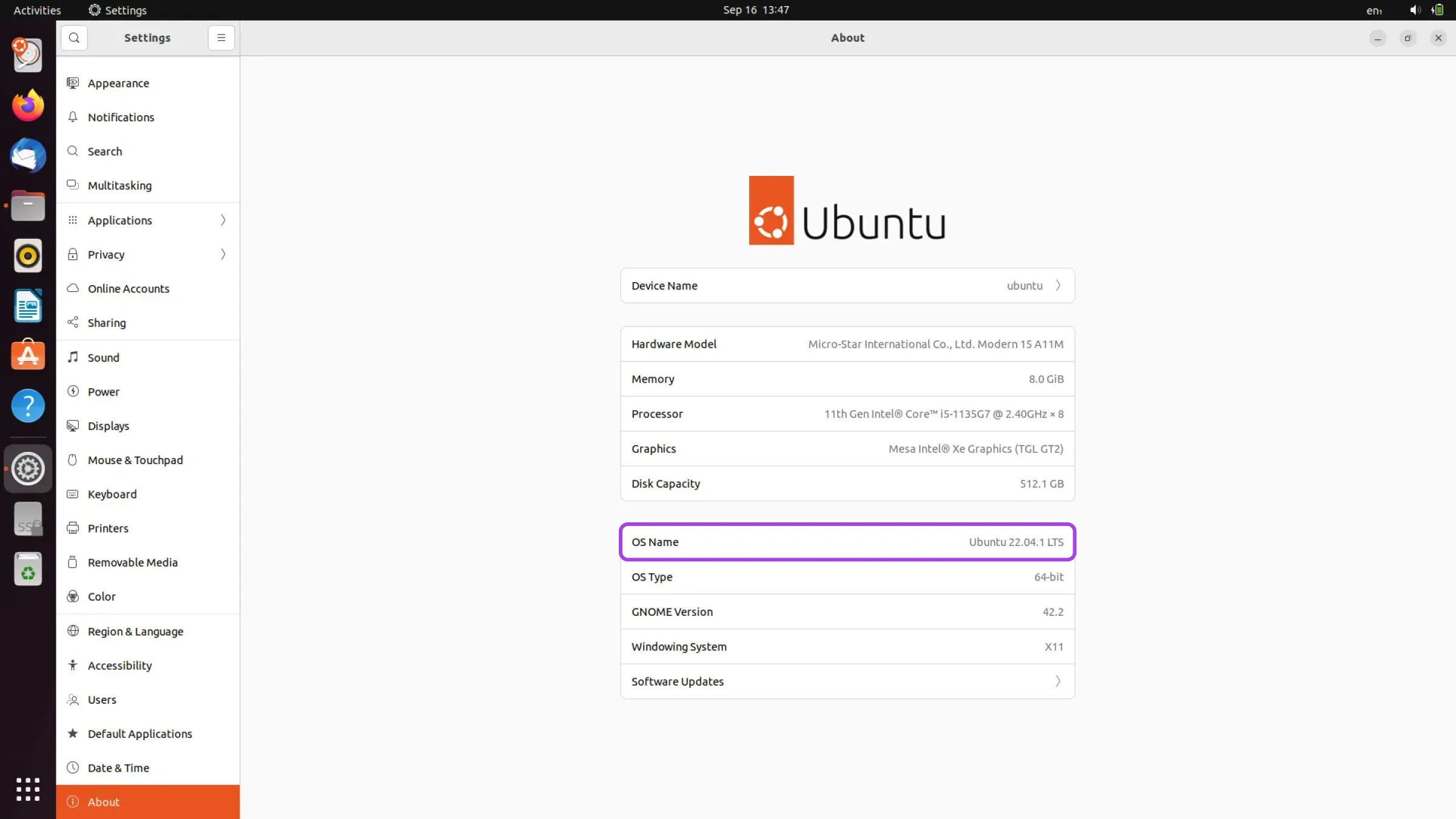
This route is perfect if you’re not confident with scripting and the Linux command line.
Method 3: The cat /etc/os-release command
Rather than asking the Linux command line for your version number, you can simply query the files that hold this information.
- Launch Terminal using Ctrl+Alt+T
- Type in the following command:
cat /etc/os-release - Hit Enter
- Terminal should output the contents of the os-release file
- You’ll find the key data under the VERSION_ID and VERSION_CODENAME variables (with PRETTY_NAME holding the human-readable version string)
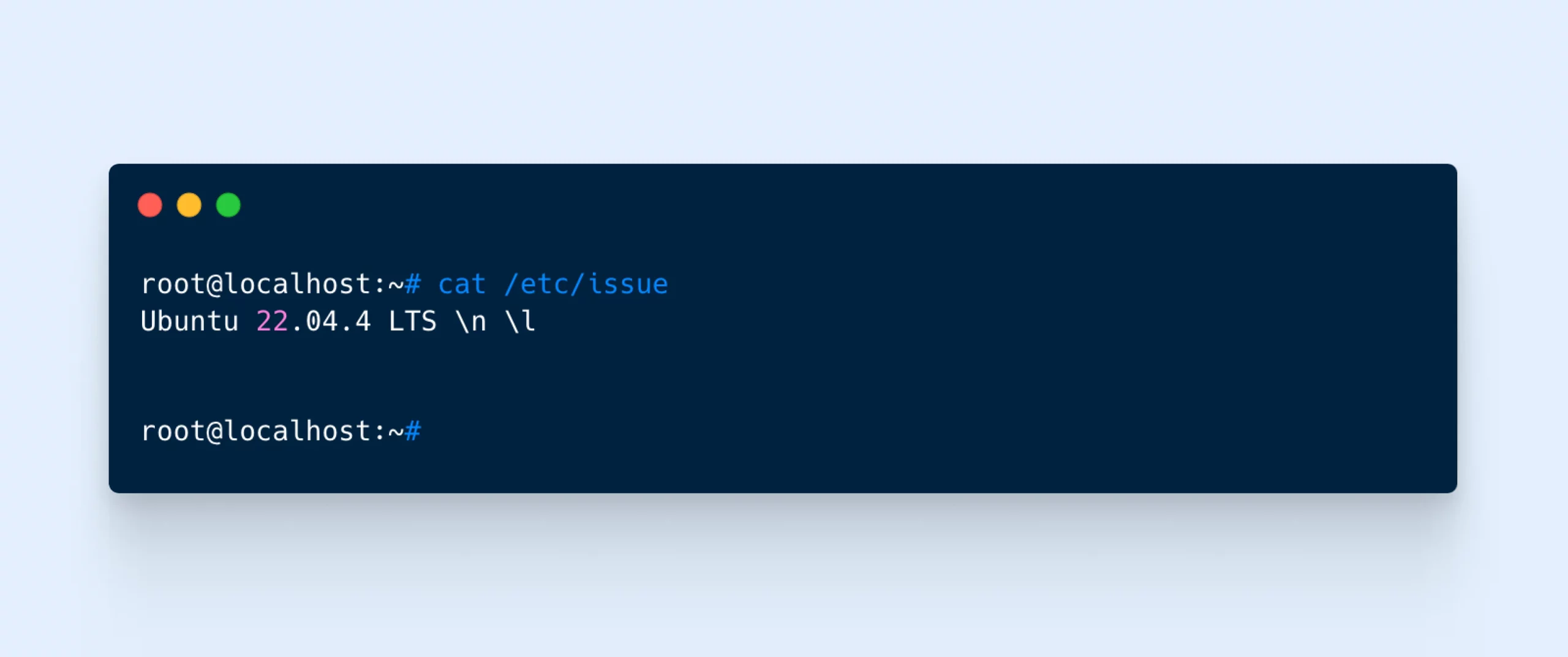
Method 4: Check your /etc/issue file
Another place where information is stored is the /etc/issue file. We can call on this document using a simple command and get only the Ubuntu version as a response.
- Launch Terminal using Ctrl+Alt+T
- Type in the following command:
cat /etc/issue - Hit Enter
- You should see a single line of text, listing your version number
Method 5: Use the hostnamectl command
The hostnamectl command is designed to help you change your system’s hostname. (That’s the identity of your device when it’s connected to a network.)
But we’re not interested in that today.
Instead, we’re going to use the command to reveal some key information about your system, including the all-important Ubuntu version number.
- Launch Terminal using Ctrl+Alt+T
- Type in the following command:
hostnamectl - Hit Enter
- You should see several lines of information, including your Operating System and Kernel versions
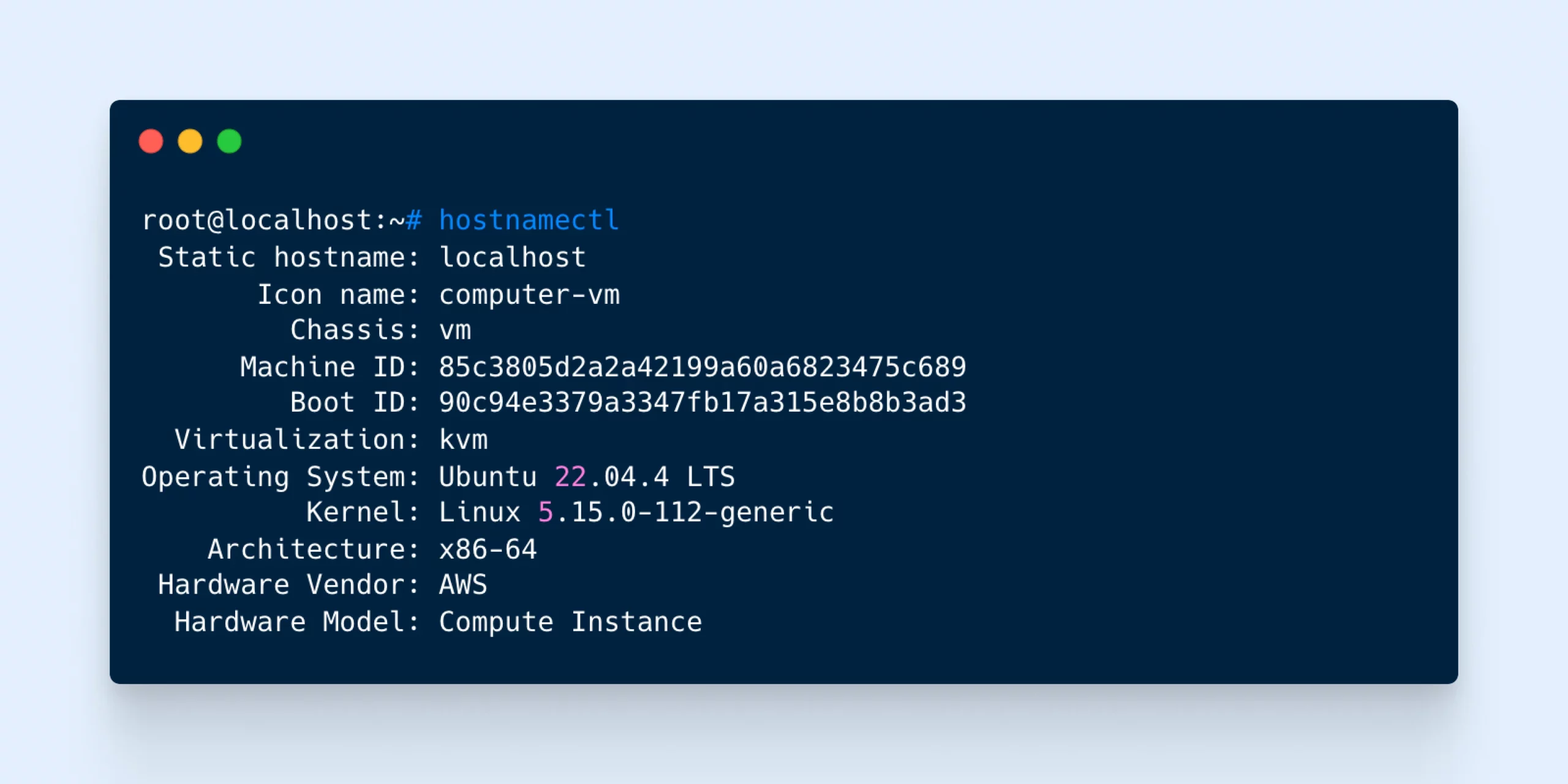
One distinction worth knowing: the Operating System line is your Ubuntu release (“Ubuntu 22.04.4 LTS” in the screenshot above), while the Kernel line is your Linux kernel version — a separate number entirely. That’s also why uname -r, a command often suggested for version checks, won’t tell you your Ubuntu version: it only prints the kernel string.
Ubuntu version FAQs
Got more questions? Below are a few of the most common ones regarding Ubuntu releases:
How often should I check my Ubuntu version?
You don’t need to check your Ubuntu version unless you’re updating to the next version, upgrading your setup, or trying to troubleshoot problems.
How can I upgrade my Ubuntu version?
You can upgrade via the Software Updater application or by choosing the upgrade option when Ubuntu notifies you about a new version. On a server, or if no prompt appears, run sudo do-release-upgrade in the terminal.
If your version check reveals a release that’s past its end-of-support date (see the table above), upgrade as soon as you can: it’s no longer receiving security updates. LTS users can move directly from one LTS to the next (from 24.04 LTS to 26.04 LTS, for example). Interim releases don’t get that shortcut: they upgrade sequentially, one release at a time, following the upgrade paths on Canonical’s release cycle page. And if your release is already past end of life, the standard upgrader may need extra steps to work at all — at that point, a clean install of the current LTS is often the quicker route.
What’s the difference between LTS and non-LTS Ubuntu versions?
You may notice that some Ubuntu version codes include the acronym LTS. This stands for long-term support.
LTS versions of Ubuntu are released every two years in April. The current LTS is 26.04 Resolute Raccoon (April 2026), preceded by 24.04 Noble Numbat (April 2024). Each LTS gets five years of standard support, and Ubuntu Pro’s Expanded Security Maintenance (ESM) extends that to 10 years total.
In contrast, non-LTS (interim) versions are released every six months. They only come with nine months of guaranteed support.
If you want a stable environment for getting things done, LTS might be the way to go.
However, you won’t get the latest and most experimental features that appear in other versions.
Does checking my Ubuntu version require sudo privileges?
Nope. You can use the lsb_release, /etc/os-release, and GUI methods mentioned above without sudo access. One caveat: minimal server and container images sometimes ship without lsb_release preinstalled, so if the command isn’t found over SSH, cat /etc/os-release is the fallback that always works.
What are the Ubuntu release naming conventions?
Each new version of Ubuntu is given a name to make it easier to reference. These names follow a simple format: adjective animal. For example, the current LTS release is Resolute Raccoon (26.04), and the next release will be Stonking Stingray (26.10), due in October 2026.
The first letter of both words is usually the same, and each new version moves to the next letter in the alphabet. The animals and adjectives can sometimes be a bit obscure, but these codenames are definitely memorable.
In addition to the names, Ubuntu versions also have a numbering system that follows the format YY.MM, where YY represents the year and MM represents the month of the release. For instance, Ubuntu 24.10 indicates a release in October 2024. This numbering system helps users quickly identify how old a particular release is. The “minor” version will always be either .04 or .10 to represent the months in which new releases are put out into the wild.
You might also spot a third number, like 24.04.4 or 22.04.5. That’s a point release: the same LTS version with all the updates and fixes since launch rolled into a refreshed install image. If your system reports 24.04.4, you’re still on 24.04 LTS, just fully patched, so there’s no separate upgrade to chase.
Together, the codename and version number provide an easy way to identify and reference specific Ubuntu releases.
Staying up to date
As you’ve seen, finding out which version of Ubuntu is on your computer isn’t that hard.
You just need to know where to look, or which commands to use. To recap, the key methods are:
- Use the
lsb_release -acommand - Check in your Settings via GUI
- Enter the
cat /etc/os-releasecommand - Ask for
cat /etc/issuein Terminal - Make use of the
hostnamectlcommand
Save this page for future reference, and you’ll never run into the same problem again!
Of course, software updates don’t only apply to desktop machines. Website owners need to track new versions and check for upgrades all the time.
If you’re tired of chasing your tail, consider moving your site to DreamHost.
Our managed hosting plans take care of updates automatically, meaning you don’t need to worry about version numbers. And automatic daily backups are stored offsite and retained for a set period based on your plan, so a recent, known-good copy of your site is always on hand.
Sign up today to make your life a little easier!