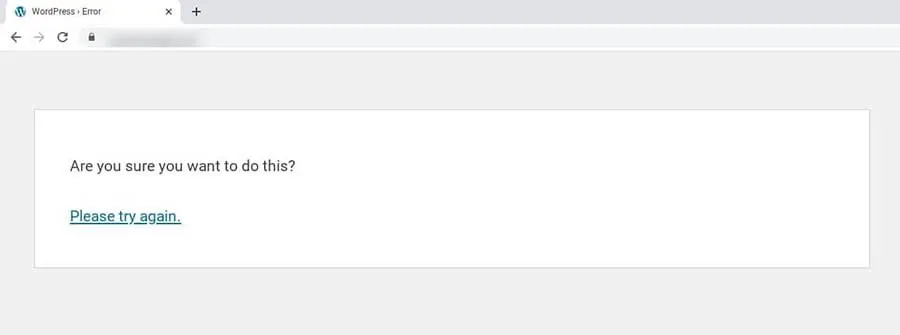
No, WordPress isn’t second-guessing your judgment. The “Are you sure you want to do this” error means WordPress couldn’t verify the security token (called a nonce) behind your request, so it blocked the action. On current WordPress versions, the same failure reads “The link you followed has expired.” It’s most often caused by a faulty plugin or theme, a low PHP memory limit, or corrupted core files, and the four methods below help you track down the culprit and fix the most common causes.
This warning is frustrating because it doesn’t tell you what actually went wrong, and it can stop you from performing basic tasks on your site, such as editing blog posts. The good news: you can pin down the cause and fix the error in a few simple steps.
What the “Are you sure you want to do this” error is
The “Are you sure you want to do this” error means WordPress failed to verify a security token, called a nonce. WordPress uses these nonces to verify that a request genuinely and intentionally came from you, which helps protect your site against attacks such as Cross-Site Request Forgery (CSRF). When that check fails, WordPress blocks the action and shows this warning instead.
One note before we dig in: on current versions of WordPress, this same nonce failure reads “The link you followed has expired.” The “Are you sure you want to do this?” wording appears on older WordPress versions. Either way, the causes and fixes in this post apply to both messages.
The error usually crops up while you’re performing certain tasks on your WordPress site. For instance, you may be trying to publish a post or customize your theme when the error message appears, preventing you from completing the job.
Various factors can trigger this verification failure. Next, we’ll take a look at the leading causes.

Skip the Stress, Outsource to Us
Avoid troubleshooting when you sign up for DreamPress. Our friendly WordPress experts are available 24/7 to help solve website problems — big or small.
Check Out PlansPotential causes of the “Are you sure you want to do this” error
The “Are you sure you want to do this” error message doesn’t pinpoint exactly what the problem is. However, we can narrow down the issue to a few causes.
Below are four common reasons you may be seeing this error:
- You’ve selected an incorrect file when uploading a plugin or theme.
- You’re using a plugin or theme with incorrect code.
- You need to increase your PHP memory limit.
- You’re facing a security issue due to corrupted files.
The most likely scenario is a faulty theme or plugin on your site. To figure out what is causing the issue, however, you’ll need to do some troubleshooting.
How to fix the “Are you sure you want to do this” error in WordPress (4 methods)
Here are the four methods, in the order we recommend trying them:
- Deactivate your plugins and reactivate them one at a time.
- Switch to a default WordPress theme.
- Increase your PHP memory limit.
- Replace your core WordPress files with fresh copies.
One quick check first: if the error appeared right after you uploaded a plugin or theme, make sure you selected the correct installable .zip file, and try the upload again.
Before proceeding, you may want to perform a backup of your site just in case something goes wrong and you need to restore an earlier version.
1. Check your plugins
As we mentioned earlier, the “Are you sure you want to do this” error could be caused by a faulty plugin on your site. To find out if this is the case, you can deactivate your plugins and reactivate them one by one.
Note that for this step, you’ll need to access your site’s root directory using a Secure File Transfer Protocol (SFTP) client such as FileZilla or by logging in to your web hosting account and using the file manager.
If you have a DreamHost account, open the Manage Websites page in the panel, find your domain, and click Manage to open Website settings.
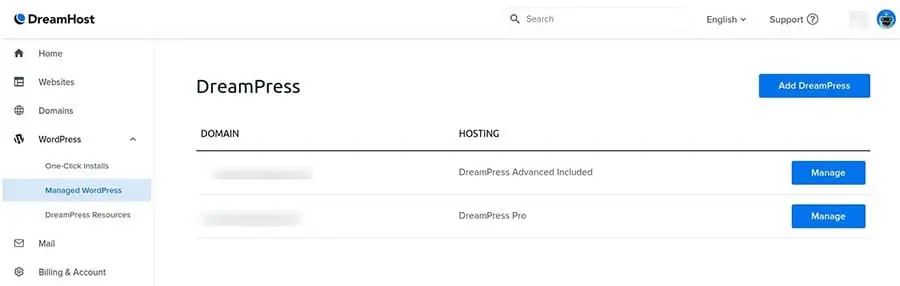
From Website settings, open the website file manager. In the file manager, open the folder with your domain name.
In your site’s root directory, locate and open the wp-content folder. To deactivate your plugins, you can find the plugins folder and rename it to “plugins_test”.
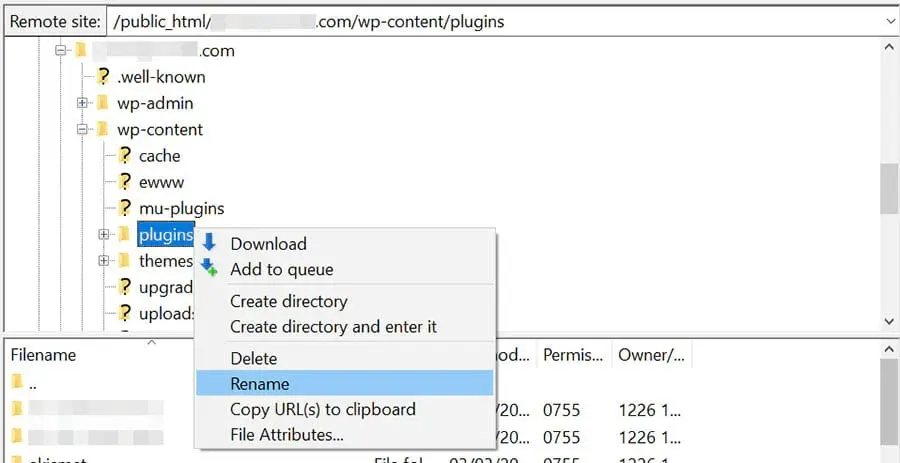
Return to your WordPress site. If the error message doesn’t reappear, you know that a plugin caused the issue.
The next step is to find out which one is the culprit. First, navigate back to your site’s root directory and rename the plugins_test folder back to “plugins”.
Next, go to the Plugins page in your WordPress dashboard. Activate the first plugin, and then check to see if the error is still present. Continue activating them one by one and testing your site until you find the plugin causing the error. Then you can replace it, or reach out to its developer for help.
2. Switch to a default WordPress theme
If deactivating your plugins doesn’t resolve the issue, it’s time to see if your current theme may be to blame. We’ll do this by switching to the default WordPress theme.
Once again, you’ll need to access your site’s root directory. To switch to the default WordPress theme, open the wp-content folder, then the themes folder, and rename only your active theme’s folder (from “yourtheme” to “yourtheme_test”, for example). Don’t rename the entire themes folder — that removes the default themes WordPress needs to fall back on.
After renaming your active theme’s folder, WordPress will automatically revert to a default theme, as long as one (such as Twenty Twenty-Five) is still installed. To see if this solves the problem, return to your site and carry out the same tasks that caused it before.
If the “Are you sure you want to do this” message doesn’t come up, your previous theme must have been at fault. As with your plugins, this means you may need to update or replace your theme (or get in touch with its developer for assistance).
3. Increase your PHP memory limit
If disabling your plugins and switching themes didn’t do the trick, the issue might be your WordPress PHP memory limit. If your current limit is set too low, it can interrupt certain processes.
There are various ways to go about this. If you’re a DreamHost user, you can increase your PHP memory limit by editing your phprc file (on DreamPress sites, use the .user.ini file instead). For other WordPress users, you can go through your php.ini or wp-config.php file.
By default, WordPress tries to set a memory limit of 40MB for a single site (64MB for multisite), per the WordPress Advanced Administration handbook, though your host may set a higher PHP limit. To raise the limit in your phprc or php.ini file, add a line like this:
memory_limit = 300M
In your wp-config.php file, that ini-style line would cause a PHP error. Use this line instead:
define( 'WP_MEMORY_LIMIT', '300M' );
Stick to a value your host permits or recommends rather than picking one arbitrarily. Save the file, and then retry the action that triggered the error to see if it’s resolved.
4. Replace all your core WordPress files with fresh copies
If the above three methods didn’t fix the error, it’s possible that some of your WordPress files became corrupted due to a recent malware or hacking attack. To confirm this, you can replace all of the WordPress core files with fresh copies.
Again, we recommend that you perform a backup of your site first. When you’re done, you’ll need to access your site via an FTP client. While you can also use the file manager in your web hosting account for this method, it will be quicker to replace your site’s files using an FTP client.
In the root directory, locate and download the wp-config.php file.
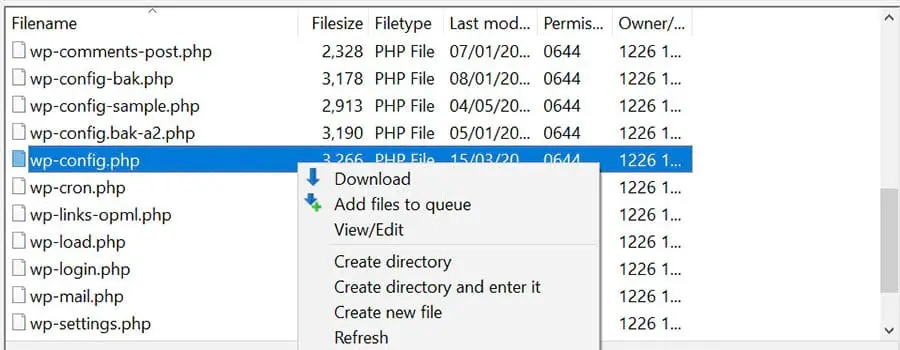
Next, you can delete all WordPress files and folders in the root directory except for the wp-content folder, which contains your plugins, themes, and media. Then download the latest version of WordPress to your computer and extract the .zip file.
Locate and copy the wp-config.php file you downloaded, and paste it in the extracted WordPress folder.
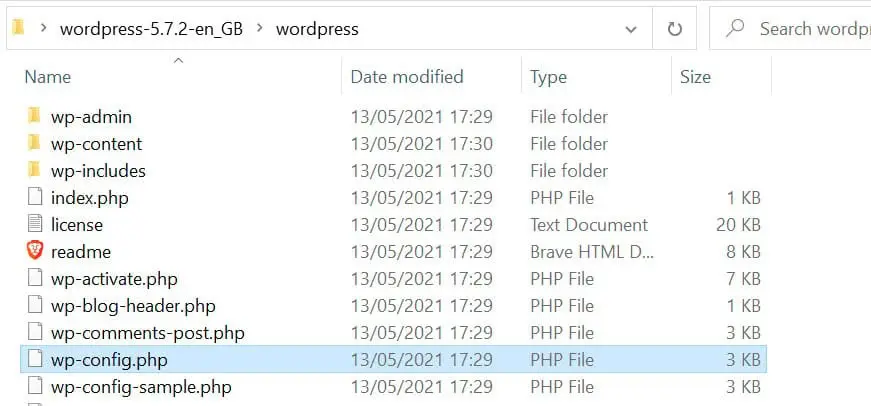
The final step is to upload the WordPress files on your computer to your site. These new files will replace the ones you deleted in the root directory.
If you’re using FileZilla, select every item in the WordPress folder on your computer except the wp-content folder, and then right-click and select Upload.
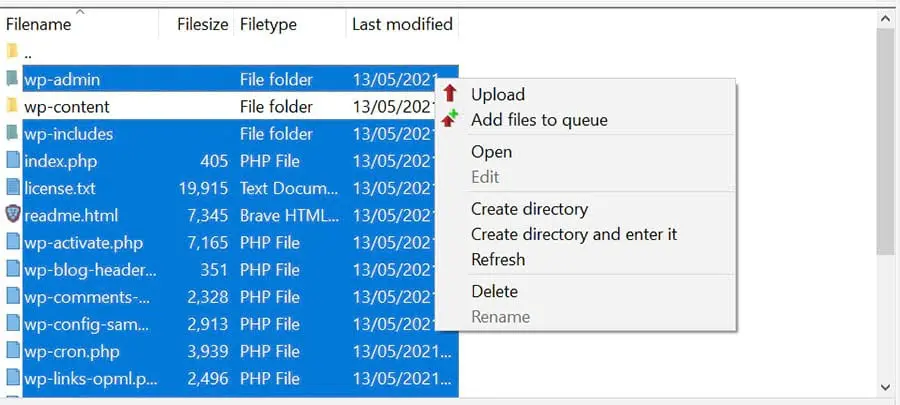
The uploading process may take a few minutes. Once it is complete, you can return to your WordPress site, and the error message should be gone.
FAQs about the “Are you sure you want to do this” error
Why does WordPress say “Are you sure you want to do this”?
WordPress shows this message when it can’t verify the security token (nonce) attached to your request. A faulty plugin or theme, a low PHP memory limit, or corrupted core files can all break that check. On current WordPress versions, the same failure reads “The link you followed has expired.”
How do I find which plugin causes the error?
Rename the wp-content/plugins folder (to “plugins_test”, for example) to deactivate every plugin at once. Then rename it back and reactivate your plugins one at a time from the WordPress dashboard. The plugin that’s active when the error returns is the culprit.
How do I increase the PHP memory limit on DreamHost?
Add a line such as memory_limit = 300M to your phprc file. On DreamPress sites, use the .user.ini file instead. DreamHost’s knowledge base article walks through each step.
Will replacing WordPress core files delete my content?
No. Your posts, pages, and settings live in the database, and your plugins, themes, and media live in the wp-content folder. As long as you keep wp-content and your wp-config.php file, replacing the core files won’t touch your content.
Additional troubleshooting tutorials
Do you want to learn how to resolve other website issues? We’ve put together several tutorials to help you troubleshoot some of the most common WordPress errors:
- How to Fix Common WordPress Errors
- How to Troubleshoot the WordPress White Screen of Death
- How to Fix the 500 Internal Server Error in WordPress
- How to Fix Syntax Errors in WordPress
- How to Fix the WordPress Not Sending Email Issue
- How to Fix the Error Establishing a Database Connection in WordPress
- How to Fix WordPress Error 404 Not Found
- How to Fix White Text and Missing Buttons in WordPress Visual Editor
- How to Fix the Sidebar Below Content Error in WordPress
- What to Do When You’re Locked Out of the WordPress Admin Area
- How to Fix the WordPress Memory Exhausted Error By Increasing Your Site’s PHP Memory Limit
- How to Fix the “Upload: Failed to Write File to Disk” Error in WordPress
Meanwhile, if you want more information about setting up and running a WordPress site, check out our WordPress Tutorials. There, you’ll find a collection of guides designed to help you navigate the WordPress dashboard like an expert.
Banish this WordPress error message
The “Are you sure you want to do this” error may prevent you from performing basic WordPress tasks. While a faulty theme or plugin commonly causes it, it can also arise if you’ve reached your PHP memory limit or your site’s facing a security issue.
To resolve the “Are you sure you want to do this” error, you can try these four solutions:
- Deactivate your plugins and reactivate them one at a time.
- Revert to the default WordPress theme.
- Increase your PHP memory limit.
- Replace all WordPress core files with fresh copies.
Troubleshooting WordPress issues can be time-consuming. One shortcut for DreamHost customers: the panel’s AI-powered error log analysis pairs raw logs with plain-English explanations and suggested fixes, which can help pinpoint a failing plugin or file faster. If you want to spend less time dealing with WordPress errors, you might want to consider switching to DreamPress. Our managed WordPress hosting plans come with full technical support for site owners, as well as daily backups to help keep your content safe.