
Regularly updating your site’s copy of WordPress ensures that your website will have a high level of performance and security. If your site remains on an end-of-life PHP version, it may be exposed to unpatched security vulnerabilities.
Here’s the short answer: WordPress recommends running PHP 8.3 or greater. You can check your current version in your dashboard under Tools > Site Health > Info, then switch to a newer version from your host’s control panel in a few clicks. This quick update can contribute to faster load times, improved security, and support for new functionality.
This article will discuss what PHP is, and why you should consider updating it. Then, we’ll show you how to check your current PHP version and upgrade it if needed. Let’s get started!
An Introduction to PHP
PHP is a programming and scripting language that plays an important role in WordPress development. PHP takes data from the database and converts it into an HTML web page whenever someone visits your website. And it’s everywhere: as of August 2026, W3Techs measures PHP in use on 70.3% of all websites whose server-side programming language it can identify.
As a website owner, you might never need to learn PHP coding. However, after downloading WordPress, you’ll automatically receive all of the PHP files that make up WordPress core:
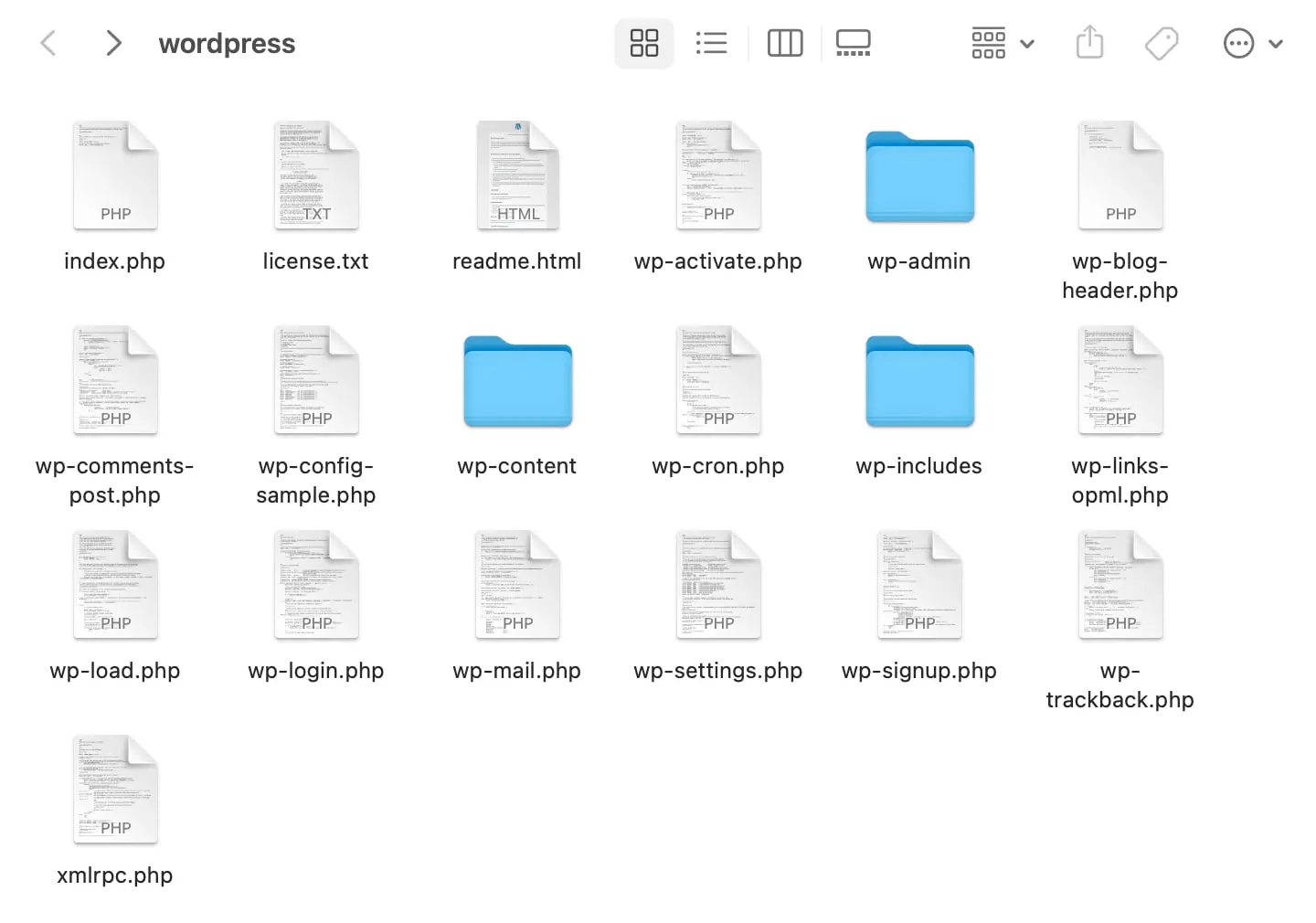
Although these files have been written for you — and are just waiting for your content, themes, and plugins — there are some scenarios where you can benefit from editing PHP files:
- Developing a custom theme or plugin
- Manipulating files on your server
- Connecting a website to a MySQL database
Since PHP is one of the key languages behind WordPress, learning a little bit about how to work with it will open up the scope of projects that you are able to do.
It’s likely that you won’t have to edit your PHP files. Still, learning the language can be handy for developers who wish to create new software or customizations.
Why You Should Update Your PHP Version
You might already be familiar with the importance of updating your WordPress, themes, and plugins. It’s also crucial to regularly update your PHP version.
Currently, WordPress recommends PHP 8.3 or greater. WordPress will still run on PHP 7.4 and up, but the WordPress project notes that those older versions have reached official end of life and may expose your site to security vulnerabilities.
Here are the main benefits of upgrading your sites to a current PHP version:
- Better security: Each PHP branch is fully supported for two years, then gets critical security fixes for two more. After that, it stops receiving patches — in php.net’s own words, users of end-of-life releases “may be exposed to unpatched security vulnerabilities.”
- Improved performance: Upgraded PHP can improve load times through internal code improvements and reduced memory usage.
- More support: As of August 2026, PHP 8.2 through 8.5 are the currently supported branches — and only 8.4 and 8.5 still receive active bug fixes, while 8.2 and 8.3 get critical security fixes only.
If your site is behind, you have plenty of company: W3Techs measures 28.9% of the websites that use PHP still running version 7 — a branch that no longer appears on php.net’s supported versions list at all. Don’t be part of that statistic.
Take it from our Director of IT Operations, Luke Odom:
“Running a modern, supported, version of PHP is one of the best things you can do for the health, security, and speed of your website. Let’s compare an outdated PHP version to an old car. Sure, it will run and get you from point A to B, but without modern safety sensors, technology, fuel efficiency, and GPS navigation you may find yourself in some trouble a bit more easily.”
Running a supported PHP version ensures that the branch still receives security fixes; performance effects depend on the release and workload. If your web host does not provide automatic updates for their customers, you can follow this manual process.
How to Check Your Current PHP Version
Before you get started, you should check which PHP version is currently supporting your website. If you’re running WordPress 5.2 or higher — the release that added the Site Health pages, building on features introduced in 5.1 — you can view your PHP version in your dashboard.
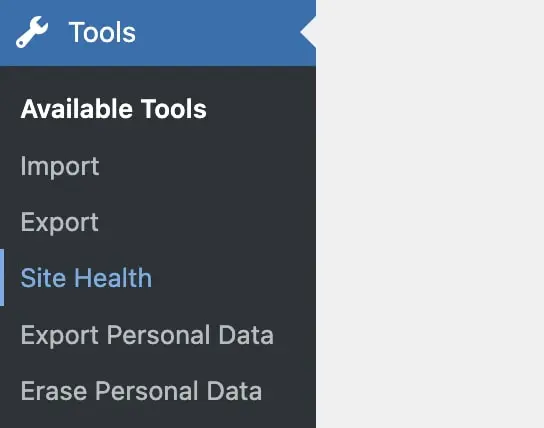
First, go to Tools > Site Health:
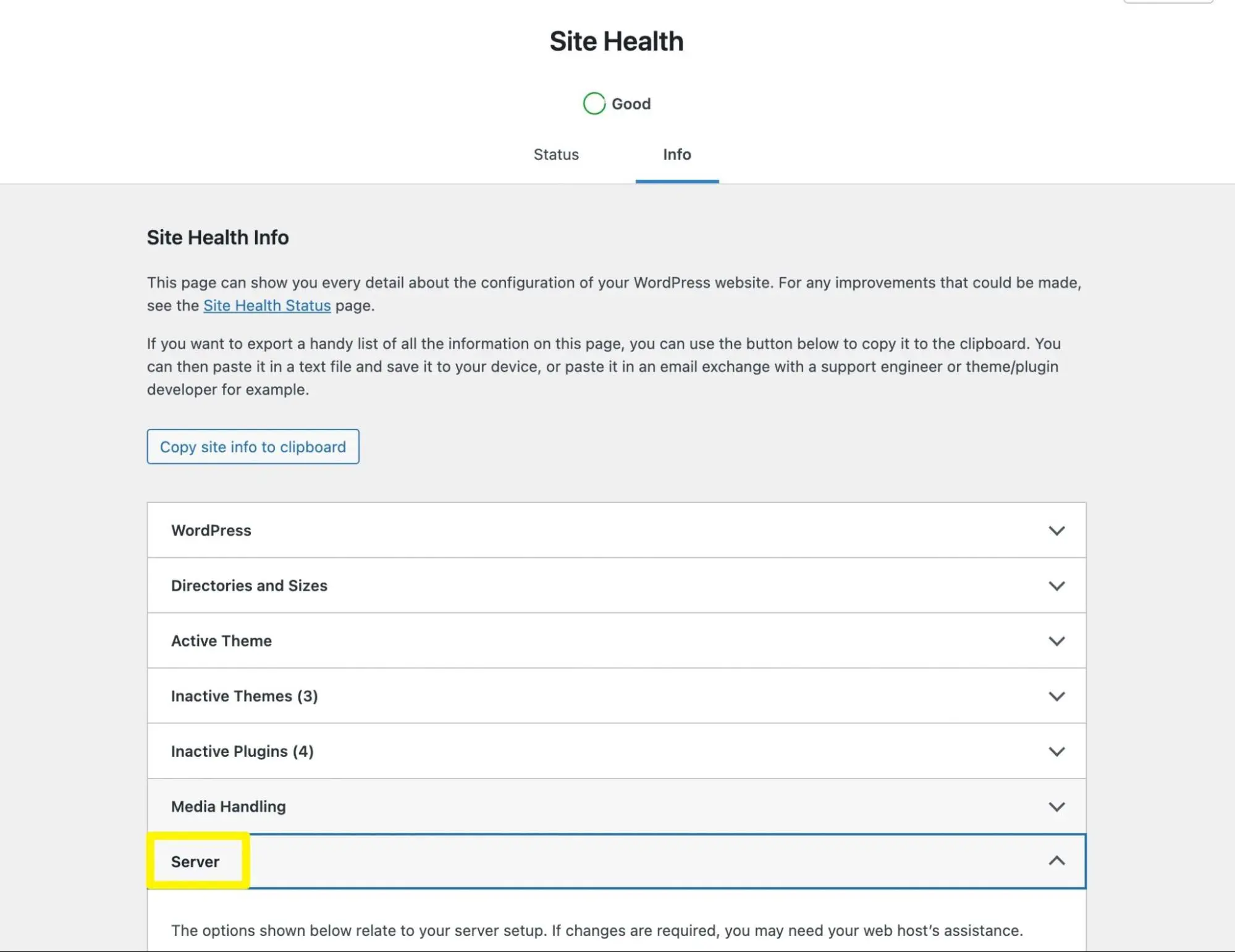
On the Site Health page, click on Info. Then find the Server section:
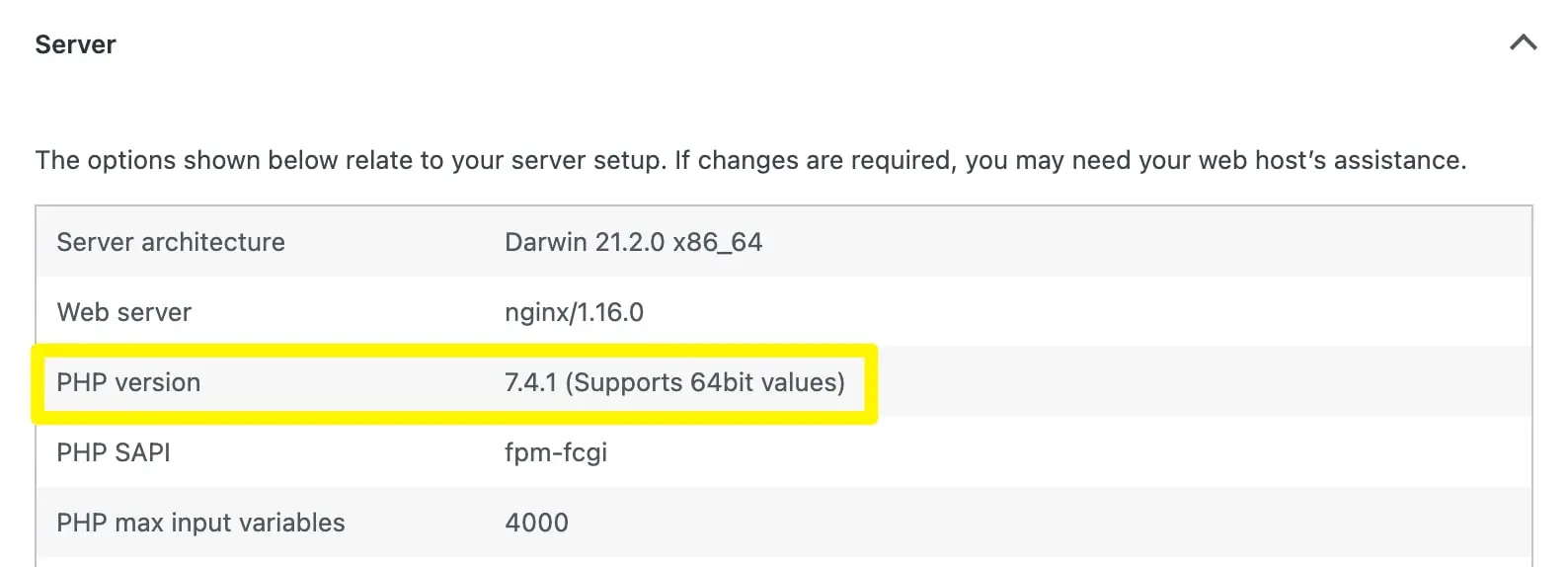
Here, you should be able to see your current PHP version:
Another simple method for checking your PHP version is using your web host’s control panel. For DreamHost websites, click on the Manage button next to your domain:
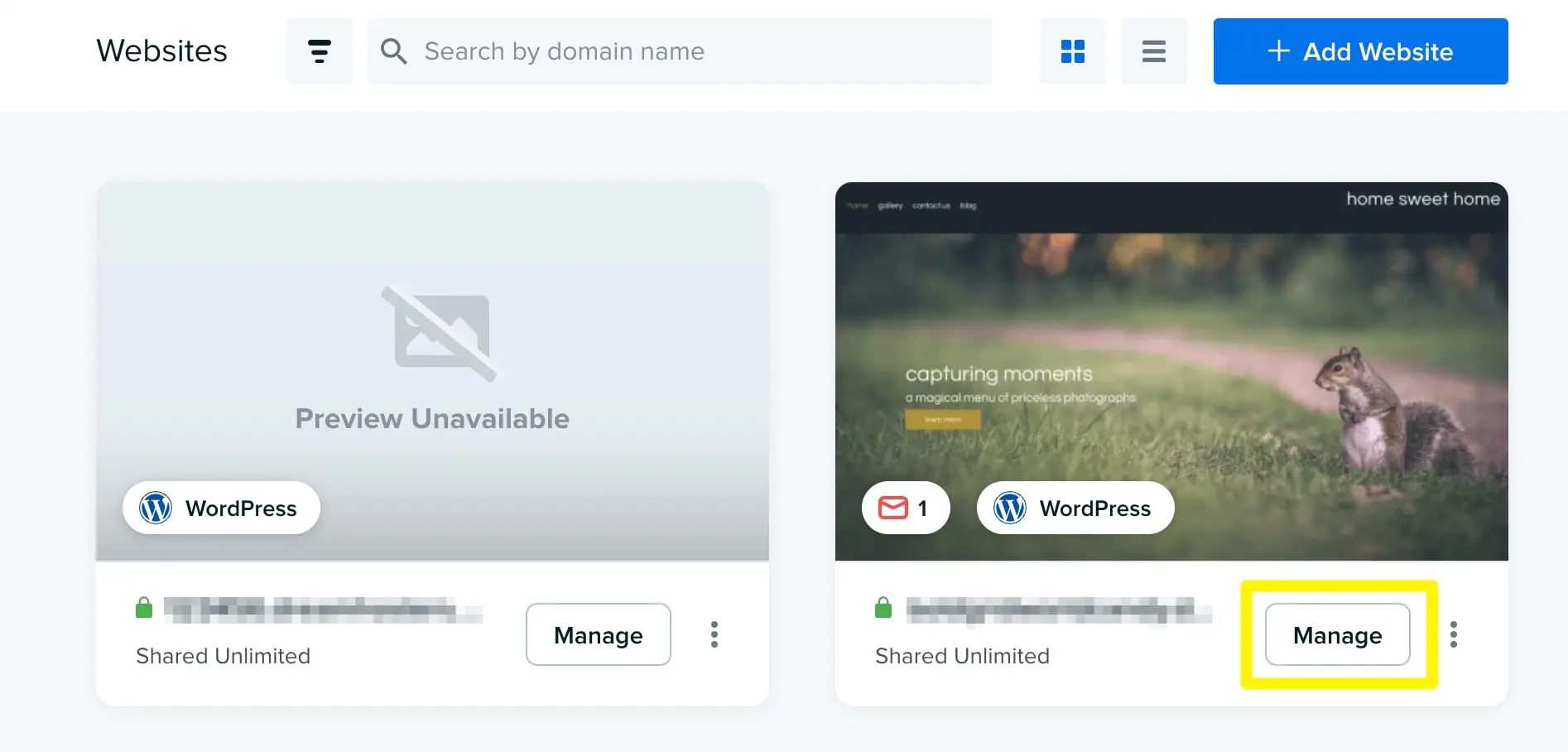
Then, find the section labeled PHP. This will list your site’s PHP version:
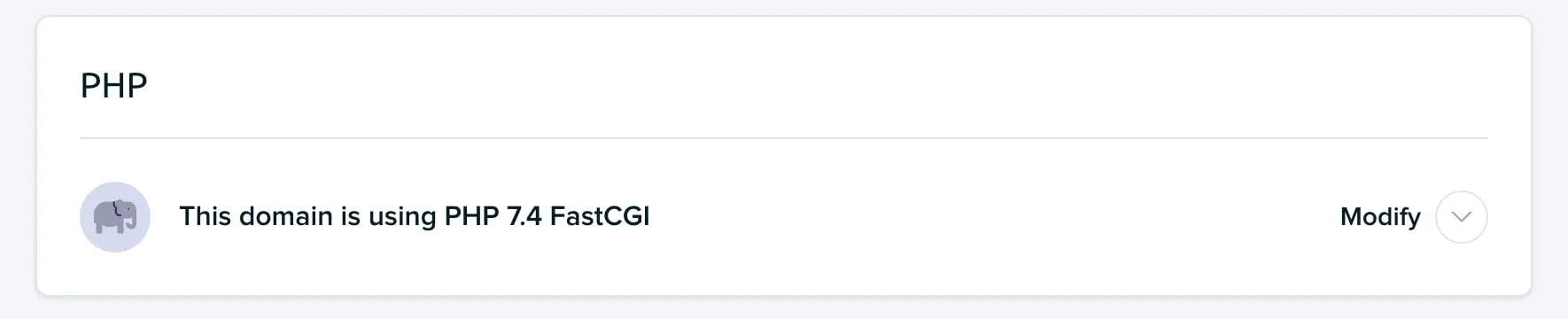
As of August 2026, the newest PHP branch is 8.5, released in November 2025, and the oldest branch still receiving security fixes is PHP 8.2. If the version you see is older than 8.3 — WordPress’s recommended minimum — you can proceed with the following steps.
How to Update Your PHP Version (In 4 Easy Steps)
Once you decide to update your version of PHP, we recommend taking a few precautions. Firstly, consider backing up your website. If anything goes wrong, you can roll back your version of PHP and then revert your site to the backed-up version.
Next, make sure your website is fully up to date. In your dashboard, go to the Updates page and install the latest versions of WordPress, themes, and plugins:
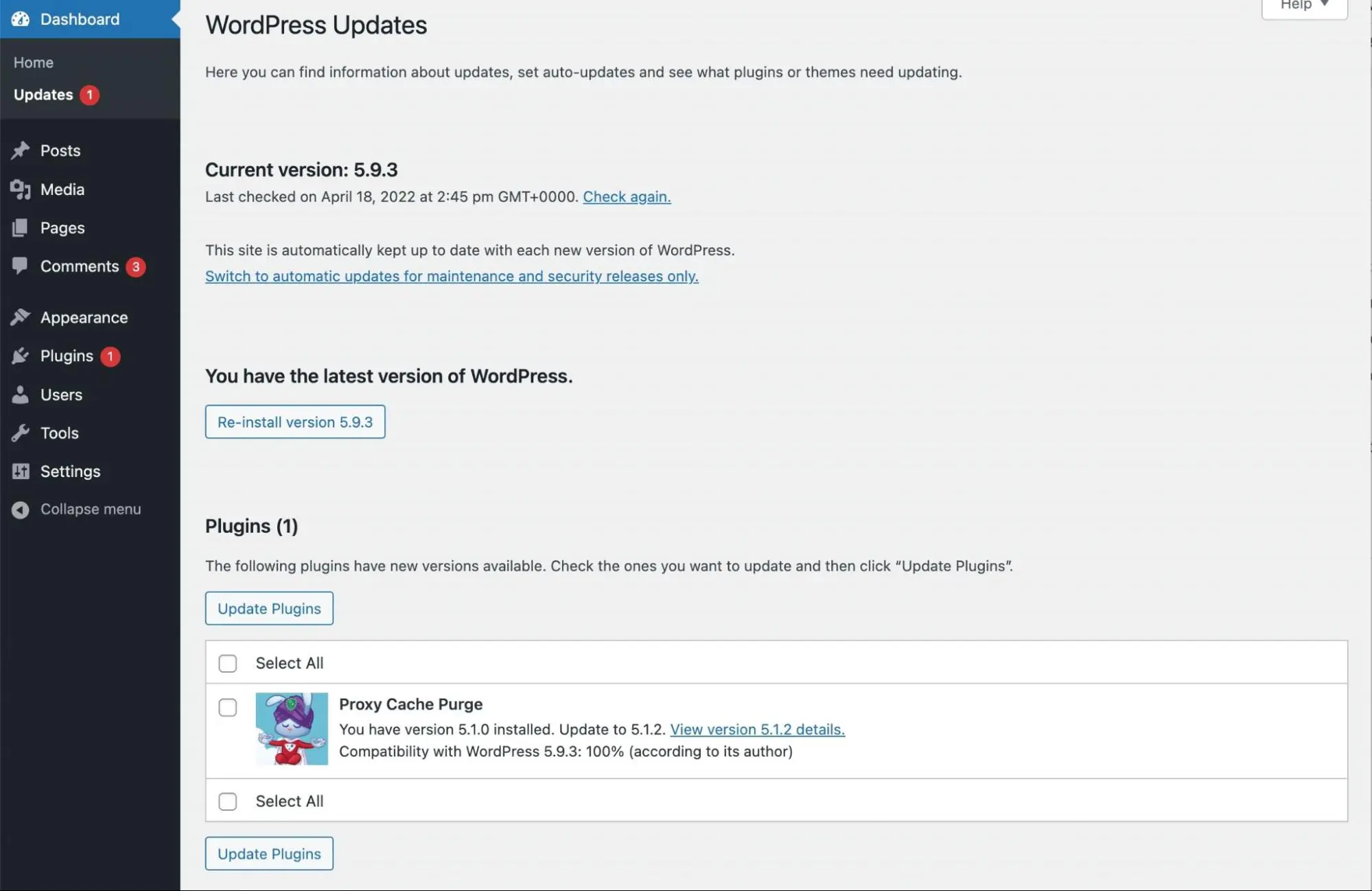
After taking these preventative steps, you can start manually updating your PHP version. As a simpler alternative, you can also contact your hosting provider. The host can typically handle this process for you.
Step 1: Create a Staging Site
Updating your PHP version can cause software conflicts on your website. Therefore, it’s wise to test the update in a staging environment. This creates a separate, safe environment to implement changes rather than breaking your live site.
Depending on your hosting provider, you can create a staging site through your control panel. For this tutorial, we’ll be using the DreamHost panel.
If you have DreamPress, DreamHost’s managed WordPress hosting, you can set up your staging site in minutes. Simply open your control panel and navigate to WordPress > Managed WordPress > Manage:
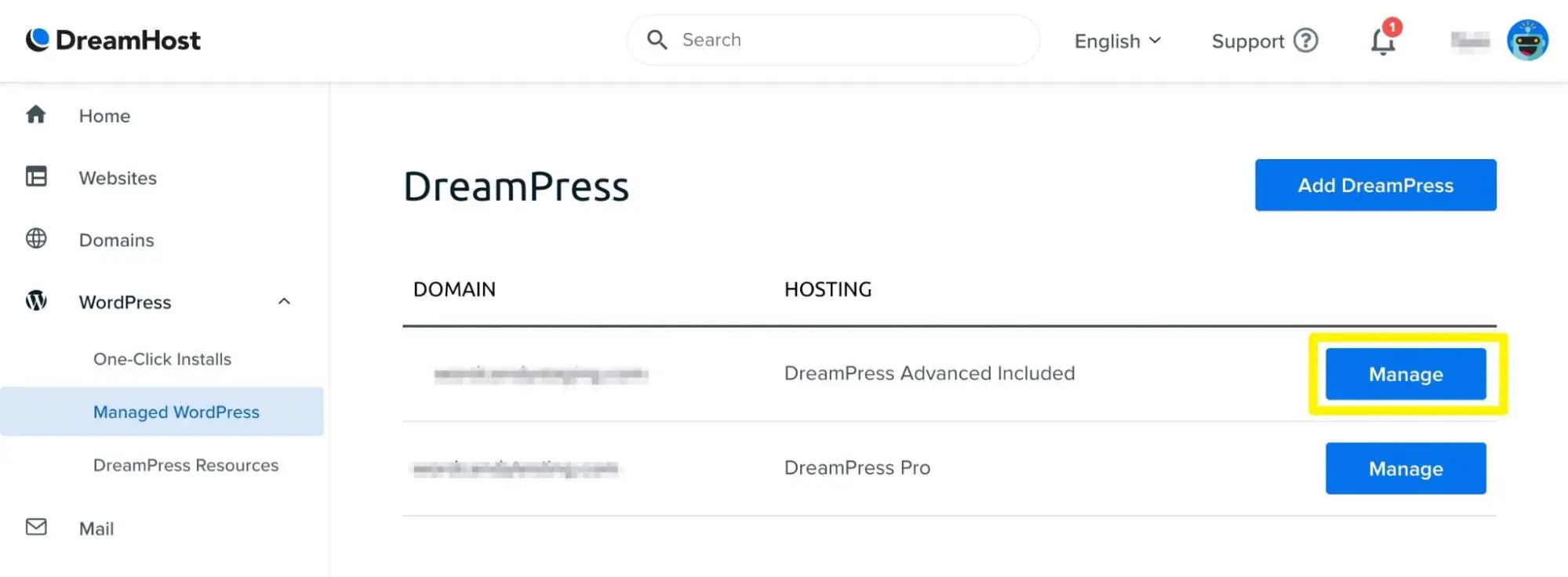
On the next page, go to Staging. Then, click on Create Staging Site:
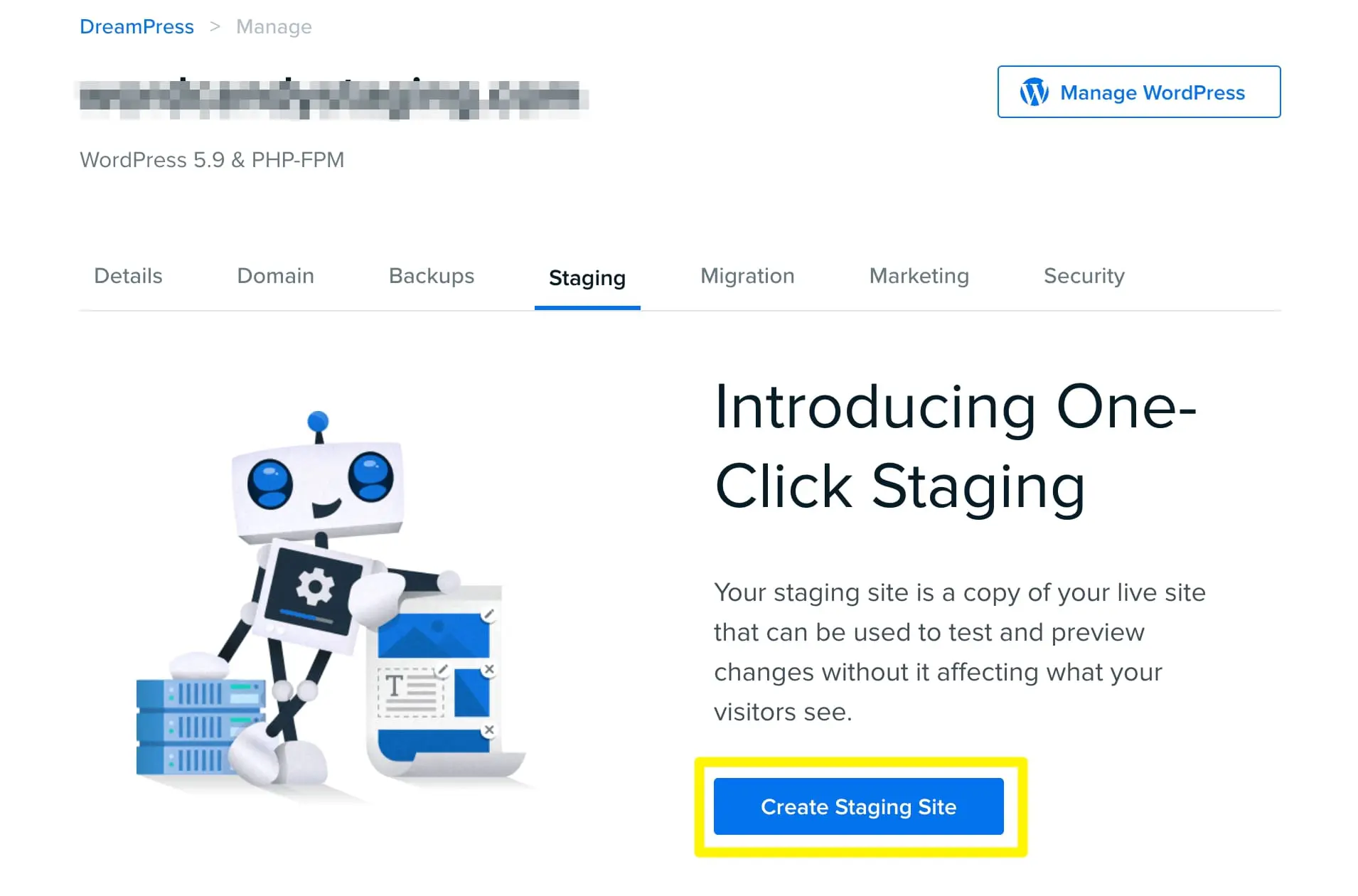
This will set up your staging site on an automatically generated subdomain. After this, you can update your PHP version without changing your live site.
Step 2: Change Your PHP Version
No matter your hosting provider, you can usually change your website’s PHP version through your control panel. This process will look different based on your host, but you’ll want to look for a MultiPHP Manager or PHP Selector.
To edit your DreamHost staging site, you can simply scroll down to the Configure PHP section. This section will list your current PHP version and the most recent update option:
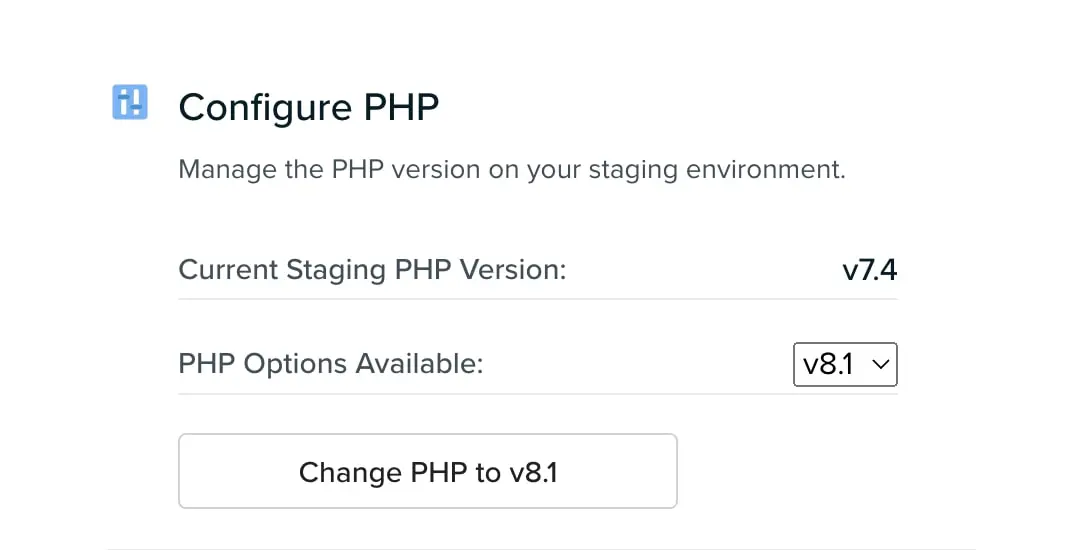
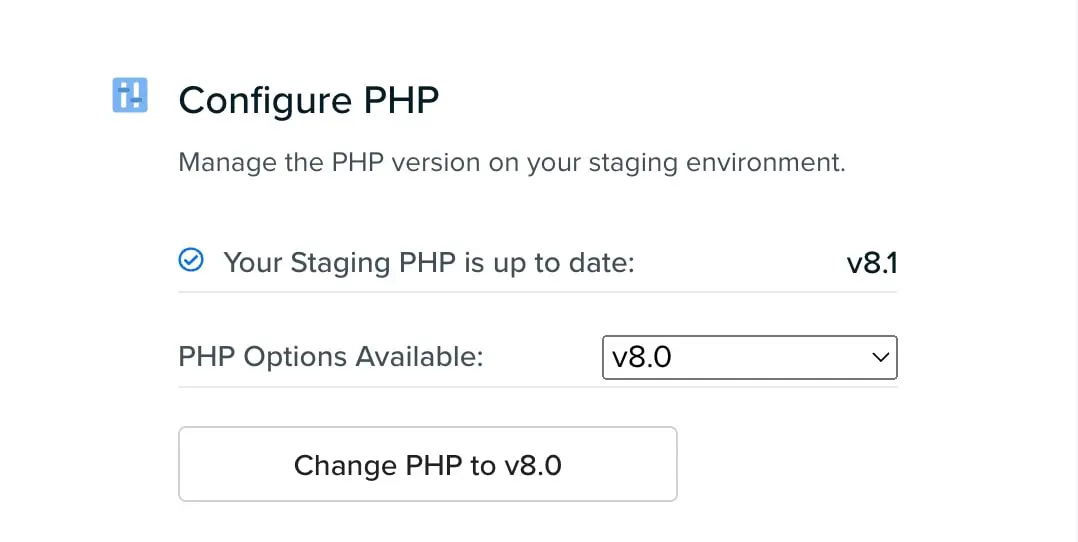
To update PHP, click on Change PHP to the newest version your panel offers (v8.1 when we captured these screenshots). If successful, this section will indicate that your site is up to date:
Although we strongly encourage you to test PHP version changes in a staging environment, you can modify your PHP version on your live website. To do this, go to Manage Websites in your DreamHost Panel. Then, scroll down to PHP and click on the arrow to Modify:
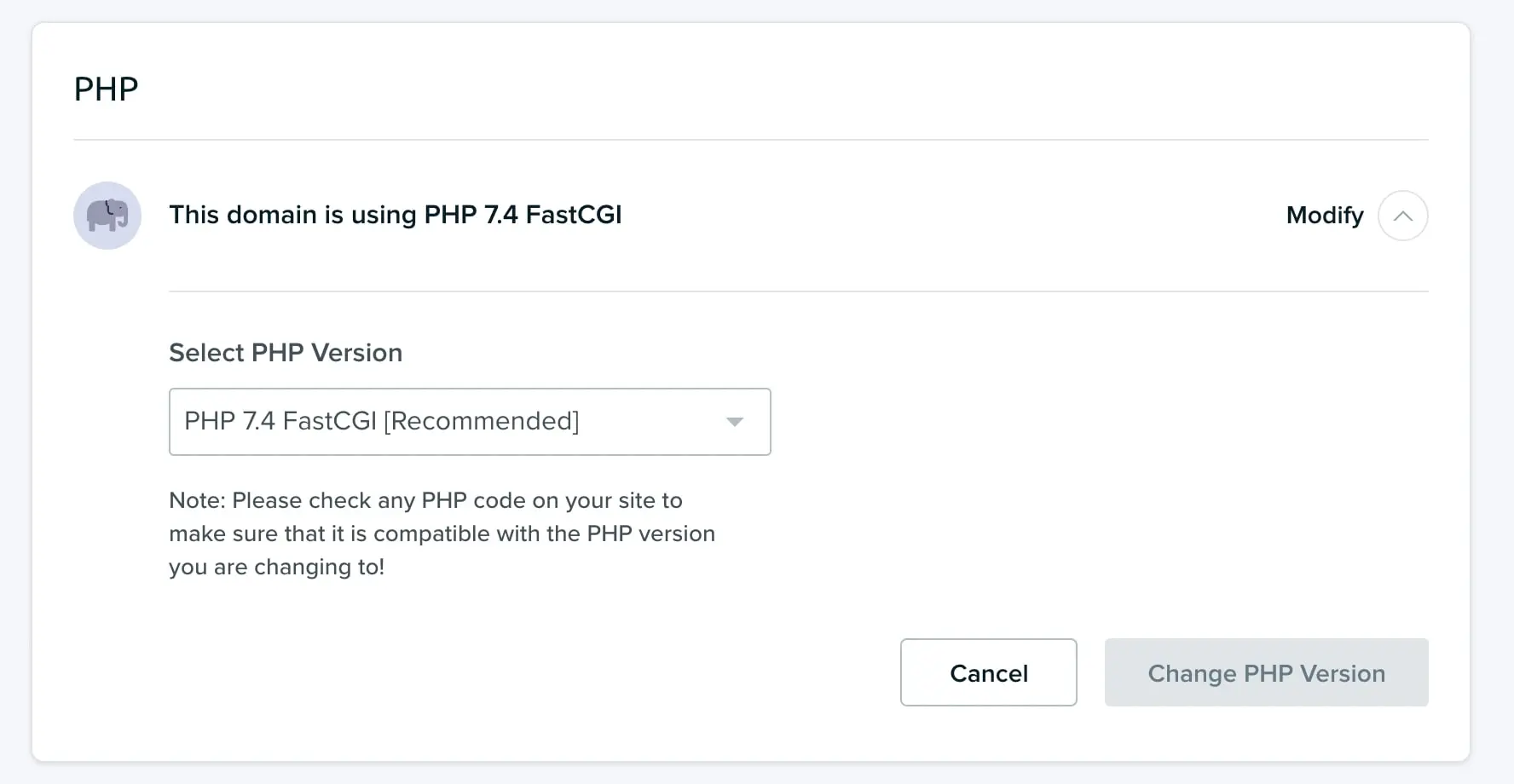
Lastly, select the new version you want to run on your website. Click on Change PHP Version to finish the process.
Step 3: Look for Conflicts
After updating your PHP version, we recommend reviewing your plugins and themes for conflicts. Upgrading PHP may cause common problems such as the White Screen of Death or 500 internal server errors.
Whether you updated a staging environment or your live site, visit the front end to see if everything is functioning correctly. If you notice any errors after browsing the website, you’ll need to begin troubleshooting.
One common reason for WordPress errors is a plugin conflict. When issues arise, try deactivating all of your plugins using the Bulk Actions on your Plugins page:
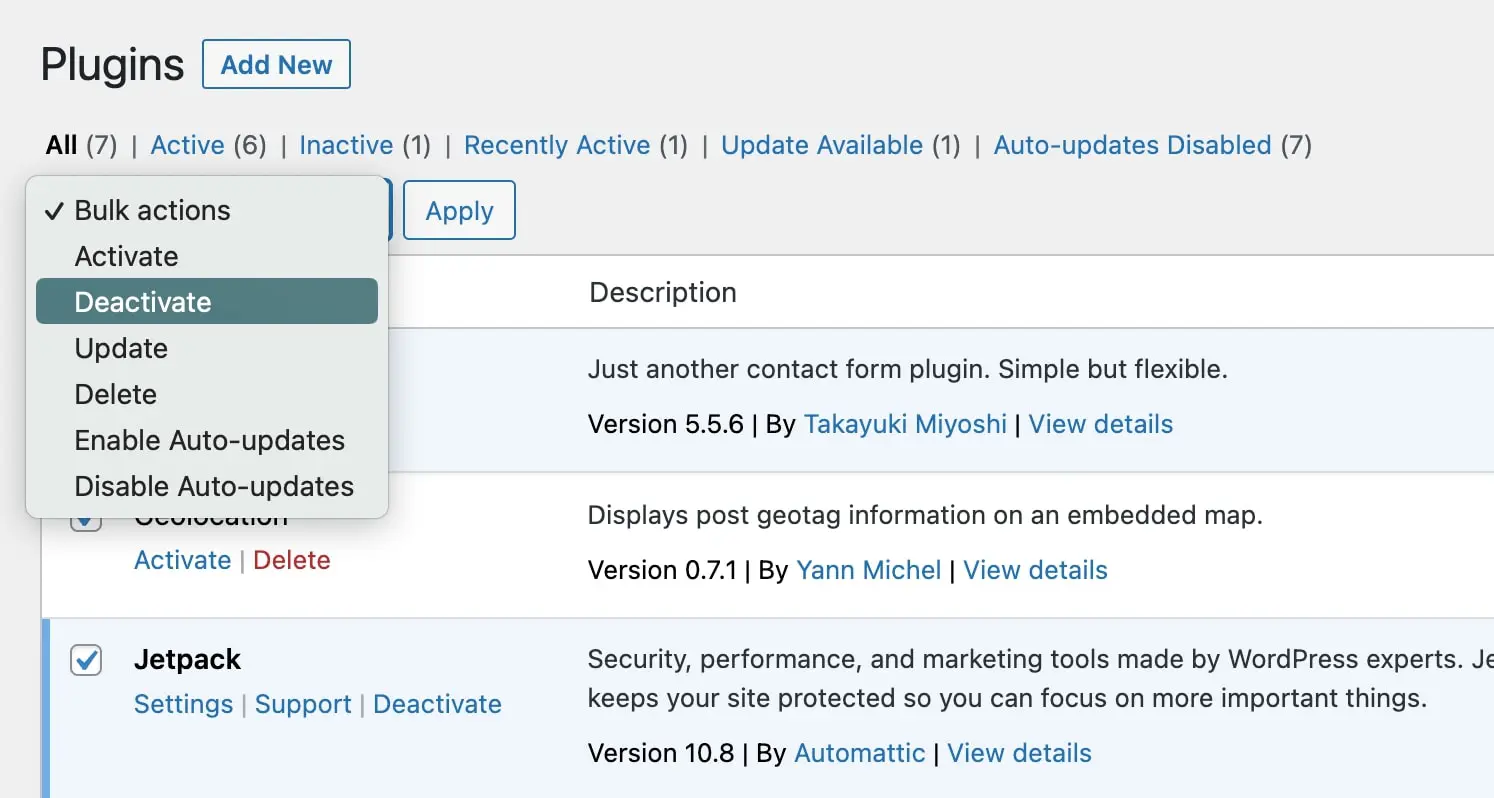
To target the conflicting plugin, reactivate each plugin one by one. Then, you can download a similar plugin or delete it if it’s unnecessary.
If you face additional problems like exceeded maximum execution time or maintenance mode errors, you might need to edit your wp-config.php file. This process could require more extensive troubleshooting, such as increasing your PHP memory limit.
Step 4: Publish Changes to Your Live Site
If you implemented a new PHP version on a staging site, it’s time to publish this change on your live website. Usually, you can do this in your host’s control panel.
For example, DreamHost provides a simple one-click transfer of your staging data to your website. Once you’re sure you’ve targeted any potential conflicts, you can click on Publish Staging to Live:
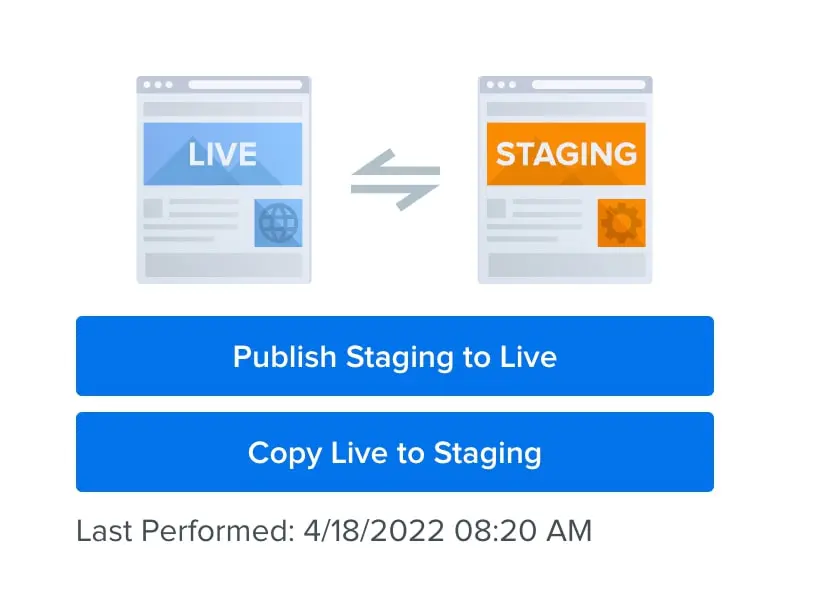
Keep in mind that publishing staging content doesn’t necessarily change the live site’s PHP setting. Use your host’s documented process to select the tested PHP version for the live site, then repeat your front-end and dashboard checks. Keep your backup and rollback plan available in case the production environment behaves differently than staging.
FAQs About Updating Your PHP Version
What PHP version does WordPress recommend?
WordPress recommends PHP 8.3 or greater. WordPress can still run on PHP 7.4 and newer releases, but PHP 7.4 and other end-of-life branches may expose your site to unpatched security vulnerabilities, so WordPress strongly recommends upgrading.
What is the latest version of PHP?
PHP 8.5, released on November 20, 2025, is the newest branch. As of August 2026, four branches are supported: PHP 8.4 and 8.5 receive active bug fixes, while PHP 8.2 and 8.3 receive critical security fixes only. Each PHP branch gets two years of active support plus two more years of security-only support before reaching end of life.
Is PHP 8 faster than PHP 7?
For typical websites, they’re closer than the hype suggests. PHP 8.0 introduced JIT (just-in-time) compilation, and the official release announcement reports about 3 times better performance on synthetic benchmarks and a 1.5–2 times improvement on some specific long-running applications — while typical application performance is on par with PHP 7.4. The stronger reason to move to PHP 8 is support: no PHP 7 branch appears on php.net’s supported versions list anymore, so PHP 7 no longer receives security fixes.
Will updating PHP break my WordPress site?
It usually goes smoothly, but there’s no guarantee — an outdated theme or plugin can throw errors on a newer PHP version. Protect yourself by backing up your site, updating WordPress core, themes, and plugins first, and testing the change on a staging site. If something breaks, roll back your PHP version, restore your backup if needed, and troubleshoot plugin conflicts one at a time.
What if I can’t upgrade to a supported PHP version yet?
Ask your host about your options. If your site is hosted at DreamHost, PHP Extended Support provides critical security patches for end-of-life versions (PHP 5.6 through 8.1) while you plan your upgrade. It’s a temporary bridge, not a destination: it requires an active DreamHost hosting plan, it won’t improve performance, and it’s automatically removed from your account once your sites move to a supported version.
Ready for an Upgrade?
You might be hesitant to update your PHP version because you’re worried about breaking your site. However, PHP updates ultimately improve the security and performance of your website. You can easily avoid any conflicts by testing changes before making them live.
To review, here are the four steps you can take to update the PHP version of your website:
- Create a staging site.
- Change your PHP version.
- Look for conflicts.
- Publish changes to your live site.
Although you can manually update your PHP version, you don’t have to babysit every release. At DreamHost, compatible sites are automatically upgraded to supported PHP versions each year — and if an upgrade fails, we roll the site back to prevent downtime. And if you’d rather hand off updates and upkeep entirely, our website management pros can take it from here.

Website Management Made Easy
Let us handle the backend — we’ll manage and monitor your website so it’s safe, secure, and always up.
Learn More