
The right text editor is more than just a tool – it’s an environment for creativity and efficiency. Whether you’re a developer writing code, a web designer building pages, or a writer crafting the perfect narrative, the right editor gives you the features you need without getting in your way.
The tricky part in 2026 isn’t finding options — it’s telling which tools are still actively maintained and which are coasting on an old reputation. We did that homework for you. Every editor on this list was re-verified in August 2026: current version, release activity, pricing, and platform support. One long-time Mac favorite stayed off the list, and three actively maintained editors kept their place among the classics. Here’s the full picture.
Text Editor
A text editor is a program for writing and editing plain text, code, and markup. Unlike a word processor, it works with raw, unformatted text. Common examples include Notepad, Notepad++, and Visual Studio Code.
Quick picks: the short answer
For most people, Visual Studio Code is the best text editor: it’s free, runs everywhere, and handles everything from quick edits to full development work. If you want something faster and lighter, try Zed. For simple, lightweight editing, use Notepad++ on Windows or CotEditor on a Mac.
Here’s how all 13 compare (prices current as of August 2026):
| Editor | Price | Platforms | Best for |
| Visual Studio Code | Free | Windows, Mac, Linux | Most people; coding of any kind |
| Zed | Free (Pro $10/mo) | Windows, Mac, Linux | Speed; a modern, minimal feel |
| Sublime Text | One-time license | Windows, Mac, Linux | Fast editing of big files and projects |
| Notepad++ | Free | Windows | Lightweight everyday editing on Windows |
| Kate | Free | Windows, Mac, Linux | A free, light, cross-platform all-rounder |
| BBEdit | $59.99 (free mode) | Mac | Pro text and web work on a Mac |
| CotEditor | Free | Mac | Simple, native Mac editing |
| UltraEdit | From $99.95/yr | Windows, Mac, Linux | Huge files and data-heavy work |
| WebStorm | Free non-commercial | Windows, Mac, Linux | Serious JavaScript development |
| Espresso | $119 one-time | Mac | Visual web design on a Mac |
| Vim | Free | Windows, Mac, Linux | Keyboard-driven power editing |
| Bluefish | Free | Windows, Mac, Linux | Free web coding, especially on Linux |
| CoffeeCup HTML Editor | $29 (free version) | Windows | Guided, beginner HTML editing |
Choosing the right text editor for your needs
Focusing on the features that align with your specific needs can help you narrow down the enormous selection of text editors to find the one that suits you best. Whether you’re coding, designing, or writing, the right tool can make all the difference in your productivity and efficiency.
Features for your use case
No matter what field you come from, the right text editor needs to be compatible with your platform. It should also be user-friendly, especially if you’re a beginner.
What to look for if you’re a developer
- Language support and syntax highlighting. Essential for readability and efficiency, syntax highlighting differentiates code elements, making it easier to write and debug. Ensure your editor supports the programming languages you use.
- Integrated Development Environment (IDE) features. Features like code completion, error checking, and integrated debugging can significantly speed up your development process.
- Version control integration. Integration with systems like Git helps track changes and collaborate on projects.
- Customizability and extensibility. The ability to customize the interface and add functionalities through plugins or extensions allows you to tailor the editor to your specific needs.
What to look for if you’re a web designer
- Live preview and editing. Real-time preview features help you to see changes instantly as you code, which is invaluable for web design.
- Support for different web languages. Make sure the editor supports HTML, CSS, JavaScript, and other web development languages you might use in different projects and settings.
- Integration with design tools. Some text editors offer integrations or plugins for design tools, making it easier to incorporate design elements into your web projects.
- Responsive design features. Tools that aid in creating responsive designs can be a significant advantage in the mobile-first era.
What to look for if you’re a writer
- Distraction-free writing mode. A clean, minimal interface helps keep focus on writing without unnecessary distractions.
- Document organization. Features like tabs, project views, or document outlines can help you organize your writing projects efficiently.
- Formatting and markdown support. For those who publish online, markdown support is essential for easy formatting.
- Version control and automatic backup. While not as critical as for developers, version control can be useful for tracking revisions and backing up your work.
Compatibility
Make sure the text editor is compatible with the operating system you use, whether that’s Windows, macOS, Linux, or others. It should also be able to handle the file types you work with regularly. This is especially important for developers and web designers who deal with various code files.
Online editors vs. offline editors
Online editors can be accessed from any device with an internet connection, which makes them more flexible. They also may include real-time collaboration features, which can be invaluable for team projects.
Offline editors are installed on your machine, typically offering better performance and reliability.
When deciding between an online or offline editor, consider how your data is stored and managed. This may impact your choice based on the sensitivity of your work.
Free or premium
Free editors can be very capable, but premium editors might offer more advanced features or better support. Premium editors often provide a more extensive set of features and integrations. Evaluate if these additional features justify the cost based on your needs. Paid editors may also offer more frequent updates and dedicated support, which can be invaluable for professional or commercial work.
The top 13 text editors for 2026
1. Visual Studio Code
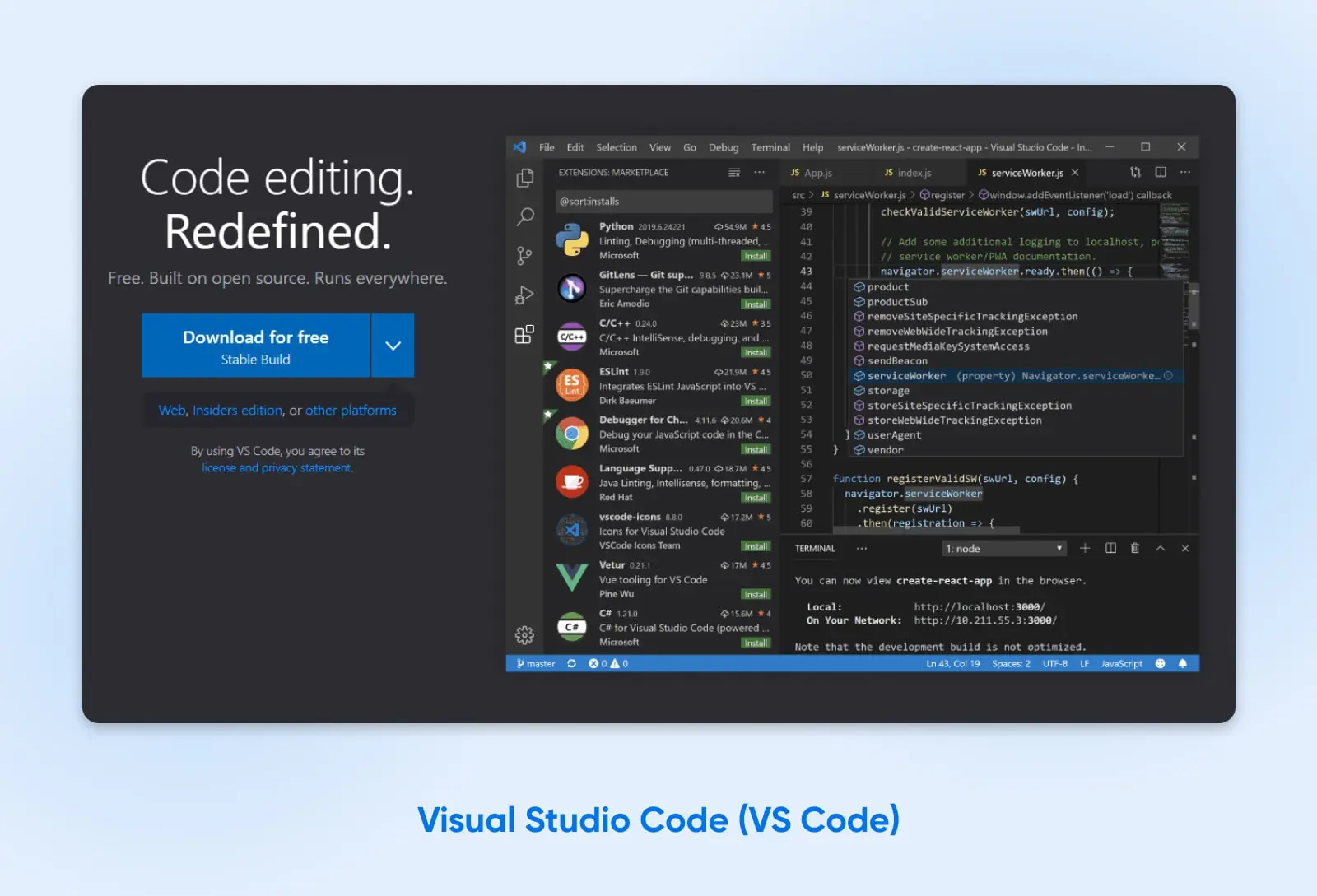
Visual Studio Code (VS Code) is a free text editor developed by Microsoft, and it’s highly regarded in the programming community for its versatility, feature-rich environment, and support for many different programming languages. AI is now front and center, too: Microsoft bills VS Code as “the open source AI code editor,” with built-in agents that can plan tasks, make code changes, and run commands — working with GitHub Copilot or third-party providers like Claude and OpenAI.
Key features:
- Extensibility: A vast marketplace of extensions allows users to add new languages, themes, debuggers, and to connect to additional services.
- Smart code completion: Offers context-aware code completion, parameter info, quick info, and member lists, enhancing coding efficiency.
- Integrated Git control: Built-in Git support provides easy access to source control features without leaving the editor.
- Debugging tools: Comes with powerful built-in debugging tools, eliminating the need for a separate debugging tool.
- Customizable workspace: Users can adjust settings and keyboard shortcuts, and install extensions to personalize their workspace.
Pricing:
Free. Getting started with the built-in AI agent features requires only a GitHub account — no trial, no credit card.
Usability:
VS Code strikes a balance between functionality and user-friendliness. Its interface is intuitive enough for beginners, while its extensive customization and advanced features cater to the needs of experienced developers.
Platform compatibility:
VS Code is available on Windows, macOS, and Linux.
Best suited for:
Visual Studio Code is an excellent choice for many users, from beginners to advanced developers. Its comprehensive features and support for multiple programming languages make it ideal for software developers, web developers, and data scientists. The availability of extensions also makes it adaptable for almost any programming need or preference.
2. Zed
Zed is the newest editor on this list, and the one built most single-mindedly for speed. It’s written in Rust by Zed Industries — the team that created Atom and Tree-sitter — and the company’s stated goal is an editor so responsive that keystrokes appear “on the next refresh of your display.”
It started as a Mac exclusive, but that’s history: the Windows version went stable on October 15, 2025, so all three major platforms now get the same weekly releases. AI is built in and optional — you get edit predictions and agent support, you can plug in your own AI provider keys, and you can disable the AI features entirely.
Key features:
- Speed: Native Rust code and Zed’s own GPU-based UI framework (with DirectX 11 rendering on Windows) keep the interface responsive even in big projects.
- Built-in AI (optional): Edit predictions and agent support, with your own API keys if you prefer — or switch AI off completely.
- Real-time collaboration: Multiplayer editing is built into every plan, including the free one.
- Open source: Zed’s source code is published on GitHub under the GPL.
Pricing:
The Personal plan is free — “$0 forever” — and includes 2,000 accepted AI edit predictions plus unlimited use of your own API keys (as of August 2026). Pro is $10 per month, with unlimited edit predictions and $5 of model tokens included.
Usability:
Zed feels familiar if you’ve used VS Code or Sublime Text, with far less setup than either. The interface is deliberately minimal, and most things work out of the box.
Platform compatibility:
Windows, macOS, and Linux, with the same weekly release cadence on all three.
Best suited for:
Anyone who wants a modern, fast editor without the weight of a full IDE — and anyone curious what a text editor built in the 2020s feels like. If VS Code feels sluggish on your machine, try Zed.
3. Sublime Text
Sublime Text is a sophisticated text editor known for its speed, ease of use, and powerful features. It’s well-loved by developers for its smooth performance and minimalistic interface, making it ideal for code, markup, and prose. Its blend of simplicity, powerful search capabilities, and extensive customization options have made it a popular choice among software developers, web designers, and writers alike.
Key features:
- Goto anything: This feature allows quick navigation to files, symbols, or lines with simple keystrokes.
- Multiple selections: Users can make multiple changes simultaneously, enhancing editing efficiency.
- Highly customizable: Sublime Text offers various customization options, including key bindings, menus, snippets, macros, and more.
- Package control: An extensive ecosystem of plugins and themes, easily accessible through an integrated package manager.
- Split editing: Supports editing files side-by-side or editing two locations in one file, enhancing the ease of working with multiple files or large codebases.
Pricing:
A one-time personal license that includes 3 years of updates — after that, your license never expires; you keep using the last version from your window and pay only if you want newer releases. You can download and evaluate Sublime Text for free (a license is required for continued use); the current price is listed at checkout on sublimetext.com.
Usability:
Sublime Text is known for its clean and uncluttered interface — easy for beginners to navigate yet powerful enough for advanced users. It’s designed to be fast and responsive, even with large files.
Platform compatibility:
Sublime Text is available on Windows, macOS, and Linux.
Best suited for:
Sublime Text is a great option for users of all skill levels, but it’s particularly appealing to developers and programmers who value speed and efficiency in their workflow. Its powerful editing features and customizability also make it a strong choice for web designers and content writers who need a versatile and reliable text editor.
4. Notepad++
Notepad++ is a popular, free, open source text and source code editor primarily designed for Windows. It’s known for its simplicity, lightweight nature, and efficiency — it’s written in C++ against the native Win32 API specifically to stay fast and small. Notepad++ supports various programming languages and is praised for its utility for coding, as well as for general text editing tasks. It’s also unmistakably alive: version 8.9.7 is current as of August 2026.
Key features:
- Syntax highlighting and syntax folding: Supports a multitude of programming languages, providing easy readability and organization of code.
- Regular expression search and replace: Offers advanced search and replace capabilities, which are particularly useful for text manipulation and editing.
- Plugin support: While lightweight, it can be extended with plugins to add additional functionalities.
- Tabbed document interface: Allows opening multiple documents simultaneously in a single window for easy navigation and comparison.
Pricing:
Free and open source (GPL).
Usability:
Notepad++ is well-known for being straightforward and user-friendly. It’s an excellent choice for beginners due to its simplicity and ease of use. The software is also very lightweight, ensuring quick startup and smooth performance, even on older hardware.
Platform compatibility:
Notepad++ is primarily designed for Windows. While it can be run on other operating systems (like macOS and Linux) using compatibility layers, it functions best on Windows. If you want the same feel on Mac or Linux, the community project NotepadNext re-creates it cross-platform — though its own documentation cautions that it “should not be considered safe for critically important work.”
Best suited for:
Notepad++ is ideal for users who need a simple, effective, and lightweight text editor, particularly software developers and web designers working in a Windows environment. Its ease of use also makes it a good option for beginners and those who need a quick, reliable tool for smaller coding projects or basic text editing tasks.
5. Kate
Kate is the KDE project’s veteran text editor, and an underrated free option. It’s genuinely lightweight, completely free, and much more capable than it looks: multi-cursor editing, split views, project support, and syntax highlighting for more than 400 languages.
On Windows, you can install it straight from the Microsoft Store, which makes it one of the easiest free editors to try.
Key features:
- Lightweight and fast: Starts quickly and stays responsive, even on older hardware.
- Multi-document interface: Tabs, split views, and session support for working across many files.
- Syntax highlighting: Definitions for over 400 languages and file formats.
- Built-in terminal and plugins: IDE-lite extras when you need them, invisible when you don’t.
Pricing:
Free and open source.
Usability:
Kate hits a sweet spot: simpler than VS Code, more capable than Notepad++. Menus are conventional and discoverable, so beginners can find their way without a tutorial.
Platform compatibility:
Linux (where it’s a staple), Windows (via the Microsoft Store), and macOS.
Best suited for:
Anyone who wants a free, lightweight, cross-platform editor that respects your system resources. It’s an especially good Notepad++ alternative if you work across operating systems.
6. BBEdit
BBEdit is a professional HTML and text editor for macOS, known for its reliability and performance. Developed by Bare Bones Software, it’s a popular choice among macOS users for web design and development, as well as for general-purpose text editing. The current major version, BBEdit 16, runs on macOS 14 or later — and the trial model is the friendliest around: every feature free for 30 days, after which BBEdit keeps working in a permanently free mode, with no nag screens, until you decide to pay.
Key features:
- Rich text and HTML editing: Offers powerful tools for text, HTML, and markdown editing, making it ideal for web designers and content creators.
- Grep pattern matching: Advanced search and replace capabilities, including regular expression (grep) support across multiple files.
- Code folding and syntax highlighting: Supports a wide array of programming languages and file formats with syntax highlighting and code folding.
- Integrated file management: Features a built-in file browser for easy management of local and remote files, with FTP and SFTP open and save.
- Scripting and automation: Supports AppleScript and macOS Unix scripting, allowing for extensive customization and automation.
Pricing:
$59.99 one-time license, or $29.99 to upgrade from BBEdit 15 (as of August 2026). It’s also available as a subscription in the Mac App Store — and if you never pay, the free mode keeps working forever.
Usability:
BBEdit is well known for its clean and intuitive interface, making it accessible for beginners while still providing the depth of features required by advanced users. Its well-organized menus and extensive documentation further aid in usability.
Platform compatibility:
BBEdit is exclusively available for macOS, catering specifically to the Apple ecosystem.
Best suited for:
BBEdit is a great choice for macOS users at various proficiency levels. It’s particularly well-suited for web designers and developers due to its rich set of HTML and text editing tools, as well as for writers and content creators looking for a dependable markdown and text editor.
7. CotEditor
CotEditor is the answer to a question a lot of Mac users ask: “What’s the Notepad++ of macOS?” It’s a free, open-source, genuinely native Mac editor — written in Swift, quick to launch, and it follows the standard Mac shortcuts you already know.
Working on macOS? Keep our guide to taking a screenshot on a Mac and other time-saving shortcuts nearby.
Key features:
- Instant startup: Opens fast enough to be your default for every stray text file.
- Native macOS design: Standard shortcuts, system appearance, and system-native UI conventions throughout.
- Syntax highlighting: More than 60 languages and formats pre-installed, and you can create your own definitions.
- Find and replace with regex: Powerful search without a learning curve.
Pricing:
Free and open source, including on the Mac App Store.
Usability:
This is one of the easiest editors on the list. If you’ve used TextEdit, you can use CotEditor — it just does far more.
Platform compatibility:
macOS only. The latest version supports the two most recent major macOS releases; archived builds are available for older Macs.
Best suited for:
Mac users who want a fast, free, no-fuss editor for config files, notes, scripts, and quick HTML or CSS edits. It’s the natural first editor for a Mac-based beginner.
8. UltraEdit
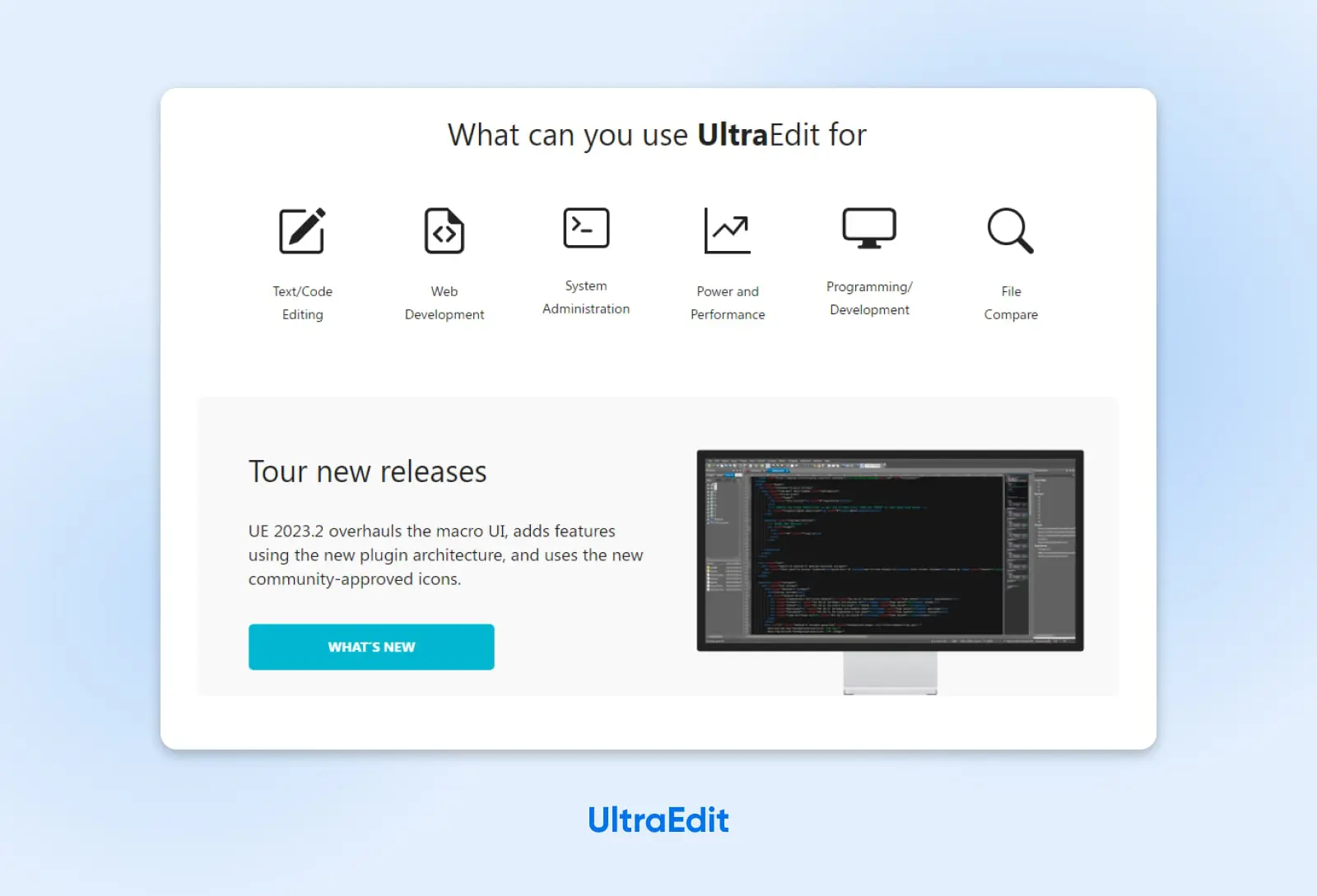
UltraEdit is a versatile and powerful text editor known for handling complex and large files with ease — its maker’s headline pitch is opening and editing 10 GB+ files that freeze or crash basic editors. It caters to a wide range of professional needs, including coding, text manipulation, and file sorting, and the 2026 releases added an AI assistant inside the editor.
Key features:
- Large file handling: UltraEdit’s maker pitches it for opening and editing files larger than 10 GB that can freeze or crash basic editors.
- Customizable interface: Offers a highly customizable interface, including themes, layouts, and toolbars, allowing users to tailor the environment to their preferences.
- Multi-carets and multi-select: Enhances editing efficiency by allowing users to edit in multiple places simultaneously.
- Powerful search: Features a powerful search function, including regular expressions, search in files, and more.
- Syntax highlighting and code folding: Supports a wide range of programming languages with syntax highlighting and code folding for easier navigation.
Pricing:
Subscription. UltraEdit Core — which bundles the UltraCompare diff tool — is $99.95 per year, and the full-suite UltraEdit Enterprise is $119.95 per year (as of August 2026). Perpetual-license options are also available.
Usability:
UltraEdit has a steeper learning curve compared to more basic text editors, due to its extensive feature set. However, it offers comprehensive documentation and support, making it manageable for beginners who put in the work to learn its many features.
Platform compatibility:
UltraEdit is available on Windows, macOS, and Linux, making it a versatile option for users across different operating systems.
Best suited for:
UltraEdit is best suited for advanced users such as developers, programmers, and data professionals who need a dependable and powerful tool for complex editing tasks. Its capability to handle large files also makes it ideal for professionals dealing with large datasets or logs.
9. WebStorm
WebStorm is a powerful and intelligent IDE specifically designed for JavaScript and related technologies. Developed by JetBrains, it offers a comprehensive set of tools for complex client-side development and server-side development with Node.js. WebStorm is known for its advanced coding assistance, intelligent code navigation, and fast error detection, making it a favorite among professional web developers. The big news: since October 2024, WebStorm has been free for non-commercial use, which removes what used to be its main barrier.
Key features:
- Smart code completion: Tailored for JavaScript, it provides context-aware code completion for faster and more accurate coding.
- Powerful navigation and refactoring: Helps easily navigate code and ensures safe refactoring across the entire project.
- Built-in debugging: Simplifies the debugging process by allowing users to debug applications directly within the IDE.
- Testing tools integrations: Supports testing frameworks like Jest, Mocha, and others, making testing more efficient.
- Version control: Integrates with Git, GitHub, Mercurial, and other VCS out of the box.
Pricing:
Free for non-commercial use — learning, open-source development, content creation, and hobby projects. Commercial development requires a paid subscription (current rates are on JetBrains’ site).
Usability:
WebStorm is designed with professionals in mind, and while it’s packed with features, it might have a steeper learning curve for beginners. However, its intelligent features and integrations can significantly boost productivity once mastered.
Platform compatibility:
WebStorm is available for Windows, macOS, and Linux.
Best suited for:
WebStorm is best suited for intermediate to advanced web developers who require a powerful and intelligent environment for JavaScript development. It’s particularly effective for those working with modern frameworks and libraries like React or Angular. WebStorm’s rich set of features and integrations makes it a powerful tool for full-stack development and large-scale web applications.
10. Espresso
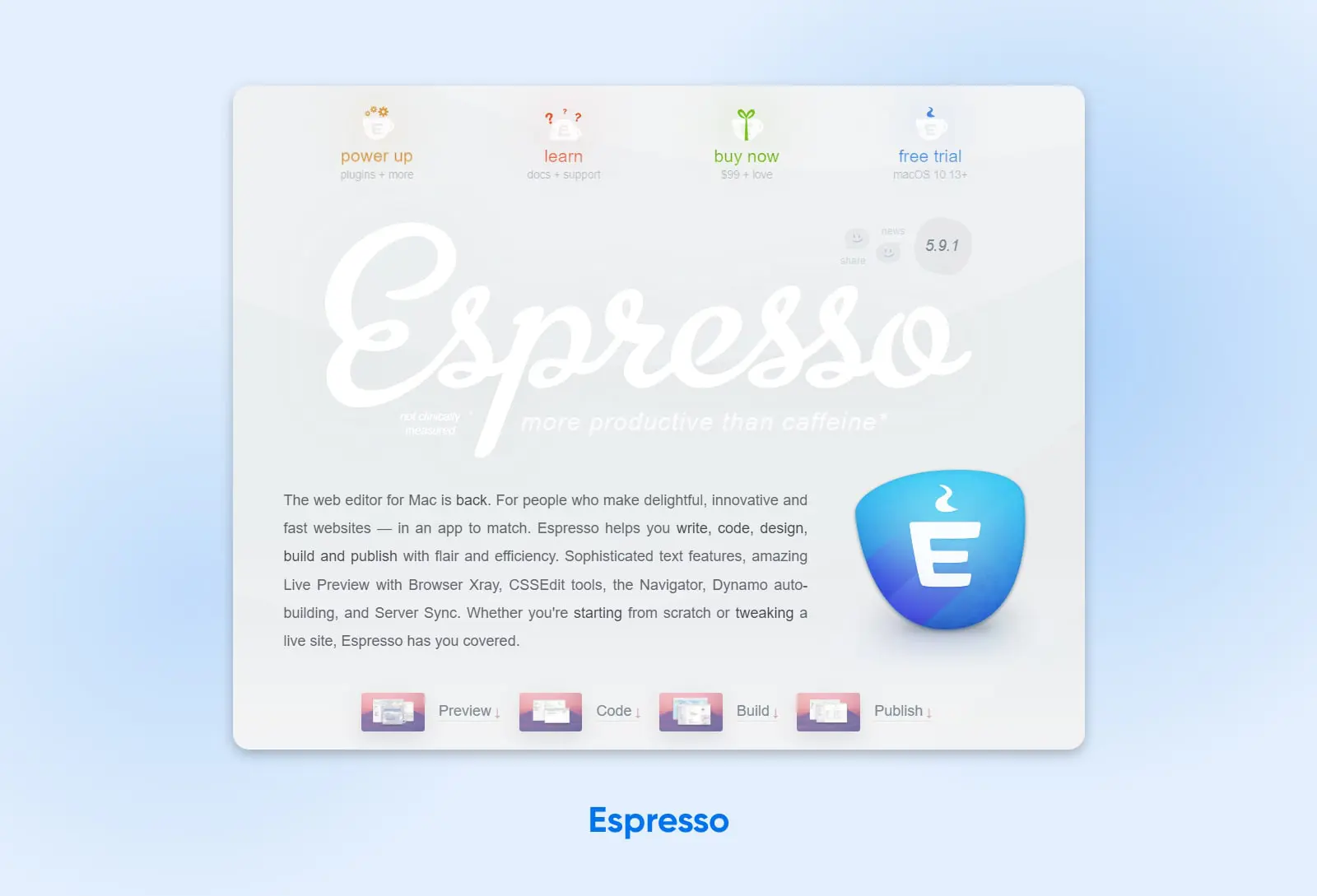
Espresso is a polished and powerful web development tool designed specifically for macOS. It focuses on simplifying web design and development, integrating live styling, visual layout, and efficient code editing. Espresso is popular among web designers and developers for its elegant interface and its emphasis on real-time feedback — and after a quieter stretch, its maker’s own banner says it plainly: “The web editor for Mac is back.”
Key features:
- Live preview: Provides real-time previews of your web projects, along with an X-ray feature for inspecting and adjusting layouts directly in the preview.
- CSS editing tools: Features powerful CSSEdit tools, including visual navigation and dynamic styling with live editing.
- Code folding and syntax highlighting: Supports various web languages with features like code folding and syntax highlighting, enhancing readability and organization.
- Snippet management: Allows for the creation, use, and organization of snippets, speeding up the coding process.
- Integrated publishing: Combines file management, FTP/SFTP publishing, and Server Sync to keep whole projects in step with your server.
Pricing:
One-time purchase of $119 (as of August 2026), with a free trial available. Requires macOS 11 or later.
Usability:
Espresso is known for its user-friendly interface, making it a good choice for beginners and professionals alike. The tool is designed to be intuitive, allowing users to quickly adapt and enhance their web development workflow.
Platform compatibility:
Espresso is exclusively available for macOS.
Best suited for:
Espresso is ideal for web designers and developers using macOS who are looking for a tool that combines coding efficiency with visual design capabilities. Its focus on live editing makes it appealing to those involved in front-end web development and design, especially those working with HTML, CSS, and JavaScript.
11. Vim
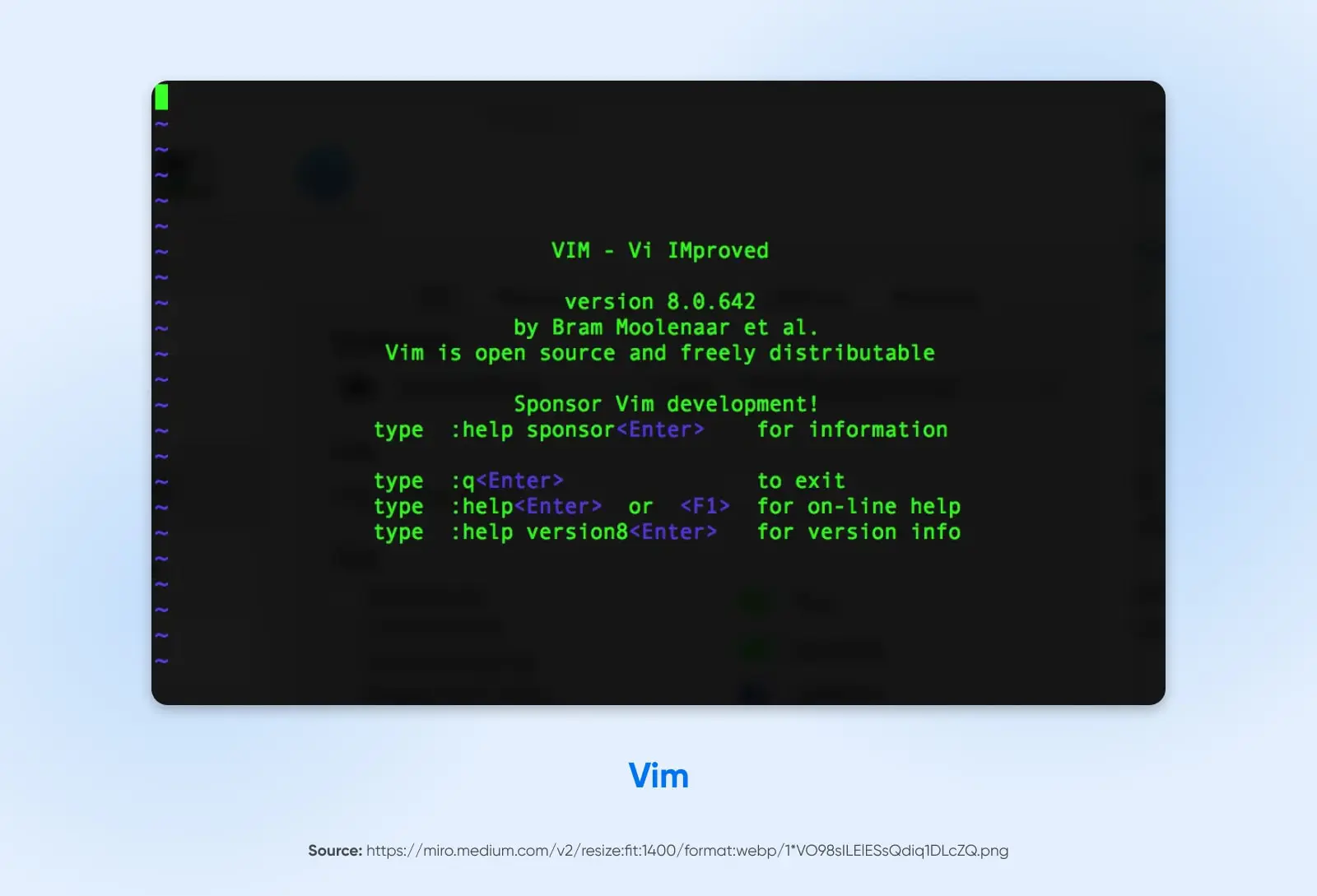
Vim, short for Vi Improved, is a configurable text editor built to make text editing as efficient as possible. It is an advanced version of the Unix editor Vi, known for its power, flexibility, and efficiency. Vim is a command-line editor and is considered one of the most complex yet powerful text editors used in programming and other text editing tasks. It’s particularly favored in the Linux world, but has a dedicated user base across various platforms. And it’s still moving: Vim 9.2 shipped in February 2026, with the project carried forward by longtime contributor Christian Brabandt since creator Bram Moolenaar passed away in August 2023.
Key features:
- Modal editing: Vim operates in different modes, primarily the insert mode (for entering text) and the command mode (for executing commands).
- Extensive customization: Users can customize Vim extensively with scripts, making it highly adaptable to individual needs.
- Powerful search and replace: Features advanced pattern matching and search and replace capabilities.
- Vast plugin collection: The Vim community has created many plugins for extending its functionality.
- Keyboard-centric operation: Designed for use without a mouse, enhancing speed and efficiency.
Pricing:
Free and open source. Vim is famously “charityware” — users are encouraged to donate to Kuwasha, the charity continuing Bram Moolenaar’s work supporting children in Uganda.
Usability:
Vim has a steep learning curve, especially for users not familiar with command-line interfaces. It is almost entirely keyboard-driven, which can be challenging to master but offers unparalleled efficiency once learned.
Platform compatibility:
Vim is available on multiple platforms, including Unix, Linux, Windows, and macOS. It ships as “vi” with most UNIX systems.
Best suited for:
Vim is best suited for advanced users, particularly developers and programmers who are comfortable with command-line environments and need a highly efficient and customizable editing tool. Its power and efficiency make it a favorite for tasks that require extensive text manipulation and coding, especially in Unix-like environments.
12. Bluefish
Bluefish is a powerful editor targeted toward programmers and web developers, offering a lightweight, fast, and versatile editing environment. It supports many programming and markup languages but is primarily known for its strong web development tools. Bluefish combines ease of use for beginners with powerful features for advanced users, making it a well-rounded choice for editing dynamic and interactive websites. Development is steady, too: Bluefish 2.4.2 shipped in July 2026, and it remains a solid free pick, especially on Linux.
Key features:
- Multi-language support: Handles 30+ markup and programming languages, including HTML, CSS, PHP, and JavaScript.
- Code navigation and auto-completion: Facilitates code navigation and includes auto-completion for tags, variables, and custom code snippets.
- Advanced search and replace: Comes with powerful search and replace tools, including support for regular expressions.
- Project management features: Helps organize and manage large projects — Bluefish starts in milliseconds and can load 1,000+ files at once.
Pricing:
Free and open source (GPL).
Usability:
While Bluefish is packed with features, it still has a user-friendly interface. Its design and functionalities are accessible for beginners, and it provides the depth required by more experienced users.
Platform compatibility:
Bluefish is highly versatile in terms of platform compatibility. It’s available for Linux, Windows, macOS, FreeBSD, and OpenBSD.
Best suited for:
Bluefish is a versatile and powerful choice for web developers and programmers, especially those who work across various programming languages and frameworks. Its balance of advanced features and ease of use makes it suitable for both beginners and experienced users. The software is particularly suited for those working on complex web projects or large codebases.
13. CoffeeCup HTML Editor
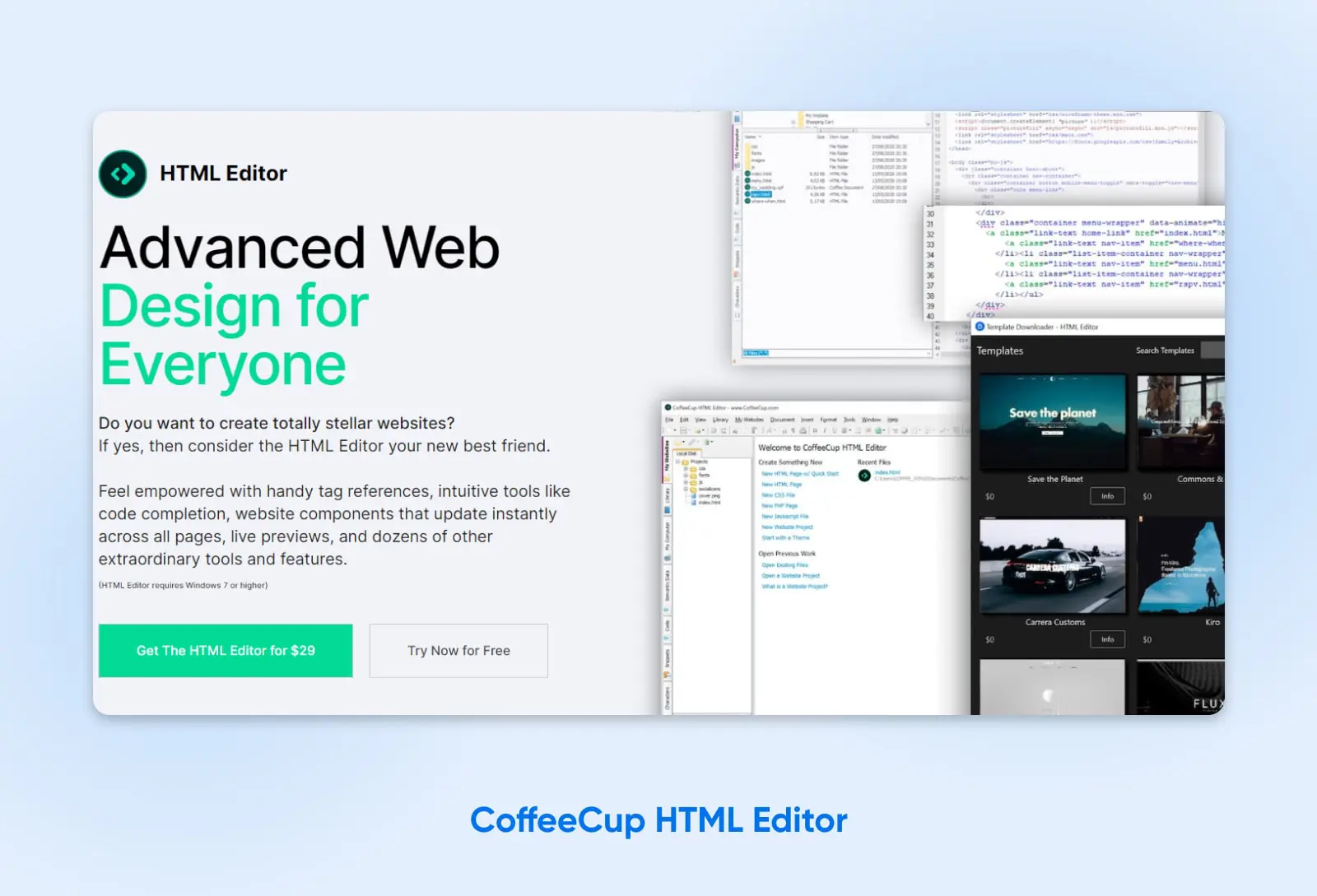
CoffeeCup HTML Editor is a specialized tool designed specifically for web design and development. Focused on HTML editing, it offers a mix of visual editing features and hand-coding tools. It’s tailored for users who are looking to create, edit, and manage HTML and CSS files for websites, ranging from beginners to intermediate developers. The editor is known for its user-friendly interface and helpful features that take the guesswork out of web design.
Key features:
- Split-screen preview: Allows users to see the live preview of their HTML and CSS code changes in real-time.
- Comprehensive tag reference: Offers a helpful reference for HTML tags, attributes, and values for quick and easy coding.
- Templates and themes: Comes with a variety of pre-designed responsive templates that can be used as a starting point for web projects.
- Code validation tool: Includes tools to validate HTML and CSS, ensuring that the code adheres to current web standards.
- Semantic markup support: Built-in help for adding structured data (the schema.org vocabulary) so search engines can better understand your pages.
Pricing:
$29 one-time (as of August 2026), with a stripped-down free version available.
Usability:
CoffeeCup HTML Editor is particularly user-friendly for those who are new to web development or prefer a more guided approach. The interface is intuitive, and the inclusion of templates and comprehensive tag references helps beginners get started quickly.
Platform compatibility:
CoffeeCup HTML Editor is designed for Windows (it requires Windows 7 or higher). Its focus on this platform allows it to offer a smooth and integrated experience for Windows users.
Best suited for:
This editor is best suited for web designers and developers who are at the beginner to intermediate level, especially those working on HTML and CSS projects. Its range of features and user-friendly approach make it a great tool for those who are learning web development or need a straightforward tool for building and managing websites.
So, which text editor should you download?
Start with Visual Studio Code — it’s free, so trying it costs nothing but a download. If it feels heavy on your machine, Zed is the speed pick. If you just need clean, quick edits, Notepad++ (Windows), CotEditor (Mac), or Kate (anywhere) will treat you well. Your files remain plain text, so you can open them in another editor later without converting them to a proprietary format.
One more thing: once your HTML and CSS are ready for an audience, they need a server to live on. Pair your editing workflow with DreamHost web hosting and every plan includes unlimited free SSL certificates, daily automated backups, unmetered bandwidth, and 24/7 support from real humans for the day a config file fights back.
Text editor FAQs
What is the best text editor in 2026?
Visual Studio Code is the best text editor for most people in 2026: it’s free, runs on Windows, Mac, and Linux, and its extension marketplace covers nearly every language and workflow. Zed is the pick if speed matters most, and Notepad++ (Windows) or CotEditor (Mac) are the best lightweight options.
What is the best free text editor?
Visual Studio Code is the best free text editor overall. For something lighter, use Notepad++ on Windows, CotEditor on a Mac, or Kate on any platform. All four are free, open source, and actively maintained as of August 2026.
What’s better than Notepad++?
It depends on what you’re missing. For more features, Visual Studio Code adds debugging, Git integration, and AI assistance — still free. For the same lightweight feel on Mac or Linux, try Kate or CotEditor. For heavy multi-file projects and huge files, Sublime Text and UltraEdit are the paid upgrades to test.
Does anyone still use Sublime Text?
Yes. Sublime HQ still sells and updates Sublime Text: a one-time personal license includes 3 years of updates and never expires, and you can download and evaluate the editor for free. It remains a favorite for its speed, multi-select editing, and clean interface — especially on large files.
What are the best text editors for writing?
For writing, especially technical writing and documentation, Visual Studio Code and Sublime Text are top choices. Both offer clean interfaces, distraction-free modes, and markdown support. If your writing is prose rather than code, a dedicated distraction-free writing app may fit better than a text editor.
Is TextMate still a good text editor?
We’ve dropped TextMate from this list. It’s free, open source, and still available for macOS — but for a Mac editor in 2026 we’d point you to BBEdit, CotEditor, or Zed first: Zed ships weekly releases, while BBEdit 16 and CotEditor both track the newest macOS versions.

Create a Website for All
With automatic updates and strong security defenses, DreamPress takes server management off your hands so you can focus on what really matters: creating a site that can be enjoyed by every user.
Choose Your Plan