
The AI website builder that turns conversation into designer-level sites. Free with hosting.
Start Free Trial
Oh no. You’re trying to load a page, but all you get is an ERR_CONNECTION_REFUSED error message.
The good news: this error has a short list of causes, and you can test for each one. Sometimes the problem lives on your device: a bad browser extension, a misbehaving proxy, or a stale DNS setting. Sometimes the website’s server really is turning visitors away.
This guide explains what ERR_CONNECTION_REFUSED means, how to tell whether the problem is on your side or the site’s, and how to fix it — whether you’re a website owner, a visitor, or a developer staring at localhost.
What Is The ERR_CONNECTION_REFUSED Error?
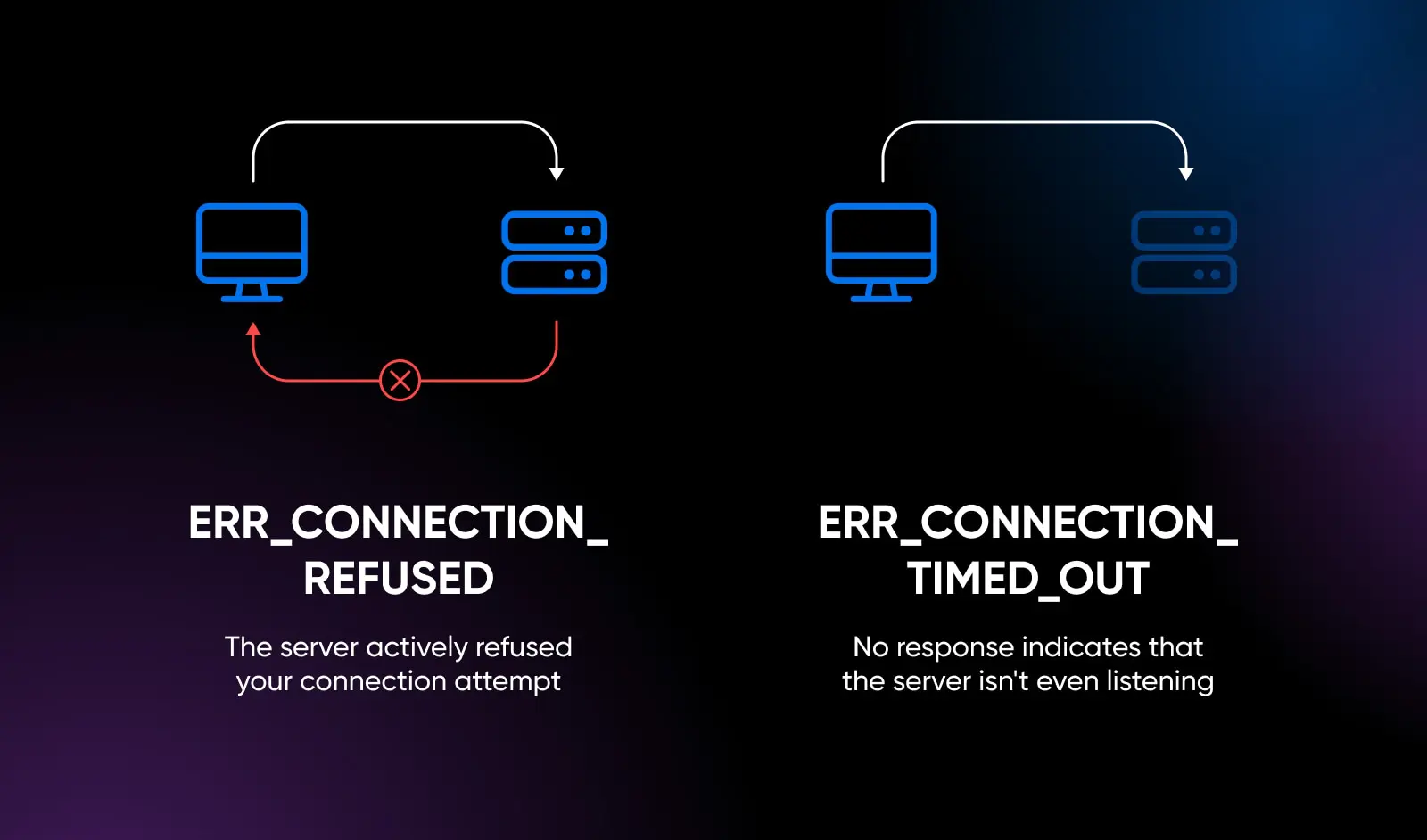
ERR_CONNECTION_REFUSED is a browser error meaning the server (or a firewall in front of it) actively rejected the browser’s connection attempt. The refusal happens at the network level, before any HTTP request is sent — usually because nothing on the server is listening on the port the browser tried to reach.
Because the connection fails before an HTTP request is ever sent, you don’t get an HTTP status code like a 404 or a 500. The server never got far enough to say anything.
(A quick gloss for the road ahead: a port is one of the numbered doors a server answers on. Regular web traffic uses port 80 for HTTP and port 443 for HTTPS.)
It also isn’t the same as getting no response at all. A refused connection means something at the other end answered “no.” A timeout (like ERR_CONNECTION_TIMED_OUT) means nothing answered, period.
What Causes ERR_CONNECTION_REFUSED Errors?
In almost every case, one of six things explains why the server is being so antisocial:
- Nothing is listening. The web server software (like Apache or nginx) crashed, was stopped, or the whole machine is down.
- The browser knocked on the wrong door. DNS (the system that translates domain names into IP addresses) still points at an old address, a common leftover after a site migration. If nothing on that old machine is listening anymore, the connection is refused.
- A firewall said no. A server firewall rule or a security tool rejected the request — sometimes because it banned your specific IP address.
- A port problem. The server accepts plain HTTP (port 80) but nothing is listening on HTTPS (port 443), or vice versa. This is often a misconfigured SSL setup or proxy.
- Something on your device is interfering. A proxy, VPN, browser extension, antivirus web filter, or hosts-file entry is blocking or misrouting the connection.
- It’s localhost. You’re a developer, and your local server isn’t running (or it’s running on a different port than the one in your address bar).
The troubleshooting process is really about figuring out which side answered “no”: the client side (your device or network) or the server side (the website itself).
What Does An ERR_CONNECTION_REFUSED Error Look Like?
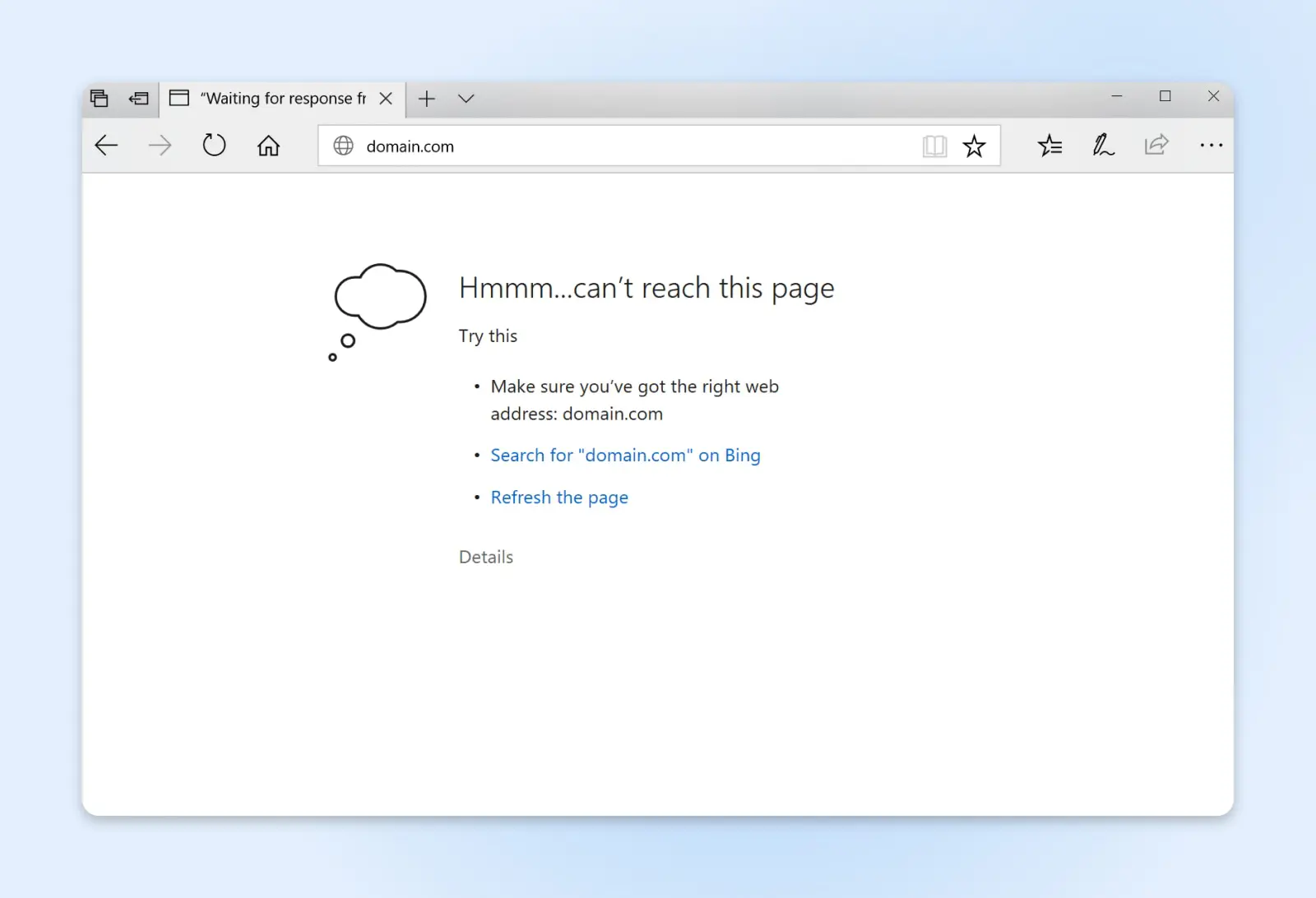
ERR_CONNECTION_REFUSED errors appear differently depending on your browser.
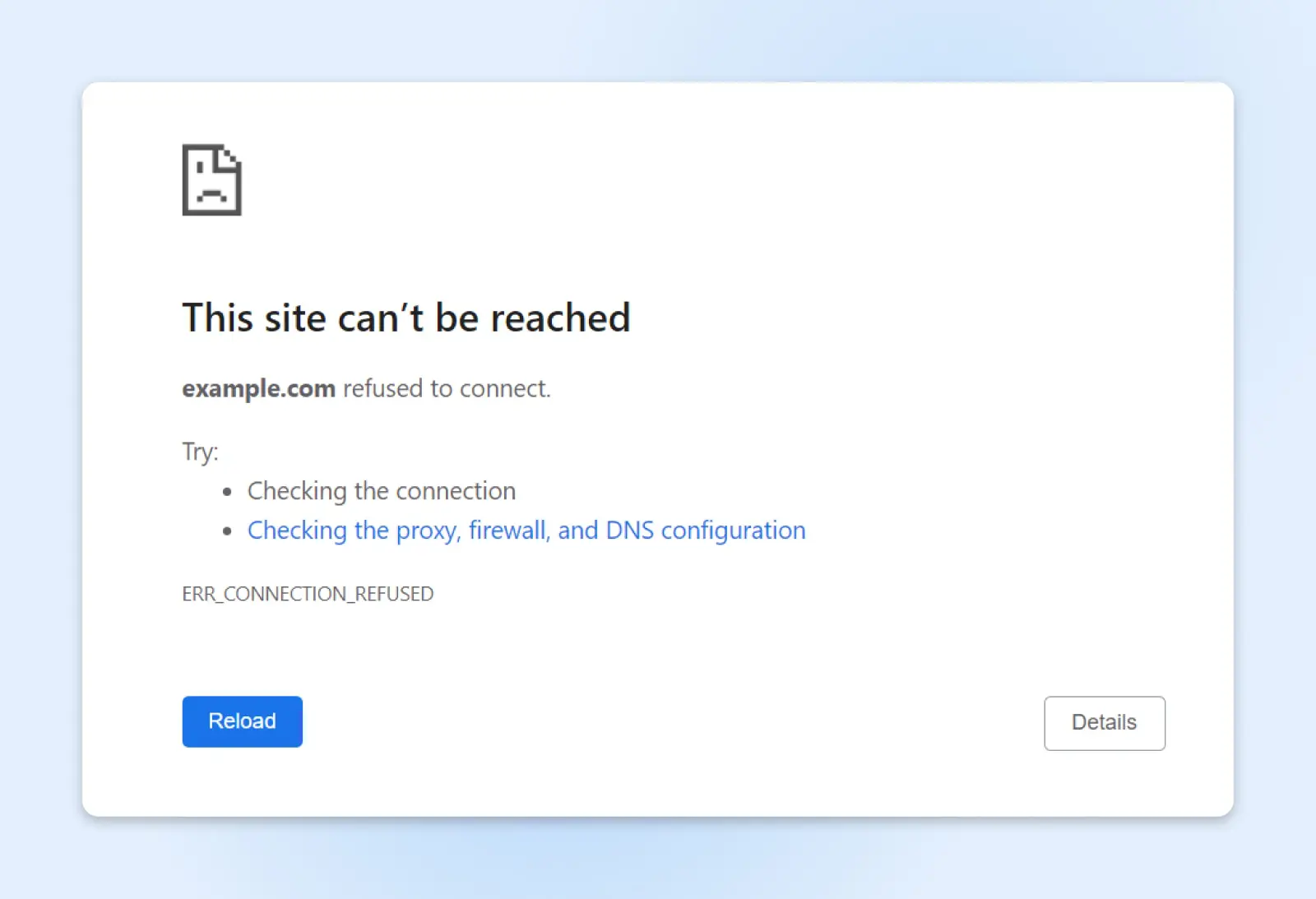
On Google Chrome, you’ll see an error page that reads, “This site can’t be reached,” with ERR_CONNECTION_REFUSED in small print near the bottom.
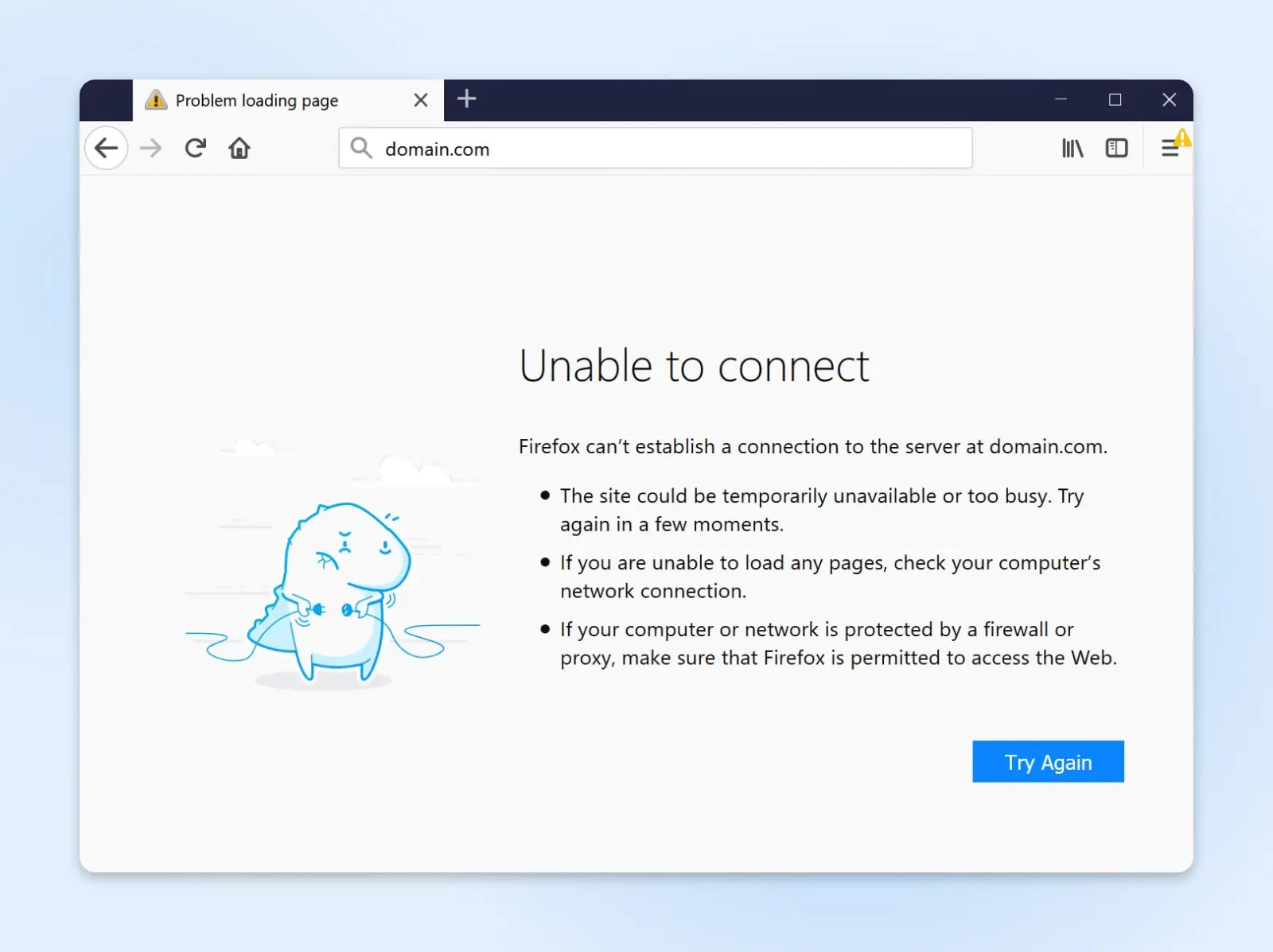
Mozilla Firefox shows a page titled “Unable to connect,” explaining that Firefox can’t establish a connection to the server.
Microsoft Edge keeps it casual: “Hmmm… can’t reach this page.”
How To Fix ERR_CONNECTION_REFUSED On Your Website
Before you start digging around on your server, run a 10-second test: does the error appear only on your website, or on every site you visit?
- Only your site? Keep reading — the problem is probably server-side.
- Every site? You have a client-side problem. Skip down to the visitor fixes.
It also helps to load your site from a second device on a different network (a phone on mobile data works well). If it loads fine there, the problem may be local to your computer or network after all.
Check Whether Your Site Is Down For Everyone
Start by confirming the outage is real. Paste your URL into a checker like Down for Everyone or Just Me (search “is it down” and you’ll find several), or check your uptime monitoring tool if you use one. If a checker in another location also can’t connect, your server (or something in front of it) is refusing everyone — time to work through the steps below.
Make Sure Your DNS Points To The Right Server
This one bites site owners right after a migration: your domain’s DNS records still point at your old host’s IP address. Visitors’ browsers knock on a server that no longer runs your site. If nothing there is listening anymore, that server refuses the connection.
To check, find the IP address your domain currently resolves to: run nslookup yourdomain.com in a terminal, or use any free online DNS lookup tool. Compare it against the IP address your host says your site lives on (you’ll find that in your hosting panel). If they don’t match, update your DNS records and give the change time to propagate.
Restart Or Check Your Web Server
If you run your own VPS or dedicated server, check whether the web server software is actually running. On most Linux servers, systemctl status nginx or systemctl status apache2 will tell you; a restart (systemctl restart nginx) often brings a crashed service back.
While you’re in there, look at your error logs for clues about why it stopped: a service that keeps dying is usually out of memory or misconfigured.
On managed hosting, you can’t restart the web server yourself, but your host can. Check their status page first, then open a ticket.
Look For Firewall Rules And IP Bans
Firewall
A firewall is a set of rules that governs incoming and outgoing connections for a network or a specific device. The goal of firewalls is to protect against intrusions and unwanted outgoing connections.
Read MoreA firewall rule that rejects traffic on the web ports (80 and 443) will refuse every visitor. (Rules that silently drop traffic cause timeouts instead.) A sneakier variant: security tools like fail2ban, and some WordPress security plugins that write firewall-level rules, can ban individual IP addresses after repeated failed logins. If the site works for everyone except you, you may have locked yourself out.
One myth worth clearing up: an ordinary buggy plugin or theme generally produces a 500 error or a blank page, not ERR_CONNECTION_REFUSED. By the time a plugin runs, your connection is already established. So if you’re seeing refused connections, look at the firewall and network layer first. The exception is exactly the case above: security plugins that write server firewall rules. You can also ask your host to check whether a web application firewall is filtering traffic.
Check Your CDN Or Proxy Configuration
If a CDN (content delivery network) or proxy like Cloudflare sits in front of your site, pay attention to which error visitors actually see. If the CDN proxy is active but can’t reach your origin server, visitors typically get a CDN-branded error page instead (Cloudflare’s “Error 521: Web server is down,” for example). Visitors see ERR_CONNECTION_REFUSED when they’re hitting your origin directly: a paused CDN or a DNS-only (“gray cloud”) record with nothing listening at the origin, or an origin address pointing at the wrong port.
Either way, the test is the same: temporarily bypass the CDN (most have a “pause” or development mode) and load the origin directly. If the origin responds fine, fix the CDN configuration; if it doesn’t, the problem is on your server.
Get In Touch With Your Host
If you’ve worked through everything above and the error persists, contact your web host’s support team. They can see server logs, load, and firewall state that you can’t, and they’ll spot problems on their side (like a machine-level outage) immediately.
Send them the exact error, when it started, and what you’ve already tried. Folks who host with DreamHost can reach our support team 24/7, including via live chat, and our experts can diagnose strange errors at the server level.
How To Fix ERR_CONNECTION_REFUSED As A Visitor
Seeing this error on sites you don’t own, or on every site? Then the fix is on your side. Work through these steps in order; they’re sorted from quick checks to last resorts.
Delete Your Browsing Data
An easy place to start is clearing your browser cache and cookies. Here’s why it can matter for this error: your browser caches more than files. It also caches redirects. A stale cached redirect pointing at an address or port where nothing is listening can keep reproducing this error until you clear it.
In Chrome, the option is now called Delete browsing data:
- Click the three dots to the right of the address bar.
- Select Delete browsing data.
- Pick a time range (choose All time under More for a full cleanout).
- Check Cookies and other site data and Cached images and files, then click the delete button (labeled Delete data, or Delete from this device if you’re signed in to Chrome).
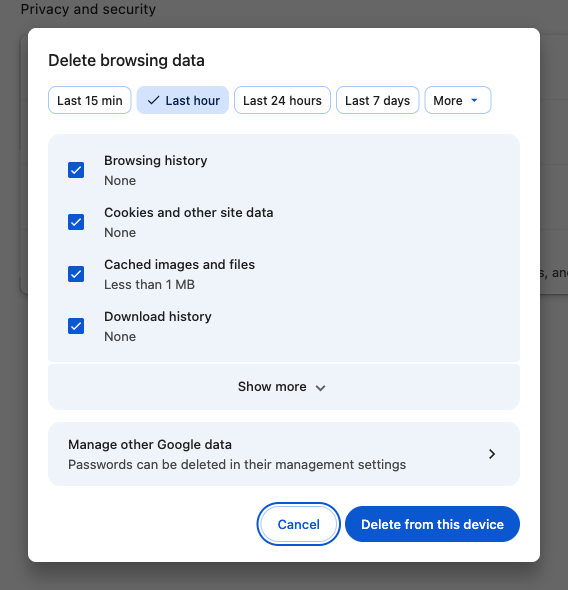
Then reload the page. (Here’s how to clear the cache in other browsers.)
Check Your Internet Connection
An unreliable connection can produce all kinds of errors, including this one. If you’re at home, glance at your router: red or unlit status lights usually mean the connection itself is down. Restart the router, wait a couple of minutes, and try again — then contact your ISP if it doesn’t recover.
Not near the router? Run a quick speed test instead: search Google for “speed test” and use the built-in tool. If other devices on the same network load pages fine, the problem is probably your device, not the connection.
Restart Your Device
Sometimes all you need is a reboot. Restarting your computer, phone, or tablet clears temporary network state, including the local DNS resolver cache, which can hold stale entries that block a site.
(You can also flush the DNS cache manually without a restart — on Windows, run ipconfig /flushdns; on macOS, sudo dscacheutil -flushcache; sudo killall -HUP mDNSResponder.)
Try A Different DNS Server
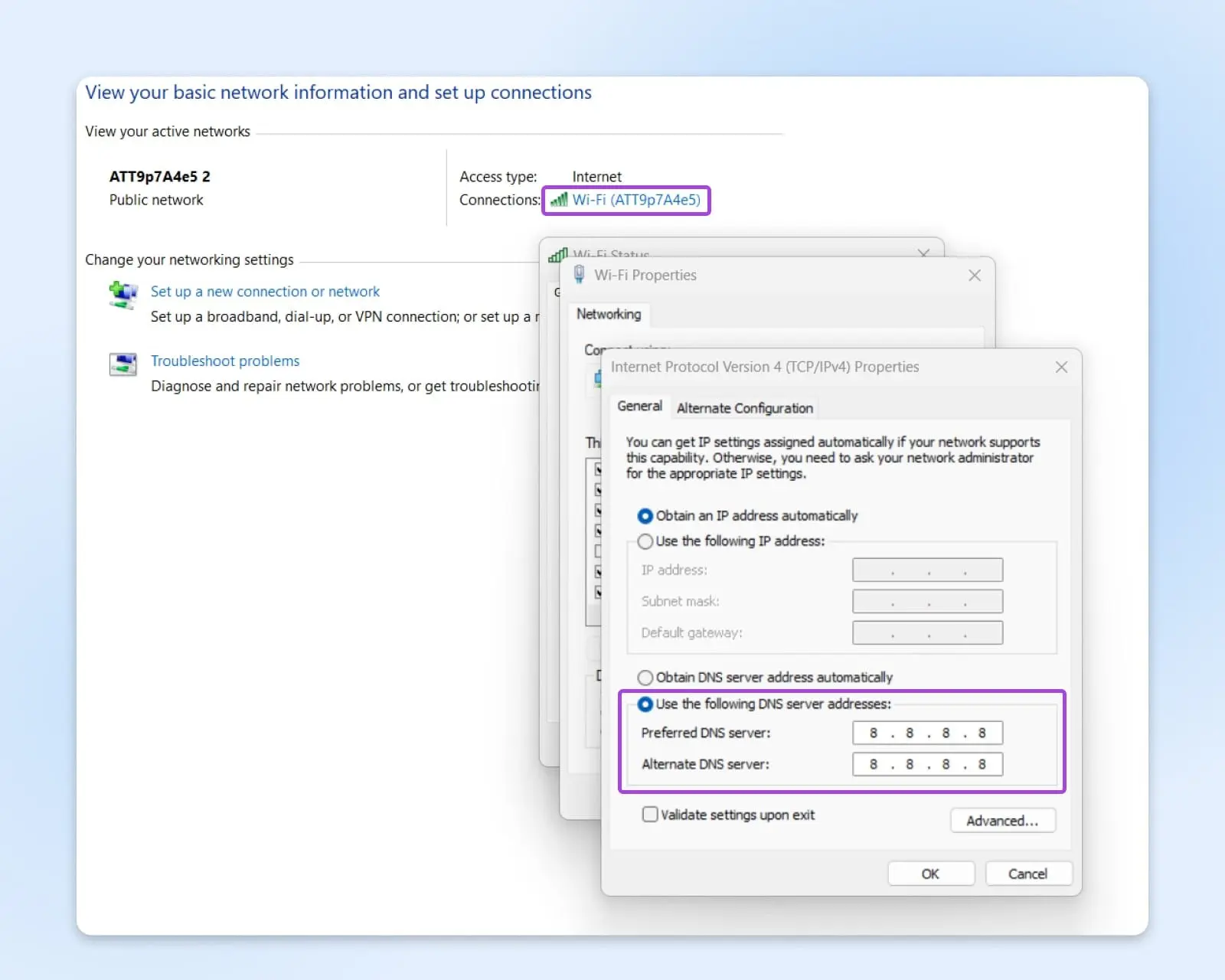
If a reboot didn’t help, your DNS server itself might be the problem. Your device usually uses your ISP’s DNS by default; switching to a public DNS server is a quick way to rule it out.
On Windows 11:
- Open Settings > Network & internet.
- Click your active connection. For Wi-Fi, open Hardware properties; for Ethernet, the settings appear directly.
- Next to DNS server assignment, click Edit, switch to Manual, turn on IPv4, and enter a public DNS address from the list below.
On older Windows versions, the same setting lives in the Control Panel: Network and Sharing Center > your connection > Properties > Internet Protocol Version 4, shown below.
On macOS (Ventura or later):
- Open System Settings > Network.
- Select your active connection and click Details…
- Open the DNS tab and add a public DNS address with the + button.
Popular public DNS options:
- Google Public DNS: 8.8.8.8 or 8.8.4.4
- Cloudflare DNS: 1.1.1.1 or 1.0.0.1
- OpenDNS Home: 208.67.222.222 or 208.67.220.220
If this fixes the problem, you can keep the new DNS server or contact your ISP about their resolver acting up.
(Temporarily) Disable Your Security Software
Firewalls and antivirus software keep you safe — but an overzealous one can block connections it shouldn’t. To test, briefly disable it and reload the page.
If you’re using the built-in firewall on Windows 11:
- Head to Settings > Privacy & security > Windows Security.
- Click Firewall & network protection.
- Select your active network profile and switch Microsoft Defender Firewall off.
On macOS, the firewall lives in System Settings > Network > Firewall.
Don’t leave it off! If the page loads with the firewall disabled, turn the firewall back on and add the site to its allow list instead.
Check Proxy And VPN Settings
Proxies and VPNs route your traffic through another server — and when that server (or its configuration) breaks, connections get refused. A leftover proxy setting from old software is a classic culprit.
To check on Windows 11: open Settings > Network & internet > Proxy, and make sure no manual proxy is enabled (unless you set one up on purpose).
On macOS: open System Settings > Network, select your connection, click Details…, and open the Proxies tab. Uncheck any protocols you don’t recognize, and click OK.
If you use a VPN, try disconnecting it for a moment. If the site loads without it, switch VPN servers or report the issue to the provider. Don’t just browse unprotected if you rely on it for privacy.
Disable Browser Extensions
Ad blockers, tracking-protection extensions, and VPN plug-ins can inadvertently block access to certain sites.
To test in Chrome:
- Click the three dots in the top-right corner.
- Go to Extensions > Manage Extensions.
- Toggle each extension off (or click Remove on anything you don’t recognize).
- Reload the page. If it works, re-enable extensions one at a time to find the troublemaker.
Once you’ve found the culprit, check its settings for a site allow list before you resort to uninstalling it.
Take A Peek At Your Hosts File
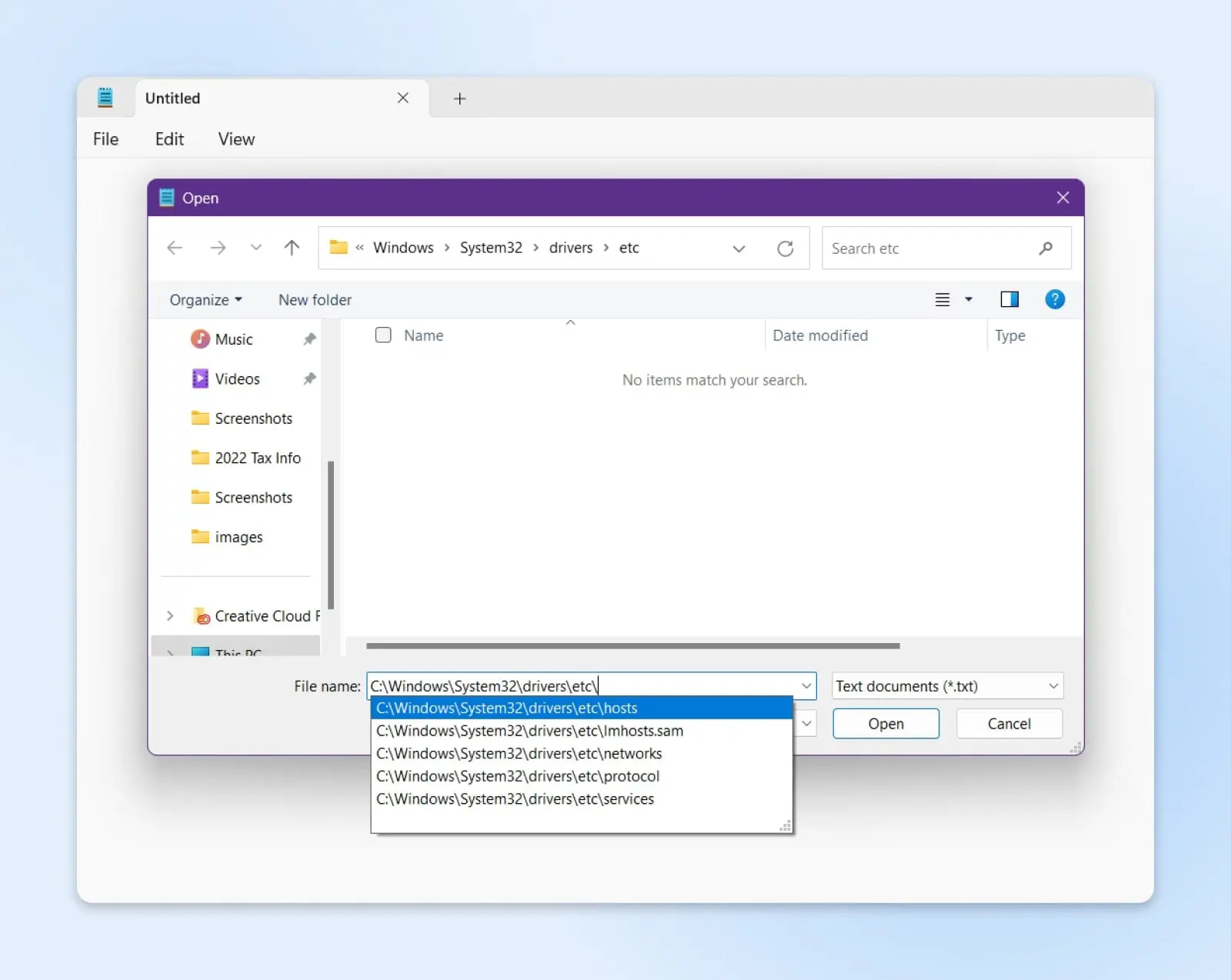
Every operating system has a hosts file that maps hostnames (like DreamHost.com) to IP addresses. It’s mostly harmless, but some apps (and some malware) use it to block or redirect specific domains. If a site is listed there, your browser may never reach the real server.
On Windows: open the Start menu, type “Notepad,” right-click it and choose Run as administrator. Then go to File > Open and browse to C:WindowsSystem32driversetchosts.
On macOS and Linux: the file lives at /etc/hosts. You can open it with any text editor, but saving changes requires admin rights — the simplest route is a terminal command like sudo nano /etc/hosts.
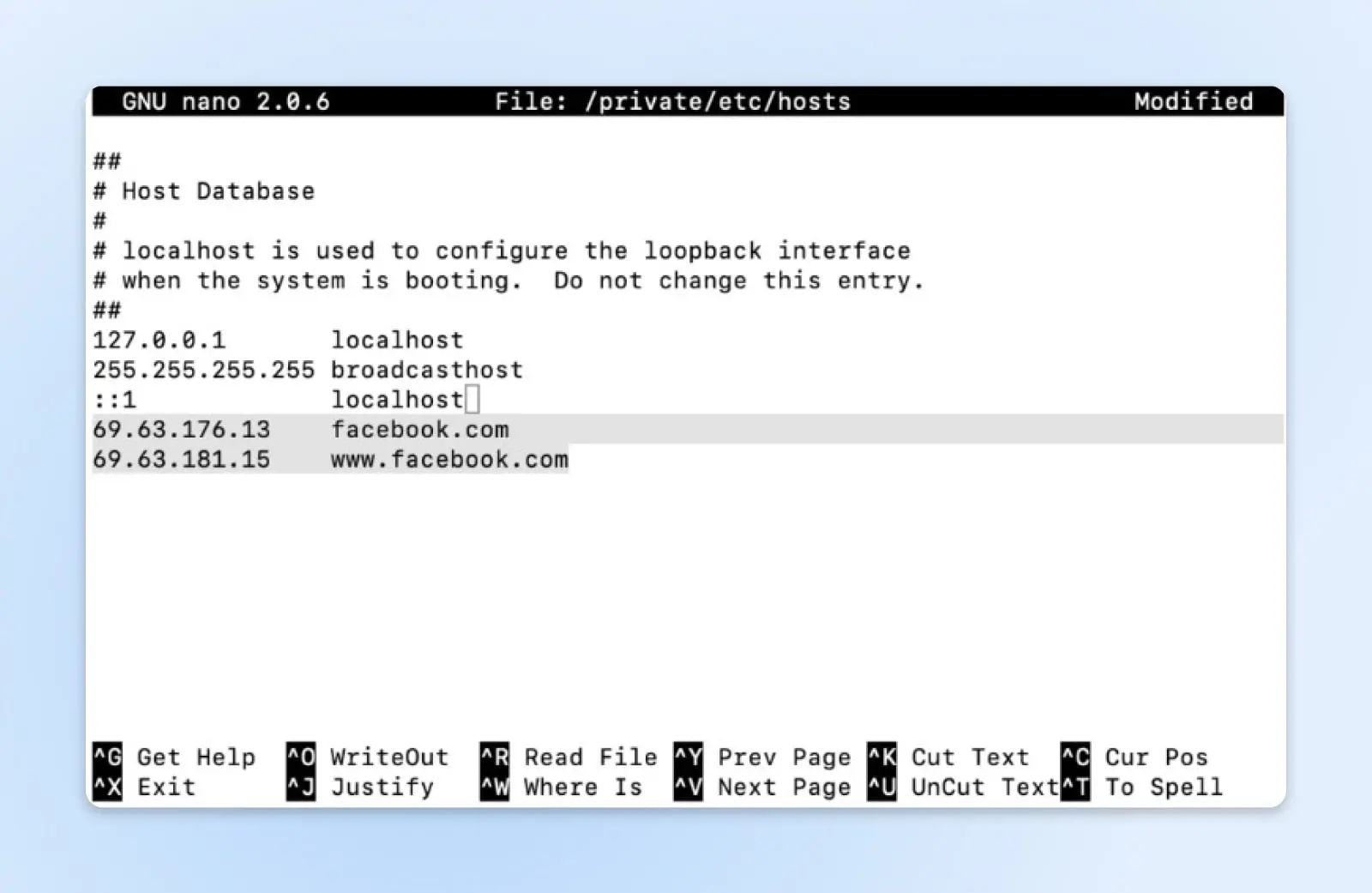
Look for lines containing the domain you’re trying to reach. If you find one you didn’t add, delete the line, save the file, and reload the page. (On a stock, non-rooted phone, you can’t edit the hosts file — skip this step on mobile.)
While you’re at it: developers also use hosts-file entries on purpose, for example to preview a site before DNS changes. A forgotten preview entry is a classic source of mystery connection errors.
Reinstall Your Browser
Still stuck? A corrupted browser installation can cause connection issues that settings changes can’t fix. Back up your bookmarks and saved passwords, uninstall the browser completely, restart your computer, and download a fresh copy from the official site.
If a clean install doesn’t help, the problem almost certainly lies elsewhere — most likely your network setup or the website’s server.
How To Fix “Localhost Refused To Connect”
Seeing localhost refused to connect while developing? This is the same error with a much shorter suspect list: your own computer refused the connection, which almost always means no server is listening on the port you requested.
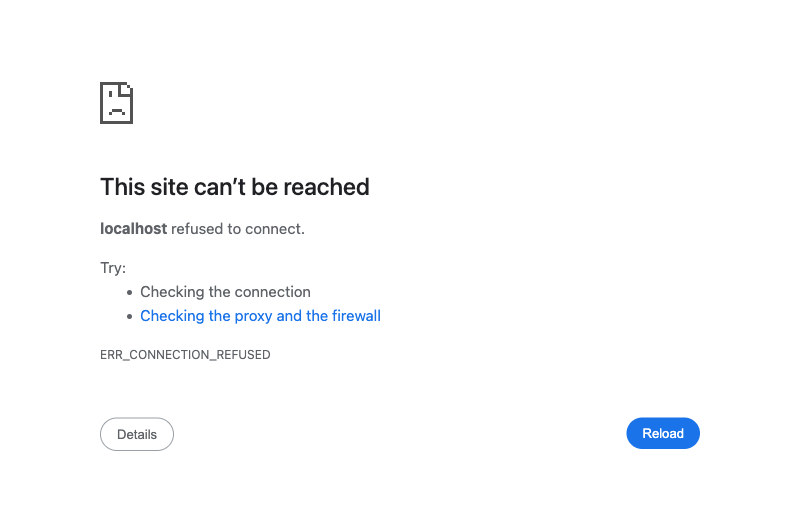
Run through these checks:
- Is your local server actually running? Start (or restart) your dev server — whether that’s
npm run dev,php -S, or the Apache/MySQL services in a tool like XAMPP, MAMP, or Local. - Are you using the right port? Check your server’s startup output for the port it chose (for example,
localhost:3000vs.localhost:5173) and make sure your address bar matches. - Is another app squatting on the port? On macOS/Linux,
lsof -i :3000shows what’s using a port; on Windows, trynetstat -ano | findstr :3000. Stop the conflicting process or move your server to another port. - On a Mac, check AirPlay. macOS’s AirPlay Receiver feature listens on ports 5000 and 7000, which collides with common dev servers (Flask defaults to 5000). Turn it off under System Settings > General > AirDrop & Handoff.
- Try 127.0.0.1 instead of localhost. Some setups resolve
localhostto the IPv6 address::1while the server only listens on IPv4. If127.0.0.1:3000works butlocalhost:3000doesn’t, that’s your clue. - Check your firewall. Security software occasionally blocks local connections, too — the same temporary-disable test from above applies.
ERR_CONNECTION_REFUSED Vs. Related Errors
Browsers report connection failures with a family of similar-sounding errors, and each one points to a different cause. Here’s the map:
| Error | What actually happened | Guide |
|---|---|---|
| ERR_CONNECTION_REFUSED | The server (or a firewall) actively rejected the connection | You’re reading it |
| ERR_CONNECTION_TIMED_OUT | No answer at all — the request just expired | How to fix ERR_CONNECTION_TIMED_OUT |
| ERR_CONNECTION_RESET | The connection was established, then abruptly cut off (reset) before the page finished loading | How to fix ERR_CONNECTION_RESET |
| ERR_CONNECTION_CLOSED | The server hung up after the conversation began | How to fix ERR_CONNECTION_CLOSED |
| DNS_PROBE_FINISHED_NXDOMAIN | The domain name couldn’t be found in DNS at all | How to fix DNS_PROBE_FINISHED_NXDOMAIN |
| DNS server not responding | Your DNS resolver is unreachable | How to fix DNS server not responding |
| 500 / 503 / 504 errors | The server was reached — it just errored while responding | 500, 503, 504 |
The rule of thumb: refused means something answered “no,” timed out means nothing answered, and numbered HTTP errors mean the server answered but couldn’t deliver the page.
ERR_CONNECTION_REFUSED FAQ
Is ERR_CONNECTION_REFUSED a problem with my device or the website?
It can be either. If only one site fails, the problem is usually on the site’s server. If many sites fail, the cause is on your side — typically your network, DNS, proxy, firewall, or a browser extension.
Is ERR_CONNECTION_REFUSED an HTTP error code?
No. The connection is rejected at the network level, before any HTTP request is sent, so no HTTP status code (like 404 or 500) is ever produced. That’s also why server-side scripts, plugins, and CMS settings are rarely the cause.
What’s the difference between ERR_CONNECTION_REFUSED and ERR_CONNECTION_TIMED_OUT?
Refused means the target actively rejected the connection — something was there to say “no.” Timed out means the request got no answer at all before the browser gave up, which usually points to an unreachable server or a silently dropping firewall.
Does ERR_CONNECTION_REFUSED mean I’ve been blocked or banned?
Usually not — most cases are server outages or local network problems. But it’s possible: security tools can ban individual IP addresses after repeated failed logins. If a site works from another network (like mobile data) but not from yours, an IP ban is a real suspect.
Why does localhost refuse to connect?
Because nothing on your computer is listening on that port. Start your development server, confirm the port number in its startup output matches your address bar, and check for port conflicts — on a Mac, the AirPlay Receiver occupies ports 5000 and 7000.
How do I fix ERR_CONNECTION_REFUSED on my Android phone?
Toggle airplane mode on and off, switch between Wi-Fi and mobile data to isolate the network, and delete your browser’s cache and cookies. Also check Settings > Network & internet > Private DNS — a broken private DNS hostname breaks loading on every site.
Fix Errors Faster With DreamHost
We’ve covered a lot of troubleshooting in this guide — but you rarely need every step. Two quick tests point you to the right section:
- Error on one website only? It’s probably server-side. If it’s your site, start with DNS, the web server, and the firewall.
- Errors on multiple sites? It’s almost certainly client-side. Start with your browser data, DNS settings, and extensions.
And if it’s your website refusing connections, you don’t have to figure it out alone. Every DreamHost hosting plan includes 24/7 support from our in-house experts — we’ll help you track down exactly why your server is turning visitors away and get it back online.
Sound good? Sign up for hosting today and see for yourself.

