
Your theme built the shelves; widgets are what you put on them. WordPress widgets are handy little modules that add specific features — a search bar, a list of recent posts, a navigation menu — to the sidebars and footers of classic themes, the areas that sit around your main content. You don’t need to know any coding to use them, and since WordPress 5.8, you add them as blocks, the same way you build a post.
Widgets are also a great introduction to how customizable WordPress is, even for beginners. In this guide, we’ll explain what widgets are, how to add them to your sidebars and footers, and what to do instead if your theme doesn’t use them at all.
What is a WordPress widget?
A WordPress widget is a small, pre-built module that adds content or functionality, such as a search bar, a list of recent posts, or a navigation menu, to a widget area, typically the sidebar or footer of a classic theme. Block themes don’t use widgets; their sidebars and footers are edited with blocks in the Site Editor instead.
There are a few ways that WordPress helps you customize the look and functionality of your website, even if you’re not a designer. Themes enable you to make large-scale changes to your site’s appearance, while widgets handle the details. As the WordPress documentation puts it, a widget area is “a pre-defined area by the theme, typically located in the sidebar or footer, but varies from theme to theme.”
WordPress comes pre-packaged with a variety of widgets (Search, Categories, Latest Posts, and more), and plugins often add their own. You can place one without writing any code: WordPress handles it through the block editor.
Classic theme or block theme? Check before you start
Widgets only exist on classic themes, so it pays to check which kind you’re running before you follow any tutorial. Open your dashboard and look at the Appearance menu. If you see a Widgets item, you’re on a classic theme, and the walkthrough below applies. If you see Editor instead, you’re on a block theme: your site has no widget areas, and you’ll build your sidebar and footer with blocks in the Site Editor. We cover both paths in this guide.
How to add widgets to your WordPress site
To add a widget, head to your dashboard and navigate to Appearance > Widgets, click the widget area you want to change, select the + icon, and choose a block. Since WordPress 5.8, widgets are managed with the block-based widgets editor, so the whole process works just like editing a post. Here it is step by step:
- Go to Appearance > Widgets. Each widget area your theme provides (a sidebar, one or more footers) appears as its own editing panel. What these areas are, and where they sit on the page, varies by theme.
- Click the widget area you’d like to customize, then select the + prompt. You can search for the block you want or choose Browse All to see every option.
- Click a block to add it. For example, the Categories block places a list of your post categories in the sidebar.
- To customize a block, select it and use its toolbar and settings. To remove one, delete it exactly as you would in the post editor.
- To move a block, drag it by its toolbar, or use the Move to widget area option in the block toolbar to send it to a different area.
- When you’re happy, click Update to save your changes.
Want to watch the process before trying it? The WordPress documentation linked above includes a short video demonstration of the block-based widgets editor.
Prefer to see changes as you make them? Go to Appearance > Customize > Widgets instead. The Customizer offers the same block-based editing with a live preview, plus the option to schedule changes before publishing. One quirk: because the Customizer panel is narrow, some settings take an extra step to find. Select a block, click the three-dot menu, and choose Show more settings.
Two notes for anyone with older widgets. First, widgets from plugins or themes that haven’t been converted to blocks still work: WordPress places them in a Legacy Widget block so you can keep managing them. Second, if you miss the old interface entirely, the official Classic Widgets plugin (maintained by the WordPress team, with over 2 million active installs) restores the pre-5.8 widgets screens on classic themes. It has no settings: activate it and the classic screens return; deactivate it and the block editor takes over again.
How to edit sidebars and footers in a block theme
Block themes skip widget areas entirely: you edit the footer or sidebar itself in the Site Editor, using the same blocks. Go to Appearance > Editor, open the template you want to change (template parts, such as footers, are managed under Patterns), and click the + block inserter to start adding blocks.
From there, you can recreate anything a widget does. Add a Search block for a search bar, a Latest Posts block for your newest content, or a Categories block so readers can browse by topic — every block available in the block editor can be used in the Site Editor. When you’re done, click Save. Keep in mind that changes to a header or footer template apply to every page that uses it, not just the one you’re previewing.
New to the Site Editor? Our guide to WordPress full site editing walks through it step by step.
The best WordPress widgets to add first
The best WordPress widgets for most sites are Search, Latest Posts, Categories, and the Paragraph/Custom HTML pair — together they cover discovery, navigation, and anything custom. All four ship with WordPress as blocks, so they work in the widgets editor on classic themes and in the Site Editor on block themes. (On the classic widgets screen, the equivalent Search, Recent Posts, Categories, and Text widgets do the same jobs.)
1. Search
Best for: any site where visitors need to find things fast. The Search block adds a search bar to your sidebar or footer. If your website has a catalog or archive, or simply more than a handful of pages, add this one first: users who search your content are looking for specific information, and a search bar keeps them from leaving to find it.
2. Latest Posts
Best for: blogs and news sites. The Latest Posts block displays a short list of your most recent posts, enticing visitors to read your latest (and hopefully greatest) content. It’s the block-era successor to the classic Recent Posts widget, and it means a reader who lands on one article can always find the next one.
3. Categories
Best for: helping readers browse by topic. The Categories block lists your post categories as links, turning your sidebar into a table of contents for the whole site. One tip before you add it: prune your category list first. A sidebar listing 30 near-empty categories helps nobody, while five or six well-stocked ones invite a click.
4. Paragraph and Custom HTML
Best for: everything else. The Paragraph block handles text, links, and media in your widget areas — the job the classic Text widget used to do — while the Custom HTML block takes raw code. One limit to know before you paste: widget areas accept HTML, embeds, and JavaScript, but WordPress strips PHP and other active code. If a feature genuinely needs PHP, you’ll need a plugin to add it.
WordPress offers far more blocks than we can cover here, and it’s worth familiarizing yourself with them. Most are self-explanatory, and the WordPress documentation covers each one in detail if you get stuck.
The best WordPress widget and sidebar plugins
Start with WordPress’s built-in widgets, and add a plugin only when you need something they don’t cover: thumbnails on your post lists, conditional visibility, or a widget your theme doesn’t provide. These four are the ones we’d reach for.
1. Recent Posts Widget With Thumbnails
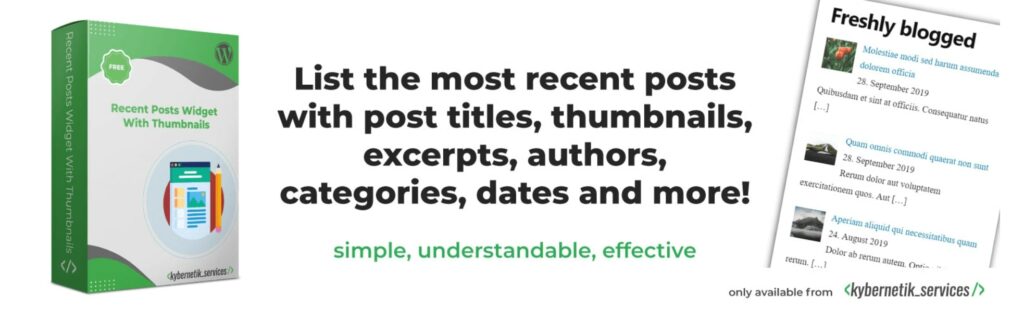
As we discussed above, WordPress can already list your latest posts. However, it will simply display links to them. Adding an image to each post is a great way to draw more attention to this element and help your sidebars look more attractive. Recent Posts Widget With Thumbnails is a simple but effective free plugin that enables you to achieve this. It’s a classic widget rather than a block, so on a current install you’ll manage it through the Legacy Widget block (or the Classic Widgets plugin).
2. Top Posts & Pages Widget by Jetpack
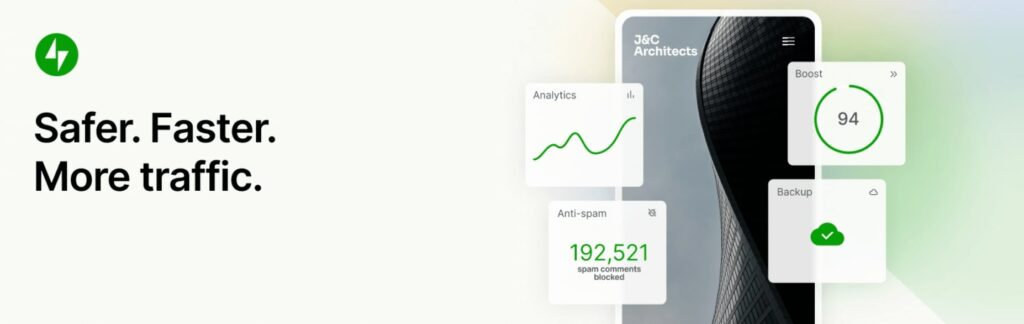
What if, instead of showing off your most recent posts, you want to direct visitors towards your best content? Jetpack’s Top Posts & Pages Widget enables you to showcase the posts that are already doing well. You can either display your most liked posts or the content that has received the most traffic over the past two days.
While you’re in Jetpack, its free Widget Visibility feature is worth switching on (under Jetpack > Settings > Writing). It adds a Visibility button to each widget’s settings, so you can show or hide that widget by page type, category, tag, date, author, and more. By default, a widget appears when any one rule matches; check Match all conditions, and it appears only when every rule is true at once.
3. SiteOrigin Widgets Bundle
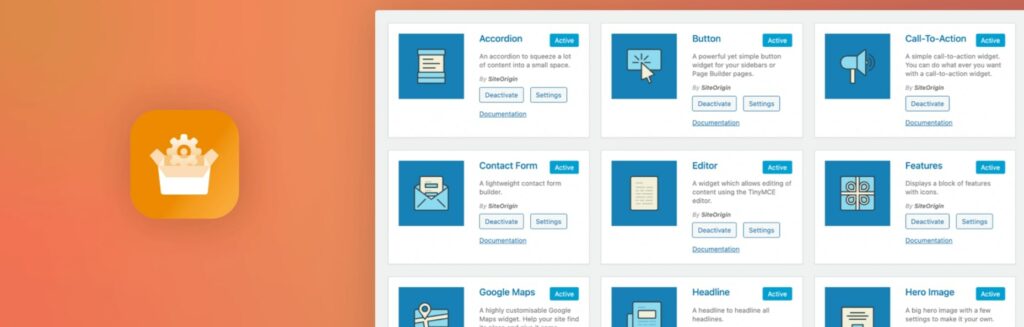
Recent Posts Widget With Thumbnails does one job, and Jetpack is a full feature suite (installing all of it for a single widget is overkill). SiteOrigin Widgets Bundle is the middle path: a plugin built specifically around widgets. It adds dozens of new widgets to your site, so you can place various elements in your sidebars and footers, including buttons, maps, post carousels, social media links, and more. It’s also 100% Block Editor compatible, so its widgets work just as well in block-based widget areas.
4. Custom Sidebars

In general, adding a widget to your sidebar means it will show up in the same place on every page and post. However, it’s common to want to display different features and information on various parts of your site. Custom Sidebars (now listed as Custom Sidebars – Dynamic Sidebar Classic Widget Area Manager, from WebFactory) lets you change up which widgets appear on different pages, along with providing a host of other customization options. One important caveat: the plugin works only with the classic widgets screen from before WordPress 5.8, so on a current install, you’ll need to activate the official Classic Widgets plugin first.
Add WordPress widgets to your sidebars
When designing your site, it’s important not to forget about your sidebars and footers: those shelves around your main content shape how visitors move through your pages. Fortunately, WordPress widgets dramatically simplify the process of stocking them with useful features — and if you’re on a block theme, the Site Editor gives you the same power with blocks.
FAQs about WordPress widgets
How do I add a widget to my WordPress footer?
Go to Appearance > Widgets, expand your theme’s footer widget area, click the + inserter, and choose a block. Then click Update to save. If there’s no Widgets menu, you’re on a block theme: edit the footer in Appearance > Editor instead.
Do block themes support widgets?
No. Block themes don’t have widget areas, so the Appearance > Widgets screen doesn’t appear at all. Instead, you edit sidebars and footers with blocks in the Site Editor (Appearance > Editor), which includes block versions of the classic widgets, such as Search and Latest Posts.
How do I get the classic widgets screen back?
Install and activate the official Classic Widgets plugin, which is maintained by the WordPress team. On a classic theme, it restores the pre-5.8 widgets screens with no settings to configure. Deactivate the plugin whenever you want the block-based widgets editor back.
How do I register a new sidebar or widget area?
Widget areas are defined by your theme. A developer adds one by calling the register_sidebar() function, typically in the theme’s functions.php file, and the new area then appears on the Widgets screen. If you’d rather avoid code, pick a theme that already includes the areas you need.
Why did my widgets disappear after switching themes?
They’re almost certainly saved in the Inactive Widgets area. Widget areas vary between themes, so after a switch, WordPress stores displaced widgets, with their settings intact, at the bottom of the Appearance > Widgets screen. Scroll down and move them back into your new theme’s widget areas.

Do More with DreamPress
DreamPress managed WordPress hosting comes with WordPress pre-installed, 1-click staging, a free Bunny CDN, and daily backups stored offsite, so you can customize your site while DreamHost handles the rest.
Check Out Plans