
Think about the last time you gave up on a website because it wouldn’t load. Oversized images may have contributed.
Modern image formats are image file types, primarily WebP and AVIF, that compress pictures into much smaller files than JPEG or PNG at similar visual quality, so your pages load faster. Modern Image Formats is also the name of a free WordPress plugin that converts your image uploads to WebP or AVIF automatically.
If your business runs on imagery — product photos, portfolios, work samples — the format those images use can affect page speed, which contributes to Core Web Vitals and was associated with conversion-rate differences in the Portent study discussed below.
In this guide, we’ll cover what WebP and AVIF are, how to choose between them, how to switch your WordPress site over in a few clicks, and how to measure the results with Core Web Vitals.
Understanding WebP and AVIF images
First, some context. The image formats you’ll meet most often on the web are JPEG, PNG, GIF, SVG, WebP, and AVIF, according to MDN’s image file type guide. The first four are the old guard. The last two are the modern formats this post is about.
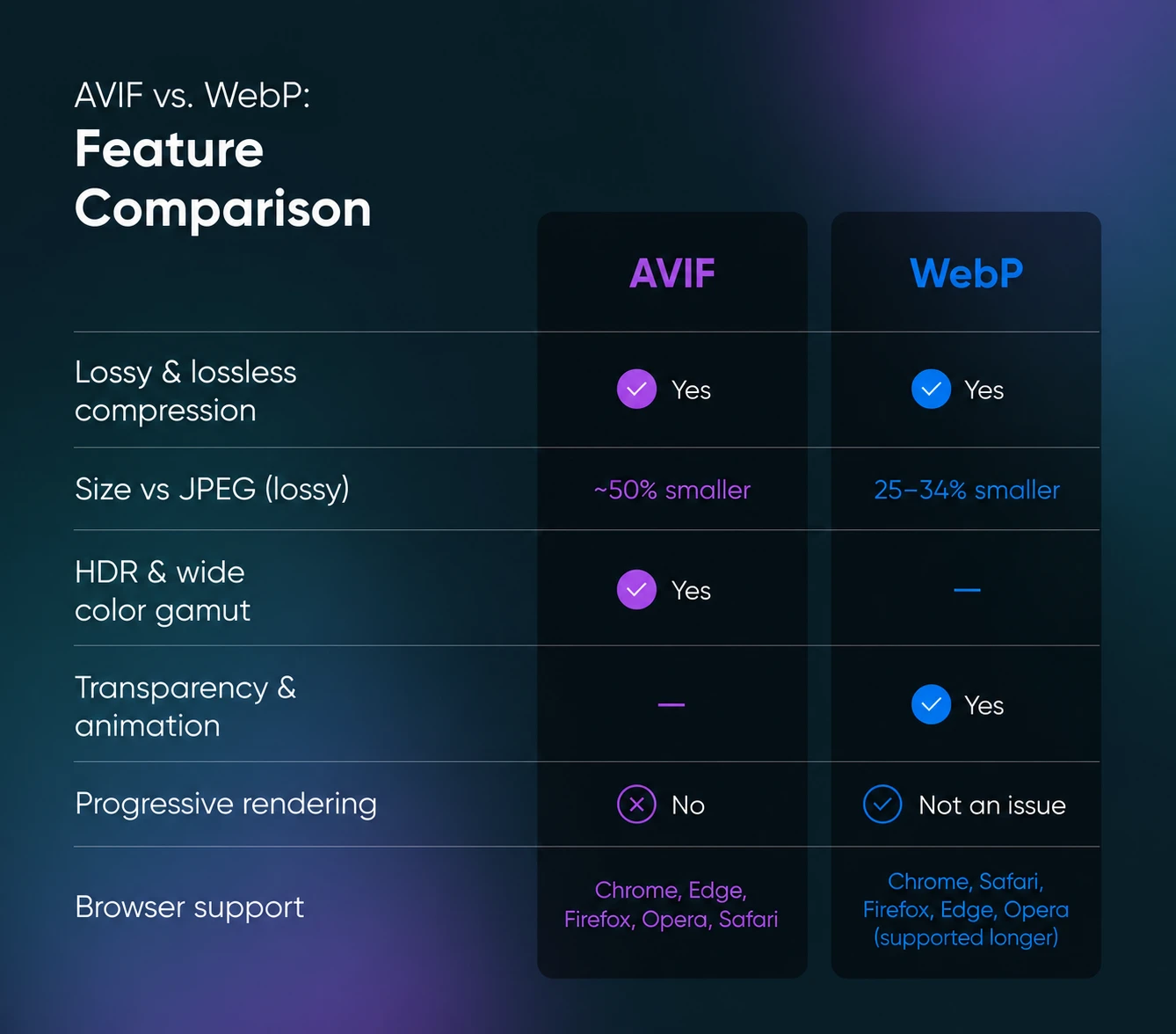
Google announced WebP in September 2010 as a new image format for the web. Per Google’s WebP documentation, lossless WebP images are 26% smaller than PNGs, and lossy WebP images are 25–34% smaller than comparable JPEGs at equivalent quality.
Quick jargon check: lossy compression shrinks a file by discarding image data you’re unlikely to notice, while lossless compression shrinks it without discarding anything. WebP supports both, plus transparency (like PNG) and animation (like GIF).
Thanks to that efficiency and native support in Chrome, Safari, Firefox, Edge, and Opera, WebP has become a go-to format.
AVIF (AV1 Image File Format) is younger: the Alliance for Open Media published version 1.0 of the format in February 2019. It compresses even harder. MDN’s format guide reports lossy AVIF images around 50% smaller than comparable JPEGs, with support for high dynamic range (HDR) and wide color gamut, so photos keep richer color at smaller sizes.
AVIF is now supported in Chrome, Edge, Firefox, Opera, and Safari. Its trade-off, per MDN: AVIF doesn’t support progressive rendering, so a file must fully download before it displays. With small files you’ll rarely notice; with very large ones, you might.
To summarize: JPEG and PNG are older formats that produce larger files and slower loading times. WebP and AVIF are newer and far more compressible, making them smaller and faster to load at the same visual quality.
One other thing you should know: Modern Image Formats is also the name of a free plugin from the WordPress Performance Team that enables AVIF and WebP for media uploads on WordPress.org sites.
In just a bit, we’ll walk you through installing it on your own website.
Why modern formats matter (hint: speed)
Images are the heaviest thing most pages ship. In HTTP Archive’s 2022 Web Almanac, the median desktop page weighed 2,315 KB, and 1,026 KB of that (about 44%) was images.
On mobile, images accounted for 881 KB of the 2,020 KB median page.
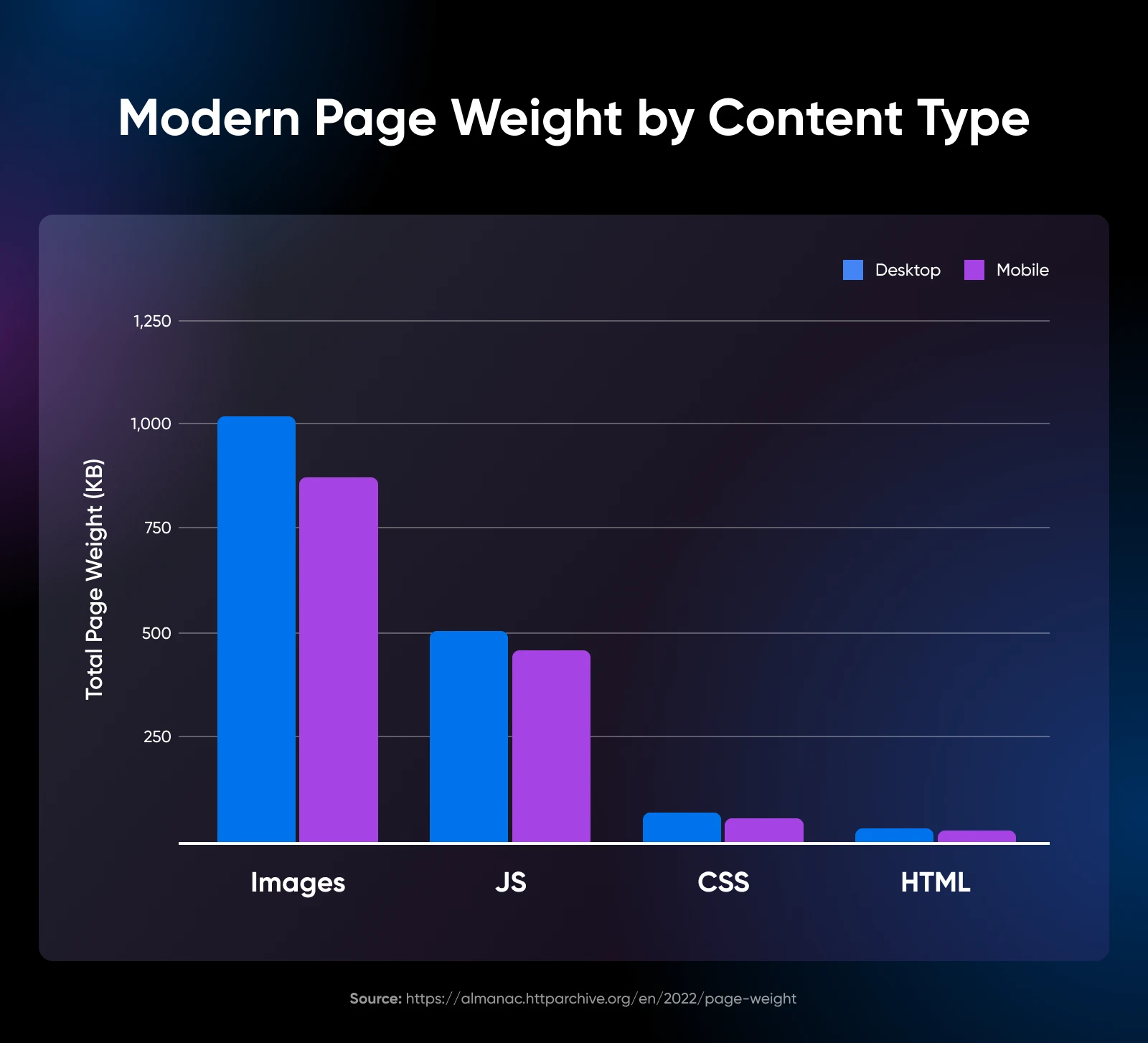
Because images are the largest single contributor to page weight, their format matters: the same photo saved as lossy AVIF is around half the size of its JPEG equivalent, per MDN, and smaller files load faster.
And faster images pay off twice.
First, there’s search engine optimization (SEO).
Google measures a set of user experience metrics called Core Web Vitals on your site, covering loading speed, interactivity, and visual stability. Google’s page experience documentation states plainly that “Core Web Vitals are used by our ranking systems.” (Stay tuned — we’ll dig into measuring them later in this post.)
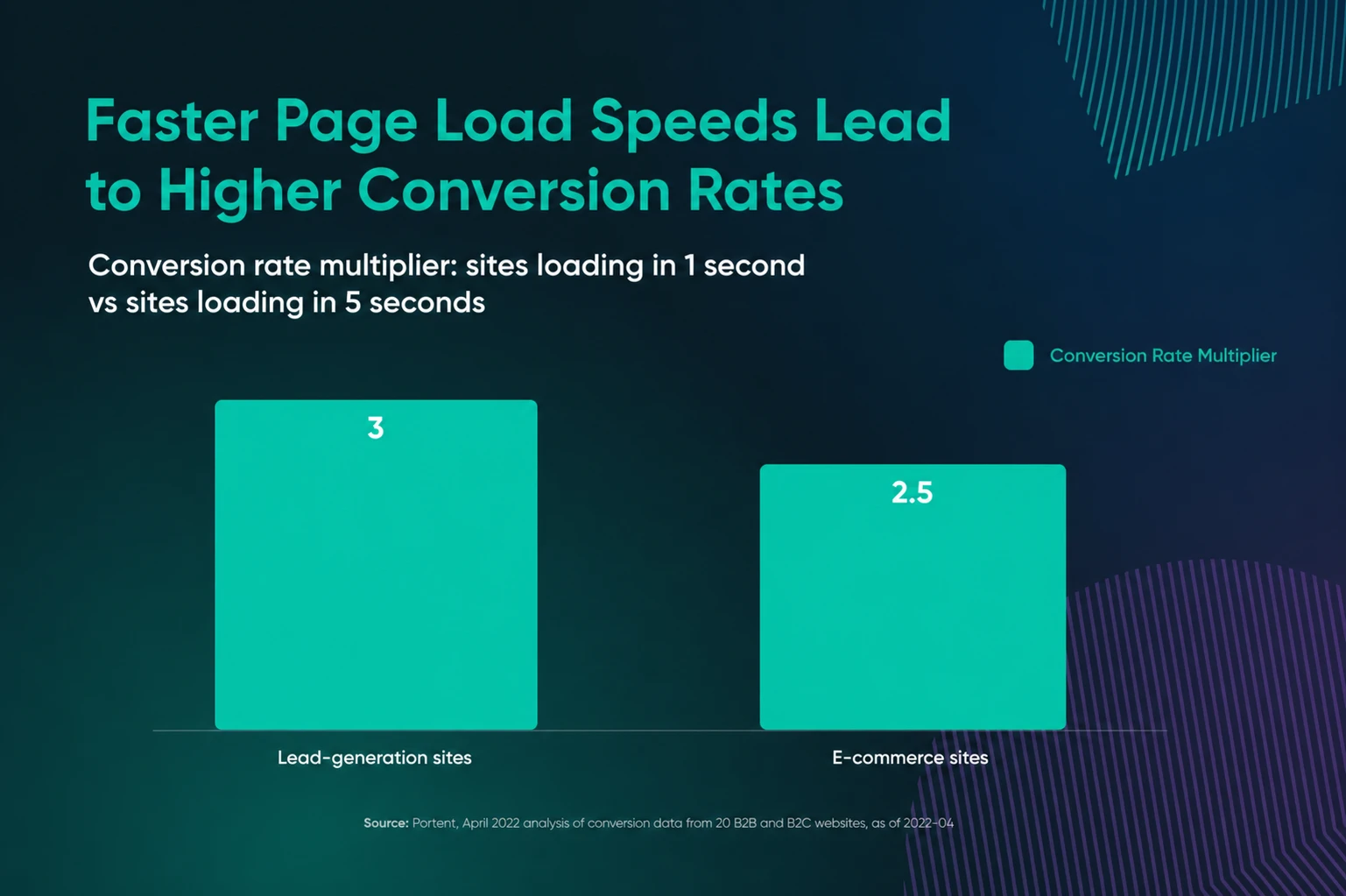
Second, loading speed shapes conversions. Portent’s April 2022 analysis of conversion data from 20 B2B and B2C websites found that, among the lead-generation sites studied, a site that loads in 1 second had a conversion rate 3x higher than a site that loads in 5 seconds. Among the e-commerce sites, the 1-second sites converted at 2.5x the rate of the 5-second sites.
Choosing between AVIF and WebP
Before you switch your site to WebP or AVIF, decide which format you prefer for which images.
The truth is both are excellent image formats for the web, so the choice is about your priorities.
Here’s our verdict:
AVIF for HDR and wide color gamut
AVIF is the pick for sharp, detailed images: photography portfolios, digital art, or e-commerce sites showcasing high-end products. It delivers the smallest files at high quality, and it handles HDR and wide color gamut.
WebP for versatility
WebP works well for most websites, handling photos, illustrations, logos, and animations with ease. It has been supported in browsers for longer, which matters if your audience skews toward older devices. It’s the reliable default.
For WordPress, let the plugin choose unless you have a specific requirement: it uses AVIF when your server supports it and WebP otherwise. Choose WebP manually if you want to avoid AVIF’s lack of progressive rendering.
We wrote a detailed guide to this exact decision, so if you want the full comparison, don’t miss AVIF vs. WebP: How To Choose the Right Modern Image Format.
Upload your best images with the Modern Image Formats WordPress plugin
That plugin we mentioned earlier, Modern Image Formats? It may just be the easiest way for small website owners and operators to get modern formats live.
So, let’s explore what the tool does, how to install and use it, its benefits, and how to determine if it’s the right solution for you.
What is the Modern Image Formats plugin for WordPress?
WordPress has accepted WebP uploads since version 5.8 in 2021, and it added AVIF support in 2024 with version 6.5. But native support only means you can upload files that are already in those formats. Out of the box, WordPress won’t convert the JPEGs and PNGs you’re uploading today.
That’s where Modern Image Formats comes in (formerly known as WebP Uploads, and built by the WordPress Performance Team).
The Modern Image Formats plugin converts new image uploads to a modern format automatically. As long as your hosting server supports AVIF, AVIF will be the default output format; otherwise, WebP is used. When both are supported, you can choose your preferred output under Settings > Media.
Quick note: the plugin converts new uploads only. Images already in your Media Library get converted only if you regenerate them, with a plugin like Regenerate Thumbnails or the WP-CLI command wp media regenerate.
Reminder: your hosting environment must support the output format you want to use: AVIF or WebP. You can check without asking anyone: in your WordPress admin, go to Tools > Site Health, open the Info tab, and expand Media Handling to see which formats your server’s image library supports. If AVIF or WebP is missing, contact your host.
How to start using Modern Image Formats
Like all plugins, you’ll install Modern Image Formats through your WordPress admin. Just log in and navigate to Plugins > Add New Plugin in the left menu.

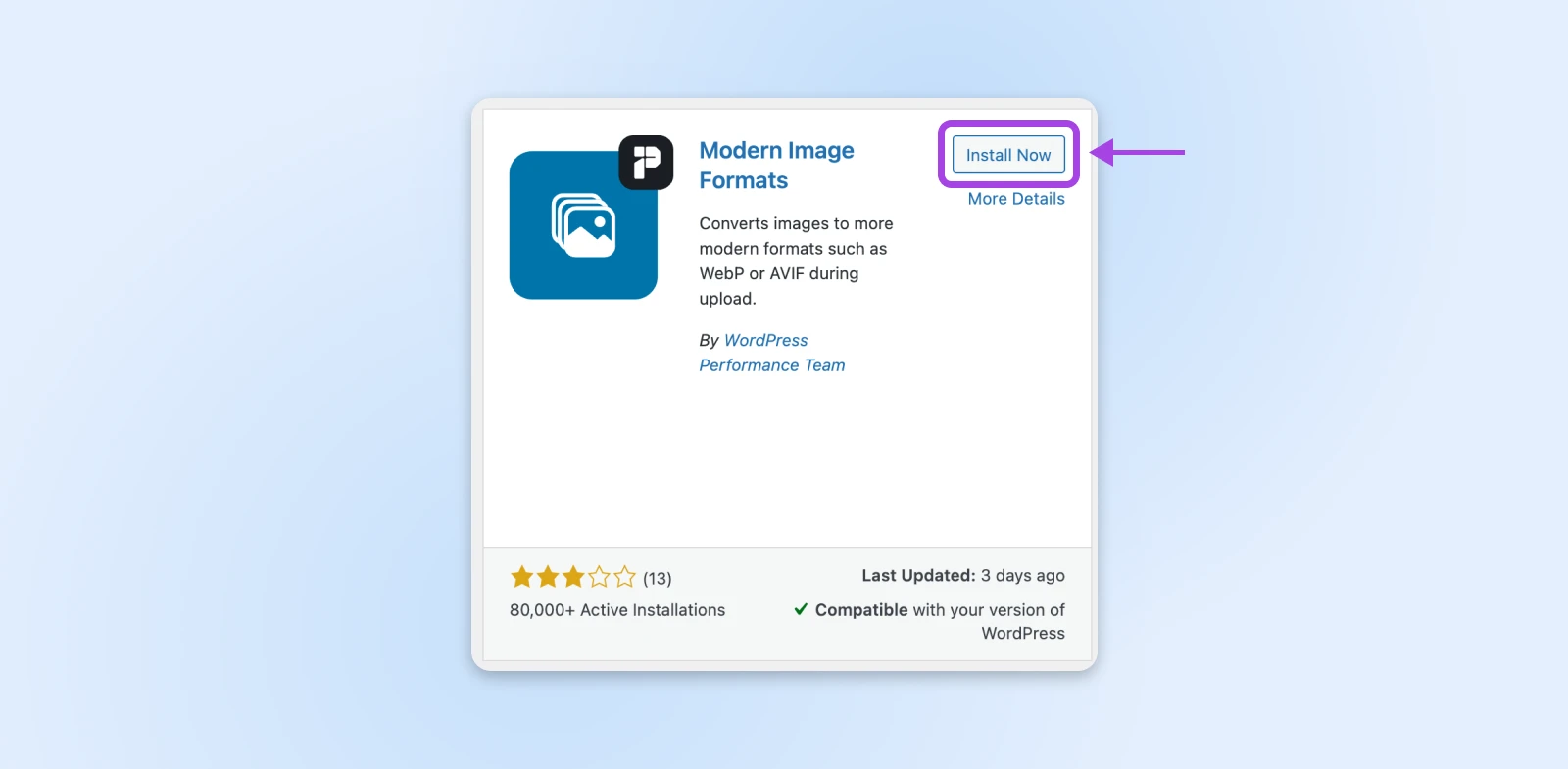
Search “Modern Image Formats,” click Install Now, then wait for it to install before hitting the Activate button.
When it’s done, you’ll be redirected to your Installed Plugins page, which is organized alphabetically.
Scroll down to find Modern Image Formats, then click on Settings. That link takes you to the plugin’s section of the Settings > Media screen.
Here, take a look and make sure you like the defaults for your preferred image output format, the output of fallback images, and more.
When you’re happy with your setup, use the Save Changes button.
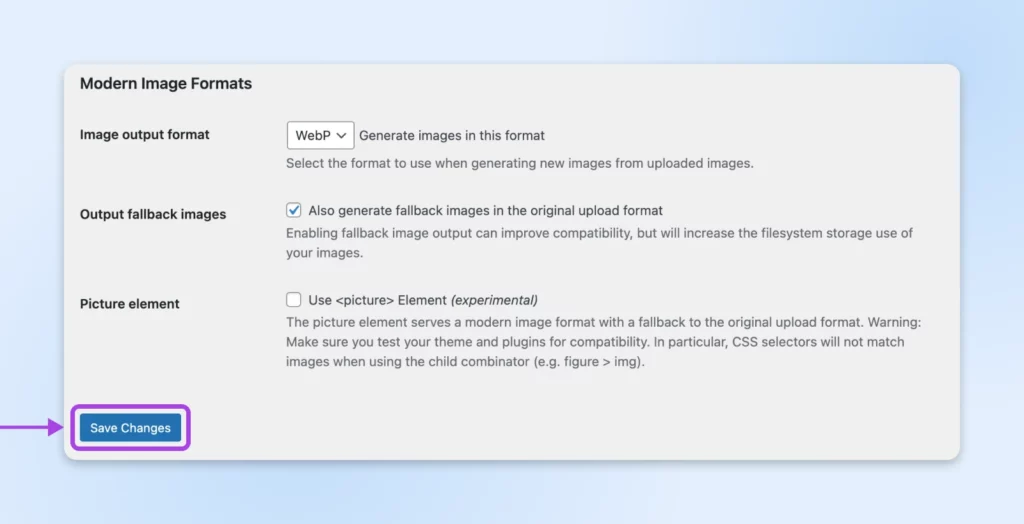
Now when you upload a new graphic, the plugin should automatically convert it into your chosen default format.
Let’s test that by publishing a graphic really quickly. We’ll head to Posts > Add New Post and simply drag an image onto the page.
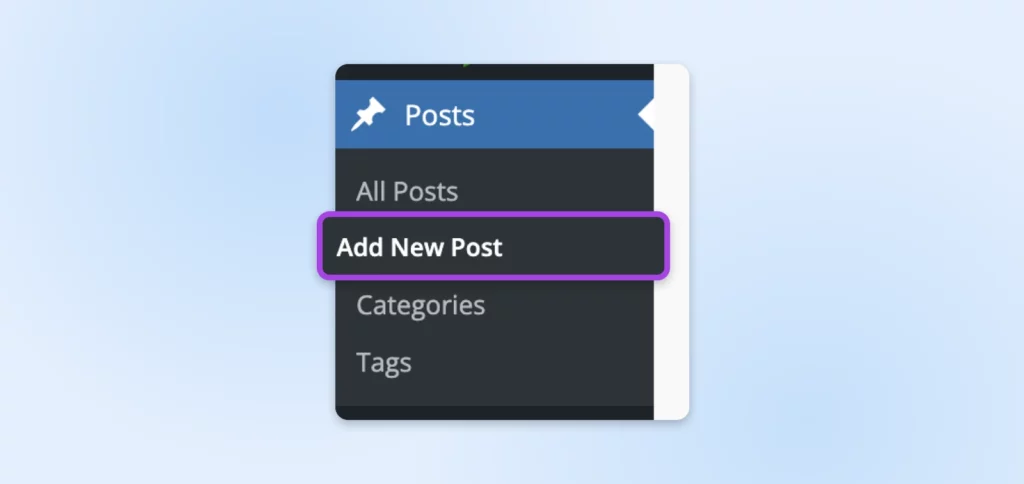
Give it a title and hit the Publish button in the upper right corner. On the live post, hover over the image, right-click, and Inspect. You should see that the image is in your preferred format.
By default, when you upload JPEG or PNG images, the resized versions WordPress generates will be created in WebP or AVIF, while the original file stays in its original JPEG or PNG format. If you want both versions of every size (say, as a fallback for older browsers), tick the Output fallback images checkbox in the settings.
Also worth knowing: the plugin only converts images uploaded to the Media Library, not graphics added through template files or the Customizer. And if a converted version would end up larger than your original file, the plugin skips it — no harm done.
Benefits of the Modern Image Formats plugin
The biggest benefit of this plugin, and its whole goal, is that it lets website owners of any technical background adopt WebP and AVIF without touching code. Once installed, it creates modern-format resized versions of new JPEG and PNG uploads from the Media Library without requiring code, and it skips a converted version if that file would be larger than the original.
The other key benefit is that it simplifies format selection. It automatically picks the output format based on your server’s capabilities: AVIF when it’s supported, WebP as the fallback, unless you adjust the settings yourself. That’s one less thing to think about when it comes to site management and optimization.
Is the Modern Image Formats tool right for you?
As usual, it’s hard for us to say exactly what’s right for you. The tooling that supports your small business depends on your brand, your website, your team’s skillset, and the time you can devote to all of the above.
That said, we’ve worked with tons of small business websites over the years as an independent, employee-owned web hosting provider and pro services purveyor. So we do have an opinion on who this plugin is best for.
We’d recommend using this tool if the success of your website and business depends on imagery. That may apply to photographers, digital service providers showing off high-quality work samples, e-commerce sellers, and more.
Basically, if your site is full of graphics, you need to make sure they look great without dragging down your loading speed on desktop or mobile.
If that sounds like you, there’s no harm in using a free plugin that upgrades every new image to a faster format the moment you upload it.
Measure your image optimization efforts with Core Web Vitals
Now that you’ve made this adjustment, it’s time to start keeping an eye on your Core Web Vitals scores, if you aren’t already.
Reminder: Core Web Vitals is Google’s set of three user experience metrics, each with a “good” threshold:
- Largest Contentful Paint (LCP): measures loading performance. Good means within 2.5 seconds of the page starting to load. This is the metric image optimization helps most.
- Interaction to Next Paint (INP): measures interactivity. Good means 200 milliseconds or less. (INP replaced the older First Input Delay metric in 2024.)
- Cumulative Layout Shift (CLS): measures visual stability. Good means a score of 0.1 or less.
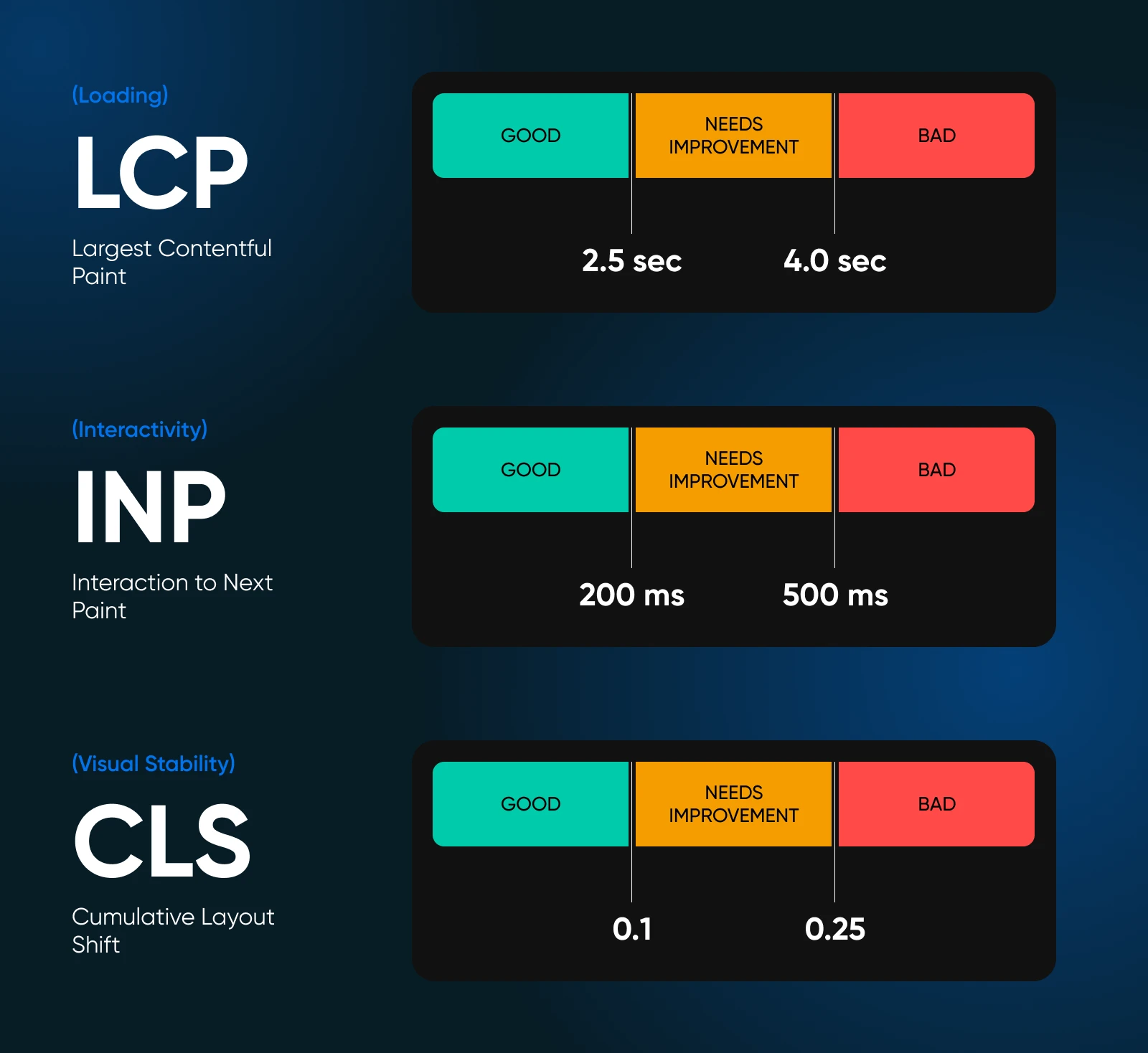
Here are three ways to check your Core Web Vitals scores so you can track your site’s performance over time:
- PageSpeed Insights: visit Google PageSpeed Insights, enter your website URL, and click Analyze. It provides mobile and desktop Core Web Vitals scores, along with recommendations for improvement.
- Search Console: the Core Web Vitals report in Google Search Console (under Experience) shows how real Chrome visitors experience your site, powered by the Chrome User Experience Report.
- Web Vitals Chrome extension: add the Web Vitals extension to Chrome for instant Core Web Vitals scores on any page you visit.
FAQs about modern image formats
Which is smaller, WebP or AVIF?
There isn’t a universal winner; file size depends on the image and encoding settings, so test both when size is critical. As general reference points rather than a head-to-head test, MDN reports lossy AVIF at around 50% smaller than comparable JPEGs, while Google reports lossy WebP at 25–34% smaller than comparable JPEGs at equivalent quality.
Is WebP better than PNG?
For delivering images on a website, yes: per Google’s WebP documentation, lossless WebP files are 26% smaller than PNGs, and WebP supports transparency just like PNG does. PNG is still fine as a source or archival format for graphics you plan to edit later.
Is AVIF better than PNG?
For web delivery, generally yes. MDN’s format guide describes AVIF as offering much better compression than PNG or JPEG, with support for transparency, HDR, and wide color gamut. Like WebP, AVIF handles both lossy and lossless compression, so it covers the same jobs PNG does at smaller file sizes.
Is the Modern Image Formats plugin free?
Yes. Modern Image Formats is a free, open-source plugin built by the WordPress Performance Team and distributed through the WordPress.org plugin directory, where it has 100,000+ active installations as of August 2026.
Does the Modern Image Formats plugin convert my existing images?
Not automatically — it converts new uploads only. To convert images already in your Media Library, regenerate them with a plugin like Regenerate Thumbnails or the WP-CLI command wp media regenerate, and the plugin will produce modern-format versions during regeneration.
Do I need a plugin to use WebP or AVIF in WordPress?
Not if your images are already in those formats: WordPress has supported WebP uploads since version 5.8 (2021) and AVIF uploads since version 6.5 (2024), as long as your hosting server’s image library supports them. The plugin’s job is converting the JPEGs and PNGs you upload into WebP or AVIF automatically.
More ways to speed up your website
OK, OK, just one more thing before we wrap up. We’ve been writing about small business websites for a while, so we’ve built up a nice backlog of resources all about boosting your site speed.
For those of you on a mission to improve sales and customer experience by making your site faster, here are a handful of articles to read next:
- Everything You Need To Know About Speeding Up WordPress
- How To Supercharge Site Speed With GTmetrix
- PageSpeed Insights Deep Dive (Full Walkthrough & Tips for Scoring 100)
- Decoding WordPress: Build Fast With WordPress Pattern Directory
- A Comprehensive Guide to Website Caching
It’s also important to know that website hosting has a lot to do with speed.
Overloaded servers, distant datacenters, limited bandwidth: no amount of image optimization outruns a slow server.
If you’re worried hosting is one of the roots of your performance issues, take a look at DreamHost web hosting. Every plan runs on NVMe SSD storage, includes a 100% uptime guarantee backed by credits (a day of hosting credited for every hour of downtime we cause), and comes with 24/7 support from our in-house team. And if your site runs on WordPress and you’d rather never think about caching or CDNs, DreamPress handles both for you.

Unbeatable WordPress Hosting
Reliable, lightning-fast hosting solutions specifically optimized for WordPress.
See More