
Heroku killed its free tier and bumped the floor. Vercel charges per seat and times out long-running jobs. Render and Railway scale price with traffic.
Open the most recent bill from your hosting provider. The Node app, a Postgres database, and a Redis cache. Three line items, three sets of overage warnings, one frantic Slack thread the day marketing finally launches a campaign.
That bill is why a lot of teams are taking another look at the VPS. Node.js itself doesn’t care where it runs. The only thing serverless was protecting you from was finding out what happens after ‘npm start.’
Let’s look at a production-setup pattern for Node.js on a Linux box you control. If you can SSH into a box and read a config file, by the end, you’ll have a production stack you can run for years on a couple of hours of maintenance a month.
When Does Running Node.js on a VPS Make Sense?
A VPS is the right home for Node.js when you have a long-lived process, a stack you want to consolidate into one bill, or a managed-runtime invoice that’s outgrown the convenience.
Broadly speaking, there are three good fits:
- Long-lived processes: WebSocket servers, queue workers, cron schedulers, MCP servers. Anything that has to stay running and listening. Most serverless platforms still optimize around short-lived execution and request lifecycles. A Node process on a VPS just sits there.
- Cost consolidation: Node app, Postgres, Redis, plus a small build worker all live on the same 4 GB box. One bill line, not four.
- Apps that outgrew PaaS: Function timeouts on your long PDF generation job. Per-seat pricing on a team that finally hired a fourth engineer. A Heroku invoice climbing past $60 a month for a workload that runs fine on a $15 VPS.
And there are three wrong fits:
- Static sites and SSG content: A Next.js export, an Astro build, a Gatsby blog. Vercel’s free tier is the right tool. A VPS is overkill.
- Sparse, event-driven workloads: AWS Lambda or Cloudflare Workers cost pennies for a webhook that runs ten times a day. A VPS costs the same whether the app is busy or asleep.
- Horizontally-scaled real-time apps: If your WebSocket server needs to fan out to 100,000 concurrent connections, one VPS is not the answer. That’s a Kubernetes cluster, a distributed edge infrastructure, or a managed real-time platform.
JavaScript is the most-used language in the 2025 Stack Overflow Developer Survey, and Node.js remains one of the default ways developers run JavaScript on the backend. That’s a lot of people running Node somewhere. This article is for the slice of them who’d be happier running it on a server they control.
I’ve watched teams move four production Node services off Heroku onto a single 4 GB VPS, with the same uptime, a third of the bill, and long-lived WebSockets that finally worked without a workaround.
The migration is mostly an afternoon of ‘apt install,’ a ‘pm2 start,’ and a DNS change.
What VPS Specs Does Node.js Actually Need?
Node.js itself is lightweight. A minimal Express server can idle well under 100 MB of resident memory. The “Node only needs 1 GB” advice you’ll still find on older blogs is technically true and practically useless. By the time you’ve added Postgres, Redis, logs, and a deployment process that isn’t held together with hope, you’re already pushing past that on a quiet day.
Realistic sizing for common workloads:
| Workload | RAM | vCPU | Storage | Notes |
|---|---|---|---|---|
| Small Express API, no DB on the box | 2 GB | 1-2 | 40 GB NVMe | Realistic floor for one production app |
| Node API + Postgres + Redis on one box | 4 GB | 2 | 80 GB NVMe | The sweet spot; most teams land here |
| SSR-heavy app (Next.js, Nuxt, Remix) | 8 GB | 4 | 80 GB NVMe | SSR rendering and build pipelines are where the memory goes |
| Real-time/WebSocket app, moderate scale | 8 GB | 4 | 80 GB NVMe | Every persistent connection consumes memory |
A few specifics to pin down before you provision:
- NVMe storage matters more than raw disk size: Modern Node apps touch thousands of small files during installs, builds, and startup. Slow disks make dependency installs, cold boots, and SSR rebuilds noticeably worse.
- KVM virtualization, not OpenVZ: Older OpenVZ-based plans share a kernel with the host, which can mean outdated kernel versions and occasional compatibility headaches with newer runtimes. Most reputable VPS providers are KVM-only now, but it’s still worth checking.
- Swap space: Enable 1-2 GB of swap on smaller boxes. Node’s V8 heap can swing hard during garbage collection. Without swap, a transient spike kills the process. I’ve watched a 4 GB box OOM during a routine deploy because someone had disabled swap thinking it was a Docker-era anachronism.
- Bandwidth: Most modern VPS plans include 1-4 TB of monthly bandwidth, enough for almost everything short of video hosting. Self-Managed VPS plans include unmetered bandwidth, one fewer line on the capacity-planning spreadsheet.
A 4 GB VPS runs around $15 a month at market rate. That’s 50 cents a day, or roughly one airport coffee every two weeks. Compared to paying separately for app runtimes, managed Postgres, and Redis on a PaaS, the economics flip surprisingly fast.
Which Node.js Version Should You Install?
Install Node.js 24 (codename Krypton). It’s the current Active LTS release, promoted in October 2025 and supported through April 2028 according to the official Node.js release schedule.
A lot of tutorials still point people at Node 22. Those guides haven’t been updated. If you’re starting a new deployment today, pin your CI image and your VPS to Node 24.x.
| Version | Codename | Status | EOL |
|---|---|---|---|
| Node.js 26.x | (none) | Current | Promotes to LTS in late 2026 |
| Node.js 24.x | Krypton | Active LTS | April 2028 |
| Node.js 22.x | Jod | Maintenance LTS | April 2027 |
| Node.js 20.x | Iron | End-of-life | | Reached EOL April 30, 2026. Do not use. |
A few rules of thumb:
- Don’t run Current (non-LTS) releases in production: Node 26 exists for testing future compatibility and new runtime features, not for the app your revenue depends on.
- Node 22 is the fallback option if a critical dependency still hasn’t caught up with Node 24 compatibility: Most of the ecosystem stabilized within a few months of the LTS promotion.
- Pin your Node version everywhere: Your CI image, Dockerfile, .nvmrc, and production VPS should all agree. “Works on my machine” gets expensive fast once native modules enter the chat.
🤔Considering Bun? It’s faster on some workloads and genuinely impressive, but the ecosystem is still smaller, and the production track record is shorter than Node’s. For most teams, boring wins.
NodeSource, which maintains the apt and yum repositories many production teams install Node from, highlights improvements in the 24.x line, starting with a newer V8 engine. Node 24 also ships now-mature tooling like built-in node –watch and a stable native test runner (node: test), both of which stabilized in the 20–22 lines and carry forward here. None of it is flashy. It just removes a little operational friction every month.
How Do You Install Node.js on a VPS?
You have two realistic install paths. Pick based on whether the server runs one Node app or several.
NodeSource for a Single-App Server
This is the simplest production path. One setup script and one apt install get you the current Node 24 LTS line as a system package, and future security updates flow through normal package upgrades.
On Ubuntu or Debian:
curl -fsSL https://deb.nodesource.com/setup_24.x | bash -
apt install -y nodejs
Verify the install:
node -v
npm -v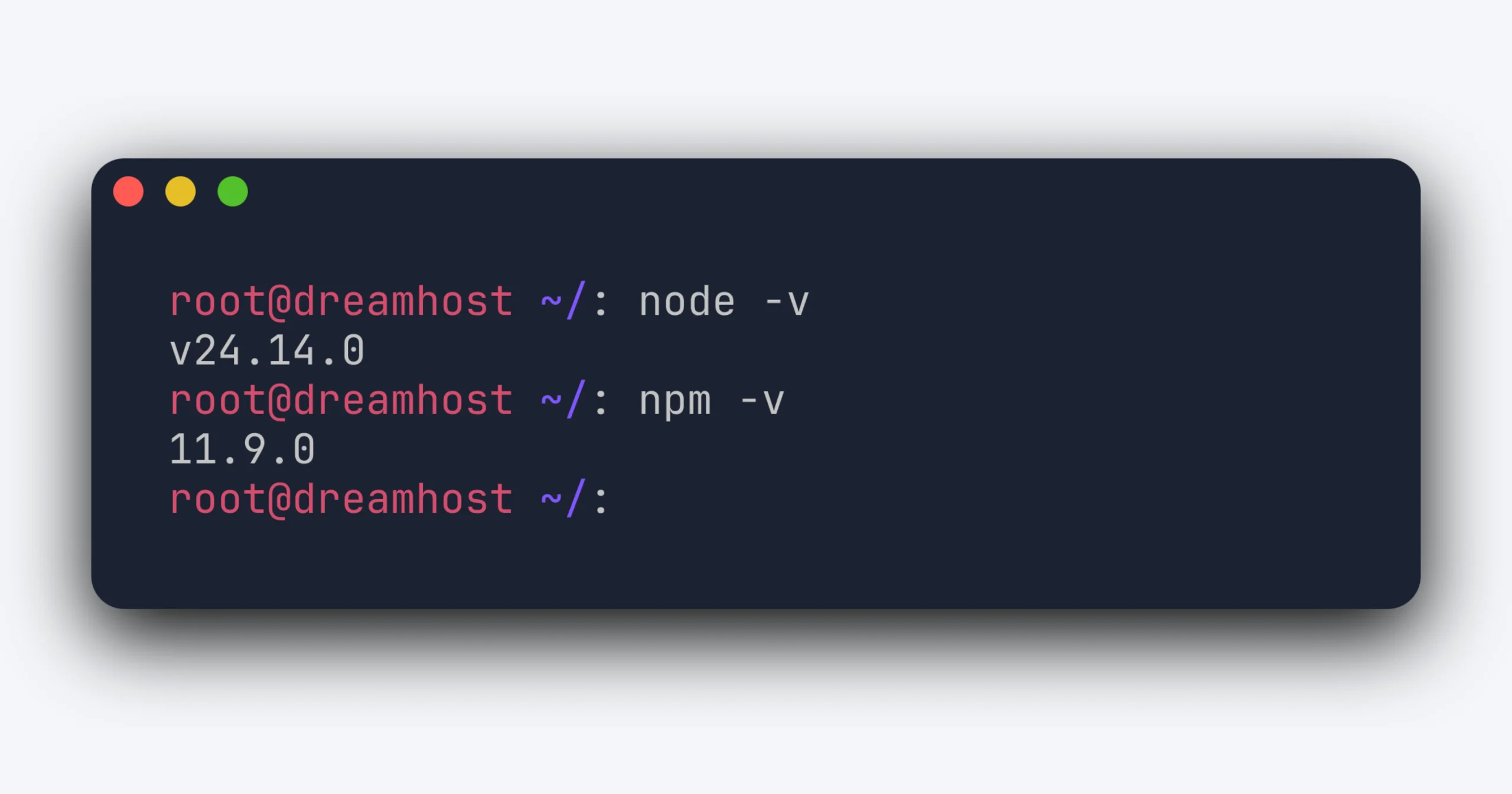
You should see a Node 24.x release.
RHEL-family distro instructions (yum/dnf) live in the official NodeSource distributions repository.
nvm for Per-Project Version Switching
nvm (Node Version Manager) installs Node into your home directory and lets different projects run different Node versions. Useful if you host multiple apps on the same server or don’t have sudo access.
Run this as your app user, not root:
curl -o- https://raw.githubusercontent.com/nvm-sh/nvm/v0.40.5/install.sh | bashReload your shell, then install Node 24:
nvm install 24
nvm use 24
nvm alias default 24
👉One important rule: Don’t use sudo ‘npm install -g’ for application dependencies.
Global installs are usually reserved for machine-level CLI tools like pm2, typescript, or nodemon. Your app dependencies belong in package.json and should be installed from the project directory with npm ci.
| NodeSource | nvm |
|---|---|
| One Node version per server | Multiple Node versions per server |
| Installed system-wide, runs as any user | Installed per user |
Auto-updates with ‘apt’ | Managed manually |
Requires sudo | No sudo required |
If you’re unsure, start with NodeSource. Most single-purpose production servers don’t need per-project Node version switching.
👉DreamHost Self-Managed VPS users: The Node app available at provisioning ships with Node 22 LTS — still supported through April 2027. To run Node 24, use the NodeSource or nvm steps above after provisioning.
Should You Use PM2 or systemd to Keep Your App Running?
Either one works. The honest answer is whichever your team is comfortable with. PM2 is the developer-friendly path. systemd is the Unix-native path. Both solve the same three problems: restart on crash, start at boot, and graceful shutdown on ‘SIGTERM.’
If you’re starting fresh, here’s how to pick:
| PM2 | systemd | |
|---|---|---|
| Setup time | 3 minutes | 10 minutes |
| Cluster mode (multi-core) | Built in | Not built in (start N units) |
| Log rotation | Module: ‘pm2-logrotate’ | Built in via ‘journalctl’ |
| Zero-downtime reload | ‘pm2 reload’ | Usually handled manually with rolling restarts or multiple units |
| Memory overhead (daemon) | Small daemon overhead | None (no extra daemon) |
| Best for | Single-box, JS-shop, fast iteration | Multi-app boxes, ops-team comfort |
The PM2 quick start is exactly that, quick:
npm install -g pm2
pm2 start app.js --name api
pm2 startup    # prints the systemd startup command to run
pm2 save       # saves the current process list
PM2 then becomes the only thing you talk to: ‘pm2 logs,’ ‘pm2 reload api,’ ‘pm2 monit.’
👉Also worth knowing: ‘pm2 startup’ writes a systemd unit, so the PM2 setup actually uses systemd under the hood.
A minimal systemd unit for direct Node management at ‘/etc/systemd/system/api.service’:
[Unit]
Description=My Node API
After=network.target
[Service]
Type=simple
User=app
WorkingDirectory=/var/www/api
ExecStart=/usr/bin/node server.js
Restart=on-failure
RestartSec=5
Environment=NODE_ENV=production
StandardOutput=journal
StandardError=journal
[Install]
WantedBy=multi-user.target
Then ‘systemctl enable --now api.’ Logs live in ‘journalctl -u api -f.’
If you’re already running PM2 and it’s working, don’t migrate to systemd just because someone on Hacker News said so. The PM2 daemon’s memory isn’t why you’d migrate away from it.
Migrate when you have a real reason, like running half a dozen Node processes where every megabyte counts, or shipping into an ops environment where every other service is a systemd unit, and PM2 stands out as the odd one.
How Do You Put NGINX (or Caddy) in Front of Your Node App?
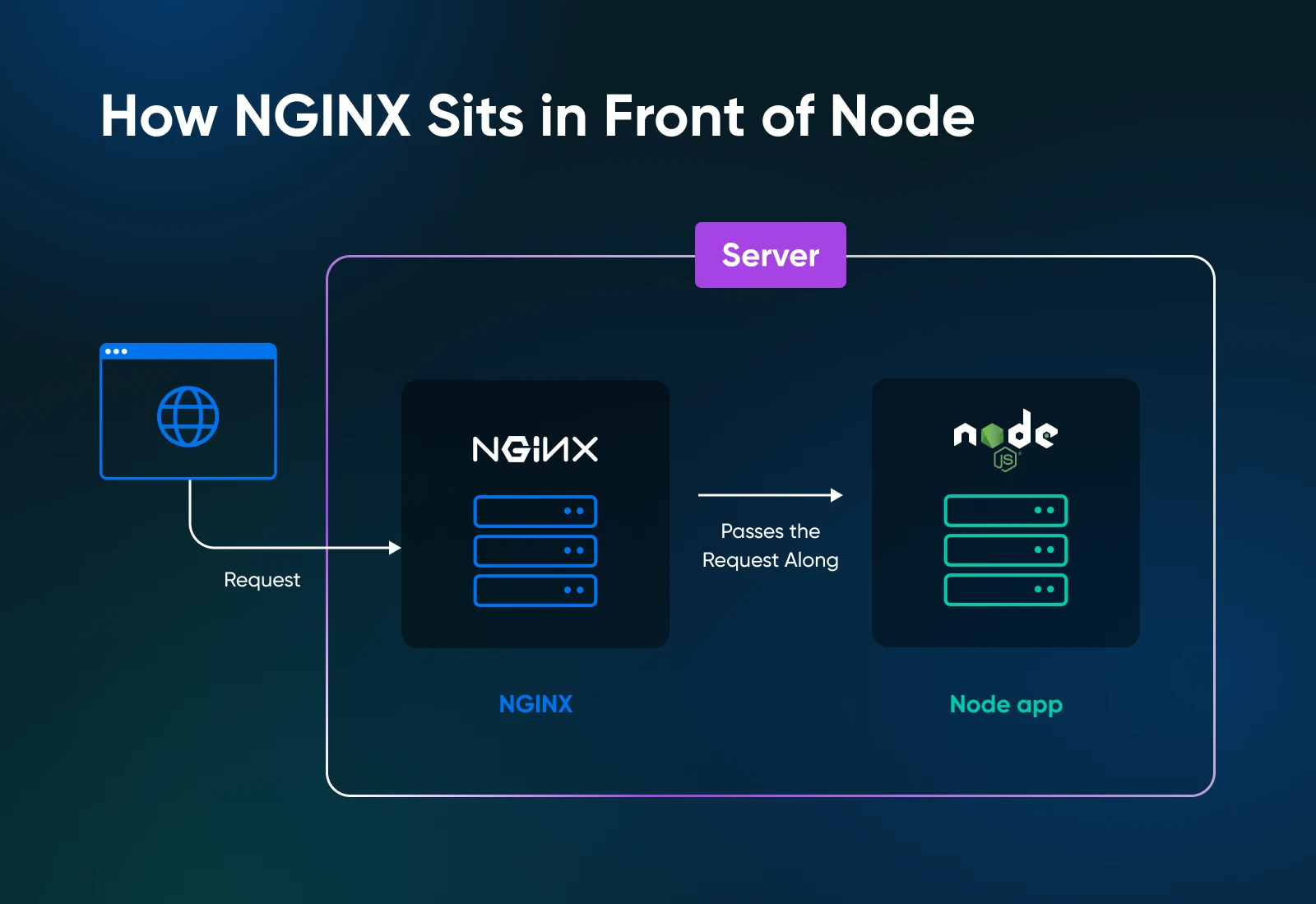
You want a reverse proxy in front of Node for five reasons: HTTPS termination, gzip/brotli compression, static asset serving, running multiple apps on the same box, and easier rate limiting. Node can do all of these. NGINX and Caddy do them better, and they don’t take your event loop down when something misbehaves.
Pick NGINX if anyone on your team already knows it. Pick Caddy if you want HTTPS in three lines of config and you’re fine with a smaller advanced-configuration ecosystem.
Minimal NGINX Config
Put this proxy block in /etc/nginx/sites-available/api, symlink to sites-enabled, then nginx -t && systemctl reload nginx.
server {
    listen 80;
    server_name api.example.com;

    location / {
        proxy_pass http://127.0.0.1:3000;
        proxy_http_version 1.1;
        proxy_set_header Upgrade $http_upgrade;
        proxy_set_header Connection 'upgrade';
        proxy_set_header Host $host;
        proxy_set_header X-Real-IP $remote_addr;
        proxy_set_header X-Forwarded-For $proxy_add_x_forwarded_for;
        proxy_set_header X-Forwarded-Proto $scheme;
        proxy_cache_bypass $http_upgrade;
    }
}
The ‘Upgrade’ and ‘Connection’ headers are the WebSocket-support lines. NGINX’s own docs call out that Upgrade is a hop-by-hop header, so it needs explicit handling when proxying WebSocket traffic.
Leave them in if your app uses WebSockets now, or might later. Socket.IO, GraphQL subscriptions over WebSockets, and a surprising number of “regular” real-time features depend on that upgrade handshake.
The single most common production bug I see in Node setups is a Socket.IO server behind NGINX without those two lines. Connections fail intermittently, devs blame Socket.IO, and the actual problem is usually proxy config.
Minimal Caddyfile
The Caddy reverse proxy quickstart version of the same thing:
api.example.com {
    reverse_proxy 127.0.0.1:3000
}
That’s the entire file. As long as the domain points to the server and ports 80/443 are reachable, Caddy provisions and renews HTTPS automatically. Caddy’s docs say automatic HTTPS provisions TLS certificates for sites and keeps them renewed; its reverse proxy quickstart also notes HTTPS is automatic when Caddy knows the hostname.
Bind Node to localhost, Not 0.0.0.0
Whatever proxy you pick, configure your Node app to listen on 127.0.0.1:3000, not 0.0.0.0:3000. The only thing that should face the public internet on a Node box is the proxy. Pair this with UFW, Ubuntu’s common firewall frontend, to deny everything except ports 22, 80, and 443.
ufw default deny incoming
ufw allow 22/tcp
ufw allow 80/tcp
ufw allow 443/tcp
ufw enable
If SSH runs on a custom port, allow that port before enabling UFW.
Bind to localhost from day one. The meeting where someone admits “the app was exposed because Node bound to 0.0.0.0” is not a meeting you want to have.
How Do You Set Up HTTPS for Your Node.js App?
Use Let’s Encrypt. It’s free, automated, and trusted by every browser. There are two paths, depending on which proxy you picked.
NGINX + Certbot
Point an A record at your VPS IP and wait for DNS to propagate.
Install Certbot:
apt install certbot python3-certbot-nginxRun:
certbot --nginx -d api.example.comCertbot updates your NGINX config and reloads the server automatically.
On modern Ubuntu releases, a systemd timer installed by the Certbot package handles renewal automatically.
Open https://api.example.com and confirm the lock icon.
The official Certbot docs also cover the snap-based install path if your distro package is outdated.
Caddy
Add the domain to the Caddyfile (the example above already has it), then restart Caddy. As long as the domain resolves correctly and ports 80/443 are reachable, the certificate provisions automatically on first start. There’s no Certbot.
Don’t terminate TLS in Node itself for production.
Node’s https module works perfectly well, but reverse proxies like NGINX and Caddy are purpose-built for TLS termination. They give you OCSP stapling, modern cipher defaults, automatic certificate renewal, HTTP/2 support, and — in Caddy’s case — HTTP/3 support out of the box.
Could you handle all of that directly in Node? Sure. You’d just be rebuilding infrastructure that your proxy already solves extremely well.
What Does a Production-Ready Node.js Setup Actually Look Like?
Eight things bite people in production. Most of them aren’t in install tutorials because they don’t fit the “install Node, run app” arc. They’re the difference between an app that survives month two and one that doesn’t.
- NODE_ENV=production: The single most-missed step. In many Node frameworks and libraries, it disables dev-only behavior and enables production optimizations. Express, for example, caches compiled view templates and returns terser errors in production — its own docs cite up to a 3x performance improvement. Set the ‘env var’ everywhere.
- Graceful shutdown: When your VPS reboots or PM2 sends ‘SIGTERM,’ your app has a few seconds to drain in-flight requests, close database connections, and exit cleanly. Wire up a ‘process.on(‘SIGTERM’, …)’ handler. PM2’s default shutdown timing depends on configuration and environment, so don’t assume you’ll always have much time to clean up.
- Log rotation: PM2’s ‘pm2-logrotate’ module handles this for PM2. The systemd journal handles it for direct systemd units. Without rotation, your logs eat the disk in a quarter of the time you’d expect.
- .env discipline: Never commit secrets, never log them. Use ‘dotenv’ for local dev. In production, set env vars via your systemd unit’s ‘Environment=’ or your PM2 ecosystem file. The day you ‘console.log(process.env)’ by accident is the day you rotate every credential.
- A reverse proxy in front of Node: Bind Node to localhost; let NGINX or Caddy face the public internet.
- A firewall: UFW deny everything except 22, 80, 443. Moving SSH away from port 22 won’t stop a determined attacker, but it dramatically cuts down on automated brute-force noise and junk auth logs.
- Monitoring: A healthcheck endpoint your monitoring tool hits every minute. PM2 has built-in basics. For anything serious, run Prometheus and Grafana, or use a hosted uptime service like Better Stack or UptimeRobot. You want to know your app is down before a customer tells you.
Maintenance estimate for the stack above: one to three hours a month.
Apt updates, occasional dependency bumps, and a quarterly look at log volume. That’s the trade for the cost and control wins.
When Is a VPS the Wrong Choice for Node.js?
A VPS is the wrong call when your workload is built for something else. Be honest about which side you’re on before you provision.
- Static sites and SSG content: Next.js export, Astro, Gatsby, and an Eleventy blog. Platforms like Vercel, Netlify, or Cloudflare Pages give you globally cached static hosting, Git-based deploys, and automatic rebuilds out of the box. A VPS is usually unnecessary infrastructure for purely static content.
- Sparse, event-driven workloads: Cloudflare Workers and AWS Lambda are inexpensive for webhooks running ten times per day.
- Real-time apps that need 100,000+ concurrent connections: One VPS doesn’t horizontally scale. You’ll need orchestration (Kubernetes, ECS, Nomad) or a managed real-time platform like Ably or Pusher.
- Compliance-heavy regulated workloads: HIPAA, PCI-DSS Level 1, FedRAMP. A managed PaaS with built-in compliance certifications saves audit pain. Self-hosting compliance on a VPS is a multi-quarter project you probably don’t want.
- No Linux comfort — and no appetite to build it: Platforms like Render, Railway, and DigitalOcean App Platform sit somewhere between raw VPS hosting and fully managed PaaS. Tools like Dokploy add Heroku-style deployment workflows on top of your own VPS infrastructure. You still get a lot of the cost and control benefits without needing to become deeply familiar with iptables, systemd internals, or reverse-proxy debugging at 1 a.m.
There’s no shame in any of those answers. The best technical decision is the one that matches your workload.
Picking Your Node Stack and Moving In
Open that hosting invoice one more time.
You’re about to replace a surprising amount of it with a single VPS bill.
👉The stack: Ubuntu 24.04 LTS, Node 24, PM2 (or systemd), NGINX (or Caddy), Let’s Encrypt via Certbot (or Caddy’s built-in).
Spin up the smallest VPS plan that hits the RAM you sized for, install Node, run your app on ‘127.0.0.1,’ point NGINX at it, and switch your DNS.
If the app survives a deploy, a reboot, and an overnight run without drama, you’re most of the way there.
The rest is maintenance. An hour or two a month, the occasional ‘apt upgrade’ window, a quarterly dependency bump. That’s the deal you made when you traded a per-seat invoice for a flat one, and DreamHost’s Self-Managed VPS Stack 4 is where you can start.

Own Your Entire Stack. Apps, AI, Databases, and More.
Keep every credential and conversation on a server you control, with NVMe speed and unmetered bandwidth built in.
Explore VPS Hosting PlansFrequently Asked Questions About Running Node.js on a VPS
Can I run Node.js on any VPS?
Most modern VPS plans run Node.js fine. Modern KVM-based VPS plans with a 64-bit Linux distro are the safest default for current Node.js releases.
Older OpenVZ-based plans sometimes have kernel restrictions that break newer Node versions. If you’re picking between providers, ask whether they’re KVM-based.
How much RAM does Node.js need on a VPS?
A minimal Express server idles well under 100 MB, but a realistic production app with middleware, logging, and a connection pool typically runs in the 150-300 MB range.
The realistic minimum for one production app is 2 GB; the sweet spot for a Node + Postgres + Redis stack is 4 GB. DreamHost’s Self-Managed VPS Stack 4 (4 GB) handles most production Node workloads. Jump to Stack 8 (8 GB) for SSR-heavy or real-time apps.
What’s the current Node.js LTS version?
The current Active LTS is Node.js 24.x (“Krypton”), promoted on October 28, 2025, and supported through April 2028. Node.js 22.x (“Jod”) is in Maintenance LTS through April 2027 if a dependency forces backward compatibility. Node.js 26 launched on May 5, 2026, as Current and will be promoted to LTS in October 2026.
Most production teams stick to LTS releases unless they specifically need newer runtime features.
Do I need PM2 if I have systemd?
No, you don’t need both. PM2 and systemd solve the same problem: keeping your Node app running through crashes and reboots. Many Node-focused teams pick PM2 for built-in clustering, log management, and reload tooling.
Teams already running systemd units for everything else pick systemd.
Why put NGINX in front of Node.js?
NGINX (or Caddy) in front of Node.js centralizes TLS termination, compression, static asset serving, and rate limiting in software designed specifically for proxying and web serving.
It also lets you run multiple Node apps on the same VPS without port conflicts. In production, Node listens on localhost; NGINX faces the public internet.
Is Node.js on a VPS cheaper than Heroku or Vercel?
Yes, often. A 4 GB VPS commonly lands somewhere in the $15-$25/month range at market rate and can consolidate app runtime, database, and cache costs that are billed separately on many PaaS platforms.
Vercel Pro pricing is seat-based, and serverless platforms still impose execution-duration limits depending on runtime and plan.
The trade is that you handle operations yourself, about one to three hours a month.
Can I run multiple Node apps on one VPS?
Yes, and it’s the most common reason teams move from PaaS to a VPS. Run each app on its own internal port (3000, 3001, 3002) and route traffic with NGINX server blocks by hostname. PM2 manages all of them as separate processes; systemd uses one unit file per app.
A 4 GB VPS can often handle several lightweight Node services alongside a small database workload.
Can I run Node.js on DreamHost shared hosting?
No. Node.js needs persistent processes, root-level package installs, and direct port binding, none of which shared hosting provides. DreamHost’s Self-Managed VPS plans (Stack 4 and up) fit Node workloads with full root access, NVMe storage, and unmetered bandwidth.
