If you run a WordPress site as part of your business, you’ve likely come across the topic of automating your website updates.
To paraphrase the beloved Uncle Ben: with great convenience comes great risk.
Manually keeping your site up to date can leave you vulnerable to attacks if you fall behind even a little.
Yet automating all your updates can cause miscommunication that breaks your site at the worst possible moment.
Both risks can be big for your business — so neither should be dismissed.
This guide will provide real data, fresh insights, and step-by-step guidance for assessing your risk and developing a plan that considers your skills and time alongside the all-important security and functionality of your WordPress site.
The AI website builder that turns conversation into designer-level sites. Free with hosting.
Start Free Trial
To Automate or Not To Automate WordPress Updates? That’s the Question
You may roll your eyes when we say this, but… It depends.
Wait, wait — don’t click away in exasperation just yet!
While we can’t make the decision for you, we can share the key information you should know to decide what’s best for your business.
Let’s start with why you may want to automate WordPress updates.
At DreamHost, on a weekly basis around 3%-4% of our email support tickets are related to WordPress sites that have been hacked.
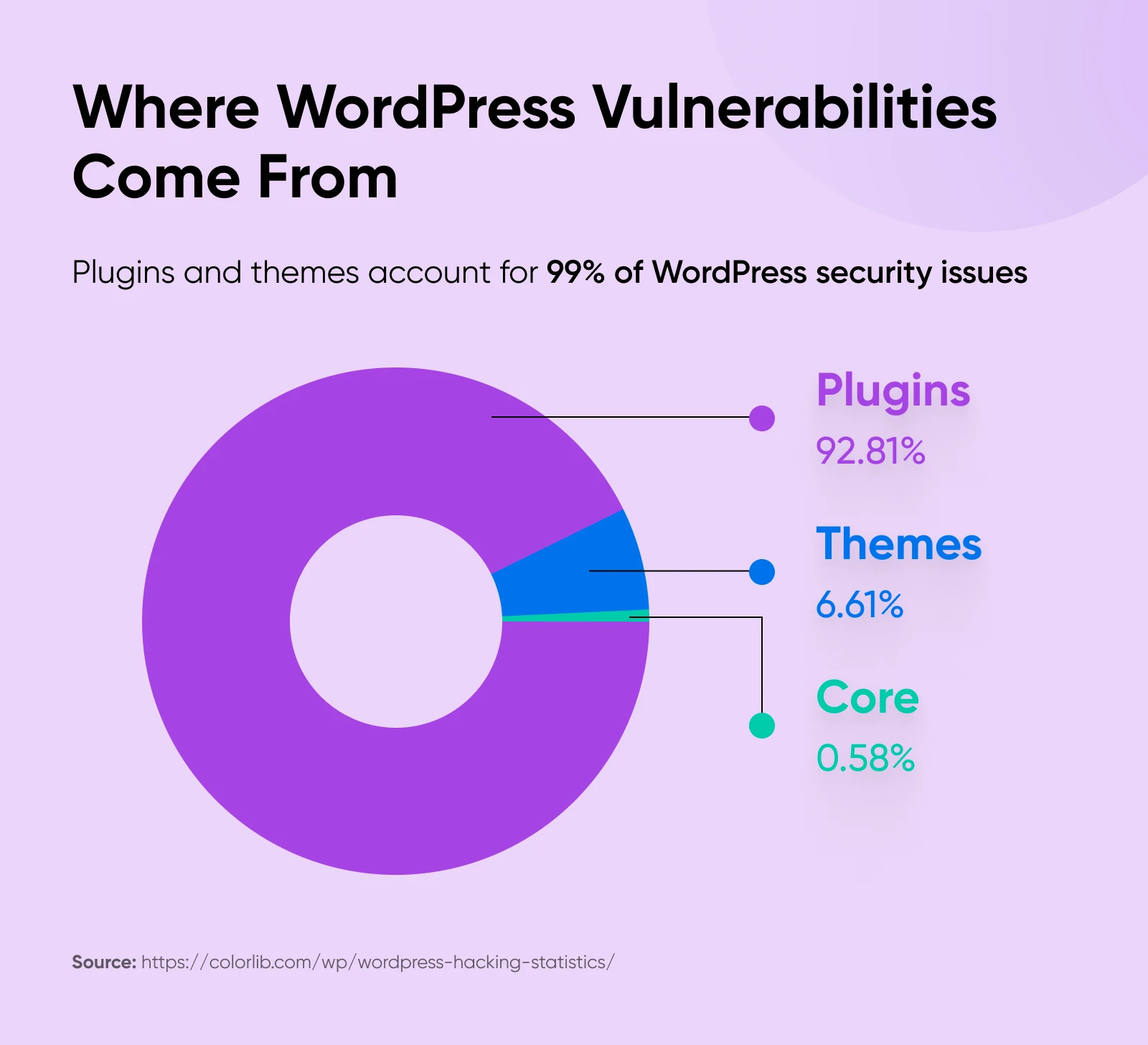
Far and away, the leading reason WordPress sites get hacked is due to weaknesses in plugins and themes. In fact, dang near all of the security vulnerabilities in the WordPress world come from these external programs.
Automating WordPress updates is a straightforward way to ensure you’re working with the latest, most maintainable, and most secure versions of your installations and the core WordPress code. And thankfully, automatic updates can be set up pretty easily in WordPress. We’ll show you how later in this article.
So why wouldn’t you want to automate WordPress updates?
Well, sites can break as a result of sweeping updates.
Often, themes and plugins are designed to work with a certain version of WordPress. Updating those programs or your core WordPress code can cause incompatibility.
In addition, the server your site is on — which for most SMBs is controlled by your website host — may not be running on the latest version of PHP, and/or may have customized settings. So when you upgrade your WordPress code, your site could suddenly clash with the server.
The result may be a slow, buggy, or even totally shut down site.
And we don’t need to tell you how big of a deal downtime can be, especially for e-commerce shops where every single minute offline negatively impacts revenue.
Comment
byu/bean_in_za from discussion
inWordPress
Ultimately, the decision to automate or not automate updates to your website is all about risk management.
Updating everything manually can be risky if you’re not 100% on the ball and outdated code leaves you under-secured against attacks.
At the same time, automating all your WordPress updates can lead to incompatibilities that you have to spend time untangling to get your site back up to speed.
So, how do you decide which path you’re more comfortable with? We’ll lay out a detailed workflow for making that call.
But first, we want to introduce you to a new, almost fail-safe feature that could help minimize risk no matter your choice.
What’s Changed in the World of WordPress Automatic Updates? (2026)
As of version 6.6 (released mid-2024), the rollback auto-update feature is live on WordPress.
This makes it so when you turn on automatic updates to plugins and themes, WordPress will watch out for PHP fatal errors during updates. If one occurs, WordPress will automatically roll the program back to the previous, working version — keeping your site functional and online.
An email will then automatically go out to your site’s administrator letting them know about the rollback, so they can go in and address whatever is going on with that particular install.
“But wait,” you might be saying to yourself, “…didn’t WordPress have a feature that rolls back failed updates already?”
Yes, indeed! But, that only worked for plugins and themes that were updated manually. This is a major refinement of that feature, adding rollbacks for automated updates.
“Enabling auto updates is an easy way to help most users keep their site as secure as possible, as well as ensuring you have access to all of the latest features from your favorite plugins. If you forget about updates often, be sure to give it a go!” — Alex Granata, DreamHost’s International WordPress Support Specialist
For those working with an older version of WordPress, there are (kind of ironically) plugins that do something similar, such as WP Rollback – Rollback Plugins and Themes.
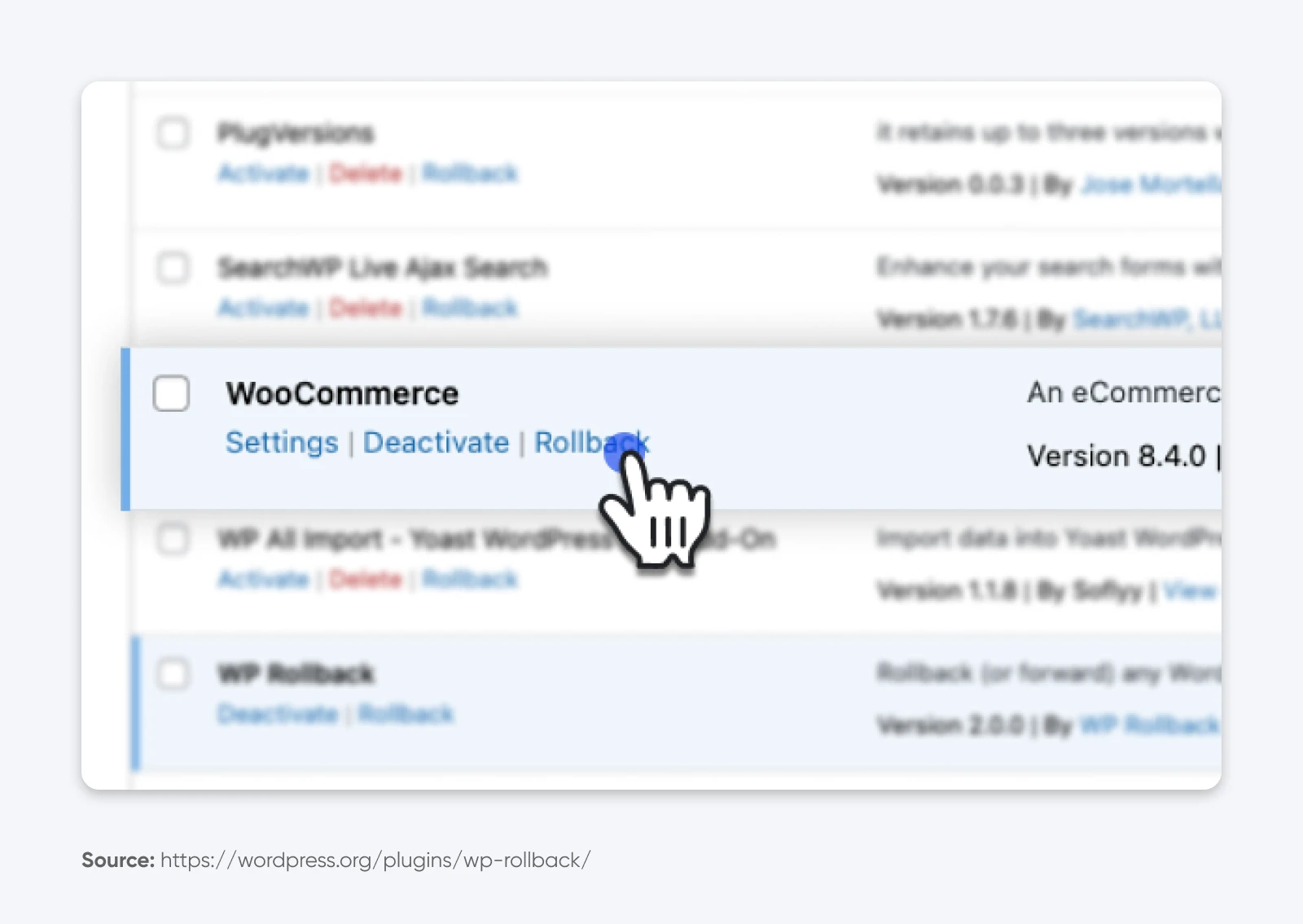
While a tool like this enables you to quickly revert to a working version if a plugin or theme update goes awry, it doesn’t come with all the helpful automation and notification features that are built into WordPress 6.6 and later.
Of course, we have to caution that while rollback auto-update is a significant advancement, it doesn’t replace the need for regular site review and maintenance, consistent site backups, and even a solid recovery plan.
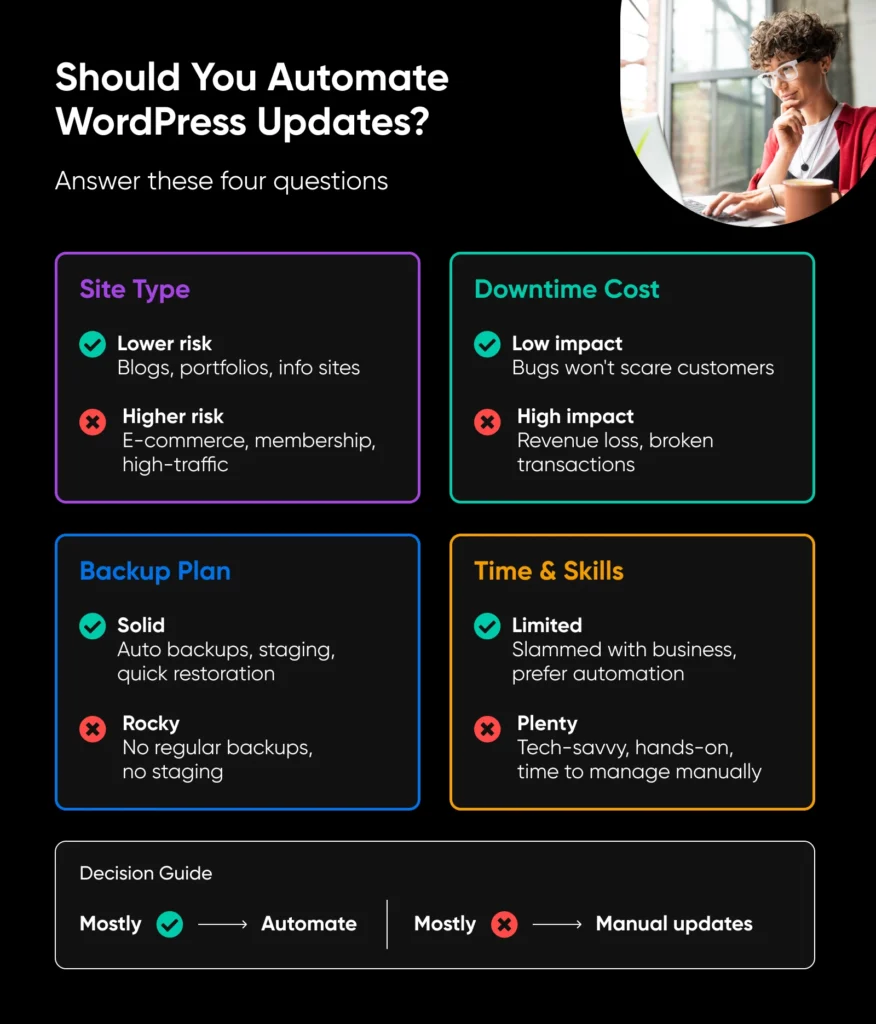
4 Questions To Help You Decide if Automatic Updates Are Best for Your Business
Use the following questions to figure out whether automated WordPress updates are a smart move for your business, or a risk you can’t afford.
1. What Type of Site Do You Run?
Start here. Considering how risky updates are is one of the most important steps in determining whether automation is right for you.
Lower-Risk Sites
Any site where a few hours of downtime won’t derail your day can be considered lower risk when it comes to automatically updating code. If you fall into this category, auto-updates are likely a good fit and will probably save you time:
- Personal blogs
- Portfolios
- Brochure/informational sites
- Small nonprofits
- Local service businesses
- Sites with minimal traffic
Higher-Risk Sites
Will your site going offline cost you, or your users/customers, a great deal of time or money? Then you may not want to risk it by jumping straight into automated updates that could cause spendy surprises should complications arise.
Here are some business website categories where you should think twice before automating upgrades across the board:
- E-commerce stores
- Membership or subscription sites
- Learning platforms
- Booking or scheduling systems
- High-traffic sites
- Revenue-generating sites
2. How Costly Is Downtime for Your Business?
If you’re still considering automation, next let’s think of the cost in terms of time, money, and reputation.
Not Too Costly
Automated WordPress updates can be a source of savings of all of the above if a few bugs won’t scare away customers, immediate fixes aren’t essential, and rollbacks won’t impact busines.s
Consider how they’d affect sales, booking progress, etc..
Very Costly
However, downtime can have really costly consequences if downtime or bugs impact tons of visitors, risk high security needs, or make for broken workflows and purchase pages that lose you revenue every second you’re out of commission. In these cases, manual updates that come with lots of backups and testing are the safer bet.

3. What’s Your Technical Backup Situation?
Ultimately, updates are only as safe as your backup plan. Let’s compare what a great plan versus a weaker plan looks like.
Super Solid
A solid backup plan includes:
- Automatic, regular backups (Double check backups are enabled, you know where to find them, and you’re able to restore them successfully — your first site crash is not when you want to learn that this isn’t working!)
- A strategy for reviewing changelogs (So you can see what changed during an update, watch out for potential conflicts, and reverse any updates that cause issues. Thankfully automatic updates will send you an email with a link to your plugin or theme repository, for quick and easy access.)
- Easy, one-click site restoration
- Hosting with staging environments to test bigger changes
- Ability or support to address issues quickly
If this is what you’re working with, and you feel safe enabling automation considering previous steps, you may be in a good position to use auto updates in WordPress.
A Little Rocky
Maybe you’re in the process of switching hosts or website platforms,or you’re just getting started figuring this whole WordPress thing out. If that’s the case, your backup situation may look more like:
- Lacking regular website backup
- No easy path to restoring a working version of your site
- No staging site for important tests
- Reliance on not-so-stellar support if bugs or downtime happens
In this less ideal situation, we’d stick with manual updates until your safety net improves.
4. How Much Time (and Willpower) Can You Devote to Updates?
Finally, let’s get just a little philosophical.
It’s time to dive deep and, as the Greeks put it, know thyself.
How much patience, time, skill, desire, etc. ad infinitum do you realistically have to spend keeping your website on the cutting edge?
Just About None
No matter what —if you’re regularly slammed managing your business, don’t feel like you have the skills or confidence to handle manual updates, or just straight up aren’t good at keeping up with things like that — automation may ultimately be the most responsible path to take.
A Ton
But if you’re great with tech (or have a team who is), love to be involved in the website nitty-gritty, and truly have the time and wherewithal to stay on top of checking the health and freshness of your site; you may be better suited for manual updates that keep you in charge and abreast of surprises.
Final Verdict (Start Here if You’re in a Hurry)
To very quickly summarize all of the above…
Automatic WordPress website updates could be right for your business if:
- Your site is handling relatively low-risk information and traffic.
- Downtime won’t devastate your business.
- You have a great plan for backing up and restoring your site.
- You just really don’t have time for manual WordPress upgrades.
However, you may want to stick to manually updating your WordPress biz site if:
- Security is critical, or your site handles a high load of ongoing transactions.
- Downtime costs tons of money or damages trust.
- You lack strong systems for site backups and restorations.
- You prefer hands-on control, and have real time to devote to that.
How To Turn On WordPress Automatic Updates
We’ll show you how to configure automatic updates in WordPress right now.
Enabling Automatic Updates for WordPress
When you visit Dashboard > Updates close to the top of the left-hand menu of your website, you’ll land on the “WordPress Updates” page and be able to see what version of WordPress you’re using.
If you’re on the latest version (which we recommend!), you want to make sure it says “This site is automatically kept up to date with each new version of WordPress.”
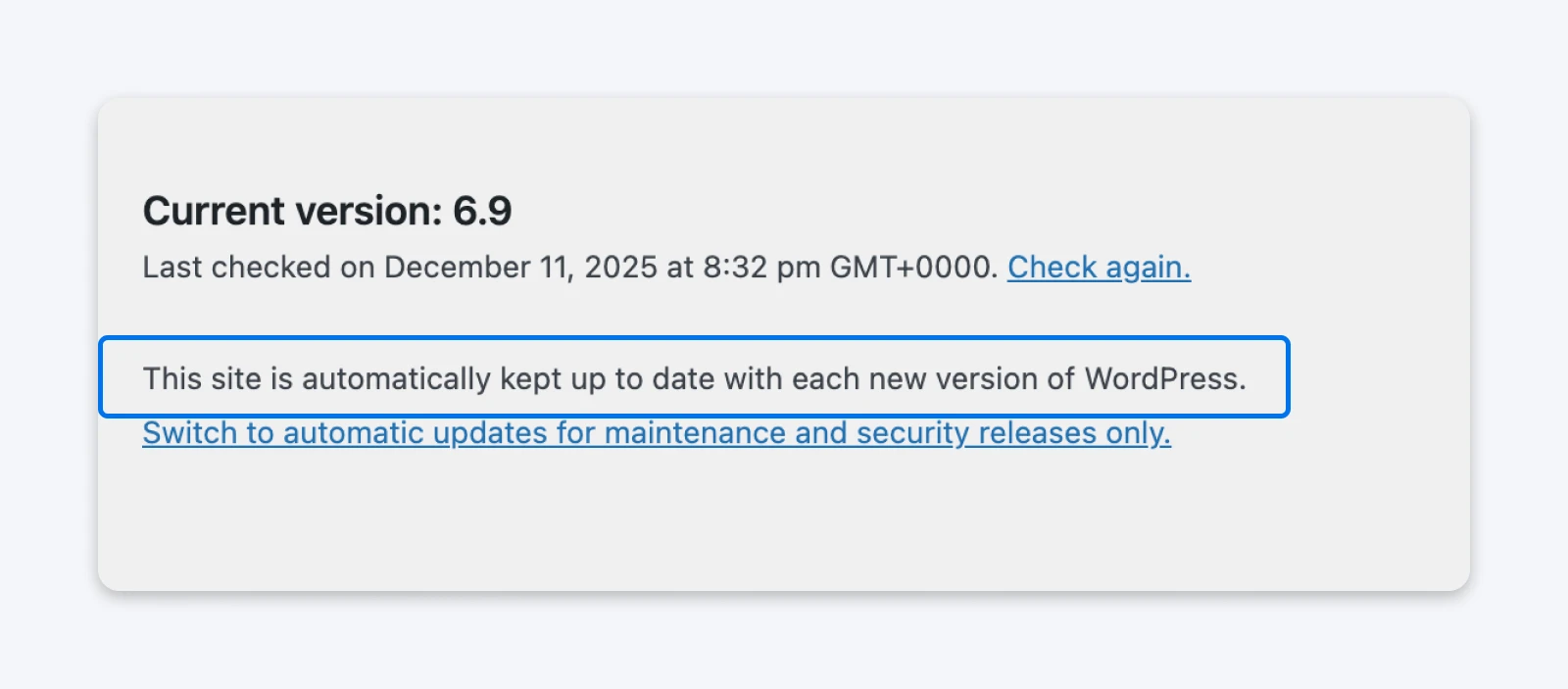
The link — “Switch to automatic updates for maintenance and security releases only.” — should only be selected if you or whoever manages your site is committed to regular, manual updates.
Enabling Automatic Updates for Plugins
WordPress has made it pretty simple to make sure your plugins are updating on their own.
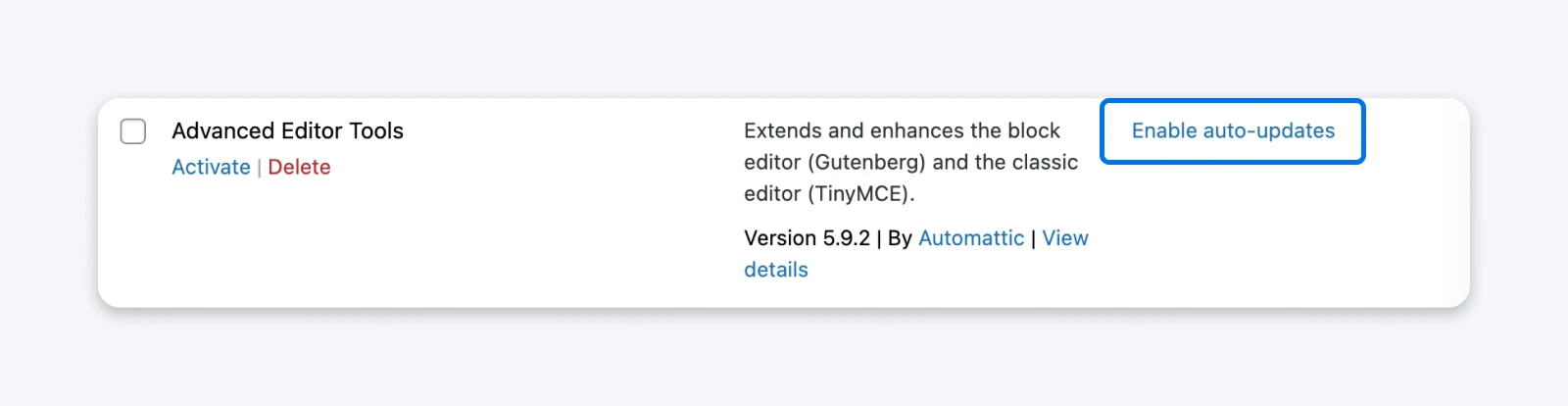
From your dashboard, simply select Plugins > Installed Plugins from the left-hand menu. Now on the “Plugins” page, click Enable auto-updates next to each plugin.
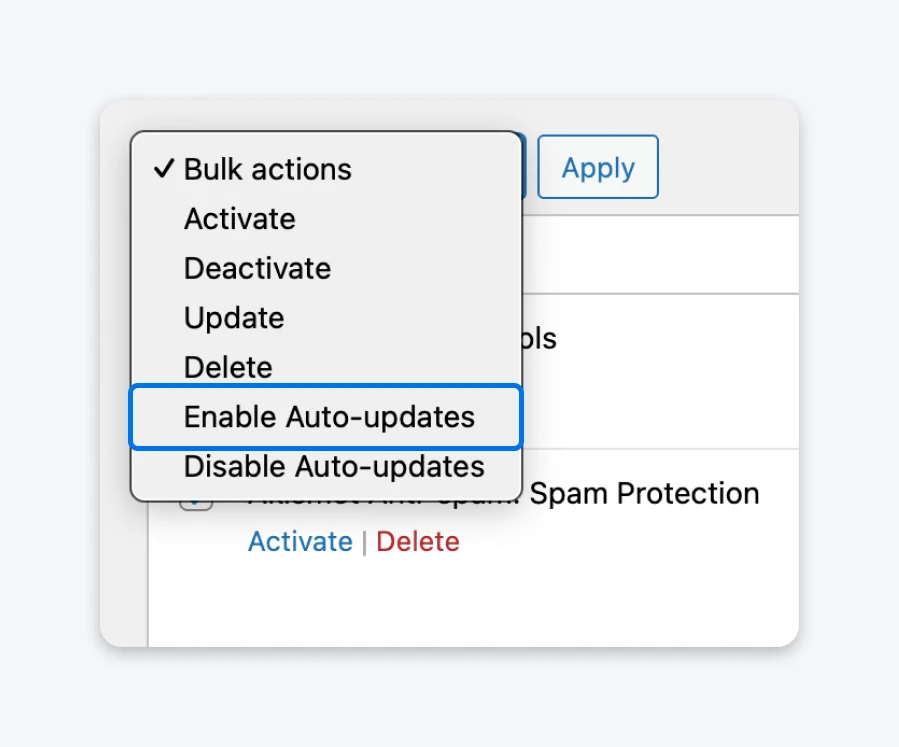
Or, use the check boxes next to all or select plugins and hit Enable Auto-updates in the Bulk actions dropdown menu for an even quicker adjustment.
Enabling Automatic Updates for Themes
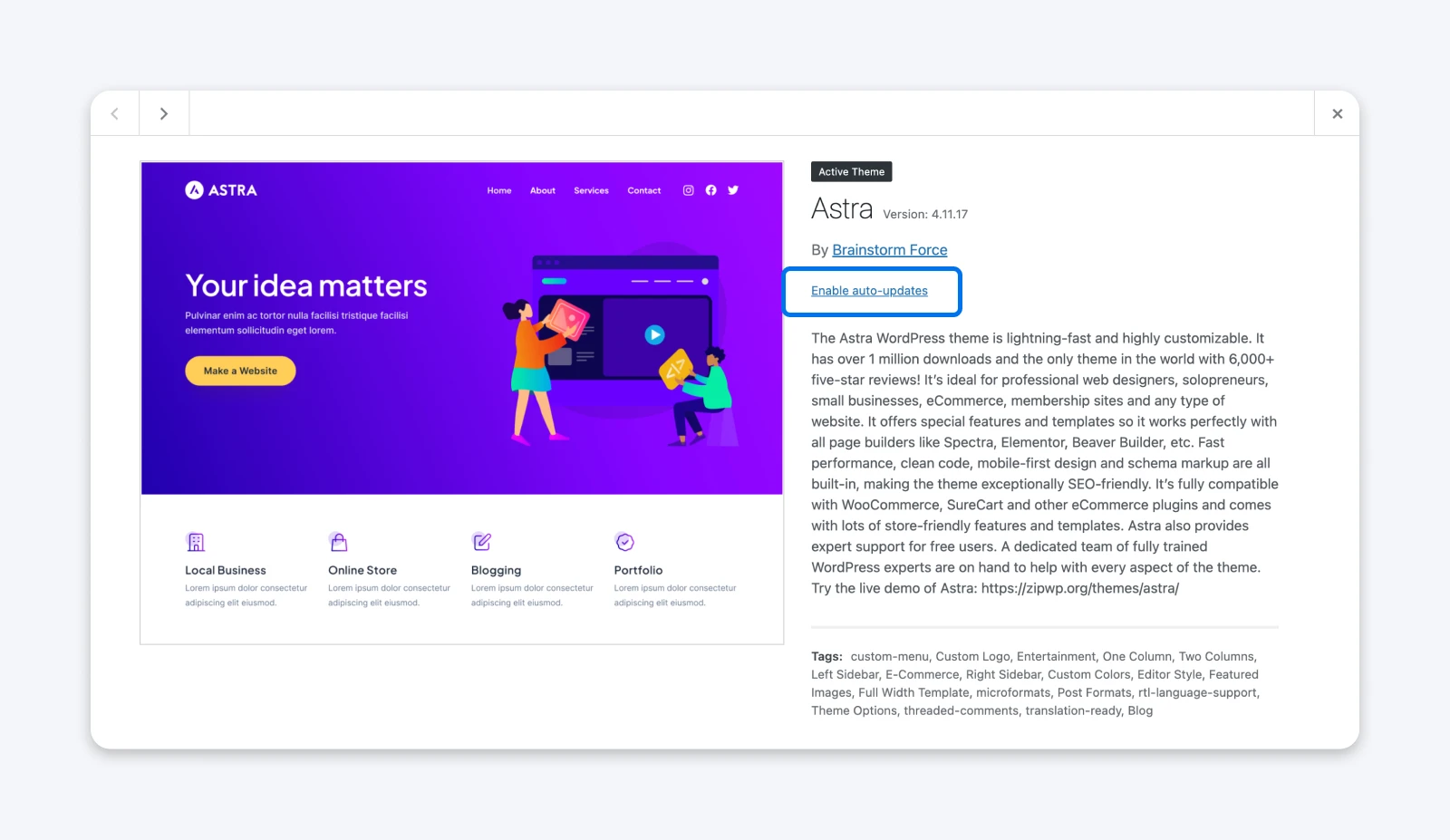
Now, to make sure the theme you’re using stays up to date, navigate to Appearance > Themes in the sidebar, then click on the theme you’re using.

On the next screen that pops up, under the title and author select the link to Enable auto-updates.
Building a Backup Safety Net
If you haven’t noticed, we believe it’s critical that every site be backed up and ready to rollback if the worst occurs and an update knocks out your functionality.
You can back up your site manually if you need to (such as if you’re locked out of your dashboard due to an error). We have all the instructions for that in our guide: Ease Downtime Anxiety With These WordPress Backup Tips.
And you should keep those instructions in your back pocket should automation ever fail you. However, considering we’re talking about automating updates here, let’s also walk through automating back ups so you always have one around just in case.
Begin by choosing a backup plugin. Search the WordPress Plugin Directory for backup. We like UpdraftPlus, which lets you schedule automatic backups, decide where to store backups, and even select which files to be included in backups.
To install your plugin of choice, navigate to Plugins > Add Plugin in your “Dashboard” sidebar. Type the plugin name into the search bar, and select Install Now when it pops up in the results.
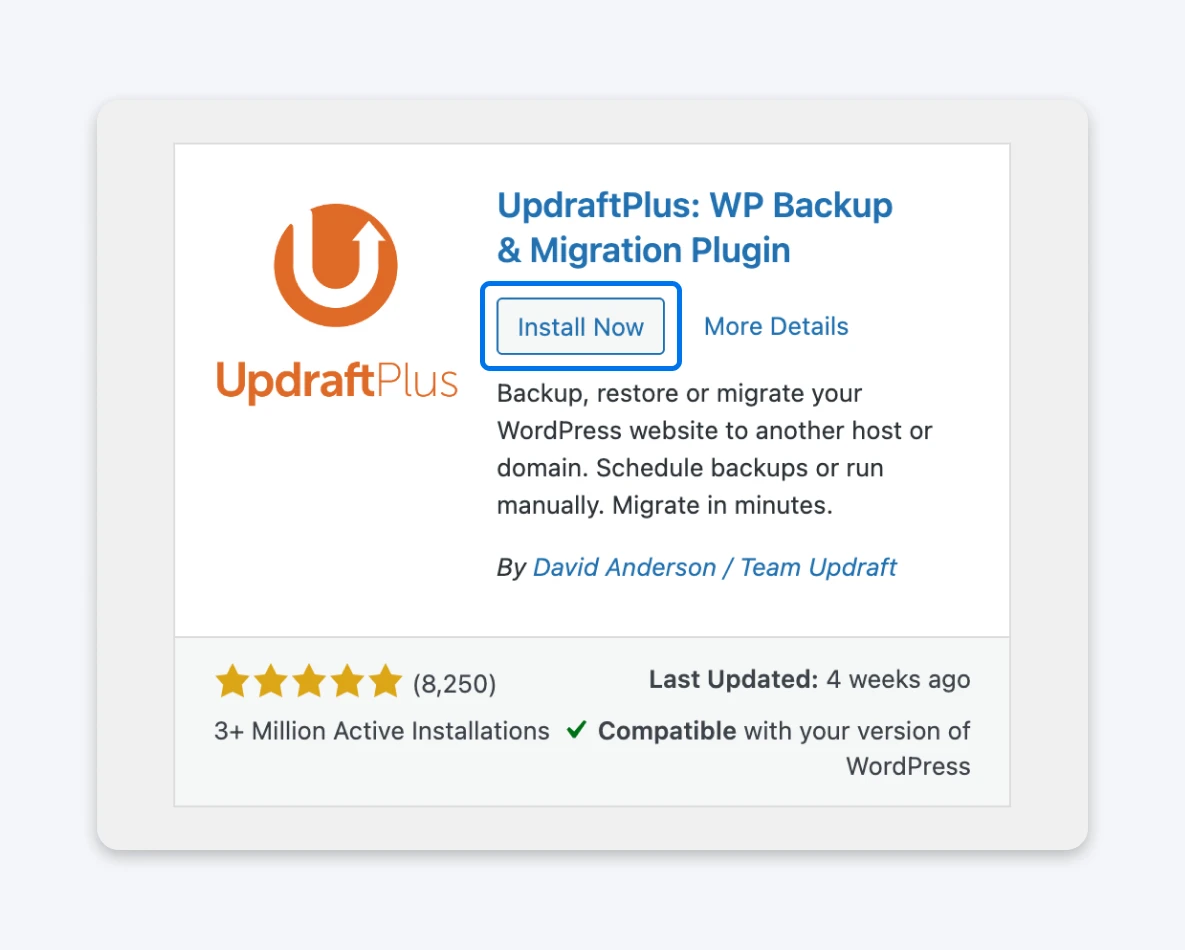
Once it’s installed and the page refreshes, click Activate. At this point, many plugins will now guide you through set up.
Comment
byu/bean_in_za from discussion
inWordPress
Update the Right Way for a Smarter, Safer Site
Automatic WordPress updates can save time and protect your site, but they’re not a one-size-fits-all solution.
Rather, they’re a tool. One that works best when paired with a strong backup strategy and high-quality hosting and support.
By weighing the risk and cost of site downtime against your availability and skills, you can choose a path that keeps your WordPress site secure, functional, and growing with your business.

Unbeatable WordPress Hosting
Reliable, lightning-fast hosting solutions specifically optimized for WordPress.
See MoreWordPress Automatic Updates FAQs
Are automatic updates safe for all WordPress sites?
Not always. Low-risk, low-traffic sites are generally fine. High-risk, high-traffic, or revenue-critical sites may be better served by manual updates to avoid potential downtime.
Should I enable auto-updates for core WordPress, plugins, or themes?
You can, but consider your site’s complexity and traffic. Many choose to automate minor updates and manually handle major updates to reduce risk.
Are site backups still important with automatic updates?
Absolutely. Automatic updates can reduce risk, but they can also lead to complications and shouldn’t ever replace regular backups. Always maintain a solid backup plan before enabling automation.
What if an auto-update breaks my site?
With WordPress 6.6+, the rollback auto-update feature automatically detects issues related to auto-updates and restores a working version of your site. For older sites, there are plugins that do the same. You should still have backups in place to restore the working site.