Think customizing a WordPress theme means hacking PHP files or piling up custom CSS? Not anymore. Theme configuration options in WordPress are the global settings and styles a theme defines in its theme.json file: color palettes, typography, spacing, layout widths, and more. They let you customize your site’s appearance without editing code. Introduced in WordPress 5.8 (2021), theme.json is now on version 3, which requires WordPress 6.6 or later.
In this blog post, the fourth in our “Decoding WordPress” series, we’ll walk through those options, plus what to weigh before converting a classic theme to a block theme, so you can have a beautiful, tailored site whether you have beginner or intermediate WordPress development skills.
What are theme configuration options in WordPress?
Theme configuration options are the global settings and styles that control how your theme looks sitewide, and in modern WordPress they live in the theme’s theme.json file. Separately, some themes also ship an admin options page: a theme-specific interface for adjusting settings without modifying any theme files or getting bogged down with altering code. Some of these admin pages offer a few options, while others have many, many more. If you’re a beginner, the relative simplicity of an admin page versus editing files directly can be a welcome time- and sanity-saver.
If your goal is only to enhance or change functionalities within a theme, you can greatly simplify matters by installing a plugin rather than reconfiguring the entire theme. However, if you’re wanting to modify theme styles and block settings across your entire site, reconfiguring things through customizing is what you’ll need to do.
Themes vs. templates: A quick refresher
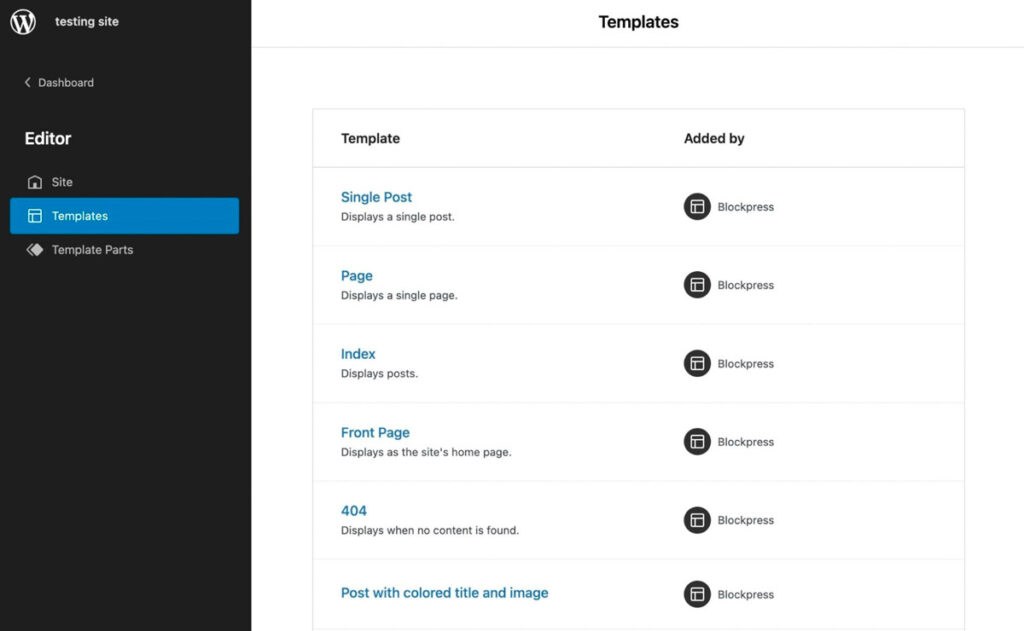
A theme is the complete design and foundation for your site’s cohesive look and feel: color palettes, typography, page layouts, headers, and footers. A template, by contrast, is a single-page layout within that sitewide theme, and changes to it apply only to the pages that use it. For the full breakdown, see our guide to WordPress templates and template parts.
What is theme.json in WordPress?
theme.json is a configuration file that lets a WordPress theme define its global settings and styles (color palettes, typography, spacing, and more) in one central place. To customize your WordPress theme when it doesn’t include an admin page, you’ll need to create and add a theme.json configuration file to the theme.
But what is JSON? JSON stands for JavaScript Object Notation, a minimal, readable format for structuring data, used primarily to transmit data between a server and a web application.
theme.json support was added to WordPress in version 5.8, so any WordPress version you should be running today includes it. (The Gutenberg editor was officially released in 2018 alongside WordPress 5.0.)
Some of the customization options you can choose from within theme.json include:
- Enabling or disabling features like drop caps, block padding, margins, and custom line heights
- Adding multiple color palettes, gradients, and duotone filters for photos
- Modifying font sizes
- Adding default widths for content
- Managing custom CSS (cascading style sheet) properties. CSS is used to define visual appearance and formatting of HTML documents.
- Assigning template parts to template part areas
The theme.json format has kept evolving. Version 1 shipped with WordPress 5.8, version 2 covered WordPress 5.9 through 6.5, and version 3, the current schema per the official Theme.json Version 3 Reference, requires WordPress 6.6 or later (June 2024). Older versions still work, but new projects should use version 3.
Options explained
With these more granular customization options now within the reach of beginner and intermediate WordPress developers, let’s talk about both what they are and why they could be beneficial to you.
Enabling or disabling features like drop caps, block padding, margins, and custom line heights
Drop caps (a style technique in which the first letter of a paragraph has a larger font size), block padding (the space inside the block that lies between the element/content and the block’s border, and that surrounds all sides of the element), margins, and custom line heights can give your pages a more distinctive and even formal look, depending on how you manage to style them.
Adding multiple color palettes, gradients, and duotone filters for photos
The right color palette — or multiple palettes — can help to define and enhance the marketable identity of both your brand and your site, and gradients (backgrounds of two colors that transition into one another) can give your site a more dynamic identity than only using solid colors for the pages on your site. Duotone filters can be applied to photos you’ve uploaded to your site, and reduce the number of colors in the photo to just two: one for the dark parts of the photo, another for the light parts. Using these resources within your WordPress theme’s settings, your site’s overall color schemes can be formal, moderate, or avant-garde — limited only by your imagination.
Modifying font sizes
Sometimes, the fonts in your chosen theme may suit the specific identity, tone, or attitude you’re wanting to convey, but the set font sizes that are available may not. They may be too small or too large. By having the option to modify the sizes, you can tailor every aspect of the look of your site’s copy to your brand’s image.
Adding default widths for content
Content width is a theme feature whereby you can set the default or maximum allowed width (size) for any content in the theme, such as embeds and images added to posts. When you set default widths, WordPress can scale embed codes to specific sizes on the front-end and insert large images without breaking the main content area.
Managing custom CSS (cascading style sheet) properties
If you’ve spent any time working with CSS, we’re sure you’re asking yourself why you’d even want to write your custom CSS in the radically different JSON format. In a word: flexibility.
Let’s say you’ve settled on a color, forest green, for your site that you really like. With CSS, you’d have to go through and add the color code to all of the places you want to use that color. Not a huge deal, right?
Now let’s say that a few weeks later you find a slightly darker shade of forest green that you’d much rather use. With plain CSS, you have to go back in and find/replace every instance of the “old” forest green color code (unless you’ve set up a CSS custom property, or variable, which also lets you update the value in one place).
A theme.json preset also lets you update the color definition once to change it sitewide, and it does something a bare CSS variable can’t: WordPress wires the preset into the block editor’s color controls and its generated styles, so the color you pick in the editor and the color on your live site always match. And you don’t have to write the file by hand: an AI assistant can draft a starter theme.json for you (converting your existing CSS color variables into presets, for example) which you then review and refine.
Assigning template parts to template part areas
Page templates are files that control how a specific page looks, and they can be used to apply particular page layouts to different pages on your site. In WordPress, there are also template parts, which function as smaller structural sections of a page template.
If you are looking through your theme’s files, you will usually see template parts for things like headers or footers. theme.json allows you to assign template parts to the three default placement areas within a template: General, Header, and Footer. You can also register custom areas.
To convert or not to convert — that is the question
Now that you’ve gained an understanding of the WordPress theme configuration options available to you courtesy of the theme.json file, we want to touch on one last thing: converting a classic theme to a block theme. Our verdict up front: choose a block theme for new projects, or when you specifically want full-site editing and the Styles interface. If your classic theme is stable and doing its job, don’t convert it just for novelty or theoretical performance gains. The benefits and risks below are what should tip your decision.
Block themes in WordPress have a number of benefits, since they have been built to improve both scalability and performance.
- Block themes enhance loading performance by loading the styles only for the blocks that have been added to a page.
- Block themes are not required to manually enqueue stylesheets for both the front-end and editors.
- theme.json handles all aspects of add_theme_support(), which results in less time noodling around in PHP.
- Accessibility features such as Skip to content, keyboard navigation, and landmarks are generated automatically without adding additional code.
- With a block theme, an end user can edit all parts of their website without touching any code.
- By using the Styles interface, users can customize colors and typography for the website and for any blocks they may use.
However, converting a classic theme to a block theme is not without some risks.
- Converting a classic theme to a block theme may affect child themes that expect a classic theme. Consider the potential impacts (or creating a new project with a new theme name) before converting.
- theme.json requires WordPress version 5.8 or later. WordPress also dropped Internet Explorer 11 support with that release, but that’s no longer a consideration: Microsoft retired IE11 on June 15, 2022.
Frequently asked questions
What’s the difference between a theme and a template in WordPress?
A theme is the complete design system for your entire site; a template is a single-page layout within that theme. Changes to a template apply only to the pages that use it, while theme-level changes apply sitewide.
Can a classic theme use theme.json?
Yes. theme.json works with both classic and block themes on WordPress 5.8 or later. In a classic theme, it configures editor settings and styles; block themes rely on it as their central configuration file.
Which theme.json version should I use?
Use version 3 for new projects. It’s the current schema and requires WordPress 6.6 or later. Versions 1 (WordPress 5.8) and 2 (WordPress 5.9–6.5) are still supported, but new development happens in version 3.
Do I need to know how to code to use theme configuration options?
No. If your theme includes an options page or supports the Styles interface in the Site Editor, you can customize colors, typography, and layout without touching code. Editing theme.json directly only requires comfort with a structured text file, not programming.
Pro help is available!
Customizing a theme through theme.json is doable for beginner and intermediate WordPress developers, but you don’t have to figure it out alone. Every DreamPress managed WordPress hosting plan includes 24/7 support from in-house WordPress experts who can answer your WordPress questions along the way. And if you’d rather have the theme customization handled for you, DreamHost’s Pro Services development team can do the work.

Do More with DreamPress
Every DreamPress plan includes 1-click staging, daily offsite backups, and 24/7 support from in-house WordPress experts.
Check Out Plans