
Need the same gallery or signup form on 20 pages? Don’t paste the underlying code 20 times. A WordPress shortcode is a square-bracket tag that WordPress replaces with dynamic content when the page renders: think image galleries, contact forms, and playlists, repeated across as many posts and pages as you need.
What are WordPress shortcodes?
A WordPress shortcode is a small tag wrapped in square brackets, like [gallery], that WordPress replaces with dynamic content — an image gallery, a video player, a form — when the page renders. WordPress’s Plugin Handbook calls shortcodes “macros”: no markup is added to the post content itself.
A shortcode looks like this, wrapped within two square brackets:
[exampleshortcode]
Shortcodes were introduced in 2008 to make more complex posts and pages easier to create. They provide a simple way to insert and load dynamic content elements on your site.
For instance, you may want to customize your WordPress front page by embedding a Google map to show your retail location. You might even add an introductory video using a shortcode:
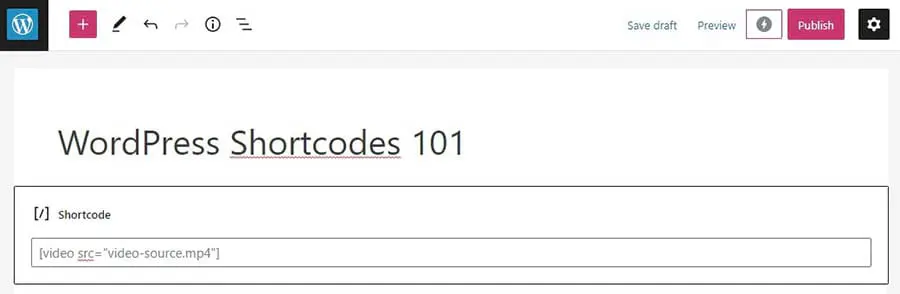
Website owners typically use shortcodes in the body of posts, pages, and custom post types. Shortcodes also work in widget areas, and theme developers can render them inside template files with the do_shortcode() function. Fortunately, as the Gutenberg block editor has evolved, using shortcodes has become even more user-friendly. We’ll cover this later in the article.
Why you might consider using WordPress shortcodes
There are a variety of reasons why you may wish to use WordPress shortcodes. For starters, they are often easier to add to your page than hand-coding the same feature: the 9-character [gallery] tag outputs a complete thumbnail gallery that would take far more markup to build yourself.
Furthermore, shortcodes can keep your content clean and organized. They don’t take up as much space in your overall post’s HTML. This can help you identify errors easily when using the code editor.
Shortcodes are also reusable. You won’t need to manually add the same features, such as a Call to Action (CTA) or social media buttons, to each post. Instead, you can just paste your shortcode.
How to use shortcodes in WordPress (4 ways)
There are two basic types of shortcodes that you ought to familiarize yourself with: self-closing and enclosing. Self-closing ones stand on their own and don’t need closing tags:
[myshortcode]
Enclosing shortcodes wrap around a specific piece of content to modify it. Therefore, enclosing shortcodes must be closed manually. They typically look like this:
[myshortcode] content [/myshortcode]
You can also change the properties of shortcodes with different attributes. These will affect how the element displays on the front end.
For example, you could change the size of a gallery shortcode by adding a size attribute:
[gallery id="123" size="medium"]
If you look through the WordPress Plugin Directory, you’ll find that there are many options to use shortcodes on your WordPress site. Here are four different options!
1. Default WordPress shortcodes: list with examples
WordPress comes with six basic built-in shortcodes. These snippets enable you to embed additional media directly into your posts. Here’s the complete list: what each one does, its syntax as you’d type it, an attribute variation, and what renders.
[caption]]: Wraps captions around content. It’s an enclosing shortcode, so it needs a closing tag, and it supports align and width attributes:
[[caption]<img src="storefront.jpg" alt="Our storefront" /> Our new storefront[/caption]
[caption align="aligncenter" width="300"]<img src="storefront.jpg" alt="Our storefront" /> Our new storefront[/caption]
The result: the image displays with the caption text beneath it; the second version centers it and constrains the caption to 300 pixels wide.
[gallery]: Shows image galleries. On its own, it builds a gallery from the images attached to the post; add IDs and a size to control it:
[gallery]
[gallery ids="1,2,3" size="medium"]
The result: a thumbnail grid — here, the three images with those media library IDs at medium size.
[audio]: Embeds and plays audio files. Point it at a file URL, per WordPress’s audio shortcode documentation, or add fallback formats and looping:
[audio src="audio-source.mp3"]
[audio mp3="source.mp3" ogg="source.ogg" loop="on"]
The result: WordPress’s built-in audio player. Leave off the attributes and it plays the first audio file attached to the post.
[video]: Embeds and plays video files. It supports extras like loop, autoplay, and a poster image shown before playback:
[video src="video-source.mp4"]
[video src="video-source.mp4" poster="preview.jpg" loop="on"]
The result: a video player at the file’s own dimensions, displaying the poster image until someone presses play.
[playlist]: Displays a collection of audio or video files attached to the post. Use the ids and type attributes to pick specific files or switch to video:
[playlist]
[playlist type="video" ids="10,11,12"]
The result: a player with a track list of the chosen media files.
The result: the embedded player, capped at the maximum (not fixed) size you set.
You can also enable a variety of additional shortcodes through the Jetpack plugin.
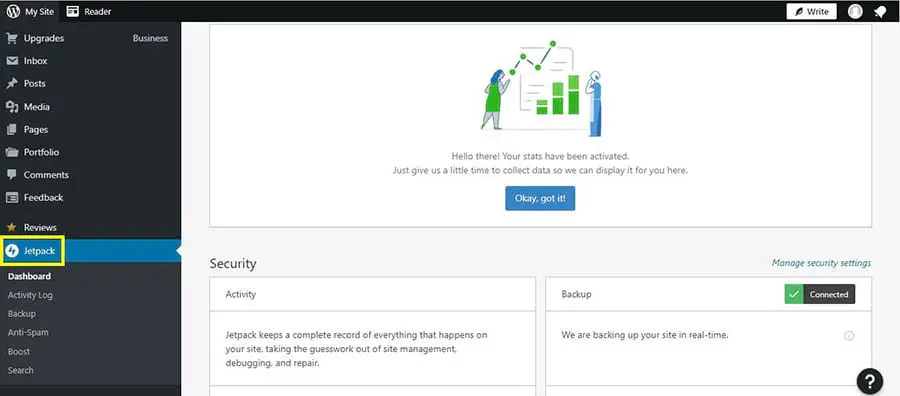
First, ensure that the Jetpack module is enabled by clicking on Jetpack in your WordPress dashboard:
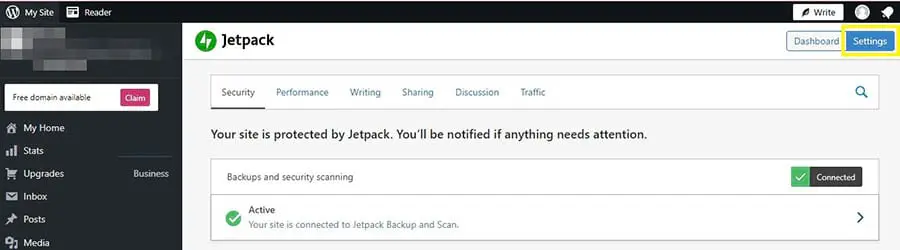
Then, select Settings:
Head to the Writing tab, scroll down to the Composing section, and activate Compose using shortcodes to embed media from popular sites:
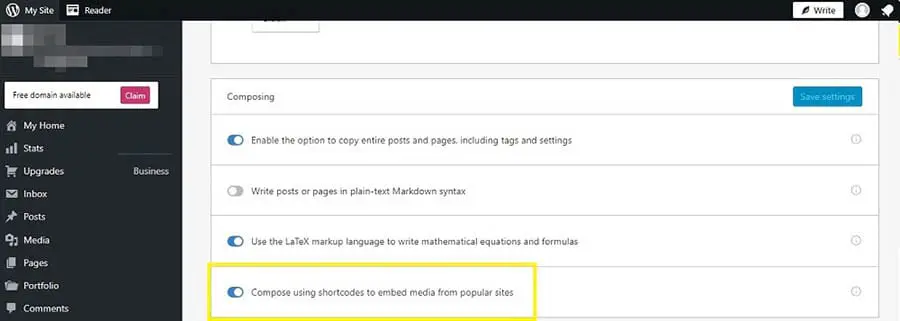
Once you have toggled this option, you can use the [tweet] shortcode to embed a specific post from X. Jetpack still calls the shortcode [tweet], and the steps haven’t changed since the screenshots below were captured under the platform’s old Twitter branding. Just copy the URL of the post and paste it within your shortcode brackets:
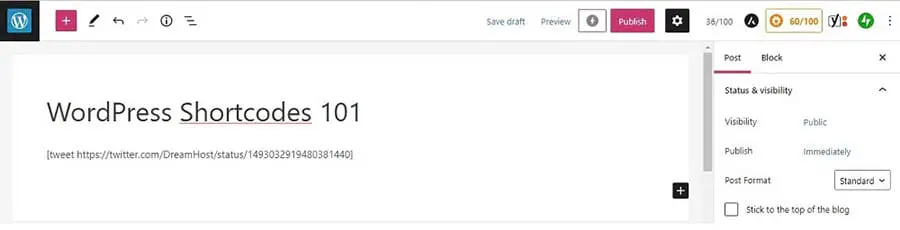
This will embed the linked post into your page. The result will look like this:
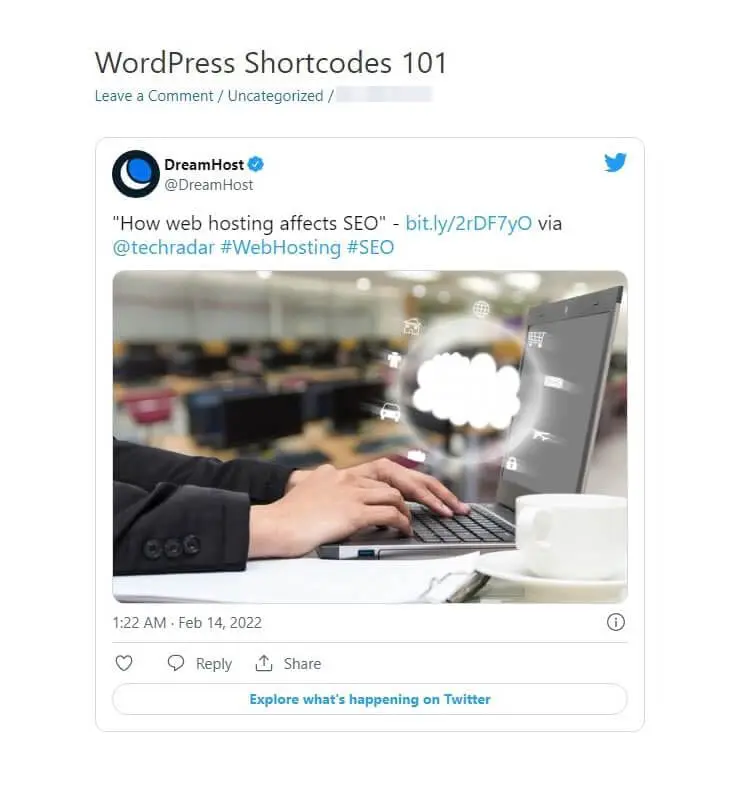
Jetpack’s additional shortcodes can embed a host of other media into your content. Some of the most useful, by category:
- Video and audio: [youtube], [vimeo], [ted], and [twitchtv] embed video players; [spotify], [soundcloud], and [bandcamp] embed playlists and tracks (useful for podcast show notes).
- Images and documents: [instagram] embeds a photo, [googleapps] embeds Google Docs, and [slideshare] embeds a slideshow.
- Forms, posts, and more: [contact-form] shows a Jetpack contact form, [recipe] embeds a recipe, [archives] displays an index of your blog posts, and [googlemaps] embeds a map.
2. Gutenberg shortcodes
Gutenberg blocks make adding dynamic content into your posts even easier. The Block Editor enables you to change individual sections easily and apply block-specific settings and formatting rules without using plugins.
The Gutenberg editor has evolved to make it even easier to put together WordPress posts and pages, and it offers a user-friendly way to insert shortcodes. Our advice: use a dedicated block whenever WordPress or your plugin provides one, and reach for the Shortcode block when a plugin feature, custom callback, or piece of legacy content has no equivalent block. Blocks give you better visual controls; shortcodes are more portable, but they can end up orphaned if the plugin behind them goes away.
For example, you could use a Gutenberg block to embed the post from our previous example instead of a shortcode. You only need to click on the + icon and select the Twitter block:
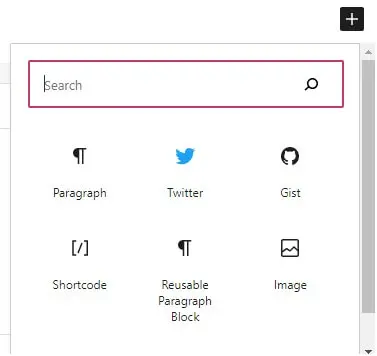
This method lets you paste the post’s URL directly into the block without writing the shortcode in square brackets.
Furthermore, the Gutenberg Block Editor features a Shortcode block. It enables you to manage your snippets in the visual editor without writing the code directly in HTML.
Gutenberg also lets you create synced patterns (the WordPress 6.3 replacement for reusable blocks), which can come in handy for using the same content snippets in your posts. We can demonstrate this concept with a social media CTA that you might use at the end of posts that you may write on your site.
You can start by selecting the Shortcode block from the pop-up:
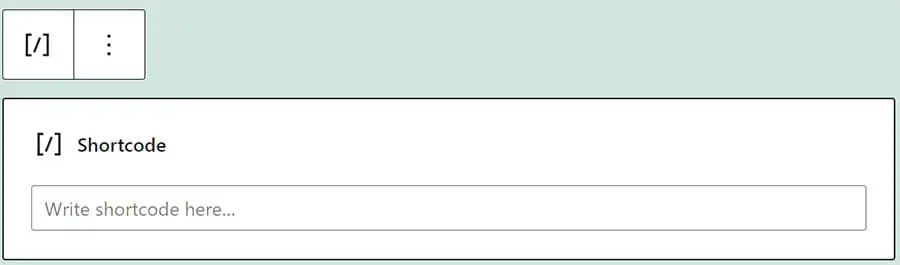
Then, once you’ve added your CTA snippet, click on the three dots for an options menu and select Create pattern. Give the pattern a name, turn on the Synced toggle, and click Create.
Your snippet is saved as a synced pattern, available from the Block Inserter’s Synced Patterns section (the crossing-rhombus icon) anywhere on your site, including posts, pages, and widget areas. Edit the pattern once from Options > Manage Patterns, and the change appears everywhere it’s used.
3. Plugin shortcodes
Different WordPress plugins also come with their own shortcodes. Dedicated shortcode-library plugins bundle dozens of ready-made content elements: Shortcodes Ultimate, for example, includes 50+ shortcodes for tabs, accordions, buttons, columns, sliders, and post lists, and works in the Block Editor, Classic Editor, widgets, and template files.
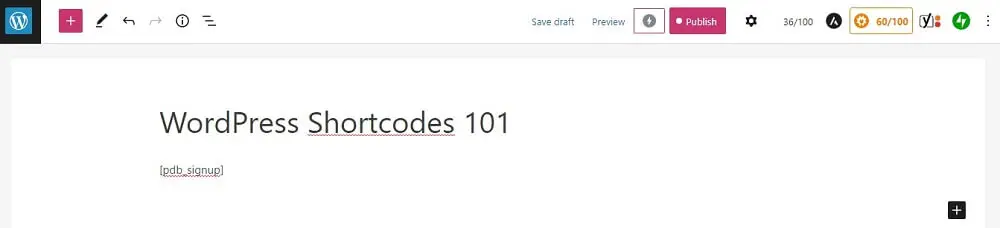
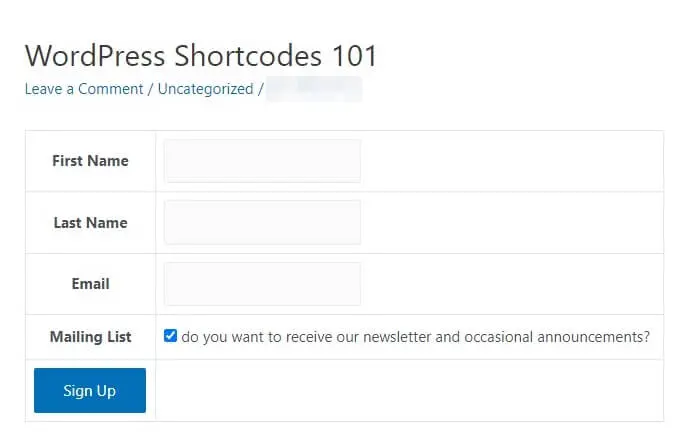
Other plugins provide shortcodes for one specific job. For instance, you can get ready-made shortcodes for signup forms from the Participants Database plugin. You could simply type [pdb_signup] to insert a signup form into a post:
The form will then display on the front end:
If this interests you, you can read more about other WordPress plugins that can enhance your website.
However, remember to keep your WordPress shortcode plugins updated. Doing this can ensure that your site runs as fast as possible and isn’t vulnerable to security threats.
Troubleshooting: when a shortcode shows up as plain text
One caveat with plugin shortcodes: they only render while the plugin that registers them is active. Deactivate or delete the plugin, and WordPress has no handler for the tag, so visitors see the raw bracketed text right on the live page. The WordPress developer reference flags exactly this: when no shortcode tags are defined, “the shortcode will still show up in the post or content.”
To clean up these orphaned shortcodes, search your content for the leftover tag (the search box on your dashboard’s Posts screen will find it), then either remove the tags or reactivate the plugin that provided them. If you’re switching from one plugin to another, remember to swap the old tags for the new plugin’s shortcodes, too.
4. Custom shortcodes
If you need even more functionality from shortcodes, it is possible to create custom ones. They can be valuable tools for developers looking to reduce time spent on repetitive coding.
You should note that creating custom shortcodes requires some technical knowledge. If you don’t feel confident with coding, you may want to stick to one of the other strategies we mentioned. An AI assistant can also draft the add_shortcode() boilerplate for you — just review and test the code on a staging site before it goes anywhere near your live one.
If you want to try this method, consider using a generator such as GenerateWP to assist with formatting your code from scratch. You may fill out different attribute fields to modify the element’s appearance to your liking.
You can then implement these shortcodes using the add_shortcode function:
add_shortcode( string $tag, callable $callback )
Here’s what that looks like as a complete, working example, adapted from the add_shortcode() documentation. It registers a [dh_greeting] shortcode, sets a default for its one attribute with shortcode_atts(), and returns the output:
add_shortcode( 'dh_greeting', 'dh_greeting_func' );

function dh_greeting_func( $atts ) {
    $atts = shortcode_atts(
        array(
            'name' => 'friend',
        ),
        $atts,
        'dh_greeting'
    );

    return 'Hello, ' . esc_html( $atts['name'] ) . '!';
}
Now [dh_greeting name=”Ana”] prints “Hello, Ana!” on the page, and a bare [dh_greeting] falls back to “Hello, friend!” Two rules from the WordPress documentation keep custom shortcodes healthy: always return your output instead of echoing it, and prefix your shortcode name (that’s the dh_ here) to avoid collisions with other plugins. Add the code to a child theme’s functions.php file or a code snippets plugin so it survives theme updates.
However, if you don’t feel comfortable creating a custom shortcode from scratch, there is another way! You can contact our custom web development services team, and we can assist you:

Using DreamHost Pro Services, you just need to fill out a web development request. We will ask you a few simple questions about your website and requirements. Then, we can get to work on implementing your changes on a staged version of your site. Once you have approved the final adjustments, we can apply the new code to your live website!
FAQs about WordPress shortcodes
Why is my shortcode showing as plain text instead of working?
The plugin that registers the shortcode is probably deactivated or deleted. WordPress only replaces a shortcode that has an active handler; without one, visitors see the raw bracketed tag. Reactivate the plugin, or remove the leftover tags from your content.
What’s the difference between a shortcode and a block?
A block is a visual element you add in the WordPress editor, while a shortcode is a text macro that WordPress swaps for dynamic content when the page renders. Blocks now handle most embeds, but many plugins still deliver their features as shortcodes.
How do I find a plugin’s shortcode?
Check the plugin’s documentation or its settings pages in your WordPress dashboard — most shortcode-based plugins list their tags and attributes there. Then paste the tag into a Shortcode block wherever you want the output to appear.
Are shortcodes still used in WordPress?
Yes. WordPress still ships six built-in shortcodes, the add_shortcode() function remains fully supported, and many popular plugins deliver features as shortcodes. Blocks cover most everyday embeds, but shortcodes remain the standard way to drop plugin output and custom dynamic content into your pages.
Can I use shortcodes in widgets or theme files?
Yes. Shortcodes work in widget areas, and developers can render them inside theme template files by passing the tag to WordPress’s do_shortcode() function.
Use WordPress shortcodes to enhance your content
Shortcodes can add reusable dynamic features to your site without cluttering the editor, though blocks are usually the better choice when an equivalent block exists.
In this post, we have outlined four methods to use WordPress shortcodes on your site:
- WordPress default shortcodes
- Gutenberg shortcodes
- Plugin shortcodes
- Custom shortcodes
If you feel like you don’t have the technical expertise or the time to write shortcodes or Blocks, don’t worry! You can check out our Website Development Pro Services to learn how we can customize your site with high-quality code.


You Dream It, We Code It
Tap into 20+ years of coding expertise when you opt for our Web Development service. Just let us know what you want for your site — we take it from there.
Learn More