Houston, we have a problem. Your arch nemesis has been posting amazing videos lately. They’re killing it on the socials.
You know they haven’t got the budget for a film crew. They must be using Veo.
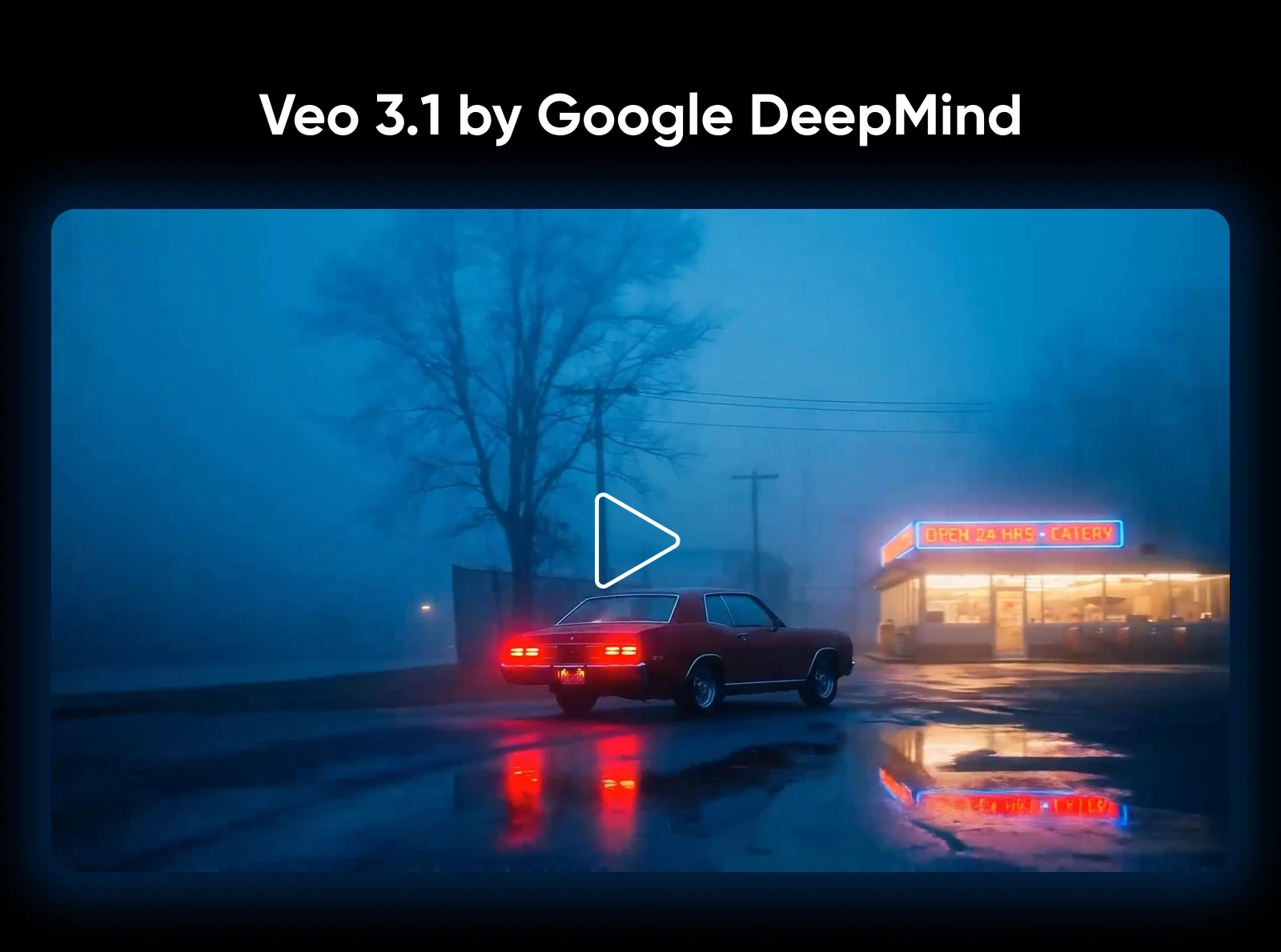
This AI video generator from Google lets you generate movie-grade footage by simply typing in text prompts.
But how are they getting such good results? Every time you try Veo, the results are underwhelming.
Here’s the harsh reality: you probably need to upgrade your prompting game. You can’t just enter “make a promo video for my product” and expect a great outcome.
The good news is, learning how to prompt Veo isn’t rocket science. Give us five minutes, and we’ll explain it right here!
How Does Veo 3.1 Work?
Veo 3.1 uses Google’s AI technology to interpret your text request and build a matching video, frame by frame. Veo can produce clips up to two minutes long at full 1080p resolution.
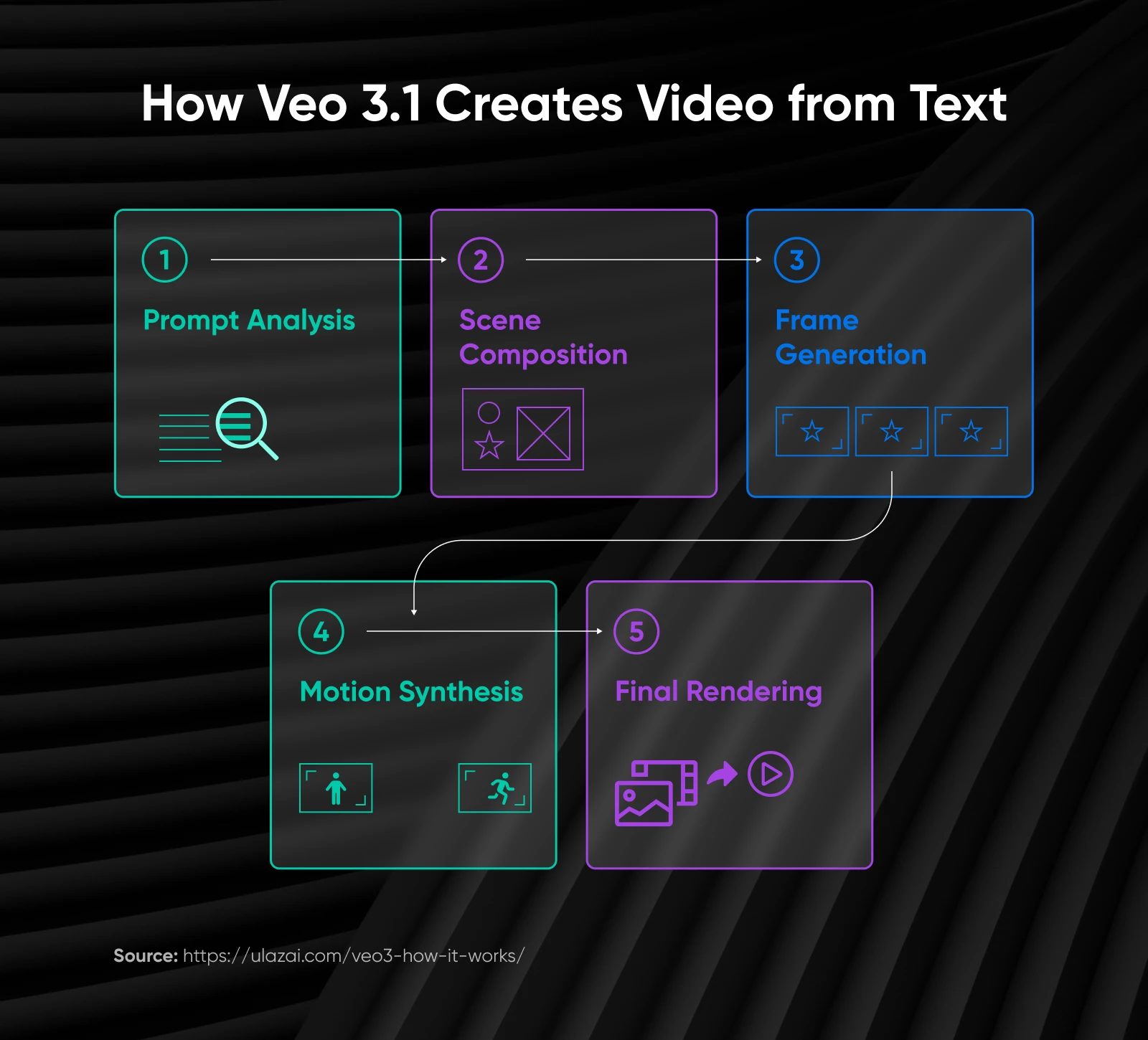
While Google has not released the technical documentation for VEO at the time of writing, we’re pretty sure the process looks like this:
- Prompt analysis: Veo breaks down your text into visual components.
- Scene composition: The AI maps out subjects, the environment, and camera positioning.
- Frame generation: Individual frames are created through an iterative noise-to-signal process.
- Motion synthesis: The model creates realistic movement between frames.
- Final rendering: You receive a polished, downloadable video clip.
How Do You Access Veo 3.1?
To use Veo, you’ll need a Google AI Pro and AI Ultra subscription.
You can access the tool via Gemini, through the Flow AI storytelling editor tool, or through Google Vids.
It’s also possible to use Veo through Vertex AI, Google’s cloud computing platform. But this method is a little more tech-y.
What’s the Secret to Good Veo Prompting?
Through loads of testing, we’ve learned that Veo 3.1 produces the best results when you prompt like you’re directing a shot, not just describing a scene.
The best Veo prompts are also highly specific, and they include six key ingredients:
- Your subject and the action
- Visual style
- Camera work
- Lighting and atmosphere
- Setting and environment
- Technical details
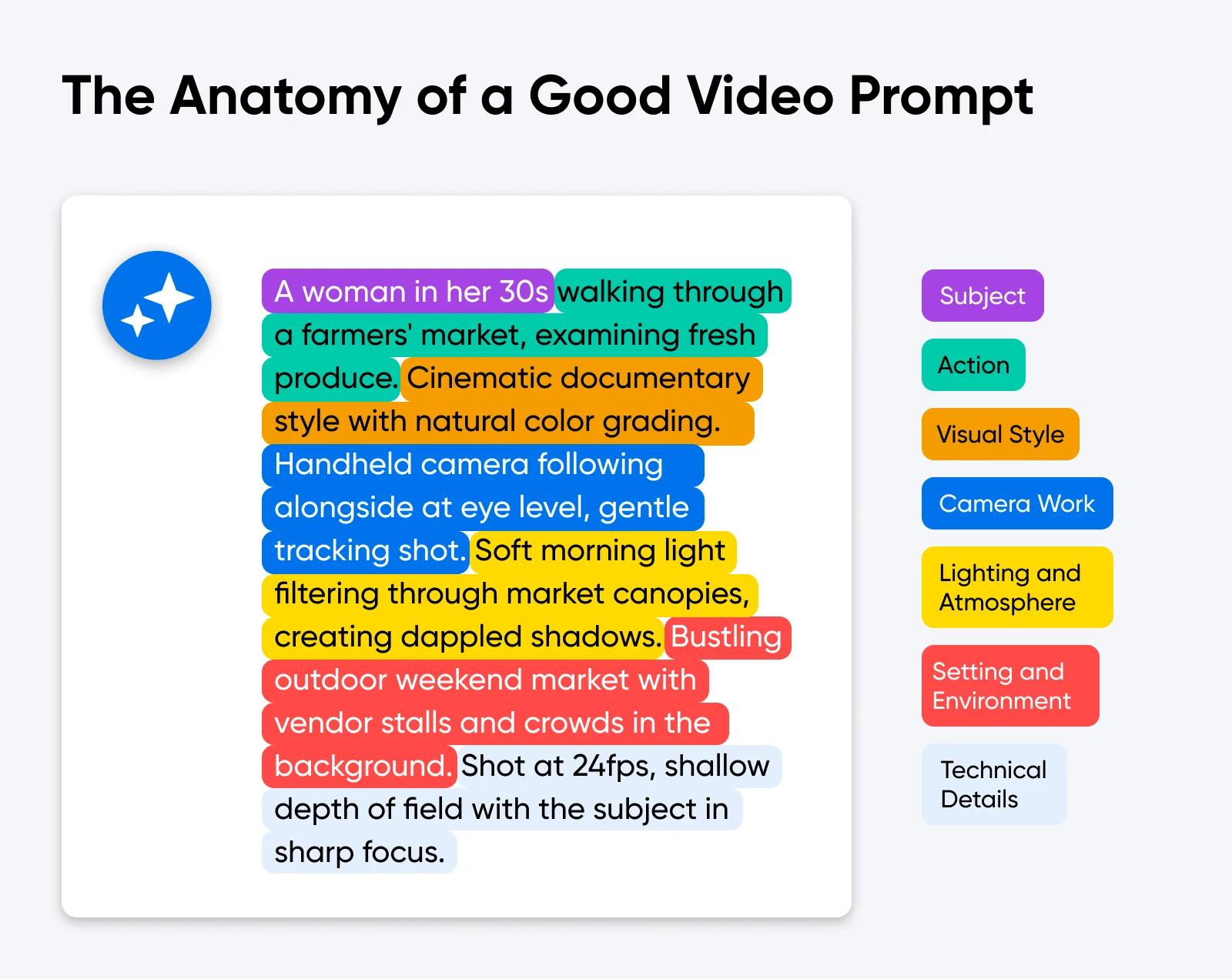
Hmm, that’s a lot to think about. It’s easier to understand when you look at some examples.
An example of a bad prompt would be:
Person working on computer.
It’s generic, vague, and not detailed at all. You’re going to get some boring AI slop that a nine-year-old could create.
Now look at this prompt:
30-year-old woman in business casual attire typing on laptop at modern wooden desk, side angle medium shot, natural window lighting from left, focused expression, contemporary office with plants visible in background.
Instead of making Veo guess what you want, you’re actually giving instructions like a movie director (just minus the megaphone and the personalized folding chair).
As a result, the output will be way more polished.
How To Build Good Veo Prompts?
The best Veo prompts include information about the subject of the video, what’s happening in the scene, the wider environment, and how it should all be captured.
Google has a Veo quickstart guide that talks about these elements, but it’s quite brief. To fill in the gaps, let’s take a closer look at the key ingredients.
1. Subject and Action
Start by telling Veo about the main subject in your video and what they’re doing. The more descriptive, the better.
One technique that can help: imagine you’re on a phone call with someone and you’re trying to describe the scene so they get a complete picture. No detail is too small: age, clothing, expressions, the lot.
Example: Confident chef in white uniform chopping fresh vegetables on bamboo cutting board.
💡Pro tip: Rather than trying to describe the entire scene in one prompt, we find it’s more effective to break the action into “beats” — individual shots that build a story. Here are some key examples to try:
- Establishing shot: Sets the scene. Usually wide-angle.
- Push-in reveal: The camera moves through the scene to eventually land on the subject. Builds the tension for a big reveal.
- The reaction: When your subject notices something, the viewer sees it too.
- The payoff: After the action, we see the conclusion. Great for showing what happy customers look like!
- POV: Simulates being in the scene. Makes your videos feel more real and immersive.
- Transition shot: Scene that creates continuity between one clip and the next.
These shots are your storytelling toolkit. Combine them to make clips that feel more like mini movies!
2. Visual Style
What cinematic style are you hoping for?
Veo can produce anything from cartoon animation to gritty photorealistic scenes straight out of a documentary. It can even tweak the final video to your color and tone preferences. You just need to ask!
Examples:
- shot on 35mm film, high contrast
- Pixar-style animation, warm tones
- corporate video aesthetic
3. Camera Work
Even though you’re not using a real camera, Veo 3.1 still lets you get behind the lens.
You can ask for any type of shot, from an overhead view of an entire city to a close-up of an individual flower. You can control the movement and framing, as well.
Examples:
- Eye-level, tracking shot
- Wide-angle, slow zoom
- Extreme close-up, pull focus
💡Pro tip: Veo understands the language of professional cinematography, so it’s worth learning these terms and using them in your prompts, because they give you greater control over the finished video. Here are some techniques to try:
- Slow pan: Lets viewers take in the full scene, while noting the details.
- Dolly-in: Camera moves smoothly toward the subject. Make it quick for drama, or gentle to draw the attention subtly.
- Parallel trucking: The camera runs alongside the subject, like the side-on view you see in movie car chases. Creates a sense of speed.
- Handheld urgency: Simulates the shake you get from moving while filming with a phone or camcorder. Makes viewers feel like they’re in the action.
- Crane shot: Elevates the camera, so you can see the wider context or landscape.
- Whip‑pan cut: Transition between scenes where the camera swings sideways at speed, creating blur. Good for dynamism.
You can combine these terms like this:
Medium eye‑level shot with gentle dolly‑in ~10% over 4 seconds, maintain subject centered
4. Lighting and Atmosphere
Do you want your video to be light and floaty? Or do you prefer dark and brooding? Veo 3.1 can do both — and everything in between.
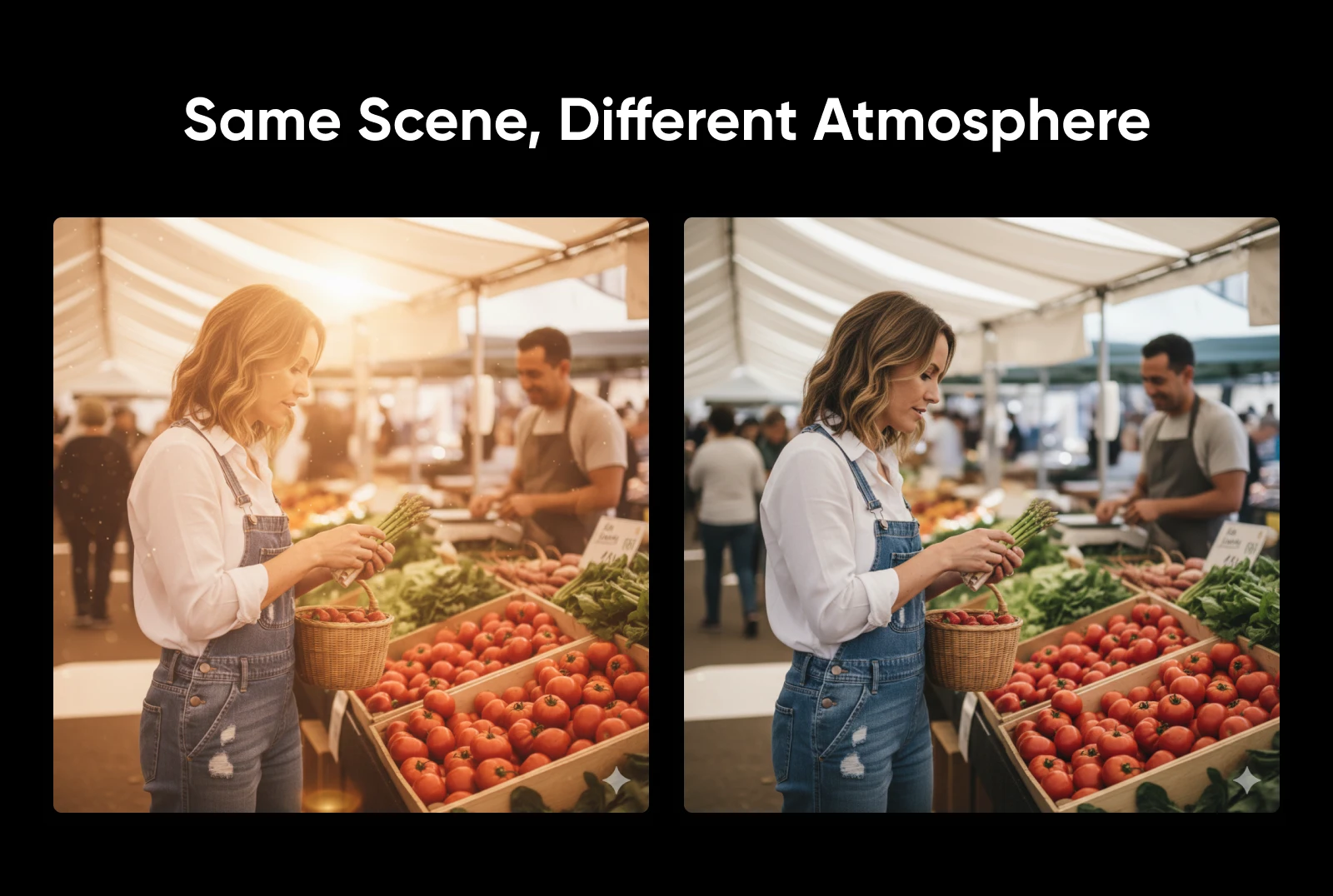
It’s not just the mood, either. You can ask Veo to use specific types of lighting, whether it’s the warm tones of the setting sun or the glaring spotlights of a studio.
Examples:
- Bright and cheerful
- Soft and intimate, natural window light
- Moody and dramatic, side lighting
💡Pro tip: Once again, we can call on the language of professional cinematography. Here are some more key terms to sprinkle into your prompts:
- Low-key: Aka minimal lighting. Often used to create mood, with a single lamp lighting the scene.
- Noir: A dark, dramatic lighting style used in classic thrillers. Often includes low-key lighting.
- High-key: The opposite. Floods the scene with brightness, either from a studio setup or natural light. Makes things feel happy and airy.
- Cool/warm practicals: These are light sources visible to the viewer, such as headlamps on a car. Cool sources tend to make things feel chilly, while warm practicals create a cozy feel.
- Motivated lighting: This light comes from sources the viewer can’t see, such as a streetlamp casting light down on a person at night.
- Backlighting: As the name implies. Puts the subject into shadow, so their outline is more noticeable.
- Haze: When combined with backlighting, hazy conditions create a real sense of atmosphere.
Here’s how you could combine them in your prompts:
Low‑key noir with motivated LED backlighting, deep shadows, dusty haze
Want more examples? The folks at Skywork made an amazing guide to shot lists, camera work, and lighting.
5. Setting and Environment
Once you’ve dealt with the details, tell Veo about the bigger picture.
Set the scene. Explain where the main subjects are and what’s in the background. Again, try to be as descriptive as possible.
Example: Busy futuristic city street, neon lights, traffic, after dark
6. Technical Parameters
To round off your prompt, give Veo some tech specifications for the finished video.
For instance, you can ask for clips of a certain length or cropped in a specific aspect ratio. You can also set the overall pacing of the clip and choose the depth of field for sharp focus.
(Note: Right now, VEO 3.1 can create clips of 4, 6, or 8 seconds at up to 1080p resolution. You can choose between 16:9 and 9:16 aspect ratios.)
Example: 8-second timelapse, shallow depth of field, 9:16 portrait ratio
Putting It All Together
Let’s throw all those ingredients into a mixing bowl and make something visually delicious.
Here’s a textbook example of a full prompt that hits all the essentials, and adds some seasoning:
Barista in casual denim apron carefully pouring steamed milk into ceramic mug creating latte art, hands moving slowly and deliberately showing the swirl pattern forming, focused concentration on the pour, early 30s with tied-back hair, warm documentary style with slightly desaturated colors giving authentic local café aesthetic, shot on 35mm film look with subtle grain, inviting and genuine rather than overly polished, medium close-up shot at 45-degree angle to the work surface, camera slowly pushes in from medium to close-up of the latte art as it forms ending with detailed view of finished rosetta pattern, soft early morning golden hour light streaming through large windows from camera left, warm and inviting with natural shadows, dust particles visible in the sunbeams creating cozy café atmosphere, professional espresso bar with dark wood counter, copper espresso machine partially visible in background blur, shelves with ceramic mugs and coffee equipment softly out of focus, plants near window, comfortable neighborhood café environment, 7 seconds, real-time motion speed, shallow depth of field keeping focus on the milk pour and latte art, vertical 9:16 format for Instagram Reels
Perfect? No.
But it’s a great starting point, and it only took about one minute to generate.
How Do Creators and Small Businesses Actually Use Veo 3.1?
The main benefit of using Veo is that you can create videos that would be too expensive to have produced professionally.
For instance, most creators and small business owners don’t have the resources to hire a crew for every social media post. But they can afford a Google subscription.
Here are some real-world examples of how content creators and entrepreneurs use Veo:
Teaser Video for a New Online Photography Course
Say you like taking photos of spiders. You’re really good at it, actually. So, you decide to create a course to help all the arachnophiles on this planet capture better shots.
You’d want to promote the course ahead of release, of course. Here’s how you could use Veo to create a cool little teaser:
Photographer’s hands holding professional DSLR camera with large macro lens carefully positioning it close to delicate spider web covered in morning dew droplets, small garden spider visible on web with intricate detail, close-up of fingers making precise adjustments to focus ring and aperture controls, soft early morning golden light creating beautiful bokeh and illuminating the web strands, passionate careful movements showing expertise in macro photography, documentary style shot on 35mm film aesthetic with rich natural colors, side angle medium shot showing photographer’s deliberate positioning then moving to extreme close-up of camera LCD screen displaying the spider web composition, peaceful outdoor garden environment with plants softly blurred in background, professional yet approachable atmosphere for nature photography, 8 seconds, real-time speed showing patient deliberate technical adjustments needed for macro work, very shallow depth of field with dreamy background blur, 16:9 landscape format
Tips:
- Use a voiceover to explain what students will learn about macro photography and working with spiders, then add text overlays with key course modules.
- Combine AI footage with 10 seconds of real footage showing your actual face and your best real spider photos to prove your expertise.
Website Video for a Freelance Bookkeeper
Imagine you offer bookkeeping services to local clients, and your business is taking off. It’s about time you had a professional website. (Psst… DreamHost offers flexible hosting at a price any small business can afford).
The design and copy are looking good…but there’s something missing. Ah, we know! It’s a video to hook visitors. Here’s how you could create a great intro video:
Confident professional woman in early 40s wearing smart business casual attire sitting at organized modern desk with laptop, warm genuine smile looking directly at camera position with approachable friendly expression, natural conversational posture with hands visible resting on desk, contemporary bright home office environment with bookshelf and indoor plants in soft background blur, natural window lighting from camera right creating soft highlights on face and professional glow, clean organized workspace conveying competence and attention to detail, medium close-up framing from mid-torso up showing professional yet personable presence, static camera at eye level creating direct connection with viewer, welcoming atmosphere that builds trust, Pixar-style animation with warm color tones, 8 seconds, real-time natural breathing and subtle movements showing authentic personality, medium depth of field keeping subject sharp with tasteful background softness, 16:9 landscape format for website embedding
Tips:
- Mute the AI video and overlay your real voice introducing yourself and your services (the professional presence matters more than perfect lip-sync).
- Add text overlays throughout, highlighting your credentials.
Promotional Clips for an Author’s New Book
Maybe you’re an aspiring author. To sell your new book, you need to make people curious about the contents. You could publish the first chapter, but that would still require a time investment — and it’s not very social-media friendly.
What if you created a video version of the best scenes in your book with Veo? Here’s what it might look like:
Dimly lit vintage library interior with floor-to-ceiling bookshelves filled with old leather-bound volumes, antique reading lamp casting warm pool of light on mahogany desk covered with scattered old letters and photographs, mysterious atmosphere with dust particles floating in lamp light, ornate magnifying glass resting on handwritten note, shadows creating intrigue in corners of room, rain visible through tall Gothic window in background, moody cinematic aesthetic with rich warm tones and deep shadows like classic mystery films, camera slowly pushes in from wide establishing shot to close-up of the mysterious documents on desk, suspenseful contemplative mood evoking secrets and discovery, 8 seconds, real-time motion with occasional paper flutter from unseen breeze, shallow depth of field with background gently blurred creating intimate focus on the clues, 16:9 landscape format.
Tips:
- Generate atmospheric scenes that directly represent key settings from your book to give viewers a visual taste of your story world.
- Create 15-second, 30-second, and 60-second videos for different platforms by combining multiple VEO-generated clips, and always include real footage showing your actual book cover at the end.
Background Video for Dog Trainer Testimonials
As a dog trainer, your services are getting glowing reviews. You want to share some of these testimonials on social media, but text alone isn’t very engaging.
To make the quotes more eye-catching, you could use Veo to create a background video that matches the theme of your business:
Spacious bright dog training facility interior with professional rubber floor mats and colorful agility equipment including jumps, tunnels, and weave poles arranged in background, large windows with natural sunlight flooding the space, clean modern training center with positive welcoming energy, training treats and toys organized on shelves, motivational dog training posters on walls, some training cones and markers placed around space, contemporary converted warehouse with high ceilings and excellent lighting, camera slowly pans right across the empty facility showing the complete professional setup ready for training sessions, uplifting active atmosphere perfect for testimonials about dog training success, documentary style with crisp clean aesthetic emphasizing the professional legitimate business environment, medium-wide shot showing breadth and quality of facility, even bright lighting throughout creating trustworthy commercial feel, 8 seconds, slow steady panning motion revealing the full training space, deep focus keeping entire facility sharp and clearly visible, 16:9 landscape format.
Tips:
- Experiment with different training environments so your testimonial videos have variety and don’t look repetitive.
- Add subtle blur to keep the testimonials in the spotlight, and include text in the lower third, with client and dog names.
5 Proven Veo Prompt Templates You Can Remix
The most effective Veo 3.1 prompts tend to follow tried-and-tested formulas.
In other words, you don’t need to come up with something unique for every video — you can just tweak something that has worked well before.
Here are some common examples you can remix for your own content:
1. The Product Demo Video
Veo 3.1 can’t make videos about your specific product, but it can show off the benefits of that type of product. These clips are great for launch teasers and social content.
Structure: [Person] using [product category] in [realistic scenario], [clear view of interaction], [appropriate setting].
Example: Professional woman in modern kitchen preparing fresh salad using sharp chef’s knife on bamboo cutting board, overhead shot showing hands chopping colorful vegetables, bright natural morning lighting, clean organized countertop.
💡Pro tip: You can always do some video editing (see the Advanced Techniques section below) to add your branding to the Veo-made video.
2. The Happy Customer Video
How does your product or service make customers feel? You can use Veo to bring success stories to life. It can be a powerful marketing tool.
Structure: [Target customer] in [result state] within [relevant environment], [emotional indicators], [aspirational setting].
Example: Relaxed couple in their 30s sitting comfortably on modern couch in bright living room with moving boxes visible in background, relieved expressions after completing stressful task, afternoon sunlight through large windows, cozy organized space.
💡Pro tip: To make the scene seem credible, make sure it’s truly relevant to your product or service. For example, the prompt above would be perfect for a moving company.
3. The Process Video
In some niches, the end result isn’t everything. Customers want to know that you put some care and effort into what you do.
Filming your entire process might be a challenge, but you can give a sense of your method using Veo-made videos.
Structure: [Skilled hands/person] performing [detailed craft work], [multiple angles of process], [professional environment].
Example: Skilled hands of artisan carefully sanding smooth wooden furniture piece, close-up showing detail of wood grain and precise circular motions, workshop environment with tools visible in background, natural diffused lighting showing texture and craftsmanship
💡Pro tip: It’s not a good idea to deceive your customers. So, don’t pretend these clips are real. Present them as visual aids to understand the type of work you do.
4. The Seasonal Video
Running some holiday promotions? You might want a video with that. Veo lets you whip up seasonal clips to catch the attention of scrolling buyers.
Structure: [Seasonal environment/activity], [clear seasonal indicators], [relevant emotional tone].
Example: Busy retail shopping street during holiday season, people carrying wrapped gift bags and packages, storefront windows decorated with lights, early evening blue hour with warm shop lighting glowing, light snow falling, festive cheerful atmosphere.
💡Pro tip: Try making several of these in one session, each for a different holiday or seasonal event. Your future self will be eternally grateful.
5. The Educator Video
Find yourself explaining over and over again how your product works? Try creating an education video with Veo. Again, it won’t be branded, but that doesn’t really matter for getting your point across.
Structure: [Clear demonstration of concept or process], [step-by-step visual progression], [educational clarity].
Example: Cross-section view of home showing how heat escapes through windows and walls, thermal imaging effect with color-coded temperature zones, animated arrows indicating heat loss patterns, slow methodical camera movement explaining each area, educational documentary style.
💡Pro tip: Again, consider spending your budget on a high-quality voiceover. It will make all the difference!
What Are Some Advanced Veo Prompting Techniques?
By now, you’re probably creating some pretty good videos with Veo, but maybe you want to add a little polish or try something more ambitious. Either way, these advanced prompting techniques will help you unlock the full potential of Google’s AI video maker!
Start Simple and Iterate
Anyone who works with AI regularly will tell you: getting the perfect output on the first attempt is really hard.
Rather than trying to build the perfect prompt at the first attempt, we’ve found that starting with a simple prompt often produces better results. You can then tweak the formula and add specific requirements, bit by bit.
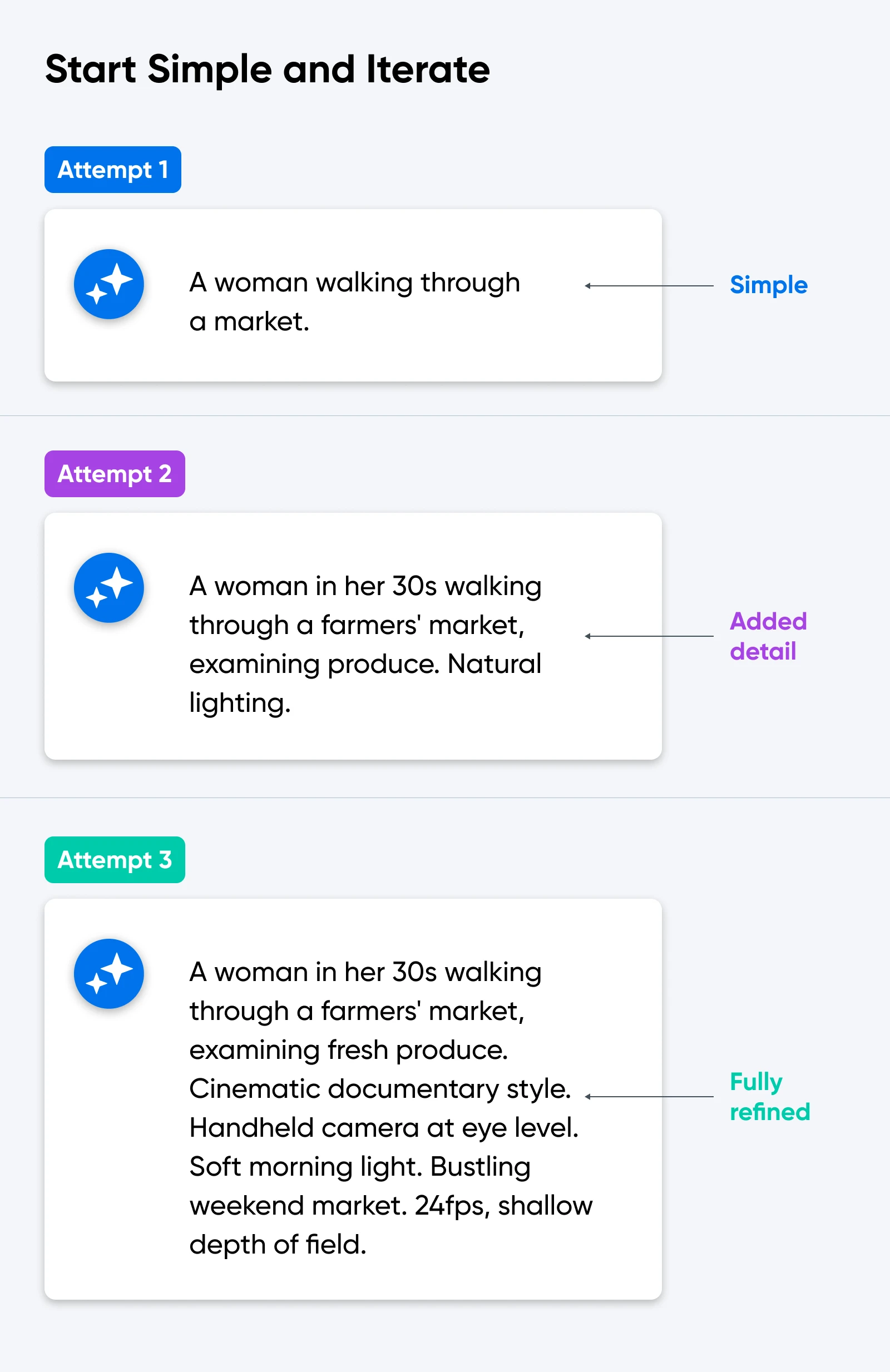
Once the output is close to what you want, it’s even worth running the exact same prompt through Gemini a couple of times. You’ll get a slightly different output each time.
Remember, making AI videos is a creative process. Don’t rush it.
Throw in Some References
Veo is like the most knowledgeable film history student of all time. It knows every director, cinematic effect, and artistic movement.
You can use this to your advantage by adding stylistic references to your prompts. You can even mention specific films.
Examples:
- Wes Anderson style
- Apple commercial aesthetic
- Film noir lighting
- Kodak Portra 400 color grading
Define What You Don’t Want
Veo 3.1 is smart enough to understand negative instructions in prompts. This means you can clearly define anything you don’t want to appear in the clips.
Negative commands are particularly useful when you’re trying to create something quite specific. Rather than asking Veo to guess what you want, you can simply rule out ideas that won’t satisfy your creative vision!
Examples:
- A road with no cars or trucks
- A bouquet with no red flowers
- A bookcase with no books on the shelves
Add Some Emotion
If you’re trying to build a scene that includes characters, it’s worth telling Veo which emotions you’re trying to convey.
Micro-actions work really well for this.
Example: “She looks up… he notices her… a pause… breath catches… eyes lock.”
That rhythm gives the model something “human” to build from.
Choose One Main Character
In our tests with Veo, we saw that the model produces its best work if you focus on a single character. Adding more complexity at the first attempt often results in weirdness.
If Veo nails the single-character scene, you can then try two-person interaction. We wouldn’t recommend going further; multi-subject scenes are still a weak spot.
Control Pacing and Rhythm
Do you want your generated videos to feel energetic or relaxed? The vibe will be heavily influenced by the pace of the action.
In your prompts, try telling Veo what pacing and rhythm you’re aiming for.
Examples:
- slow motion
- time-lapse
- contemplative and slow
- energetic and quick-cut
Take Control of Audio
As you start generating videos, you’ll notice that Veo 3.1 adds audio to every clip. It usually takes a good stab at matching sound to the pictures.
But why leave it to chance? You can just specify what soundtrack you want, right in your prompt. That includes dialogue, sound effects, and the ambient background.
Example:
A young boy says, “I’ve missed you so much,” with the sound of a train pulling away from a station and passengers talking in the background.
Add Real People to Your Videos
If you only use text prompts, Veo 3.1 will generate imaginary characters. But if you upload a reference image along with your prompt, you can ask Veo to create a likeness of a real person.
Here’s one simple technique from DreamHost’s resident AI expert, Tyler Hacker:
“I took a still photo of myself as the ‘start frame,’ and then took a cropped-in, close-up screenshot of myself as the ‘end frame.’ The final result was not just amazing but also hilarious.”
“If you take any still photo, you can:
1. Crop in
2. Take a screenshot once cropped in
3. Use the original photo at the start frame
4. Use the cropped-in screenshot as the end frame
5. Prompt Veo 3.1 to do a slow zoom (or dolly zoom for added coolness)”
Including real people in your video is still a bit hit and miss in Veo 3.1. But as a general rule, adding more reference images tends to produce better results.
Use Veo With Flow
Using Veo through Gemini is great when you’re getting started, because the interface is pretty simple.
Once you start coming to grips with the tool, we’d recommend moving to Flow. This video editing tool lets you combine Veo-generated clips into longer videos.
It also allows you to insert custom visual elements (known as “Ingredients”) into your clips. That includes your own branding, pictures of your product, and images you’ve generated using AI.
👉Check out some short films made using Flow and Veo here.
Learn From the Experts at Google
With the release of Veo 3.1, Google actually published a helpful guide that includes some advanced filmmaking techniques.
It’s essential reading for anyone who wants to get really ambitious with Veo!
Adding Veo to Your Marketing Toolbox
In the right hands, Veo is a powerful tool for creating video content — it’s fast, flexible, and much more affordable than professional video production.
To get the most out of Veo, keep in mind the principles we’ve learned:
- Make your prompts detailed and descriptive.
- Include the subject, action, style, camera movement, lighting, mood, environment, and tech specs.
- Don’t expect perfection on the first attempt; keep iterating.
- Reference well-known styles you like.
- Avoid creating videos that mislead your audience.
- Use regular video editing techniques to add the finishing touches.
Give it a go — we can’t wait to see your Veo-made videos!

Get More Visitors, Grow Your Business
The best-designed site is worthless if no one can find it. Leverage proven online marketing strategies and techniques to help more of your target audience find you.
See MoreVeo Video Prompting FAQs
Still curious about Veo? We have you covered! Here are some common questions about the tool:
How long does it take to generate a video with Veo 3.1?
Generation typically takes 3-10 minutes, depending on video length and complexity. More detailed prompts with complex movements tend to take a little longer.
Can I use Veo-generated videos commercially?
According to Google’s current terms, content generated with Veo 3.1 can be used for commercial purposes — but always check the latest usage guidelines before publishing.
What’s the maximum video length Veo 3.1 can create?
Veo 3.1 can generate videos up to two minutes long in a single generation. For longer content, you’ll need to create multiple clips and edit them together.
Do I need special skills to use Veo 3.1?
No technical skills required, but an understanding of basic cinematography and visual storytelling principles is a huge advantage.
Can Veo 3.1 include text or logos in videos?
Text generation in AI video is improving, but it’s still pretty janky. Instead, we’d recommend adding text overlays and logos using standard video editing software.